Orange
“An orange indicator means the microphone is being used by an app on your iPhone.” Something is listening — and if the camera were being used too, the indicator would be the green one instead.

Software · guide
By Alberto Gulotta · Updated · 11 min read
An orange dot on iPhone is not something that has gone wrong and not something to be dismissed. It is a status indicator with a precise published meaning, and there is a second one beside it that means something looser.
Orange
“An orange indicator means the microphone is being used by an app on your iPhone.” Something is listening — and if the camera were being used too, the indicator would be the green one instead.
Green
“A green indicator means either the camera only or the camera and microphone are being used by an app.” Something is looking — and it may also be listening.
Apple introduced both with iOS 14, and the reason they exist is stated on the same page as the permission settings: “Before apps use the camera or microphone on your iPhone, they’re required to request your permission and explain why they’re asking.” The dots are the running proof of that arrangement — a permission you granted once, reported every time it is used.
“A green indicator means either the camera only or the camera and microphone are being used by an app on your iPhone.”
Read that carefully and the two dots turn out not to be equally informative. Orange is precise: microphone, no camera. Green is ambiguous by design — it covers a camera on its own and a camera with the microphone, and there is no third colour to tell them apart. So a green dot answers “is the camera on” and does not answer “is it also hearing me”, which is usually the question people are actually asking when they notice it.
The other phone system does the same job and publishes the timings — and what follows is a statement about Android, not about your iPhone. The Android Open Source Project documents indicators for three kinds of access rather than two: “camera and microphone access” and “location access”. It also attaches numbers where Apple uses words. On Android, “microphone and camera usages are considered active if they’re either marked by the system as running, or are less than five seconds old”. On Android, the mark changes shape as it goes: “an icon shows first, then transitions to a dot that persists until the app is either dismissed or closed”. And on Android a faded mark has its own meaning, because “recent access indicators show that an app accessed data during the prior 15 seconds (or 20 seconds for location data), but that the app isn’t active”. None of that describes an iPhone and none of it should be used to guess what an iPhone is doing. It is quoted here for one reason: it shows what the same design decision looks like when the timings are written down.
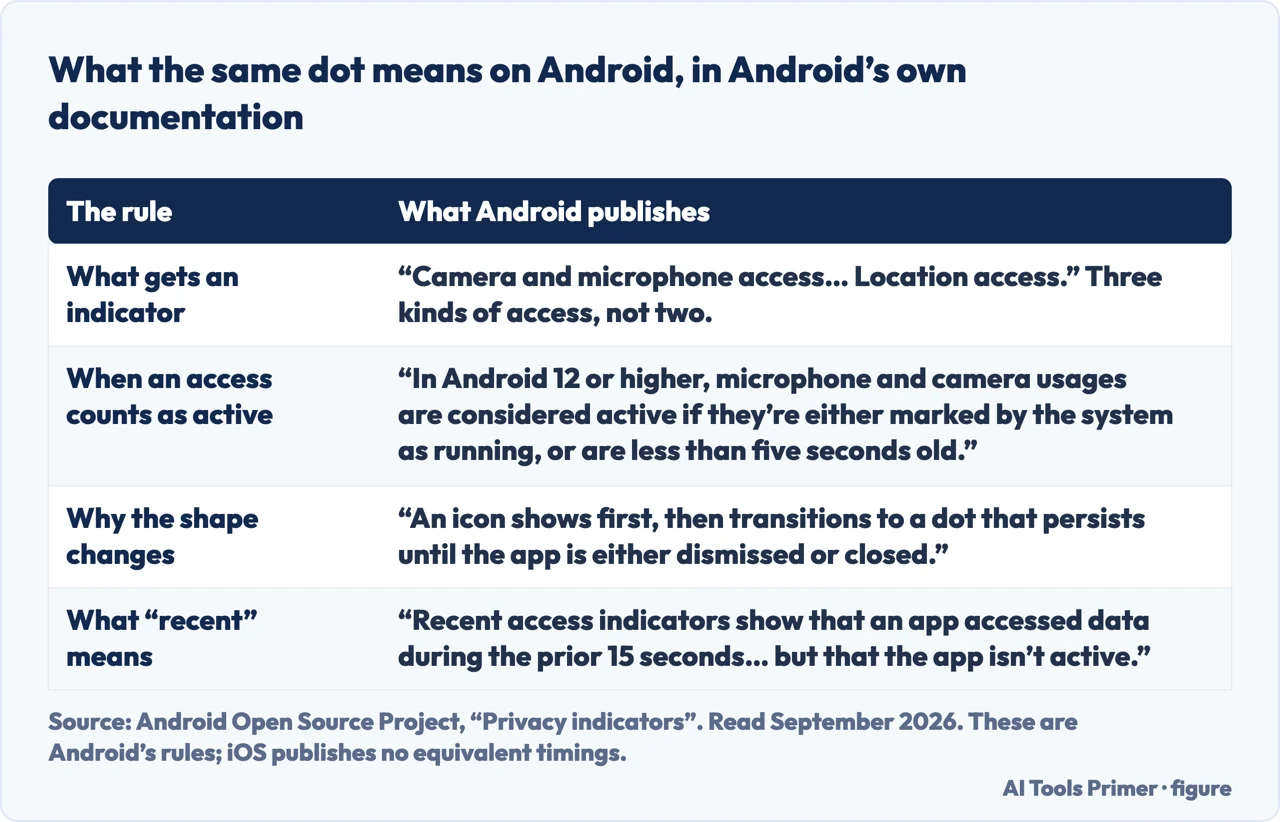
Which makes orange the more useful of the two to see. An orange dot narrows things down immediately: an app is listening, no app is watching. Dictation, a voice note, a call, a recording feature you left running. Green is broader and needs the next step to resolve.
“A message appears at the top of Control Center to inform you when an app has recently used either.”
This is the sentence that turns the dot from an alarm into information, and it is the part almost nothing mentions. The indicator tells you that something happened; Control Center tells you what. Swipe it open and the name is at the top — including after the fact, which matters, because the dot is often noticed a second after it has already gone.
Where the permissions actually live
Not a dot to switch off — a list of apps that asked.
Notice what that list actually contains: “the apps that requested access”, not the apps currently using it. It is a record of who asked, and it is where an answer that surprised you in Control Center becomes a decision. Apple applies the same arrangement beyond the camera and microphone — Bluetooth, motion and fitness sensors, and devices on your local network each have their own list of apps that asked.
If it is a square rather than a dot. Apple: the orange indicator “appears as an orange square if the Differentiate Without Color setting is turned on in Settings → Accessibility → Display & Text Size”. So a square is not a different warning and not a bug — it is the same microphone indicator, redrawn for people who should not have to rely on colour to read it. Worth knowing mainly because a shape you have never seen before is exactly the kind of thing that sends someone searching for a fault.
What this page will not do is tell you how to turn the dots off. Apple documents what they mean and does not document a way to remove them, which is the answer to the question rather than an omission: an indicator you could switch off would not be an indicator.
It also will not tell you that a dot means you are being spied on. It means an app used a permission you gave it. Control Center will name the app, the permission list will show whether you meant to give it, and both of those are better than a suspicion.
And it will not cover the same indicators on iPad or Mac. Apple’s page here is written for iPhone, the wording differs elsewhere, and this site quotes what it has read.
The guides below go three ways: the other markings on that screen, what the permission lists control, and the neighbouring settings that change how the phone looks without anything being wrong.
Three ways in. If you want to know which app, take the second.
Orange is precise and green is deliberately broad. Knowing which is which tells you how much the screen has actually told you.
The indicator reports that something happened. Control Center reports what — including after the dot has gone.
Camera, Microphone, Bluetooth, Local Network — each with its own list of apps that asked, and a switch beside every one.
Not covered here. It will not tell you how to turn the dots off. Apple documents what they mean and no way to remove them, and an indicator you could switch off would not be one.
It will not tell you a dot means you are being spied on. It means an app used a permission you gave it, and two screens will tell you which app and whether you meant to.
And it will not cover the same indicators on iPad or Mac. Apple’s page is written for iPhone, and this site quotes what it has read. What holds instead is simple: the dot is a report and not a fault because Apple says what it reports, and this page adds nothing to Apple’s meaning.
Four things people take for faults, and all four are settings.
Written by Alberto Gulotta
Founder and editor of AI Tools Primer, writing from Palermo, Italy. Thirty-five years of taking computers apart, starting with a Commodore 64 — the long version is on the about page.
Something wrong on this page? Write to aitoolsprimer@gmail.com and it gets fixed.
Written on 22 August 2026 · last checked 23 September 2026.
Independence and limits
No affiliate links and no paid placements anywhere on this site. Nobody pays to appear here, and no company has seen this page before you did.
This is general information, not professional advice. Where a page touches money, health, safety or the law, it names its source and the date it was read — and your situation may still differ. See the privacy page and the cookie policy.