What does SOS mean on iPhone has two answers, because two unrelated things share the name. Which one is in front of you decides everything that follows — and one of them has no off switch at all.
Nothing to switch off
SOS in the status bar
Apple: “If your carrier’s cellular network is unavailable, iPhone displays” the SOS icon “and
attempts to route any emergency calls through other networks, if available.” This is a
report on your reception, not a mode you entered. There is no setting behind it, so nothing on
this page will remove it. It goes when your carrier’s service comes back.
Two switches
Emergency SOS, the feature
The button combinations that place an emergency call. These do have settings — two of
them, in one screen — and if your phone has been calling emergency services from inside a
pocket, this is the part you are looking for.
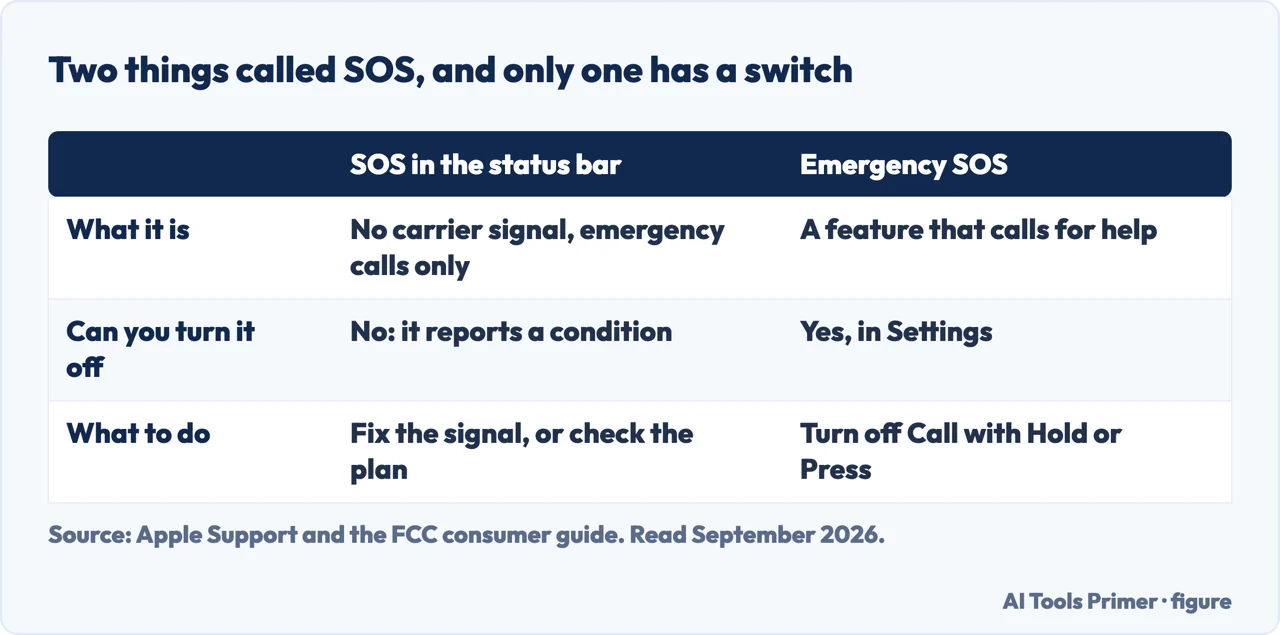
Two meanings, and only the second one is a setting. Figure drawn by AI Tools Primer.
So the first thing to establish is which you have. Look at where the letters are. If SOS sits in the status bar at the top of the screen, next to where the signal bars normally are, that is the first kind and there is no setting to change. If instead your phone has placed a call you did not intend, or shown a countdown you had to cancel, that is the second kind and there are exactly two switches.
If it is the second and a call has already gone out, one instruction comes before everything else on this page.
“If an emergency call has been made and you don’t need emergency services, don’t
hang up. Wait until a responder answers, then explain that you don’t need help.”
Apple marks that one Important, and it belongs at the top of this page rather than the bottom.
It is worth reading twice, because it points the opposite way from what the situation suggests: the call stays open, and the explanation is given to a person rather than left to be guessed at. Apple does not say what happens if you hang up instead; it says what to do.
Now the switches. Apple’s Emergency SOS settings live in one place, and it lists three things there.
The whole of Settings → Emergency SOS
Apple lists three items, and only the first two are switches.
Call with Hold and Release
“Hold and release the side and volume buttons to start a countdown to call emergency
services.” The combination that needs no screen, so it can complete without being looked at.
Call with 5 Presses
“Rapidly press the side button five times to start a countdown to call emergency
services.”
Manage your emergency contacts
Not a switch — it opens Health, where the contacts are set up or edited.
Of the two, Call with Hold and Release is the one that needs no sequence of taps — a hold on two buttons, then a release. Apple does not say what turning it off leaves behind, so this page will not either. What it does document separately is a route that does not depend on either switch: “On the Passcode screen, tap Emergency,” then dial the number. That one is reachable from a locked phone and is described on its own terms.
The other switch appears in Apple’s instructions as something you add: “you can enable iPhone to start Emergency SOS when you quickly press the side button five times. Go to Settings → Emergency SOS, then turn on Call with 5 Presses.” Apple does not publish which way either switch is set on a new phone, so the screen itself is the only place to find out.
India is documented separately. Apple gives the button
combination for “all countries or regions except India” — hold the side button and either volume
button — and then a different one for India: “Quickly press the side button three times
until the sliders appear and the countdown on Emergency SOS ends.” It adds that on an Indian
iPhone with Accessibility Shortcut turned on, the hold-and-release method works as well. So a set
of instructions that does not match your phone may be the right instructions for somewhere
else.
Back to the first kind of SOS. The letters in the status bar are not a mode and not a fault in the phone. They mean your carrier has no usable service where you are, and that the iPhone will try to put an emergency call through somebody else’s network instead. Apple’s wording is careful and worth keeping: the iPhone “attempts to route” those calls, “if available”. It is a better position than no service at all, not a guarantee.
What that also means is that the fix is not on this page. It is service — moving, waiting, or sorting out whatever has gone wrong with the line itself. A phone showing SOS in the status bar is a phone with a carrier problem, and the settings app cannot solve it.
What happens after an emergency call, whether or not you meant it
Apple documents four consequences, and none of them are obvious from the screen.
Your emergency contacts are texted “unless you choose to cancel”, with your location
if available — and they keep receiving updates as your location changes, for a period
afterwards.
On CDMA networks the phone “enters emergency call mode for a few minutes to allow a
callback”. During that time “data transmission and text messages are blocked”.
Features that block or silence incoming calls “may be disabled for a short period of time to
allow a callback” — Apple names Do Not Disturb, Silence Unknown Callers, and Screen
Time.
On a USB-C iPhone, data transfer over USB 3 and DisplayPort is unavailable for
up to 5 minutes after an emergency session. Charging is unaffected.
The last of those four is the one worth carrying away even if none of the rest applies to you. After an emergency call, Apple says features that silence incoming calls may be disabled for a short period so that emergency services can ring back — which means a phone that was set up to stay quiet may not stay quiet, and it will not be a fault when it happens.
One more limit Apple states, and it is about when emergency calling might not work at all: some cellular networks “may not accept an emergency call from iPhone if iPhone isn’t activated, if iPhone isn’t compatible with or configured to operate on a particular cellular network, or (when applicable) if iPhone doesn’t have a SIM card or the SIM card is PIN-locked”. That is the manufacturer describing the edges of its own feature, and it is a better reason than most to leave at least one of the two switches on.
What happens at the other end of that call, from the regulator rather than the phone maker. The FCC’s guidance for wireless emergency calls opens with one instruction: “tell the emergency operator the location of the emergency right away”, because a mobile is “not associated with one fixed location or address”. It adds two things worth knowing before you rely on a phone in an emergency: many operators “currently lack the technical capability to receive texts, photos and videos”, and if you have no service contract and the call drops, “you must call the emergency operator back” — they may not be able to reach you.
The guides below take it three ways: the status-bar kind and what sits behind it, the two switches and their neighbours, and what a phone does in the minutes after a call goes out.
Where to start
Three ways in. The first question is only which letters you are looking at.
“SOS is in my status bar where the bars should be.”
Not a mode and not a setting: a report that your carrier has no usable service here. The fix is on the network side, and these guides are the ones that touch it.
Not covered here. It will not offer a way to switch off the status-bar SOS. Apple describes it as what the phone displays when your carrier’s network is unavailable, and a setting that removed the display would remove the information rather than the problem.
It will not recommend turning both switches off. Apple names the conditions under which an emergency call may not be accepted at all, which is a reason to keep a route open rather than close them all.
And it will not tell you to hang up on an accidental call. Apple says the opposite, and marks it Important. What holds instead is simple: two answers stay two answers, taken from Apple’s own user guide, and the switch is described exactly as the guide describes it.
Sources
Apple, Use SOS to contact emergency services on your iPhone — iPhone User Guide (that when the carrier’s cellular network is unavailable the iPhone displays the SOS icon and attempts to route emergency calls through other networks if available; the Important instruction not to hang up after an unintended emergency call but to wait for a responder and explain; the button combination of holding the side and either volume button for all countries and regions except India, and pressing the side button three times in India, with the Accessibility Shortcut note; that emergency contacts are alerted by text unless cancelled, with location if available and updates as location changes for a period afterwards; the contents of Settings → Emergency SOS, namely turning Call with Hold and Release on or off, turning Call with 5 Presses on or off, and managing emergency contacts in Health; that on CDMA the iPhone enters emergency call mode for a few minutes during which data transmission and text messages are blocked; that features which block or silence incoming calls, including Do Not Disturb, Silence Unknown Callers and Screen Time, may be disabled for a short period to allow a callback; that on a USB-C iPhone data transfer over USB 3 and DisplayPort is unavailable for up to five minutes after an emergency session while charging is unaffected; and that some cellular networks may not accept an emergency call if the iPhone is not activated, is not compatible with or configured for that network, or has no SIM card or a PIN-locked SIM) — support.apple.com, read 22 August 2026.
Apple, Make an emergency call or text on iPhone or Apple Watch — Personal Safety User Guide (the same Settings → Emergency SOS contents; the route for a locked iPhone, tapping Emergency on the Passcode screen and dialling the emergency number; that emergency contacts are set up in Health under Medical ID and that emergency services cannot themselves be set as an SOS contact; and Apple’s note that because Emergency SOS alerts them, the people assigned as emergency contacts should be people you trust) — support.apple.com, read 22 August 2026.
Federal Communications Commission — Wireless 911 Service: why location has to be spoken aloud, the limits on texts and photos, and what happens when a call from a phone without a contract drops — www.fcc.gov, read 4 September 2026.
AG
Written by Alberto Gulotta
Founder and editor of AI Tools Primer, writing from Palermo, Italy. Thirty-five years of
taking computers apart, starting with a Commodore 64 — the long version is on the
about page.
Written on 22 August 2026 · last checked 23 September 2026.
§
Independence and limits
No affiliate links and no paid placements anywhere on this site. Nobody pays to appear here,
and no company has seen this page before you did.
This is general information, not professional advice. Where a page touches money, health,
safety or the law, it names its source and the date it was read — and your situation may
still differ. See the privacy page and the
cookie policy.