How to fix phone speaker can be answered with a list of things to try. Apple and Google each publish something more useful as well: a test whose outcome tells you where to look next.
Apple’s test
iphone and ipad
Settings → Sounds (or Sounds & Haptics) → drag the
Ringtone and Alerts slider back and forth a few times.
“If you don’t hear any sound, or if your speaker button on the Ringtone and Alerts slider is dimmed,
your speaker might need service.”
If you do hear sound: make a call with speakerphone on (on an iPad, Apple says to make a FaceTime call). Still nothing, or static and
crackling? “Then your network or reception could be the issue.”
Google’s test
pixel
“Play 2-3 different songs or videos from different apps” — Google’s example is “a recorded video on your phone and a song from a music app”.
“If only some sounds are distorted, those sound files could be broken.”
“If all sounds are distorted, contact Pixel support.”
Each test points somewhere different: Apple’s at service for the speaker, or at a call with speakerphone on; Google’s, for distorted sound, at the files or at Pixel support.
Google’s list headed “Turn features on or off” starts here:
“Turn Bluetooth off.”
A phone that seems to have lost its speaker can be a phone that is playing perfectly — into something else. A car, a pair of earbuds in a bag, a speaker in another room that never disconnected. On an iPhone, one of Apple’s status icons is “Headphones connected”, for Bluetooth headphones.
Before the tests: the switches that silence a working speaker
Apple’s first steps, and none of them is a fault.
The Ring/Silent switch. “Move the switch forward — toward the device’s display — so
that orange isn’t showing.”
The Action button. On an iPhone that has one and is set to Silent mode,
press it. Control Center, swiped down from the top-right corner, shows the same state.
Do Not Disturb. Settings → Focus → Do Not Disturb, and check it is off.
The silent-mode items look too obvious to list, and Apple puts them first. Silent mode does not silence everything — Apple says “Clock alarms, audio apps such as Music, and many games play sounds through the built-in speaker, even when Silent mode is on” — so a ringtone that stays quiet while music plays points to the setting, not the speaker. On models with an Action button, the control is a button rather than a switch.
The physical checks, and how each vendor words them. Both
start the same way: take the case and any screen protector off. Apple then says to check
the speaker opening for blockage or dirt and adds a detail specific to the phone — “on iPhone
only, make sure that the receiver isn’t blocked or dirty”, meaning the small earpiece slot
you hold to your ear, which is a different opening from the speaker. For cleaning, Apple
specifies “a small, soft-bristled brush” and adds “Make sure that the brush is clean and dry”; Google specifies “a soft,
lint-free cloth”. Neither suggests liquid, compressed air or anything sharp.
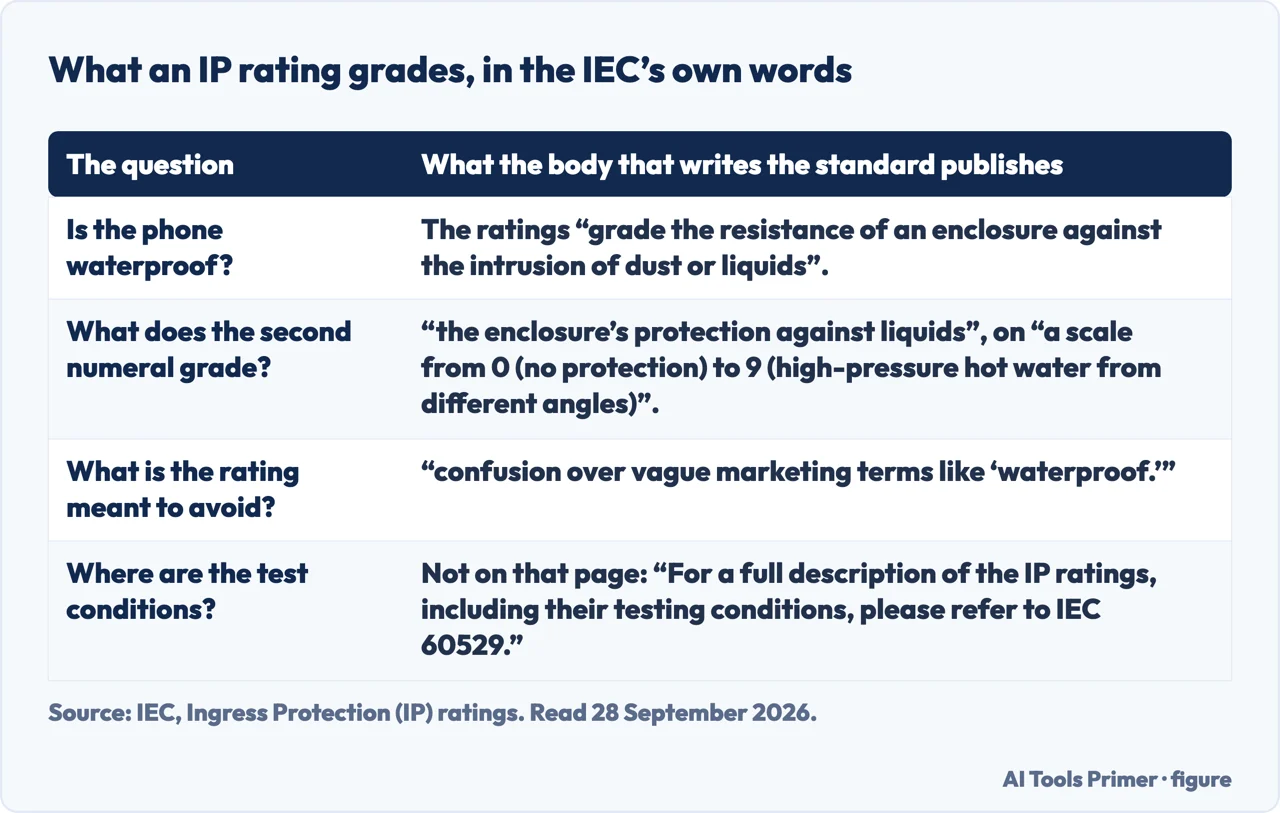
Neither vendor page mentions an IP rating, although Google’s page checks for a “Liquid or debris in USB port” message. What the rating promises is worth reading. The rating is not the phone maker’s: it comes from the body that writes the standard, and that body says the ratings “grade the resistance of an enclosure against the intrusion of dust or liquids”, and that they are meant to avoid “confusion over vague marketing terms like ‘waterproof.’”
In IP68, the eight is not the last number on the scale. The second digit “rates the enclosure’s protection against liquids and uses a scale from 0 (no protection) to 9 (high-pressure hot water from different angles)”. A phone rated IP68 sits below the last number of the liquid scale. The IEC also sends readers elsewhere for its test conditions: “For a full description of the IP ratings, including their testing conditions, please refer to IEC 60529.” What the rating describes is what the case kept out during a defined test. It is not a statement about what a speaker sounds like afterwards, and neither Apple nor Google treats it as one.
The IEC, on its own code: what the second numeral grades, and where the test conditions are written. Figure drawn by AI Tools Primer.
Google’s list adds more about the call itself. Check the signal strength first — the mobile icon, and “if you have a strong signal, then you can find a Filled triangle”. Then turn Wi-Fi off and make a call, or on and make a call. On a video call, turn the video off and on. And one line that is easy to laugh at and completely right: “if you’re in motion, like in a train or car, wait until you stop before you make a call.”
The restart instruction differs by model, which is worth having exactly rather than approximately. On Pixel 5a and earlier: press the Power button for about 30 seconds, or until the phone restarts. On Pixel 6 and later, including Fold: press and hold Power and Volume up for a few seconds, then tap Restart.
Why half this page says “Pixel” rather than “Android”
Apple publishes one answer that covers every iPhone. On the other side there is no equivalent:
Google’s page is for its own phones.
That is not an omission here — it is the same split that decides how you take a screenshot on
an Android, and it means the Pixel steps above are the documented example rather than the
universal answer. On a Samsung, a Xiaomi or a Motorola, the maker’s own support pages are the place to look.
What this page will not do is tell you how to open a phone or clean a speaker with anything other than what the manufacturers name. A small brush, clean and dry, and a soft lint-free cloth are what is published.
It also will not tell you whether a repair is worth the price. Apple ends at service, and Google, if the steps don’t work, at considering “a factory reset of your phone” and then further support; what a repair costs against a replacement is a decision about your phone and your money rather than about the speaker.
Where to start
Three ways in. If Bluetooth is on, start with the second.
Not covered here. It will not tell you to clean a speaker with anything the manufacturers do not name. A small soft brush, clean and dry, and a soft lint-free cloth are what is published.
It will not give an Android-wide answer. Google’s page covers its own phones, and this page does not stand in for other makers’ support pages.
And it will not tell you whether a repair is worth it. Apple ends at service and Google at a factory reset and further support, and the price against a replacement is your decision rather than the speaker’s. What holds instead is simple: on an iPhone or a Pixel, each test comes from the maker of the phone you are holding, and neither of them asks you to open anything.
Sources
Apple, If you hear no sound or distorted sound from your iPhone, iPad, or iPod touch speaker — Apple Support, published 16 March 2026 (the instruction to move a Ring/Silent switch forward toward the display so that orange is not showing, and to press the Action button on an iPhone that has one set to Silent mode, or to check Silent mode in Control Center; the instruction to open Settings, tap Focus, tap Do Not Disturb and make sure it is off; the instruction to remove all screen protectors, films and cases; the instruction to check the speaker opening for blockage or dirt and, on iPhone only, to check the receiver; the instruction to clean the speaker or receiver opening with a small, soft-bristled brush that is clean and dry; the instruction to open Settings, tap Sounds or Sounds & Haptics and drag the Ringtone and Alerts slider back and forth a few times, with the statement that hearing no sound or seeing the speaker button on the slider dimmed means the speaker might need service; the instruction to make a call with speakerphone on if sound is heard, or a FaceTime call on iPad or iPod touch, with the statement that still hearing nothing, or static or crackling, points at the network or reception and the suggestion to call again later or from a different location; and the closing note that the device might need service) — support.apple.com, read 22 August and 28 September 2026.
Apple, Silence iPhone — Apple Support (that Clock alarms, audio apps such as Music, and many games play sounds through the built-in speaker, even when Silent mode is on) — support.apple.com, read 28 September 2026.
Apple, Learn the meaning of iPhone status icons — Apple Support (the Headphones connected icon, and that on an iPhone with Face ID there are additional status icons at the top of Control Center) — support.apple.com, read 28 September 2026.
Google, Why can’t I hear sound from my Pixel phone? — Pixel Phone Help (the instruction to check the strength of the data connection using the mobile signal icon, with a filled triangle indicating a strong signal, and to move to a place with a stronger signal otherwise; the list of features to turn on or off beginning with turning Bluetooth off, then turning the volume up or down with the note that some music sounds distorted when played loudly, turning Wi-Fi off and making a call or on and making a call, turning video off and on during a video call, and turning speakerphone on then off; the tip to wait until stationary before making a call when in motion such as on a train or in a car; the restart instructions of pressing the Power button for about 30 seconds on Pixel 5a and earlier and holding Power and Volume up for a few seconds on Pixel 6 and later including Fold, then tapping Restart; the instruction to play two or three different songs or videos from different apps, such as a recorded video on the phone and a song from a music app, with the outcomes that only some sounds being distorted indicates broken sound files while all sounds being distorted means Pixel support should be contacted; the hardware checks of removing a screen protector or case and gently cleaning dirty speakers and microphones with a soft, lint-free cloth; the “Liquid or debris in USB port” check; and, if the steps don’t work, a factory reset, followed by further support) — support.google.com, read 22 August and 28 September 2026.
IEC, Ingress Protection (IP) ratings — the body that publishes the standard, not a phone maker (that the ratings grade the resistance of an enclosure against the intrusion of dust or liquids; that they are meant to avoid confusion over vague marketing terms like “waterproof”; that the second numeral runs from 0, no protection, to 9, high-pressure hot water from different angles; and that the full test conditions are in IEC 60529 rather than on that page) — www.iec.ch, read 28 September 2026.
AG
Written by Alberto Gulotta
Founder and editor of AI Tools Primer, writing from Palermo, Italy. Thirty-five years of
taking computers apart, starting with a Commodore 64 — the long version is on the
about page.
Written on 22 August 2026 · last checked 30 September 2026.
§
Independence and limits
No affiliate links and no paid placements anywhere on this site. Nobody pays to appear here,
and no company has seen this page before you did.
This is general information, not professional advice. Where a page touches money, health,
safety or the law, it names its source and the date it was read — and your situation may
still differ. See the privacy page and the
cookie policy.