On a recent phone of either kind, holding the power button no longer turns it off. That is not a fault and it is not the same change on both — but the result is the same confusion, and both makers publish the answer.
iPhone
two shapes, by model
With Face ID: “Simultaneously press and hold the side button and either volume
button until the sliders appear, then drag the Power Off slider.”
With a Home button: “Press and hold the side button, then drag the Power Off
slider.”
Pixel
two shapes, by model
Pixel 5a and earlier: “Press and hold the Power button for a few seconds.
Then, on your screen, tap Power off.”
Pixel 6 and later: “Press and hold the Power and volume up buttons for a few
seconds. Then, on your screen, tap Power off.”
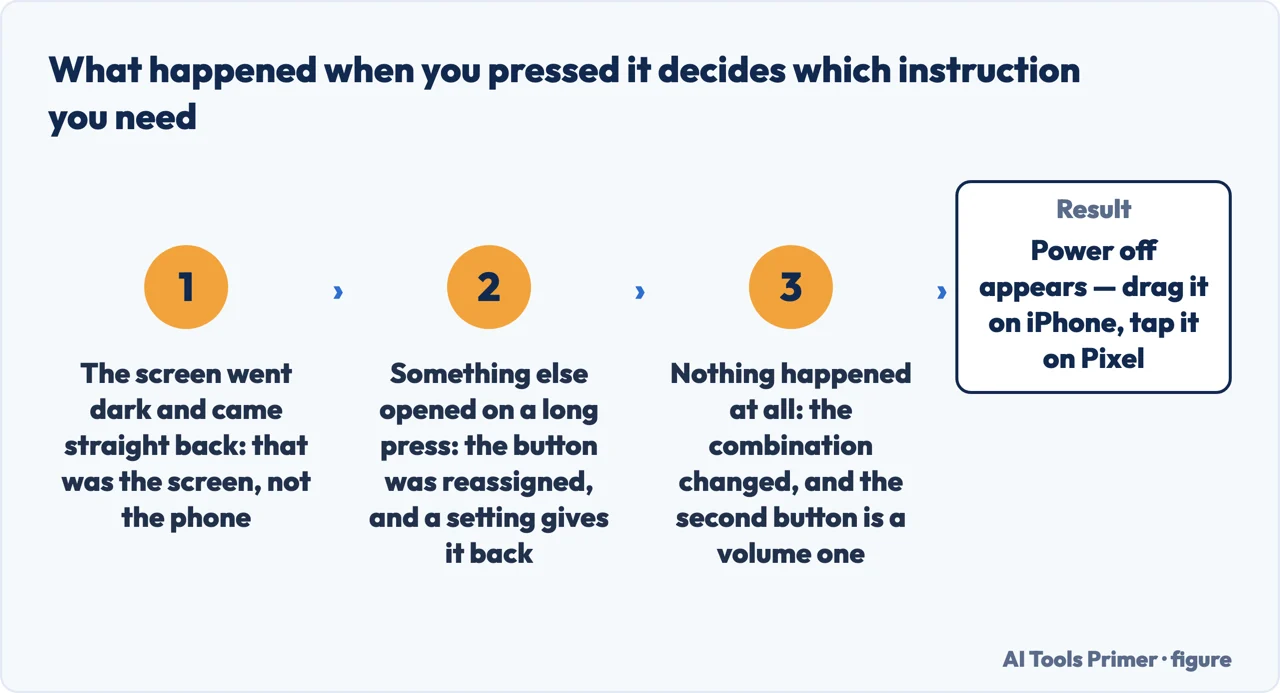
Set those side by side and the pattern is hard to miss. Both makers moved from one button to two on their newer models, and on both the second button is a volume one. Anybody whose phone was replaced in the last few years has a gesture in their fingers that belongs to the previous device.
There is also a difference worth noticing between the two. On the iPhone the sliders appear and you drag one; on the Pixel a menu appears and you tap Power off. Same idea, different last step — which is why an instruction that mentions dragging is an iPhone instruction.
The question that chooses between the four sets of instructions above. Ours, from what the two makers publish. Figure drawn by AI Tools Primer.
“There are multiple ways to turn your iPhone on and off — you can use the
buttons on the side of your iPhone, or you can use the controls in Settings and Control
Center.”
This is the part that makes the button question optional. Settings → General → scroll down
→ Shut Down, then drag the slider. Or touch and hold in the top-right corner to open
Control Centre and drag the slider there. Neither depends on knowing which iPhone you have, and
neither needs two hands or a working button. The button combination is the part that changes
between models; the menu is the part that does not.
That is the practical answer for anybody who does not want to memorise a combination, and it is the one to reach for when a button is broken or awkward to hold. Two routes on the iPhone that work on every model, both of them a menu rather than a grip.
“On Pixel 6 & later: To bring up the power menu when you press and hold the
Power button, go to Settings. Tap System → Gestures → Press and hold the power button. Then,
select Power menu.”
Google documents a way to give the button its old job back. On recent Pixels a long press on
Power does something else by default, which is why the gesture that worked for years now
appears to do nothing useful — and the fix is a setting rather than a different grip.
Once it is set, “press and hold the power button for a few seconds. Then, on your screen, tap
Power off.”
The Pixel setting is the more interesting of the two, because it addresses the actual complaint rather than working around it. The button was reassigned; the setting reassigns it back. Google documents it in the same place as the power instructions, which is a fair admission that the change surprises people.
Three things that are not “off”
All three are documented separately by the makers, and all three get called turning the phone off.
The screen off
Google: “To turn your screen on and off while your phone’s turned on, press the Power
button once.” One press is the screen. A hold is the phone.
A restart
Off and on again in one action. Apple frames it as the first thing to try “if your iPhone
isn’t working as expected”; Google gives Pixel 6 and later the same two-button hold followed
by Restart.
A forced restart
For a phone that will not respond at all. Google’s Pixel version is a long hold — “press and
hold the Power button for up to 60 seconds”, releasing once the screen shows the “G”
logo. Apple keeps its own separate procedure for this.
Turning it back on, and what it means when nothing happens.
Both makers give one gesture: hold the power or side button until the logo appears. Google adds a
detail for recent models — “On Pixel 6 & later: press and hold the Power button until you
feel a buzz (up to 7 seconds in some situations)” — which matters because letting go
at four seconds looks exactly like a phone that will not start. And both name the same first
suspicion if it still does not: Apple, “you might need to charge the battery”; Google,
“before you turn on your phone, charge it.”
One consequence of all this is worth stating plainly, because it changes what to search for. “My phone will not turn off” is usually a question about the model, not about the phone. The gesture that fails is almost always the right gesture for a different generation of the same device — and both makers publish the current one, by model, on a single page.
What this page will not do is cover every Android phone. Google publishes these instructions for Pixel, and other manufacturers put their own layer on top of Android with their own combinations and their own settings. The shape is usually similar and the detail often is not, and a page that pretended otherwise would be guessing on behalf of devices it has no documentation for.
Nor will it tell you how often to turn a phone off. Apple names one reason — something not working as expected — and Google names none. There is no published schedule to report.
The guides below take it three ways: the buttons, the routes that avoid them, and what to do when the phone will not respond at all.
Where to start
Three ways in. If holding the button does nothing, the first is why.
Not covered here. It will not give one button combination. Both makers publish two, split by model, and the one that fails is usually the right one for an older device.
It will not cover every Android phone. Google documents Pixel; other manufacturers add their own layer, and this page has no documentation for those.
And it will not treat a dark screen as a phone that is off. Google says one press of the power button is the screen, not the device. What holds instead is simple: every button combination here is Apple’s or Google’s own, and where a model behaves differently the maker’s own wording says so.
Sources
Apple, Turn iPhone on or off — iPhone User Guide (that there are multiple ways to turn an iPhone on and off, using the side buttons or the controls in Settings and Control Centre; that the iPhone is turned on by pressing and holding the side button until the Apple logo appears, and that if it does not turn on the battery may need charging; that an iPhone with Face ID is turned off by simultaneously pressing and holding the side button and either volume button until the sliders appear and then dragging the Power Off slider, while an iPhone with a Home button is turned off by pressing and holding the side button and dragging the slider; that it can also be turned off from Control Centre by touching and holding in the top-right corner of the screen and dragging the slider, or from the Settings app by tapping General, scrolling down and tapping Shut Down; and that if the iPhone is not working as expected it can be restarted by turning it off and on, with a forced restart as the next step if that does not fix the issue) — support.apple.com, read 22 August 2026.
Google, Turn your Pixel phone on & off — Pixel Phone Help (that the phone is turned on and off with the top button on the right side; that it is turned on by pressing and holding the Power button for a few seconds, and on Pixel 6 and later by holding until a buzz is felt, up to seven seconds in some situations; that on Pixel 5a and earlier it is powered off by pressing and holding the Power button for a few seconds and then tapping Power off on screen, while on Pixel 6 and later the Power and volume up buttons are held together before tapping Power off; that on Pixel 6 and later the power menu can be restored to the long press of the Power button through Settings, System, Gestures, Press and hold the power button, then selecting Power menu; the tip to charge the phone before turning it on; that pressing the Power button once turns the screen on and off while the phone is on; that restarting is a hold of about thirty seconds on Pixel 5a and earlier and a Power plus volume up hold on Pixel 6 and later; and that a phone can be forced to restart by holding the Power button for up to sixty seconds, releasing when the screen displays the G logo) — support.google.com, read 22 August 2026.
AG
Written by Alberto Gulotta
Founder and editor of AI Tools Primer, writing from Palermo, Italy. Thirty-five years of
taking computers apart, starting with a Commodore 64 — the long version is on the
about page.
Written on 22 August 2026 · last checked 23 September 2026.
§
Independence and limits
No affiliate links and no paid placements anywhere on this site. Nobody pays to appear here,
and no company has seen this page before you did.
This is general information, not professional advice. Where a page touches money, health,
safety or the law, it names its source and the date it was read — and your situation may
still differ. See the privacy page and the
cookie policy.