
iPhone · guide
How to cancel iPhone update, and the three different questions
By Alberto Gulotta · Updated · 10 min read
There is no Cancel button for a software update, which is why how to cancel iPhone update is a harder question than it looks. What exists instead is a route for removing an update that has already downloaded, a screen for stopping the next one, and — for an installation already running — nothing at all.
Three different situations behind the same question
Apple documents an answer for two of them, and is silent on the third. Worth knowing which one you are in before tapping anything.
- The update has downloaded and is sitting there
- There is a documented route to remove it — though not one Apple presents as a cancel button. Below.
- You do not want it to happen again tonight
- That is the Automatic Updates screen, and Apple documents three separate switches on it.
- It is installing right now
- Apple documents no way to stop an installation in progress. What it does say about a slow progress bar is below, and it is not encouraging you to intervene.
Removing a downloaded update
Apple’s wording matters here: it gives this route inside an article about updates that will not install, as a step before trying again.
- Go to Settings.
- Tap General.
- Tap [Device] Storage.
- Find the update in the list of apps. It appears there like an app, which is why it is hard to find if you are looking under Software Update.
- Tap the update, then tap Delete Update.
The fourth step is the one worth pausing on. A downloaded iOS update appears in the list of apps under Storage — Apple’s own words — rather than on the Software Update screen. Anybody searching for it where it was downloaded will not find it, and nothing on the Software Update screen says where it went.
It is also worth being straight about how Apple frames this route, because it is not framed as cancelling. It appears in the article for a device that will not update, as the step before downloading the update again: delete it, then “Go to Settings. Tap General. Tap Software Update and download the latest update.” The route works either way, but this guide is not going to present a troubleshooting step as a feature Apple offers for changing your mind.
“If you’re installing the update, the progress bar might appear to move slowly.”
Apple’s advice for a slow-looking installation is that it may look slow, and it gives no instruction for stopping one. That absence is worth reporting rather than filling: this guide has no trick for that situation because none was found in Apple’s documentation. The reasoning for leaving it there rather than improvising is straightforward — a device replacing its own operating system is a poor candidate for an interruption invented by a guide.
Stopping it happening by itself. Settings → General → Software Update → Automatic Updates. Apple describes two switches, and they are not the same thing: Automatically Install means “when an update is available, iPhone downloads and installs the update overnight while charging and connected to Wi-Fi” — with the note that “you’re notified before iPhone installs an update”. Automatically Download “downloads an update in the background so that you can install it later”, and Apple adds the detail that decides the screen’s layout: “turn off Automatically Install to see this option”.
So the middle setting exists and is hidden behind the first one. A phone that downloads updates but never installs them on its own is a documented arrangement, and it is the one this question asking this question actually want.
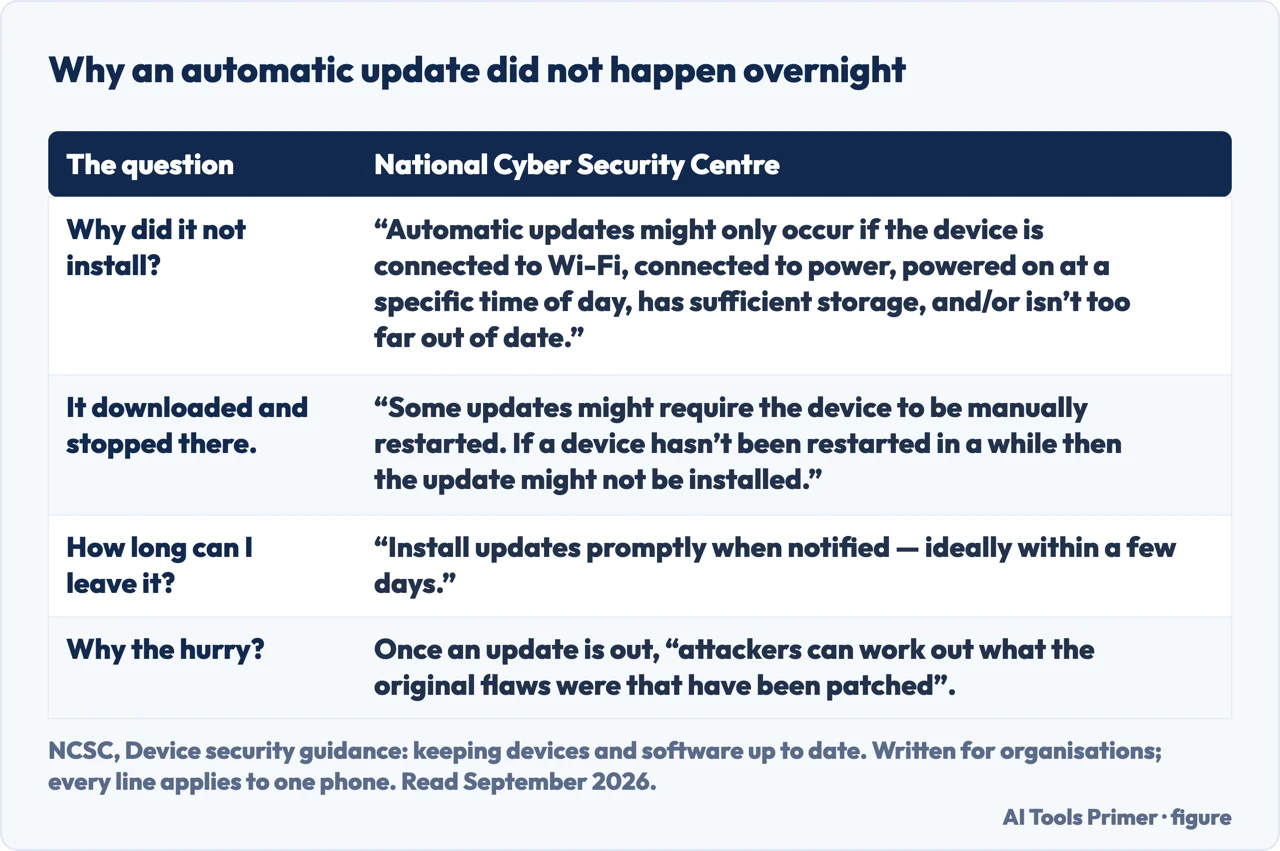
On the other side of the same screen — the night an update was supposed to install and did not — the National Cyber Security Centre lists the conditions rather than treating it as a fault: “Automatic updates might only occur if the device is connected to Wi-Fi, connected to power, powered on at a specific time of day, has sufficient storage, and/or isn’t too far out of date”, and “Some updates might require the device to be manually restarted”. It also supplies the number Apple does not — “Install updates promptly when notified — ideally within a few days” — and the reason, which is the honest argument against putting one off: once an update is out, “attackers can work out what the original flaws were that have been patched in the update and start attacking devices that haven’t had the updates installed”.
One more thing Apple documents on the same subject that changes what “cancel” can even mean. During a wireless update, “if a message asks to temporarily remove apps because the software needs more space for the update, tap Continue to allow the system to remove apps. After installation is complete, those apps are automatically reinstalled.” Tapping Cancel there does not cancel the update — Apple says it leaves you to “delete content manually from your device to add more space”. That is a Cancel button that declines the offer rather than the update, and it is easy to press expecting the opposite.
“Keeping your software up to date is one of the most important things you can do to maintain your Apple product’s security.”
Apple’s sentence, and it belongs on a page about cancelling updates rather than being left off it. The company that documents how to turn this off also says plainly why it would rather you did not. There is a third switch on the same screen worth separating from the argument, though: under System Files, Apple describes updates that “improve features without changing the software version”. Turning off the main automatic install does not have to mean turning that one off too — Apple documents them as separate switches on the same screen.
The guides below take it three ways: removing an update that has downloaded, the automatic settings and what each one does, and the neighbouring guides about storage and updates in general.
Where to start
Three ways in.
- “It downloaded and I do not want it.”
- Start at removing a downloaded update
- “I do not want it installing overnight.”
- Go to the automatic settings
- “It is installing right now.”
- Read an update in progress
Removing a downloaded update
A route Apple publishes, in an unlikely place — the update sits in the list of apps under Storage rather than on the Software Update screen.
The automatic settings
Two switches, one hidden behind the other, plus a third for system files that changes features without changing the version. Apple describes all three separately.
An update in progress
Apple documents no way to stop one, and describes a slow progress bar as ordinary. The absence of an instruction is the instruction.
Not covered here. It will not give you a way to stop an installation that has started. Apple publishes none, and inventing one for a phone rewriting its own operating system would be reckless.
It will not present Delete Update as a cancel feature. Apple documents it inside a troubleshooting article as the step before trying again, and that framing is reported here.
And it will not leave out Apple’s own view. It says keeping software up to date is one of the most important things you can do for security, and a page about switching that off should carry the sentence rather than bury it. What holds instead is simple: the route to delete a downloaded update and the two automatic update switches are Apple’s own wording, including the troubleshooting article that frames the first.
Sources
- Apple, If your iPhone or iPad won’t update (the route Settings → General → [Device] Storage, finding the update in the list of apps and tapping Delete Update, given as a step before downloading the update again; the note that if the update is not in the list or the problem recurs, the device must be updated using a Mac or iTunes; the Offload Unused Apps route for freeing space; the note that a download’s duration depends on update size and internet speed and that the device can still be used during it; the verbatim error messages for an unreachable update server; and the statement that while installing, the progress bar might appear to move slowly) — support.apple.com, read 22 August 2026.
- Apple, Update your iPhone or iPad (the wireless update steps; the note that some software updates are not available wirelessly and that VPN or proxy connections might prevent the device contacting update servers; the behaviour when a message asks to temporarily remove apps for space, including that they are automatically reinstalled after installation and that tapping Cancel leaves you to delete content manually; the statement that keeping software up to date is one of the most important things you can do to maintain security; the Automatic Updates screen with Automatically Install described as downloading and installing overnight while charging and on Wi-Fi with notification before installing, and Automatically Download visible only when Automatically Install is off; and the separate System Files setting for updates that improve features without changing the software version) — support.apple.com, read 22 August 2026.
- National Cyber Security Centre — Device security guidance, Keeping devices and software up to date, for the conditions an automatic update may be waiting on (Wi-Fi, power, a time of day, sufficient storage, not being too far out of date), for the note that an update may need a manual restart and will not install on a device that has not been restarted, for the instruction to install updates within a few days of being notified, for the advice to back up before updating, and for the reason it gives: once an update is published, attackers can work out which flaws it patched and attack the devices that have not installed it. Written for organisations — www.ncsc.gov.uk, read 6 September 2026.
Written by Alberto Gulotta
Founder and editor of AI Tools Primer, writing from Palermo, Italy. Thirty-five years of taking computers apart, starting with a Commodore 64 — the long version is on the about page.
Something wrong on this page? Write to aitoolsprimer@gmail.com and it gets fixed.
Written on 22 August 2026 · last checked 23 September 2026.
Independence and limits
No affiliate links and no paid placements anywhere on this site. Nobody pays to appear here, and no company has seen this page before you did.
This is general information, not professional advice. Where a page touches money, health, safety or the law, it names its source and the date it was read — and your situation may still differ. See the privacy page and the cookie policy.