Filter keys
ignores keystrokesSets keyboard sensitivity “so it can ignore brief or repeated keystrokes”. The one that looks like a broken keyboard.

Software · guide
By Alberto Gulotta · Updated · 12 min read
How to fix keyboard not typing splits into two questions that look identical from the chair: a keyboard that cannot type, and a Windows that has been told to ignore it. Microsoft documents both, and the second one is where to start.
“Turn on the Filter keys switch to set the sensitivity of the keyboard so it can ignore brief or repeated keystrokes.”
Read that as a description of a symptom rather than a feature and the reason it belongs at the top of this page is obvious. Filter keys is a setting whose documented purpose is to make Windows disregard what you type. Switched on unintentionally — and it has a keyboard shortcut of its own — it produces a keyboard that responds to some presses, ignores others, and passes every hardware test you can run on it. Where to look: press Windows logo key + U, or Start → Settings → Accessibility.
Filter keys
ignores keystrokesSets keyboard sensitivity “so it can ignore brief or repeated keystrokes”. The one that looks like a broken keyboard.
Sticky keys
changes shortcutsLets you “press commands that use multiple keys (such as Ctrl + S) one key at a time”. Shortcuts start behaving oddly rather than not at all.
Toggle keys
adds a soundPlays a sound “whenever you press the Caps lock, Num lock, or Scroll lock keys”. Harmless, and a useful sign that something in here got switched on.
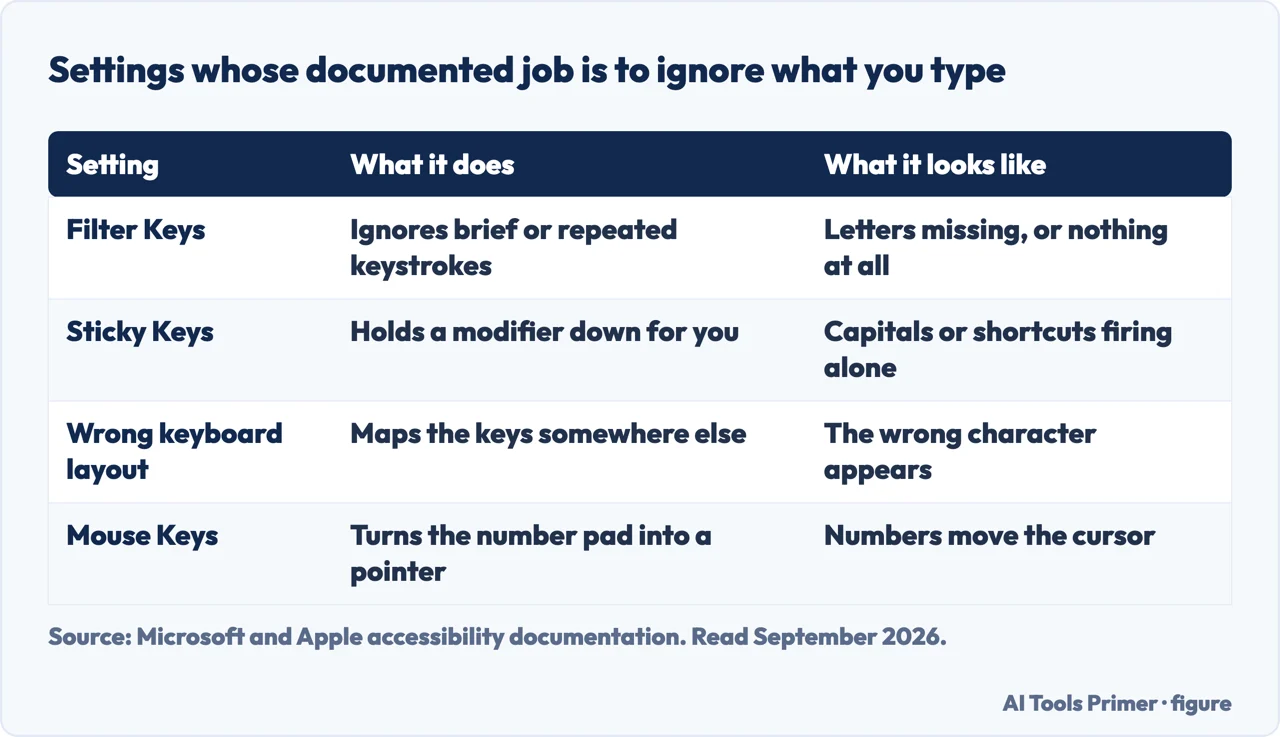
Those three live together in Accessibility settings and they exist for good reasons — they make a computer usable for people who would otherwise struggle with it. The problem is only that one of them is indistinguishable from a fault when it is on and you did not turn it on. Checking takes ten seconds and rules out the entire software half of the question.
And it is not a Windows peculiarity, which is worth knowing if the machine in front of you is not running Windows.
“You may have accidentally set an option that changes how your keyboard operates.”
That is Apple, on a Mac that will not type — the same diagnosis reached independently, by a company with no reason to copy Microsoft’s wording. The setting has a different name: “Make sure Slow Keys is turned off. If Slow Keys is on, you must press and hold a key longer than usual before it’s recognized.” The shape is identical, though — a documented feature whose effect is to disregard keystrokes, switched on by accident, and invisible to every test you can run on the keyboard. Three desktop systems, three names, one trap. GNOME’s version names a symptom the other two do not: “Turn on bounce keys to ignore key presses that are rapidly repeated.” A keyboard that drops letters when you type fast and behaves perfectly when you type slowly is describing that setting rather than a fault.
If the switches are off, the question becomes whether the keyboard itself is working, and Microsoft has one step that answers it outright.
“If the device doesn’t appear to work at all (no lights appear on the device when it’s plugged in, or the cursor doesn’t move or doesn’t appear on the screen), connect the device to another PC and make sure the device works on that PC. If the device doesn’t work on the other PC, you might need to replace it.”
Microsoft’s test, and the only step on the page that produces a verdict instead of another thing to try. Two computers, one keyboard, and the answer is whichever one is the odd one out. Microsoft attaches one caveat worth respecting: “some devices won’t work without installing a driver”, so when testing elsewhere, make sure the right driver is on the other machine — otherwise the second PC produces a false result and you replace something that was fine.
The physical checks, with the detail that matters in each
Microsoft’s list, and none of these is “restart and hope”.
The first item on that list is the one people do wrong, and Microsoft’s wording explains why. Unplugging and immediately plugging back in does not do what unplugging is supposed to do — the instruction is to wait while Windows unloads the driver, and only then reconnect. A two-second reconnection often reattaches to the same broken state.
If it is wireless, there are two reset buttons rather than one. Microsoft: “Look on the bottom of the wireless device for a Reset button. Resetting the device will disconnect and then reconnect the wireless connection. There might also be a Reset button on the USB receiver for your device.” The second one is the forgotten half — the little dongle in the port is a device too, and it can be the one that has lost the connection. For USB wireless, the simpler version is “unplugging the USB wireless receiver, waiting for about 10 seconds, and then plugging the USB wireless receiver back into the USB port”. And if the keyboard connects over Bluetooth rather than a receiver, Microsoft sends you to its Bluetooth troubleshooting instead — a different radio with different failures.
If the keyboard passes the other-PC test and the switches are off, what is left is the driver, and Microsoft gives two routes. The automatic one: type check for updates in the search box, open it, and select Check for updates — with the honest caveat that “there might not be any driver updates available”. The manual one: search for Device Manager, find the device, double-click it, then the Driver tab and Update Driver.
What this page will not do is tell you to reinstall Windows, run a registry cleaner, or install a driver-updating tool. None of that is on Microsoft’s page for this problem, and a keyboard is a small enough device that the answer is nearly always in the four paragraphs above.
It also will not cover a laptop keyboard that has had liquid on it. That is a repair question rather than a settings question, and the honest answer to it is not typed.
The guides below take it three ways: the settings that mimic a fault, the tests that produce a verdict, and the neighbouring device that fails in the same way.
Three ways in. Take the first one before you touch any cable.
Filter keys ignores keystrokes by design. Sticky keys changes how shortcuts behave. Both are ten seconds to check and rule out half the question.
One keyboard, two computers, and the answer is whichever is the odd one out. Microsoft attaches the caveat about drivers that makes the test honest.
A reset button on the device and possibly another on the receiver, ten seconds unplugged, and two routes to a driver.
Not covered here. It will not tell you to reinstall Windows or run a cleaner. Neither appears on Microsoft’s page for this problem, and a keyboard is a small enough device that it does not need either.
It will not recommend a driver-updating tool. Microsoft gives two free routes and says plainly that there might not be an update at all.
And it will not cover a keyboard that has had liquid spilled on it. That is a repair question, and the honest answer to it is not typed. What holds instead is simple: every setting named here is the vendor’s own name for it, and nothing on this page asks you to open the machine.
Input that stops arriving, or arrives changed into something you did not type, and the two minutes that tell you whether it is hardware.
Written by Alberto Gulotta
Founder and editor of AI Tools Primer, writing from Palermo, Italy. Thirty-five years of taking computers apart, starting with a Commodore 64 — the long version is on the about page.
Something wrong on this page? Write to aitoolsprimer@gmail.com and it gets fixed.
Written on 22 August 2026 · last checked 23 September 2026.
Independence and limits
No affiliate links and no paid placements anywhere on this site. Nobody pays to appear here, and no company has seen this page before you did.
This is general information, not professional advice. Where a page touches money, health, safety or the law, it names its source and the date it was read — and your situation may still differ. See the privacy page and the cookie policy.