Folded behind the screen
type cover“Fold the Type Cover back behind the screen to use your Surface as a tablet. Your Surface won’t detect key presses while it’s folded.” Working as designed. Nothing to fix.

Software · guide
By Alberto Gulotta · Updated · 12 min read
Surface keyboard not working has one widely copied fix involving UEFI, and on any Surface that is not a business model that step does not exist. Microsoft says so, in a single line under the instruction. It is the least-quoted sentence on the page and the most useful one.
Before any of that, though, Microsoft puts a test that takes two minutes and produces an actual answer rather than another thing to try.
“To confirm connectivity, press the Caps and Fn keys on your Surface Pro Keyboard or Type Cover a couple of times to check whether the LED lights turn on and off.”
Microsoft puts this before every remedy, and the reason is that it splits the problem in two and closes one half. “If the LED lights don’t turn on, there might be a hardware issue the next option is to Submit a service order for your Surface Pro Keyboard or Type Cover.” And the other branch: “If the LED lights turn on and the keyboard continues to not function properly, your problem may be with Windows and not the device itself.” No lights means Microsoft does not send you to drivers, to a reset, or to a reinstall — it sends you to a service order.
That ordering is the whole method, and it is worth taking literally. The test comes before the remedies because it decides which remedies are even relevant. A keyboard whose LEDs stay dark is not a driver problem, and no amount of reinstalling will change it — by Microsoft’s own instruction the next step is a service order.
Now the part that comes before any test: on Surface hardware there are at least three documented states in which the keyboard is switched off deliberately.
Folded behind the screen
type cover“Fold the Type Cover back behind the screen to use your Surface as a tablet. Your Surface won’t detect key presses while it’s folded.” Working as designed. Nothing to fix.
Draw Mode or View Mode
surface book“If you’re in Draw Mode or View Mode, the keyboard and touchpad are disabled to prevent accidental keystrokes.” The screen was reattached the other way round, and the keyboard went quiet on purpose.
Batteries under 10 percent
surface book“Both batteries in the Surface Book must be charged above 10 percent to detach the keyboard. If either of the batteries has less than a 10 percent charge, the green light on the Detach key won’t come on.” A published threshold, not a fault.
None of the three is a fault, all three are published, and each one produces exactly the symptom that sends somebody searching. The Surface Book case is the sharpest: reattach the screen facing the other way and the keyboard goes silent by design, to stop the keys being pressed while the machine is used as a tablet. Rule those out first, because a repair shop cannot fix a machine that is behaving correctly.
Then the UEFI instruction, which is where the first page of results and the manufacturer part company.
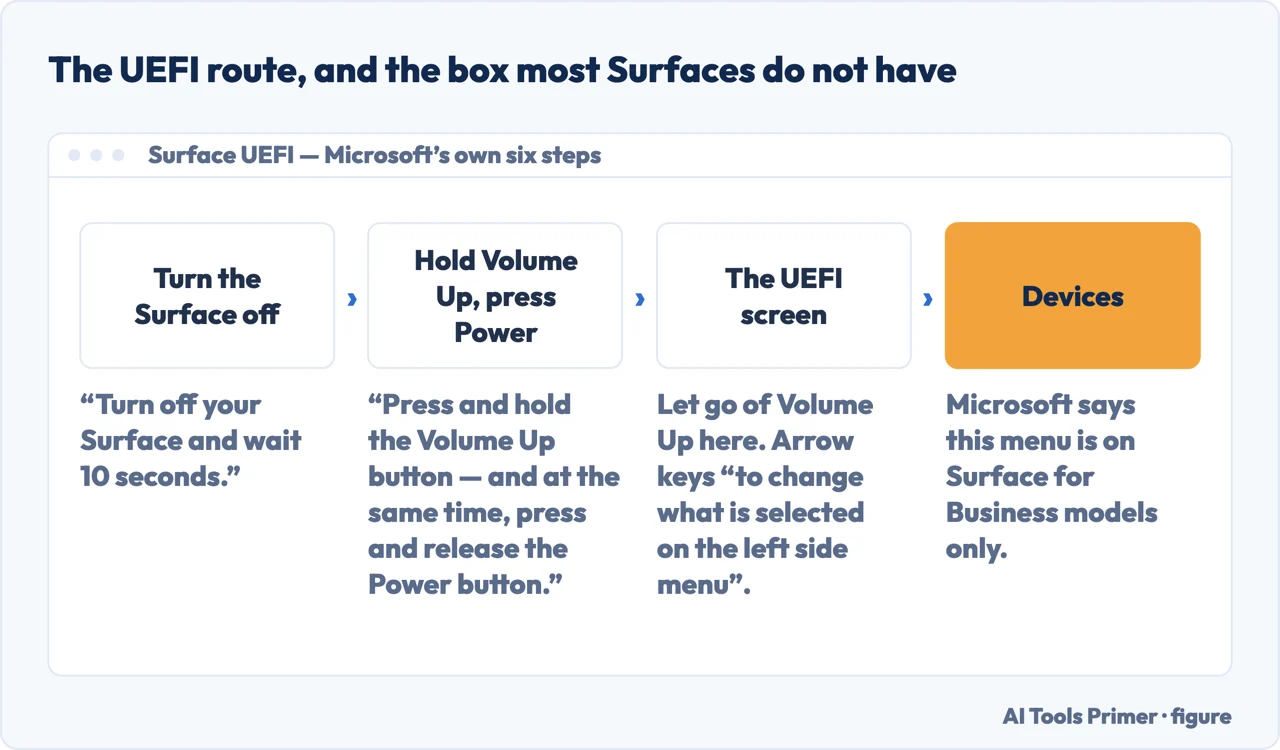
Microsoft: “If a Devices menu is present, access it and disable the Type Cover port from the Devices menu, then exit UEFI.”
And then, in a note directly beneath it: “The Devices menu is available on Commercial SKUs (aka Surface for Business) devices only.”
That condition is the part that changes the step. Read on its own, the instruction — boot into UEFI, select Devices, disable the Type Cover Port — is unconditional, and the sentence that limits it is printed as a note underneath rather than inside it.
This is a reading of one published page, both sentences quoted in full, not a judgement about anyone’s competence. But the consequence for a reader is concrete: on a consumer Surface the Devices menu is not there, and someone who boots into UEFI expecting item four and finds nothing can reasonably conclude the machine is broken. It is not. The menu was never on it.
One more thing about that step, for anyone whose Surface does have the menu. Microsoft frames it as a toggle to be undone, not a setting to leave: disable the port, exit, then “use the same steps above to boot back into UEFI and re-enable the Type Cover port to see if the keyboard functions”. Disabling it and stopping there leaves the keyboard off.
A second complaint with a documented answer is the keyboard that works attached and dies the moment it is pulled away.
“If the keyboard is not ‘Surface Pro Flex Keyboard,’ the keyboard won’t operate in detached mode. Wireless capabilities are exclusive to the Surface Pro Flex Keyboard.”
On every other Surface Pro keyboard, detached use is not a feature, so it cannot be a fault. On the Flex, where it is a feature, Microsoft publishes two exact timings for getting it back: “Hold down the Esc key for approximately 5 seconds until the LED light on the Fn key illuminates”, and “leave the keyboard connected for a minimum of 30 seconds before attempting to use it wirelessly again.” Thirty seconds attached is the part people cut short.
If the LEDs light and the keyboard still misbehaves, Microsoft’s own branch points at Windows rather than the hardware, and it names two situations specifically. One is a clean install: “if you have installed a custom or clean Windows image and your Keyboard is not recognized, you may need to install Keyboard drivers.” The other is the reset, and the sentence worth reading before starting it is Microsoft’s description of what it takes with it: “This process reinstalls Windows but keeps your personal files and any apps that came with your PC. It removes changes you made to settings, as well as apps and drivers you installed.” Personal files stay; everything you installed does not.
What this page will not do is tell you the keyboard is dead. That verdict belongs to the LED test, it takes two minutes, and it is Microsoft’s test rather than this site’s.
It will not recommend a replacement keyboard or a repair service, because nothing here has been bought, opened or tested, and a recommendation without a test is an advertisement.
And it will not reproduce the UEFI step as a numbered instruction without the condition attached to it. The condition is the reason the step fails on every Surface that is not a Commercial SKU, and dropping it is how a working machine gets diagnosed as broken.
Three ways in. If you have not done the LED test, start there — it answers the question.
Microsoft puts a hardware test before every remedy, and on one branch it prescribes a service order rather than software. That order is the point.
Folded covers, Draw Mode, and a battery threshold with a number attached. Three documented states that look identical to a fault.
A menu available on business models only, copied without that condition by a guide on the first page of results. The comparison is of two published texts.
Not covered here. It will not print the UEFI step as an unconditional instruction. Microsoft attaches a condition to it, that condition excludes most consumer models, and removing it turns a working Surface into a suspected fault.
It will not name a repair shop or a replacement keyboard. Nothing here has been tested, and an untested recommendation in a category with this much margin is advertising.
It will not guess at your model. The compatibility line divides Surface Pro keyboards from Type Covers at Surface Pro 8, and which side you are on decides whether anything above applies.
And it carries no affiliate links, including for the keyboards themselves, which are exactly the kind of accessory this page could otherwise be built to sell. What holds instead is simple: each step above is quoted from Microsoft with the conditions Microsoft attached to it, and the comparison is of published text against published text.
Input that stops arriving, or arrives changed into something you did not type, and the two minutes that tell you whether it is hardware.
Written by Alberto Gulotta
Founder and editor of AI Tools Primer, writing from Palermo, Italy. Thirty-five years of taking computers apart, starting with a Commodore 64 — the long version is on the about page.
Something wrong on this page? Write to aitoolsprimer@gmail.com and it gets fixed.
Written on 23 August 2026 · last checked 23 September 2026.
Independence and limits
No affiliate links and no paid placements anywhere on this site. Nobody pays to appear here, and no company has seen this page before you did.
This is general information, not professional advice. Where a page touches money, health, safety or the law, it names its source and the date it was read — and your situation may still differ. See the privacy page and the cookie policy.