
Software · guide
How to turn off autocorrect when it is three settings
By Alberto Gulotta · Updated · 8 min read
How to turn off autocorrect sounds like one switch and is at least three, sitting together on the same screen and producing different symptoms. Turning off the wrong one changes nothing. And before any of them, there is a feature that may remove the reason you came.
“In iOS 17 and later, Auto-Correction temporarily underlines words that it corrects. To quickly edit an auto-correction, tap the underlined word and choose an option from the pop-up menu.”
Before turning anything off, this is worth knowing, because it changes the problem. The phone tells you what it changed, and the correction is one tap from being undone.
That underline is the answer for anybody whose real complaint is “it changed a word and I did not notice”. It does not stop the correction; it makes the correction visible and reversible for a moment, which for most typing is a better arrangement than switching the feature off and losing the corrections you did want.
If you do want it off, the screen is the same one for all three, and it is worth knowing which is which before you start flipping switches.
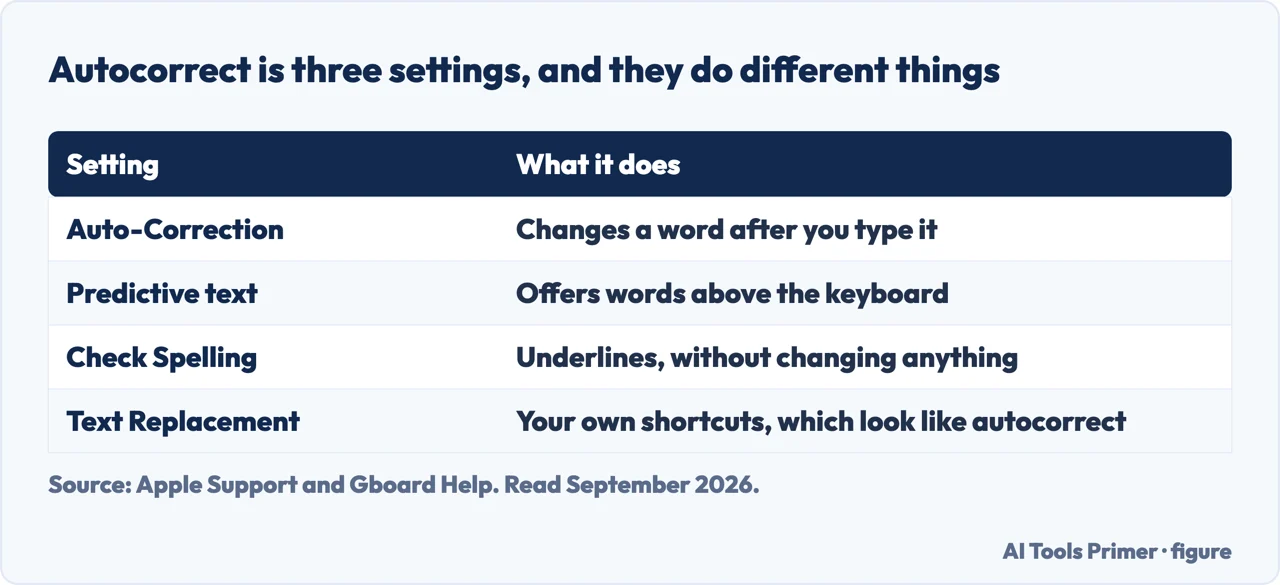
Three separate settings on one screen
Settings › General › Keyboard- Auto-Correction. Apple: it “uses your keyboard dictionary to spellcheck words as you type, automatically correcting misspelled words for you.” And the default is stated plainly: “By default, Auto-Correction is on.”
- Predictive (or Predictive Text). A different thing: the suggestions above the keyboard, “based on your past conversations, writing style, and even websites you visit in Safari.” In iOS 18 there is a further switch for inline predictions.
- Text Replacement. Not a correction feature at all — a list of shortcuts that expand, Apple’s example being “GM” becoming “Good morning”. If a particular short word keeps turning into a particular long phrase, this is where it is coming from, and no amount of turning off Auto-Correction will stop it.
The third of those is the one that produces the strangest complaints, because it does not behave like a spellchecker. Text Replacement is a list that somebody added to, and Apple describes it exactly: enter the shortcut and “your chosen word or phrase automatically replaces it”. Auto-Correction, by contrast, is described as correcting misspelled words from a dictionary. The two definitions give you a test: a substitution that is identical every single time comes from the replacement list; one that varies with the word comes from Auto-Correction. That tells you which screen to open.
And a faster way into that screen than Settings. Apple gives it for predictive text and it works from wherever you are typing: “Touch and hold the smile emoji or the globe icon”, then tap Keyboard Settings.
That is the same keyboard screen, reached without leaving the message you were writing — which matters, because the moment you want to change this is usually the moment it has just done something you did not want.
The word that decides whether any of this will help: dictionary. Apple says
Auto-Correction works from your keyboard dictionary — not from a fixed list of English
words, but from one attached to you.
Apple does not describe on that page how the dictionary comes to hold what it holds, and this guide will not invent an account of it. What the word does establish is narrower and still useful: the corrections are not coming from a universal list, which is why two phones can disagree about the same sentence.
The page above says Auto-Correction works from your keyboard dictionary rather than a fixed word list. Apple explains the mechanism in a single line, and it is not where anyone looks for it — on the page about resetting settings: “You add words to the keyboard dictionary by rejecting words iPhone suggests as you type.”
Which turns the whole problem around. Every time you tapped the little x to keep what you had typed, you taught it. A phone that now “corrects” a real word into a typo you made once is not malfunctioning — it is repeating a lesson you gave it, and no amount of switching Auto-Correction off and on again unteaches it.
The unlearning is a separate command, and Apple bounds it precisely: “Resetting the keyboard dictionary erases only the words you’ve added.” Nothing else on the phone changes — not the layout, not the settings, not the text replacements you made deliberately. For a keyboard that has spent years learning one person’s worst typos, that is a narrower and better tool than turning the feature off, because it keeps the correction and removes only the bad training.
That is worth holding on to before turning the whole thing off in irritation. Advice that worked on somebody else’s phone may not describe yours, and a correction that seems inexplicable is not evidence that the feature is broken — the list it is working from is not the same list.
A note on where this guide stops. Everything above is quoted from Apple and applies to an iPhone. The same three ideas exist elsewhere under different names and in different places — a Mac keeps them in System Settings, and Android and Windows each have their own arrangement — and those are separate guides rather than assumptions made here.
The other keyboard splits the same job into the same pieces. Google’s Gboard separates suggestions from correction, and its availability note is a reminder that none of this is universal: the feature “offers suggestions to supported languages only”. The lesson that carries over to any phone is the one this page is built on — “autocorrect” is not one switch but a family of them, and turning off the one you found rarely stops the behaviour you noticed.
The guides below take it four ways: the underline that may be enough, the three switches, the replacement list that is not autocorrect, and the dictionary underneath all of it.
Where to start
Four ways in.
- “Why does it keep correcting this name?”
- That is the dictionary
The dictionary
Apple says the corrections come from your keyboard dictionary. That one word explains most of the differences between two phones.
Not covered here. It will not tell you autocorrect is one setting. Apple documents three on the same screen, and they fail in different ways.
It will not assume the substitution is a correction. If it is identical every time, it is a text replacement, and turning off Auto-Correction will not touch it.
And it will not describe the Android or Windows versions from memory. Those are separate guides, and this one says so rather than guessing. What holds instead is simple: the three settings and the underline behaviour in iOS 17 and later are Apple’s own wording.
When the keyboard or the screen will not do as it is told
Input that stops arriving, or arrives changed into something you did not type, and the two minutes that tell you whether it is hardware.
- The same job, in the other places it comes up
- Surface keyboard not working, and the step most models lack
- How to fix keyboard not typing when nothing is broken
- How to fix phone screen unresponsive touch, in four steps
- Computer monitor display issues, and what each test proves
Sources
- Apple on resetting iPhone settings to their defaults — that you add words to the keyboard dictionary by rejecting words iPhone suggests as you type, and that resetting the keyboard dictionary erases only the words you have added — support.apple.com, read 24 August 2026.
- Apple Support — How to use Auto-Correction and predictive text on your iPhone, iPad, or iPod touch (the definition of Auto-Correction and its use of your keyboard dictionary, the statement that it is on by default, the underline behaviour in iOS 17 and later with the tap-to-edit pop-up, predictive text and what it draws on, the inline predictions switch in iOS 18, the touch-and-hold shortcut into Keyboard Settings, and the Text Replacement feature with its GM example). Published date given on the page: 30 March 2026 — support.apple.com, read 22 August 2026.
- Gboard Help — Get word suggestions & fix mistakes: suggestions and correction as separate settings on the other phone keyboard, and the languages the feature covers — support.google.com, read 4 September 2026.
Written by Alberto Gulotta
Founder and editor of AI Tools Primer, writing from Palermo, Italy. Thirty-five years of taking computers apart, starting with a Commodore 64 — the long version is on the about page.
Something wrong on this page? Write to aitoolsprimer@gmail.com and it gets fixed.
Written on 22 August 2026 · last checked 23 September 2026.
Independence and limits
No affiliate links and no paid placements anywhere on this site. Nobody pays to appear here, and no company has seen this page before you did.
This is general information, not professional advice. Where a page touches money, health, safety or the law, it names its source and the date it was read — and your situation may still differ. See the privacy page and the cookie policy.