
Software · guide
No bootable devices found: what it does not mean
By Alberto Gulotta · Updated · 19 min read
No bootable devices found appears before Windows has had a chance to load anything, which is why it feels final. It is not, and the most useful thing to establish first is what the message does not say.
The same screen has three names, and the one you searched for is probably not the one the manufacturer uses. Dell’s documentation calls it “No Boot Device Found” and “Boot Device Not Found”; the wording no bootable devices were found appears in only one Dell article, about a narrow case. HP calls its version a “Hard disk 3F0 boot device not found error”. Lenovo’s equivalent reads “Default Boot Device Missing or Boot Failed”.
They describe one situation. Dell defines it plainly: “The computer cannot find a device to boot from, usually indicating a problem with the hard drive or its connection.” Note the last three words — the connection is on the list alongside the drive.
Two messages, one procedure
Dell defines both in the same list, and then says something about them worth noticing. Read 23 August 2026.
| Message | Dell’s definition |
|---|---|
| No Boot Device Found | “The computer cannot find a device to boot from, usually indicating a problem with the hard drive or its connection.” |
| Boot Device Not Found | “Similar to No Boot Device Found, this error indicates that the computer cannot locate a bootable device.” |
| Operating System Not Found | “The computer cannot find the operating system on the hard drive.” |
Those are two different failures. Dell describes the start as a sequence — “Find the Boot Device: The BIOS/UEFI looks for a device to load the operating system from”, then “Load the Operating System: The bootloader loads the operating system (like Windows) into the computer’s memory”. No device found means the first step failed; operating system not found means the first step worked and the second did not.
“The most dependable way to back up your data is by using bootable external media or physically removing the hard drive. This lets you access your internal files from another operating system, even if your computer does not boot.”
Dell, and it is the sentence to hold on to before doing anything else. A machine that will not start is not the same as a disk that has lost its contents. The files are reached from outside — another operating system, or the drive moved to another machine — and that route stays open for as long as the disk is left unwritten to.
The three buttons that end the story
Warnings published by three different companies about the options offered on exactly this screen. Read 23 August 2026.
| Action | What its maker says it does |
|---|---|
| Reset to factory settings | Dell: “Resetting your computer using the Reset to factory settings option permanently deletes all data on the hard drive and uninstalls any programs or drivers that you installed” |
| Formatting the drive | Dell: “Manually formatting the hard drive of your computer deletes the SupportAssist OS Recovery environment.” |
| Clean install of Windows | Microsoft: “A clean installation removes all of the following items: Personal files / Apps / Customizations from the device manufacturer / Any changes made in Settings” |
HP adds the instruction that belongs before all three: “HP recommends that you always back up all important data (such as personal files, photos, videos, documents, applications, and software) before reinstalling Windows to avoid losing your data.” Three companies, three warnings, one order of operations — the rescue comes before the repair.
Five reasons a drive stops being seen
Dell’s published list, in Dell’s order. Read 23 August 2026.
| Cause | As published |
|---|---|
| Loose connection | “The data or power cable has worked itself loose inside the computer, or an M.2 SSD has shifted slightly out of its slot” |
| Wrong BIOS settings | “The wrong SATA operation mode (RAID vs AHCI), an incorrect boot order, or a UEFI/Legacy boot mode mismatch can all prevent the drive from being seen” |
| Old firmware | “Newer drives may not be recognized by an older BIOS version, or a recent Windows update may have introduced a compatibility issue” |
| A dying CMOS battery | “A discharged CMOS battery causes BIOS settings to reset on every startup, including the SATA mode and boot order” |
| The drive itself | “Physical or mechanical drive failure — More common on HDDs, and often accompanied by clicking, grinding, or whining sounds” |
The one everybody fears is fifth of five, and the four above it are all recoverable. The fourth explains a pattern that otherwise makes no sense: a machine whose BIOS settings keep resetting themselves is describing a flat battery, not a failing disk.
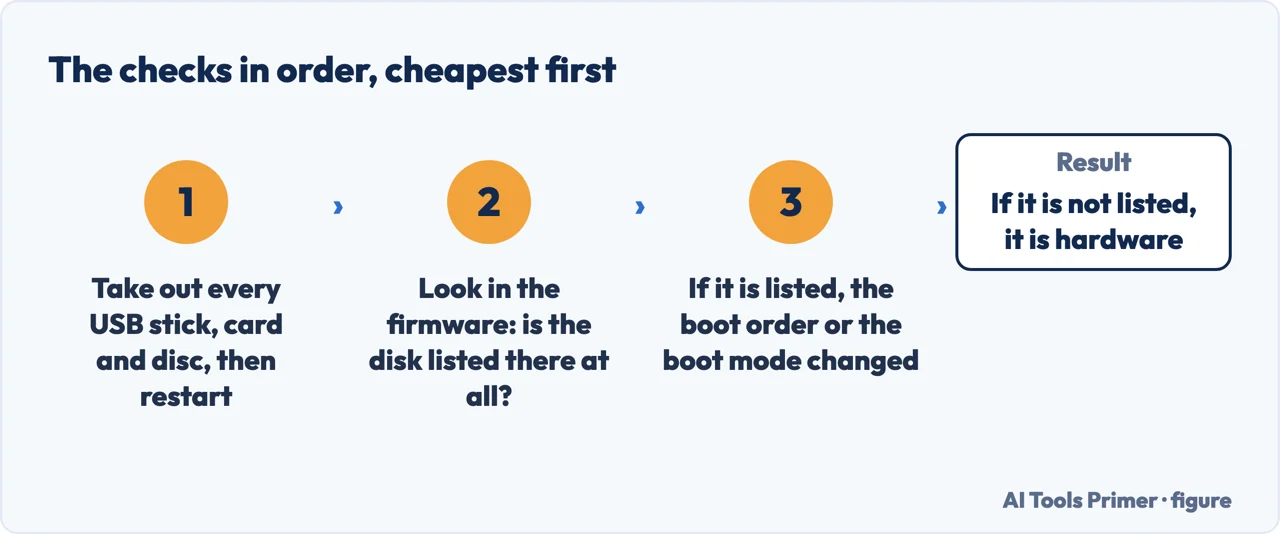
With the worst case placed where it belongs — fifth of five — the checks have a published order. It is Dell’s, which matters because most searches that reach this screen are for dell computer no bootable devices, and the first two steps cost nothing.
Dell’s six steps, in Dell’s order
Section headings from Dell’s library page on a computer that will not boot into Windows. Read 23 August 2026.
| Step | What it involves |
|---|---|
| 1 — External devices | “Unplug External Devices : Remove USB drives, printers, and other peripherals.” |
| 2 — Hard reset | “Hold the Power Button : Press and hold it for 15-20 seconds to drain any residual power.” |
| 3 — BIOS settings | “Enter BIOS or UEFI : Press F2 repeatedly as the computer starts.” Then check the drive is detected and first in the boot order. |
| 4 — Diagnostics | “Enter Boot Menu : Press F12 repeatedly … Select Diagnostics … SupportAssist Pre Boot System Assessment (ePSA on older devices) checks for hardware issues.” |
| 5 — Startup Repair | “Select Troubleshoot > Advanced Options > Startup Repair.” |
| 6 — SupportAssist OS Recovery | “On the Repair Software tile, select Repair.” This is the step behind searches for dell supportassist no bootable devices found: Dell states the tool “automatically starts” when the computer cannot boot after repeated attempts. |
Steps one and two cost nothing and touch nothing. It is worth noticing how far down the list anything that writes to the disk appears — and that Repair and Reset are different tiles on the same Dell screen, only one of which is reversible.
The four checks inside the BIOS
Dell’s own menu paths and the values to confirm. Read 23 August 2026.
| Check | Where, and what it should say |
|---|---|
| Is the drive there at all | “Go to General > System Information (or the Storage section on newer systems)… If it is not listed, the drive is not being detected at the hardware level” |
| Boot order | “Make sure your internal hard drive or SSD is listed first” |
| SATA mode | “Confirm the SATA mode is set to AHCI . If it shows RAID On and you are not using a RAID configuration, change it to AHCI” |
| Boot mode | “Confirm the boot mode is set to UEFI . If it is set to Legacy , change it to UEFI .” |
The first row is the whole diagnosis in one look. A drive missing from the BIOS list is a hardware problem, and no amount of Windows repair will help. And Dell attaches a warning to the third row worth reading before touching it: “Changing the SATA mode on a system where Windows is already installed and working can cause an "Inaccessible Boot Device" blue screen error.”
One trap costs people an afternoon in the BIOS. If the boot mode was switched to Legacy and Windows was then installed that way, switching back does not undo it. Dell: “If the operating system is installed with Legacy mode, the computer cannot be recovered by changing the Boot sequence back to UEFI mode. Operating system reinstallation should be performed.”
The reverse case is the happy one, and is worth trying first: “If the operating system is installed with UEFI before the boot sequence is changed, the computer can be recovered by changing the Boot sequence back to UEFI.”
The keys are not the same on every machine
Firmware and diagnostics entry, quoted from each manufacturer. Read 23 August 2026.
| Maker | Published instruction |
|---|---|
| Dell — BIOS | “Press F2 repeatedly as the computer starts.” |
| Dell — boot menu | “Press F12 repeatedly as the computer starts.” |
| HP — BIOS | “repeatedly press the f10 key to enter the BIOS setup menu … press f9 to select and load the BIOS Setup Default settings. Press f10 to Save and Exit.” |
| HP — diagnostics | “immediately press esc repeatedly, about once every second. When the menu is displayed, press the f2 key.” |
| Acer | “immediately press the F2 key, or the DEL key if you have a desktop, to enter the BIOS. Press F9 and then ENTER to load the default configuration.” |
Two things to notice. F2 opens the BIOS on a Dell and runs diagnostics on an HP, and on an HP the BIOS key is F10 instead. And loading defaults — F9 on both HP and Acer — is a step all three makers put early, because it undoes a wrong setting without knowing which one it was.
“Test passes — Your drive hardware is working correctly. The issue is likely a BIOS configuration problem.”
“Test fails — Note the error code, validation code, and your Service Tag.”
Dell turns the diagnostic result into the answer to the only question that matters, and the branch is clean: hardware passes, so look at settings; hardware fails, so write down the code. HP’s equivalent asks for something more specific: “Write down or copy the failure ID (24-digit code) and product ID for when you contact HP Customer Support.”
The test that settles it, and rescues the files at the same time. Dell: “Using an external enclosure, connecting it to another computer via USB can quickly tell you whether the drive is recognized elsewhere. If it is detected on another computer, the issue is likely with the original system’s BIOS settings, cables, or motherboard.”
And the condition under which that must not be attempted, from the same page: “A clicking or grinding sound from an HDD typically means the read/write head is struggling to find or access data, which is a sign of mechanical failure. Back up your data immediately if you can still access it… Do not continue using the drive heavily if it is clicking, doing so can worsen the damage.”
If the hardware turns out to be fine and Windows still will not start, the repairs escalate — and Microsoft publishes them in order of how much they take away.
Microsoft’s recovery options, as the page reads today
The page is built around two situations. This is the list for the one that applies here — “Scenario B: My PC won’t start or is in a restart loop”. Read 6 September 2026.
| Option | What Microsoft publishes about it |
|---|---|
| 1 — Point-in-time restore | “This action rolls back your entire PC, including apps, settings, and personal files to a recent automatic restore point.” |
| 2 — Uninstall updates | “If the problem started after a recent Windows update, uninstalling it might fix the issue.” |
| 3 — Reset this PC | “Reinstalls Windows. You can choose to keep your personal files or remove everything.” |
| 4 — Reinstall Windows from recovery media | The last of the four. Microsoft points at the device manufacturer for the media rather than at itself. |
The instruction above the list is the part to take literally: “Try these options in order. Start with option 1 — it’s the least disruptive.” And the warning that sits above the whole page belongs before every row of it: “Some recovery options can result in data loss.”
This is not the ladder this page carried until today, and the difference is worth stating rather than quietly replacing. Microsoft has rewritten the article: the four situations it used to pair with options are gone, replaced by two scenarios, and the two sentences this page used to quote about what Reset and Reinstall each take away are no longer on it.
Startup Repair has left that page, and that is a move rather than a removal. It has an article of its own now, and it is worth knowing what it does before choosing it. Microsoft: “After the device reboots, Startup Repair scans your computer for problems and then tries to fix them. Here are some of the issues it tries to repair:” — missing or damaged system files, corrupted boot configuration data (BCD), damaged master boot record (MBR), incompatible drivers, registry errors. And then: “If Startup Repair detects any of these issues, it will attempt to fix them automatically.” If it cannot, it does not go quiet: “If it can’t fix the problem, it will provide a detailed report of the issues it found.”
Read that list against the message at the top of this page. Every item on it is something that happens after a bootable device has been found — a boot record, a configuration store, a driver. None of it is the firmware failing to find a disk. Which is the same boundary this page started from, arriving from the other direction.
The route is “In WinRE, select Troubleshoot > Advanced options > Startup Repair > Restart”, with one condition attached before it: “If you’ve encrypted your device, you’ll need your BitLocker key to complete this task.” On a machine that will not start, that key is not on the machine.
Two things this page will not tell you. Microsoft never names this message anywhere in its startup-troubleshooting documentation — and that is correct, because the words are written by the computer’s firmware, not by Windows. Microsoft documents what happens after the handover: missing or corrupted boot configuration, boot sector, bootmgr.
And Lenovo’s page for its equivalent message includes the step “try cleaning the disk”, without explaining what it means. There are readings of that phrase which would erase everything on the drive, so it is quoted here and not interpreted.
Where to start
Three ways in.
- “Are my files gone?”
- Start at what it does not mean
- “It is a Dell.”
- Go to the checks in order
- “It gets past this and then fails.”
- That is Desktop won’t boot
What it does not mean
A machine that will not start is not a disk that has lost its contents — and the difference is decided by what you do in the next few minutes.
The checks in order
External devices, a hard reset, the BIOS, then diagnostics. Everything that writes to the disk comes after all of it.
Not covered here. Every cause, key, menu path and warning on this page is quoted from the company that publishes it — Dell, HP, Acer, Lenovo and Microsoft — and every source is listed below What holds instead is simple: the message says the firmware found nothing to start from, which is not the same as saying the disk is empty.
Sources
- Dell — Computer Cannot Boot into Windows (the list of common boot error messages; the six steps in order, including unplugging external devices, the 15-20 second power drain, entering the BIOS with F2 and the boot menu with F12, SupportAssist Pre Boot System Assessment and ePSA on older devices, Startup Repair, and SupportAssist OS Recovery; and the FAQ definitions of No Boot Device Found and Boot Device Not Found) — www.dell.com, read 23 August 2026.
- Dell — Computer Cannot Boot into Windows, FAQ 1 and Steps in the Boot Process (the separate definitions of No Boot Device Found, Boot Device Not Found and Operating System Not Found quoted in the table on this page; the description of finding the boot device and loading the operating system as two consecutive steps; and the statement that the guide provides common troubleshooting steps for any of these error messages) — www.dell.com, read 23 August 2026.
- Dell — Fix Hard Drive and SSD Issues (the five published causes of a drive that is not seen; the four BIOS checks with their menu paths and the values AHCI and UEFI; the warning that changing the SATA mode on a working installation can cause an Inaccessible Boot Device error; the meaning of a test that passes or fails; that a clicking or grinding HDD is a sign of mechanical failure and should not be used heavily; and that connecting the drive to another computer in an external enclosure isolates the fault) — www.dell.com, read 23 August 2026.
- Dell — Troubleshoot a Dell computer that does not boot to Windows 11 or Windows 10 (that the most dependable way to back up data is bootable external media or physically removing the hard drive, which allows the internal files to be reached from another operating system even when the computer does not boot; and that a Reset keeping files removes installed programs and resets settings) — www.dell.com, read 23 August 2026.
- Dell — Repair and Restore your Computer Using SupportAssist OS Recovery (that SupportAssist OS Recovery starts automatically when the computer cannot boot after repeated attempts; that it can back up files before a repair; the caution to back up files and personal data before repairing; that Reset to factory settings permanently deletes all data on the hard drive; and that manually formatting the hard drive deletes the SupportAssist OS Recovery environment) — www.dell.com, read 23 August 2026.
- Dell — Resolve No Bootable Device Found Error in Legacy Mode on Dell Computers (that the failure cannot be recovered by changing the BIOS setting back to UEFI when the operating system was installed in Legacy mode and reinstallation is required, and that it can be recovered by returning to UEFI when the operating system was installed with UEFI) — www.dell.com, read 23 August 2026.
- HP — HP PCs, Hard disk 3F0 boot device not found error (the instruction to press f10 for the BIOS setup menu, f9 to load defaults and f10 to save and exit; the esc then f2 route into HP PC Hardware Diagnostics UEFI and the hard drive symptom test; the instruction to write down the 24-digit failure ID and product ID; the recommendation to back up all important data before reinstalling Windows; and the warning to install BIOS updates only from HP) — support.hp.com, read 23 August 2026.
- Acer Community knowledge base — "No Bootable Device" Error Message (that the error may appear when the computer does not detect a bootable drive and can be caused by a change to BIOS or UEFI settings, and the key sequence F2 on laptops or DEL on desktops, then F9 to load defaults and F10 to save) — community.acer.com, read 23 August 2026.
- Lenovo Support — "Default Boot Device Missing or Boot Failed" Error, Windows 10 and 11 (the equivalent Lenovo message and its three published causes: incorrect boot sequence, incorrect BIOS settings, or a failed hard drive) — pcsupport.lenovo.com, read 23 August 2026.
- Microsoft Support — Recovery options in Windows, rewritten since this page was first published (the two scenarios the article is now built around; the instruction to try the options in order starting with the least disruptive; the warning that some recovery options can result in data loss; and the four options listed under a PC that will not start or is in a restart loop, with the descriptions of point-in-time restore, uninstalling updates and Reset this PC quoted on this page. The four situations and the two sentences about Reset and Reinstall that this page quoted until 6 September 2026 are no longer on the article) — support.microsoft.com, read 6 September 2026.
- Microsoft Support — Reinstall Windows with the installation media (the warning that a clean installation removes personal files, apps, manufacturer customizations and settings changes, and the instruction to back up personal data first) — support.microsoft.com, read 6 September 2026.
- Microsoft Learn — Windows startup issues troubleshooting (the error conditions Microsoft attributes to the boot loader phase — missing or corrupted boot configuration data, boot file or MBR, operating system, boot sector, bootmgr or system hive — cited on this page as the set that does not include the firmware message above) — learn.microsoft.com, read 23 August 2026.
- Microsoft Support — Startup Repair (the sentence that after the device reboots Startup Repair scans the computer for problems and tries to fix them, with the published list of what it tries to repair: missing or damaged system files, corrupted boot configuration data, a damaged master boot record, incompatible drivers and registry errors; that if it detects any of these it will attempt to fix them automatically; that if it cannot fix the problem it will provide a detailed report of the issues it found; the route through Windows RE, Troubleshoot, Advanced options, Startup Repair and Restart; and the note that an encrypted device needs its BitLocker key to complete the task. This article did not exist separately when this page was written: Startup Repair was a row on the recovery options page) — support.microsoft.com, read 6 September 2026.
Written by Alberto Gulotta
Founder and editor of AI Tools Primer, writing from Palermo, Italy. Thirty-five years of taking computers apart, starting with a Commodore 64 — the long version is on the about page.
Something wrong on this page? Write to aitoolsprimer@gmail.com and it gets fixed.
Written on 23 August 2026 · last checked 23 September 2026.
Independence and limits
No affiliate links and no paid placements anywhere on this site. Nobody pays to appear here, and no company has seen this page before you did.
This is general information, not professional advice. Where a page touches money, health, safety or the law, it names its source and the date it was read — and your situation may still differ. See the privacy page and the cookie policy.