
Software · guide
USB device not recognized: what to check before clicking
By Alberto Gulotta · Updated · 15 min read
USB device not recognized arrives with a stick or a drive that worked yesterday. Whether it is a one-off or usb device not recognized keeps popping up, the first thing to establish is not how to fix it: it is what not to press while you work it out.
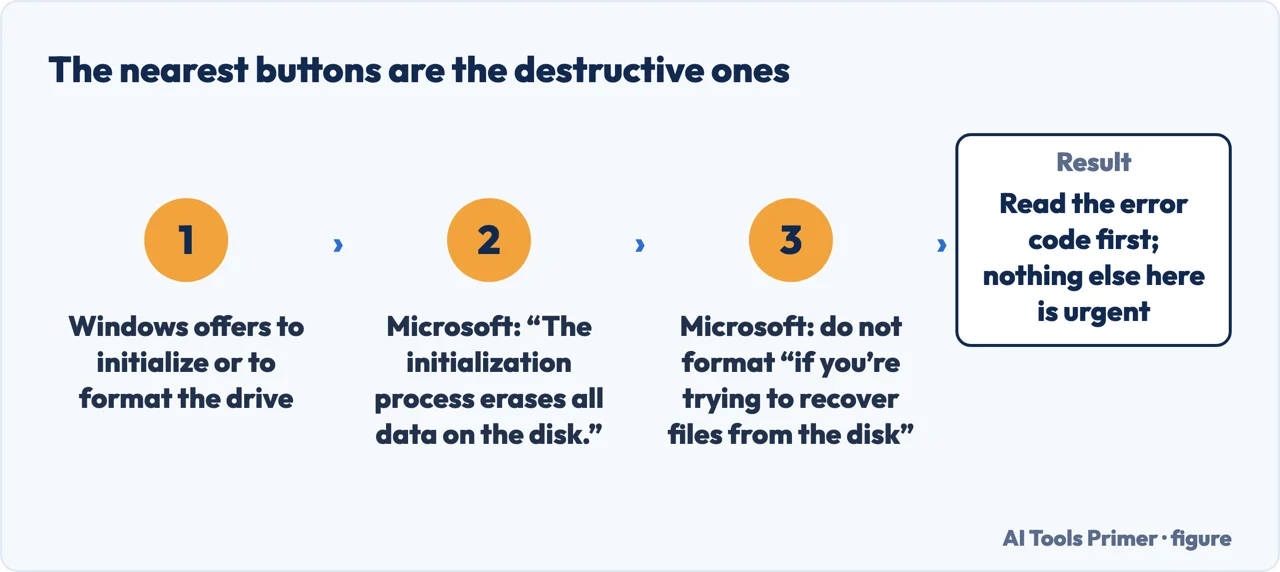
“The initialization process erases all data on the disk.”
“Formatting a disk erases all data on it, so don’t do this step if you’re trying to recover files from the disk.”
Both sentences are Microsoft’s, and they come first here for a reason: when Windows cannot read a drive it often offers to initialize or format it, and those buttons are the ones nearest to hand. Microsoft even names the situation directly — “maybe you have a disk full of important files that you don’t want the initializing process to erase”. Nothing else on this page is urgent. This is.
What the message says, and what Microsoft says causes it. The notification reads: “The last USB device you connected to this computer malfunctioned, and Windows does not recognize it.” Microsoft’s published cause is short: “The USB device that you connected to reported a problem, or there’s a problem with the device driver.”
Note what is not in that sentence. Microsoft points at the device or its driver — not at a broken Windows installation, and not at anything you need to download. The wording above is what Microsoft publishes for usb device not recognized Windows 11; the Windows 10 selector on the same page names the notification differently.
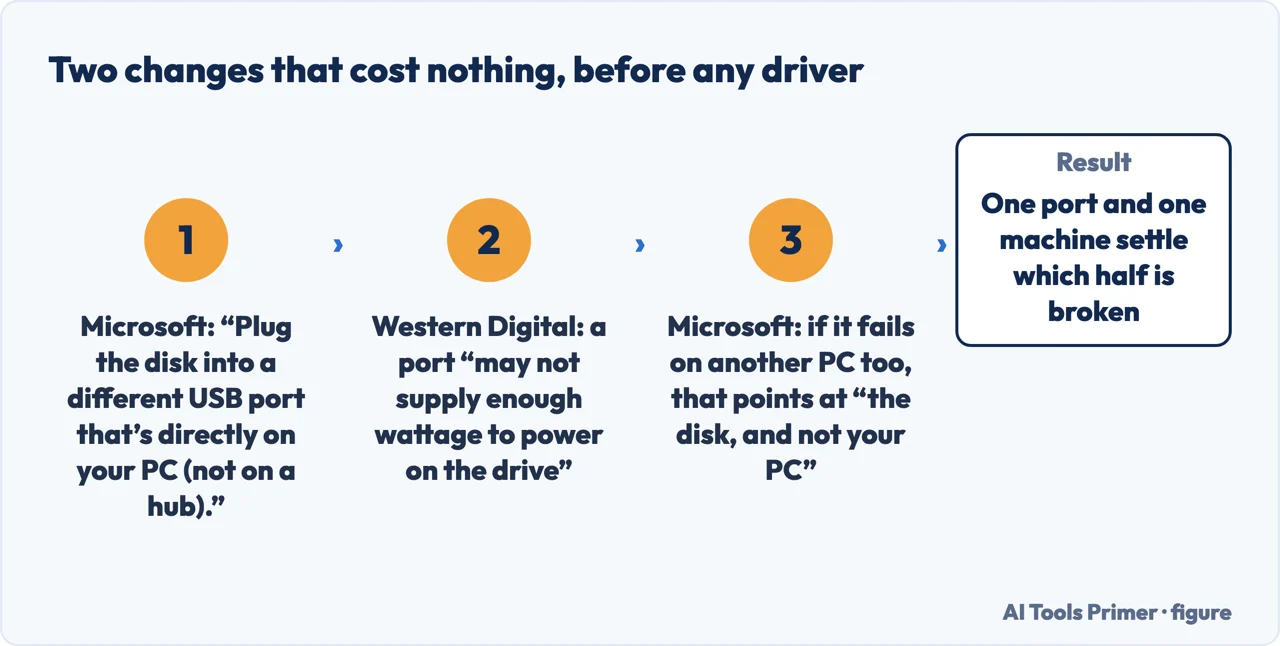
“If the disk doesn’t work on another PC, it’s a good sign that there’s something wrong with the disk, and not your PC.”
Microsoft’s own test, and the one worth doing early because it costs nothing and settles the question the rest of the page is built around. Two machines, one answer. Seagate publishes the same step in its first four checks — port, cable, another computer, power — and so does Western Digital.
Finding the code, which is where the real answer is
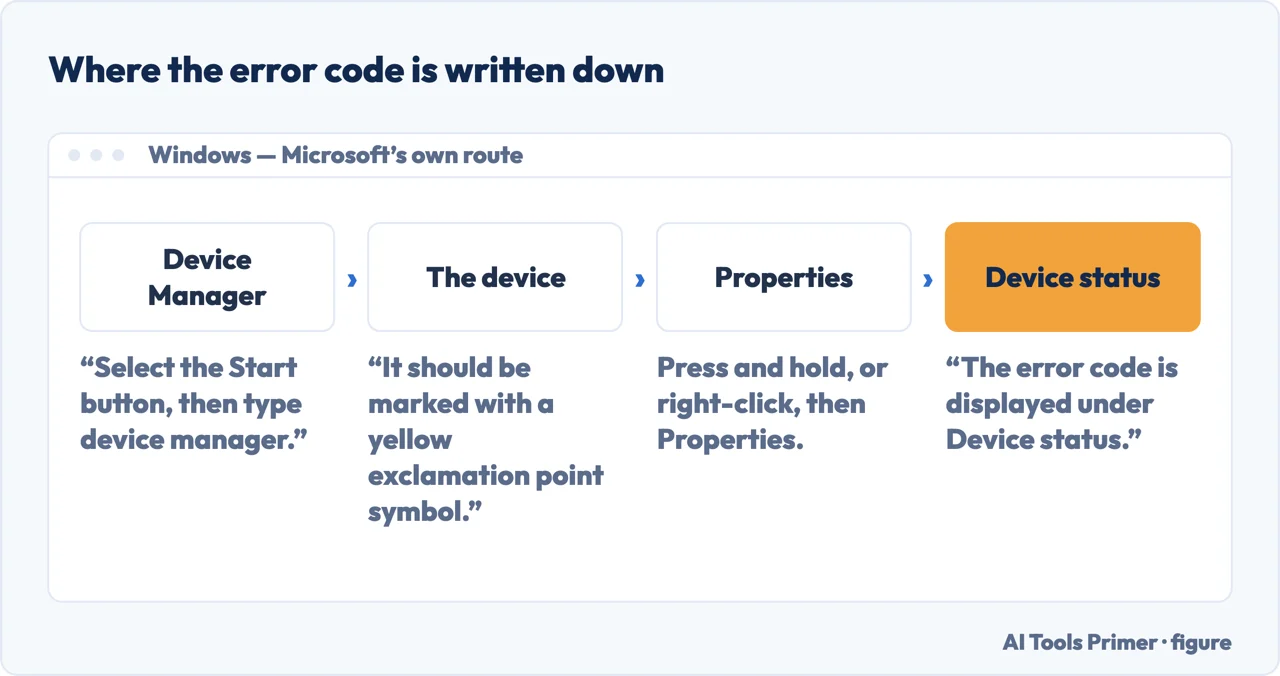
Microsoft does not publish a fix for this message. It publishes a route: read the code, then look the code up. These are its own steps.
- Open Device Manager. “Select the Start button, then type device manager and select Device Manager from the list of results.”
- Find the device. “In Device Manager, find the device. It should be marked with a yellow exclamation point symbol.”
- Read the code. “Choose the device, press and hold (or right-click) it, and then select Properties. The error code is displayed under Device status.”
- Look further than the obvious place. Seagate names a place the list above does not cover: “Within Device Manager look for any entries called unknown device, other device, or mass storage device with a yellow ! icon. Important - Make sure to expand the Universal Serial Bus controllers section so you can see entries there as well.”
What the codes mean
Message text and causes quoted from Microsoft’s Device Manager error code page. Read 23 August 2026.
| Code | What Microsoft publishes |
|---|---|
| Code 43 | “Windows has stopped this device because it has reported problems.” Cause: “One of the drivers controlling the device notified the operating system that the device failed in some manner.” |
| Code 10 | “This device cannot start. Try upgrading the device drivers for this device.” |
| Code 28 | “The drivers for this device are not installed.” |
| Code 22 | “This device is disabled.” Cause: “The device was disabled by the user in Device Manager.” |
| Code 47 | “Windows cannot use this hardware device because it has been prepared for safe removal, but it has not been removed from the computer. To fix this problem, unplug this device from your computer and then plug it in again.” |
Code 47 is the happiest one to see: it means the machine is still holding the ejection you asked for, and unplugging and replugging genuinely is the fix. Code 43 is the opposite end — a driver telling Windows the device itself failed.
A manufacturer willing to say the thing nobody wants to hear. Seagate, on its USB troubleshooting page: “If you see Code 10 and have already tried another cable and computer then the drive has probably failed.” Note the condition attached — the verdict only holds once the cheap checks are done.
For the driver-shaped codes it publishes a sequence rather than a single click: “Close the window with the code. Right-click on the device with the issue and select uninstall. Shut the computer down and disconnect the drive. Reboot with the drive disconnected. Once the computer is booted, plug the drive into a different port.”
A second situation produces the same alarm and has nothing to do with a broken device. It is also what is behind most searches for an external hard drive not showing up, and it has a repair that touches nothing on the disk.
Two different problems that look alike
Quoted from Microsoft’s Disk Management troubleshooting page. Read 23 August 2026.
| What you see | What it means, and the safe move |
|---|---|
| Nothing at all | The device is not recognised. The codes above apply. |
| Visible, but no drive letter | “If a partition has a file system, but no drive letter (for example, E:), see Change a drive letter to manually add a drive letter.” Nothing is written to the disk — this is the zero-risk repair. |
| Listed as Not Initialized | “the disk might not have a valid disk signature. It’s either because the disk was never initialized and formatted, or the drive formatting has become corrupted somehow.” |
| Listed as RAW | Format only “if you know that the disk is empty” — Microsoft’s own condition. If the files matter, this is where recovery begins, not formatting. |
The second row is the one worth hunting for first. A drive that appears in Disk Management but has no letter is not damaged, and giving it one changes nothing on the disk itself.
Before any of that, the physical checks — and Microsoft explains why they matter. “Plug the disk into a different USB port that’s directly on your PC (not on a hub). Sometimes, USB disks don’t get enough power from some ports, or they have other issues with particular ports.”
Western Digital gives the same instruction more bluntly — “Do not use a USB Hub.” — and names the mechanism: “The primary computer and USB Port may not supply enough wattage to power on the drive.” It is the reason the same drive can work on one machine and fail on another without either of them being broken.
Three manufacturers, one thing they all deny
On whether you need to download a driver for an external drive. Read 23 August 2026.
| Maker | What they publish |
|---|---|
| Seagate | “The external hard drive itself, under normal circumstances, should be detected by your operating system, without the need of drivers, software, or firmware updates.” |
| Western Digital | “There is no additional software required for a Western Digital drive to function as storage devices. Drivers are delivered and installed by the Windows updates.” |
| SanDisk | “There is no additional software required for a drive to function as storage devices. Drivers are delivered and installed by Windows and macOS updates.” |
Three companies that sell these drives, all saying there is no driver to fetch. A site offering you a USB storage driver to download is offering you something the manufacturer says does not exist. SanDisk adds one case the others skip, and it costs nothing to test: “Remove microSD cards from adapters, try another adapter or insert directly into a computer with a microSD slot.”
One popular fix with no official support behind it. Turning off USB selective suspend is among the most repeated suggestions for this message. We could not find a single Microsoft page recommending it for a device that is not recognised — the article Microsoft does publish on the feature describes the opposite situation, one where the feature gets switched off by accident and “this increases battery drain”.
That does not prove the suggestion never helps anybody. It means nobody who wrote the operating system has said it does, and this page only reports what is published.
On a Mac, in Apple’s order
From Apple’s Disk Utility repair guide and its Finder documentation.
- Check it is not just hidden. Finder decides what appears on the desktop and in the sidebar: “In the Finder on your Mac, choose Finder > Settings. Click General, then select the items you want to see on the desktop. … Click Sidebar, then select the items you want to see in the Finder sidebar.”
- Back up first. Apple puts this before every other step: “Make sure that you have a current backup of your data, in case you need to recover damaged files or Disk Utility finds errors that it can’t repair.”
- Show the hardware, not just the volumes. “From the menu bar or toolbar in Disk Utility, choose View > Show All Devices (if available).” Without this, the physical device does not appear at all.
- Run First Aid from the bottom up. “For each device that you’re repairing, start by selecting the last volume on that device.” Then: “Keep moving up the list, running First Aid for each volume and volume group on the device, then each container, then finally the device itself.”
- If it never appears in the sidebar. “your Mac or the storage device might need service. Shut down your Mac and unplug all nonessential devices, then try again. For an external storage device, check its cable, connections, and power as well.”
“If this is the only copy of your important data, and you need the data, then you will want to consider data recovery.”
Seagate, and it is the sentence this whole page points at. Repair tools and recovery tools want opposite things. Repairing writes to the disk; recovery reads from it. If what is on the drive exists nowhere else, every step that writes is a step that can remove the thing you are trying to save — and Microsoft closes its own page on the same note: “Disks fail often, so it’s important to regularly back up any files you care about.”
Where to start
Three ways in.
- “There are files on it I need.”
- Start at before anything else
- “Windows sees it but there is no drive letter.”
- Go to two problems that look alike
- “It is a Mac.”
- Go to two problems that look alike
Before anything else
The buttons Windows offers when it cannot read a drive are the ones that erase it. Everything here comes before them.
Two problems that look alike
Not recognised at all, and recognised but not showing as a drive. One needs a code read; the other needs a letter.
Not covered here. Every cause, code, instruction and warning on this page is quoted from the company that publishes it — Microsoft, Apple, Seagate, Western Digital and SanDisk — and every source is listed below What holds instead is simple: the message names a device rather than a verdict, and the buttons Windows puts nearest to hand, initialize and format, are the two that erase the disk.
Sources
- Microsoft Support — Fix USB-C problems in Windows (the text of the notification that the last USB device connected malfunctioned and Windows does not recognize it, and its published cause that the device reported a problem or there is a problem with the device driver; and the steps for finding the error code in Device Manager. Note: on that page the wording appears under the Windows 11 selector; the Windows 10 selector names the same notification differently) — support.microsoft.com, read 6 September 2026.
- Microsoft Support — Error codes in Device Manager in Windows (the published message text and causes for Code 43, Code 10, Code 28, Code 22 and Code 47, and the instructions for finding the code in a device’s Properties dialog) — support.microsoft.com, read 23 August 2026.
- Microsoft Learn — Troubleshoot Disk Management (that a disk listed as Not Initialized might not have a valid disk signature; the warning that you may have a disk full of important files you do not want the initializing process to erase; that formatting erases all data and should not be done when trying to recover files; the instruction to add a drive letter when a partition has a file system but no letter; the instruction to use a port directly on the PC rather than a hub and the explanation that some ports do not supply enough power; that a disk which does not work on another PC is a good sign the disk is at fault rather than the PC; and the closing note that disks fail often and files worth keeping should be backed up regularly) — learn.microsoft.com, read 23 August 2026.
- Microsoft Learn — Initialize New Disks (the warning that the initialization process erases all data on the disk and that existing files should be saved to a backup location first) — learn.microsoft.com, read 23 August 2026.
- Microsoft Support — USB selective suspend feature is disabled in Windows (that the documented problem is the feature being disabled, which increases battery drain — cited on this page as the absence of any Microsoft recommendation to disable it) — support.microsoft.com, read 6 September 2026.
- Seagate — USB External Troubleshooter (that an external hard drive should be detected without the need of drivers, software or firmware updates; the first four hardware checks; the instruction to expand the Universal Serial Bus controllers section in Device Manager; that Code 10 with cable and computer already tried means the drive has probably failed; the uninstall-and-reconnect sequence for Code 28 and Code 43; and that when the only copy of important data is on the drive, data recovery should be considered) — www.seagate.com, read 23 August 2026.
- Note on the three drive-maker pages above: Seagate, Western Digital and SanDisk serve the page in the language of the country you open it from, so the wording you see may be a translation of the English quoted here — www.seagate.com, read 23 August 2026.
- Western Digital — Resolve External Drive Not Detected by Windows (that no additional software is required and drivers are delivered by Windows updates; the instruction not to use a USB hub; and that the computer and USB port may not supply enough wattage to power the drive) — support-en.wd.com, read 23 August 2026.
- SanDisk — Resolve USB Flash, External Drive, and Memory Card Reader Not Detected (that no additional software is required and drivers are delivered by Windows and macOS updates, and the instruction to remove microSD cards from adapters and try another adapter or a direct slot) — support-en.sandisk.com, read 23 August 2026.
- Apple Support — How to repair a Mac storage device with Disk Utility (the instruction to make sure of a current backup before beginning; the instruction to choose View then Show All Devices; the order of First Aid starting from the last volume and moving up through volumes, volume groups, containers and finally the device; and what to do if the device never appears in the sidebar) — support.apple.com, read 16 September 2026.
- Apple Support — See the devices connected to your Mac (that hard disks and external disks can be shown in the Finder sidebar or on the desktop, and the Finder Settings steps under General and Sidebar that control it) — support.apple.com, read 6 September 2026.
Written by Alberto Gulotta
Founder and editor of AI Tools Primer, writing from Palermo, Italy. Thirty-five years of taking computers apart, starting with a Commodore 64 — the long version is on the about page.
Something wrong on this page? Write to aitoolsprimer@gmail.com and it gets fixed.
Written on 23 August 2026 · last checked 23 September 2026.
Independence and limits
No affiliate links and no paid placements anywhere on this site. Nobody pays to appear here, and no company has seen this page before you did.
This is general information, not professional advice. Where a page touches money, health, safety or the law, it names its source and the date it was read — and your situation may still differ. See the privacy page and the cookie policy.