
Screens · guide
Second monitor not detected: what to check before the cable
By Alberto Gulotta · Updated · 13 min read
A second monitor not detected sends you looking for a different cable. Before that, there is a published limit worth knowing, because on a machine with a single video output it can be the entire explanation for a computer not detecting second monitor hardware at all.
“If you are trying to set up an external monitor and it’s not working, press the Windows logo key + P to make sure that the Extend option is selected.”
Microsoft puts this ahead of every hardware check on the same page, and it is the only step here that costs nothing and touches nothing. Windows can have found the monitor and still be sending it a copy of the first screen, or nothing at all, because the projection mode is set to something other than Extend. Microsoft’s own next line is conditional — “If the Extend option is selected, try the following troubleshooting tips” — so everything below this point assumes it already is.
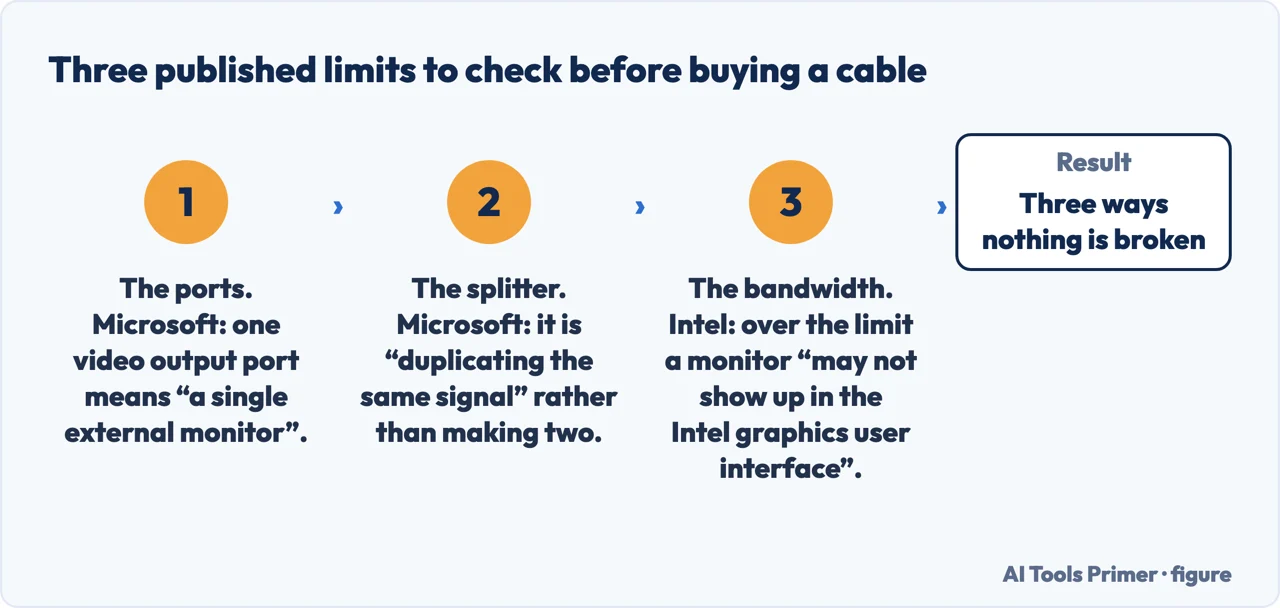
“If your device only has one video output port, then by default, you can only support a single external monitor.”
Microsoft, and it can explain the whole problem before any troubleshooting starts. Nothing is broken; the machine simply cannot do it. The same page names the two ways past it: a docking station, or, on a machine with a USB-C port, a USB adapter that may give it another video output. Worth counting the ports before changing a single cable.
The button that forces a search — and what each maker calls it
Every source publishes a way to make the computer look again. They do not agree on the name. Read 23 August 2026.
| Source | What it publishes |
|---|---|
| Microsoft | “If you connected another display and it isn’t showing in Settings, select Start > Settings > System > Display > Multiple displays > Detect.” |
| Apple | “Press and hold the Option key to show the Detect Displays button, then click the button.” |
| HP | “Click Detect to detect a second display.” |
| AMD | “If all displays are not listed, click Detect to refresh the display devices.” |
| Dell | “Click Identify to discover any connected monitors not displaying.” |
| Intel | In its own control panel: “Confirm the displays are enabled in the Intel Graphics Command Center or Intel Graphics Control Panel.” |
Anyone searching why Windows not detecting second monitor screens meets the first of these; the rest are the same intention under other names — Detect, Identify, Enable — and one of them behaves differently. Microsoft documents Identify separately as the command that numbers displays it can already see: “A number appears on the screen of the display it’s assigned to.” On Apple’s side the button is not merely differently named, it is hidden until the Option key is held down.
“If you are trying to use a display splitter to extend your display to more than one external monitor, you won’t be able to. The splitter is duplicating the same signal instead of creating two independent signals.”
Microsoft, and it is the clearest “this will not work” in any of the documentation. A splitter is built to send one picture to two places. Buying one to gain a second desktop is buying the opposite of what is wanted — and no amount of detecting will change it.
The checks that cost nothing, in the order the makers give them
Quoted from Microsoft, Intel and HP. Read 23 August 2026.
| Check | As published |
|---|---|
| The monitor’s own input | Intel: “Verify that the display is configured to use the input connector or try a different input connector on the monitor.” |
| Is the monitor alive | HP lists “Display the default on-screen message” second in its own order — the monitor’s built-in menu appearing at all proves the screen works |
| Accessories in between | Microsoft: “Disconnect all accessories from your PC. Connected docks, dongles, adapters and other hardware can cause conflicts.” |
| The cable | Microsoft: “Try changing the cable connecting the external monitor. If the new one works, you know the previous cable was faulty.” |
| Another port | Microsoft: “If your system has more than one video output port, try plugging your external monitor into one of the other video output ports.” |
| Another computer | Microsoft: “Try using the external monitor with a different system. This can help to isolate whether the issue is with the monitor or the primary system” |
The first row is the one most often left unchecked when a machine is not detecting second monitor hardware. A monitor set to the wrong input shows nothing and reports nothing, and it looks exactly like a computer that cannot see it. Dell offers a way to settle the question without a second computer, on its own monitors: a “self-test feature check (STFC)” and an “integrated self-test (BIST)” that “determine whether a screen abnormality (flickering, distortion, blurry image, lines, color fade) is caused by the monitor itself or by the graphics card/PC settings”.
Two causes that appear only in Intel’s documentation. The first costs nothing to rule out: “If you are using a laptop computer and it is running on a battery, connect your laptop to an external power source. On some laptops, the external display device connector is not enabled when the laptop is running on battery.”
The second explains a display that vanishes only when others are already connected: “A monitor may not show up in the Intel® graphics user interface if the bandwidth/dot clock exceeds maximum allowable limits. The graphics driver dynamically detects displays… based on the bandwidth availability.” Nothing is faulty — the budget simply ran out.
On adapters, the makers are blunter than the shops. Intel: “Intel does not recommend using any kind of adapters and can not guarantee 3rd party products/adapters will work as expected.” And in its troubleshooting list: “Using video adapters/converters may cause improper detection of one or more display(s) connected to your computer.”
Its advice is to remove the variable: “If using adapters or dongles, try a direct connection (HDMI to HDMI, DisplayPort* to DisplayPort*, etc.).” Apple states the requirement rather than discouraging: “If you’re using a Thunderbolt or USB-C adapter, it must also be compliant with DisplayPort Alt Mode, Thunderbolt 3, or Thunderbolt 4.”
Three things only Apple publishes. On a laptop used shut: “If the display is connected to a Mac laptop computer with a closed lid, make sure that the Mac is connected to power and using an external keyboard and mouse.” On docks: “If your display is connected to a hub or dock, connect your display to a port directly on your Mac.”
And a cause that no cable will fix, on recent machines: “When connecting a display to a Mac laptop computer with Apple silicon, your Mac might ask you to allow this accessory (your display) to connect. If you don’t allow it to connect, your display remains dark.” Apple also gives an ordering tip worth following when adding several: “connect the display with the highest resolution first”.
How many screens a machine supports is the one number none of these four sources will give you. Microsoft: “For information on how many monitors your display adapter can support, contact its manufacturer.” Dell, for a third or fourth screen: “confirm, via your PC’s user manual, that your computer actually supports three or four simultaneous displays — not all configurations do.” Apple says the limit “varies by Mac model”.
Four sources, four redirections. Any guide offering you a table of how many displays a graphics card handles is not quoting the people who made it.
Where the documentation thins out. Lenovo publishes only a general display-troubleshooting list that never mentions a detect command at all, and NVIDIA publishes nothing official on this — what appears under its name is its user forums. Among graphics makers, only AMD and Intel document it.
And no source publishes the decision tree this problem seems to call for — cable, port, card or monitor. They publish sequences of checks instead, which is why the order above is theirs rather than a diagnosis of ours.
Where to start
Three ways in.
- “It is a laptop.”
- Start at the published limit
- “Where is the detect button?”
- Go to the published limit
- “The screen shows something, but wrong.”
- That is Computer monitor display issues
The published limit
One video output means one external screen by default, splitters cannot extend, and the number a graphics card handles is the one figure no maker prints.
Checks that cost nothing
The monitor’s own input, its built-in menu, the accessories in between — in the order the makers publish them.
Not covered here. Every limit, button name, check and warning on this page is quoted from the company that publishes it — Microsoft, Apple, Dell, HP, Intel and AMD — and every source is listed below What holds instead is simple: the computer is not always failing to look; sometimes it has looked, found what it can support and stopped, which is why the limit comes before the cable.
Sources
- Microsoft Support — Troubleshoot external monitor connections in Windows (the instruction, published ahead of every hardware check on the page, that if an external monitor is not working you press the Windows logo key + P to make sure that the Extend option is selected, and that the checks which follow assume it is; the hardware checks for a single external monitor including disconnecting accessories, securing and changing the cable and trying the monitor on another system; trying another video output port with the typical ports listed; that a display adapter may not support more than one monitor and that the manufacturer should be contacted for the number; that a device with one video output port supports one external monitor by default, with a docking station or USB adapter needed for more; that a display splitter duplicates the signal and cannot extend; and the graphics driver reset key sequence) — support.microsoft.com, read 22 September 2026.
- Microsoft Support — How to use multiple monitors in Windows (the Detect command and its location in Settings on Windows 11 and Windows 10, and the separate Identify command that numbers displays already visible) — support.microsoft.com, read 6 September 2026.
- Apple Support — If your external display is dark or low resolution (the steps to detect a display including holding the Option key to reveal the Detect Displays button; the requirement that a Thunderbolt or USB-C adapter be compliant with DisplayPort Alt Mode, Thunderbolt 3 or Thunderbolt 4; the instruction for a laptop used with a closed lid and for a display connected through a hub or dock; that the maximum number of displays varies by Mac model; and that a Mac with Apple silicon may ask permission for the display to connect) — support.apple.com, read 23 August 2026.
- Apple Support — Connect displays to your Mac (the instruction to connect the display with the highest resolution first, and that the number of displays depends on the Mac model and on each display’s resolution and refresh rate) — support.apple.com, read 23 August 2026.
- Dell — How to Fix Multiple Monitors Not Being Detected, article 000132851, last modified 17 September 2026 (the published causes of multiple monitor issues with their typical indicators; the self-test feature check and integrated self-test that determine whether a screen abnormality is caused by the monitor itself or by the graphics card and PC settings; and the instruction to confirm in the PC’s user manual that the computer supports three or four simultaneous displays. Dell rewrote the article on that date: the version read on 23 August 2026 was titled Troubleshoot Multiple Monitor Issues and said that most laptop PCs support one external monitor, and this page no longer quotes that sentence) — www.dell.com, read 18 September 2026.
- Dell — Multi-Monitor Displays: Black Screen or Not Detected (the list of common multi-monitor symptoms, the one-monitor-at-a-time isolation method, and the instruction to click Identify to discover connected monitors that are not displaying) — www.dell.com, read 23 August 2026.
- HP — HP PCs, Using two or more monitors with one computer, Windows (the configuration steps including clicking Detect to detect a second display) — support.hp.com, read 16 September 2026.
- HP — HP Monitors, Monitor is blank (the published order of checks, which places displaying the monitor’s default on-screen message second, before any video connection work) — support.hp.com, read 16 September 2026.
- Intel — Troubleshooting Issues with Multiple Displays, read with Chrome because Intel answers curl with a 17-word Access Denied (that the displays must be confirmed as enabled in the Intel Graphics Command Center or Intel Graphics Control Panel; that the display may be set to the wrong input connector; that a laptop running on battery may have its external display connector disabled; that video adapters and converters may cause improper detection and that a direct connection should be tried; and that a monitor may not appear if the bandwidth exceeds allowable limits because displays are detected dynamically based on bandwidth availability) — www.intel.com, read 16 September 2026.
- Intel — Using Video Cable Adapters, Splitters and/or Docking Stations (that Intel does not recommend using any kind of adapters and cannot guarantee third-party adapters will work as expected) — www.intel.com, read 16 September 2026.
- AMD — How to Configure Displays in Duplicated and Extended Modes (that Detect refreshes the display devices when not all displays are listed, and what to check if they are still not detected) — www.amd.com, read 23 August 2026.
Written by Alberto Gulotta
Founder and editor of AI Tools Primer, writing from Palermo, Italy. Thirty-five years of taking computers apart, starting with a Commodore 64 — the long version is on the about page.
Something wrong on this page? Write to aitoolsprimer@gmail.com and it gets fixed.
Written on 23 August 2026 · last checked 23 September 2026.
Independence and limits
No affiliate links and no paid placements anywhere on this site. Nobody pays to appear here, and no company has seen this page before you did.
This is general information, not professional advice. Where a page touches money, health, safety or the law, it names its source and the date it was read — and your situation may still differ. See the privacy page and the cookie policy.