
Screens · guide
Display backlight stops working completely: where to start
By Alberto Gulotta · Updated · 17 min read
When the display backlight stops working completely the picture is usually still being drawn: you are looking at a working screen in the dark. That changes which test is worth running, because the built-in one paints colours you cannot see. Four other outputs can still be read, and they cost nothing.
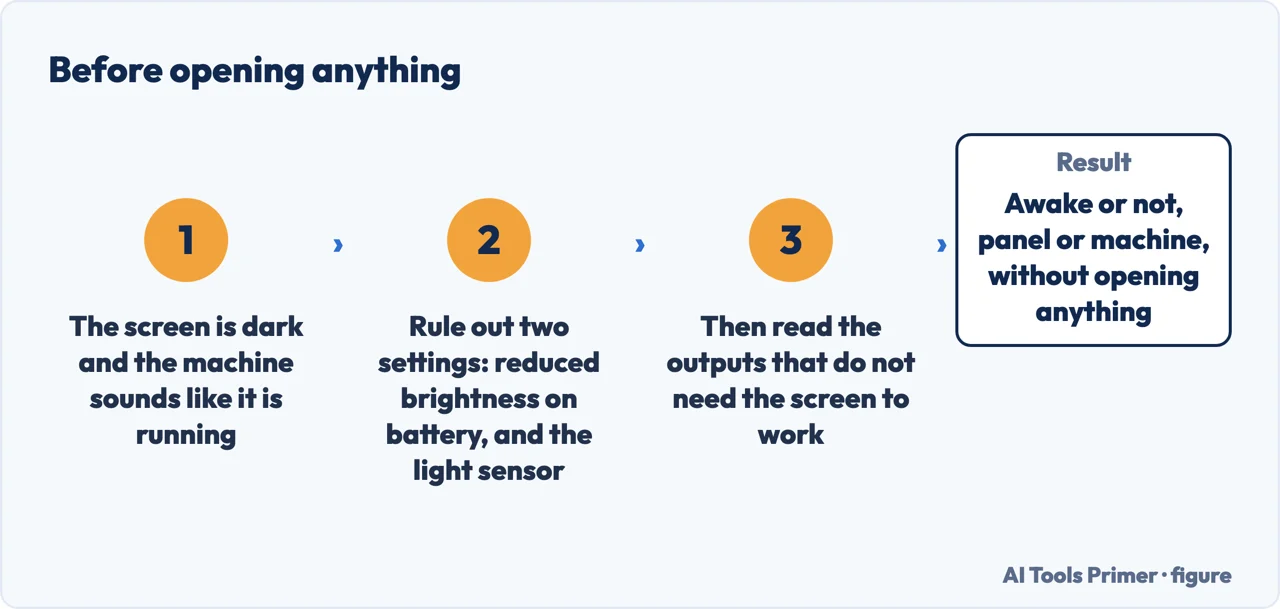
The built-in screen test is the wrong tool here, and it is the only time that is true.
Every other display fault is settled by the test the maker built into the machine: it paints solid colours from the firmware, before the operating system, and you look at them. On a screen with no light you cannot look at anything, so the test runs perfectly and tells you nothing. The useful question changes shape: which output of this machine can still be read when the screen says nothing? There are four, and three of them are never mentioned alongside this symptom — a beep, an LED flashing in a counted pattern, an external monitor, and the floating box a monitor draws when it has power and no signal. The reframing is ours. The four outputs are each documented, and each one is quoted below.
Before any of those four, two settings deserve a minute, because each of them produces this exact symptom on a machine with nothing wrong, and one of them is not visible from inside Windows at all. Three of the five results written about this fault go straight to opening the screen; neither of these two settings appears in any of them, and both are documented by the manufacturer.
- Plug the charger in and hold the brightness key down. This is not beneath the problem: Dell documents the behaviour that produces it. “On AC power, your laptop screen is automatically set to full brightness. On battery power, it’s set to reduced brightness to conserve energy.” Press Fn and the brightness key together and keep pressing. Ten seconds, and it clears a whole family of false alarms.
- Check the ambient light sensor, which is not in Windows. Dell puts the switch in the firmware: turn the laptop off, turn it on and press F2 repeatedly until the BIOS screen appears, then look for a setting called Ambient Light Sensor or ALS and set it to Disabled. A sensor reading a dark room can take a screen down to where it looks dead, and nothing in Settings will show you that it is happening.
- Press Windows + Ctrl + Shift + B and listen. Microsoft documents both halves of this and the second is the one that matters on a dark screen: “Press Windows + Ctrl + Shift + B to reset the graphics driver. You should hear a beep or see a screen flicker if successful.” A beep means the machine is awake and running and heard you, which on a screen showing nothing is a great deal to learn in one second.
- Look at the LED, not at the screen, while the panel test runs. On a Dell the enhanced version of the panel test reports through the battery or power light as well as through the picture, and the codes are counted in two colours: “count both the amber (orange) flashes and the white flashes.” Dell lists four new codes, from four amber and three white up to four amber and six white, and notes that they replace an older pair. This is the one output of the test that a dead backlight cannot hide.
- Plug in an external monitor and read the fork. HP states the question this settles better than anyone: “you must determine if this blank screen is caused by a problem with the display panel or a problem starting the computer.” For a picture outside and nothing inside, HP’s next step is not the panel: “download and install the latest BIOS, the latest graphics driver, and the latest CPU chipset.” Nothing on either, with the machine not starting properly, means you are troubleshooting a computer rather than a screen.
- On a desktop monitor, take the video cable out and leave the power in. A working monitor with no signal draws its own message. Dell describes what you should see: “a floating box on a black background. This means your monitor is working but has no video signal.” No box and no light is the one result that does not separate anything, and the next section says why.
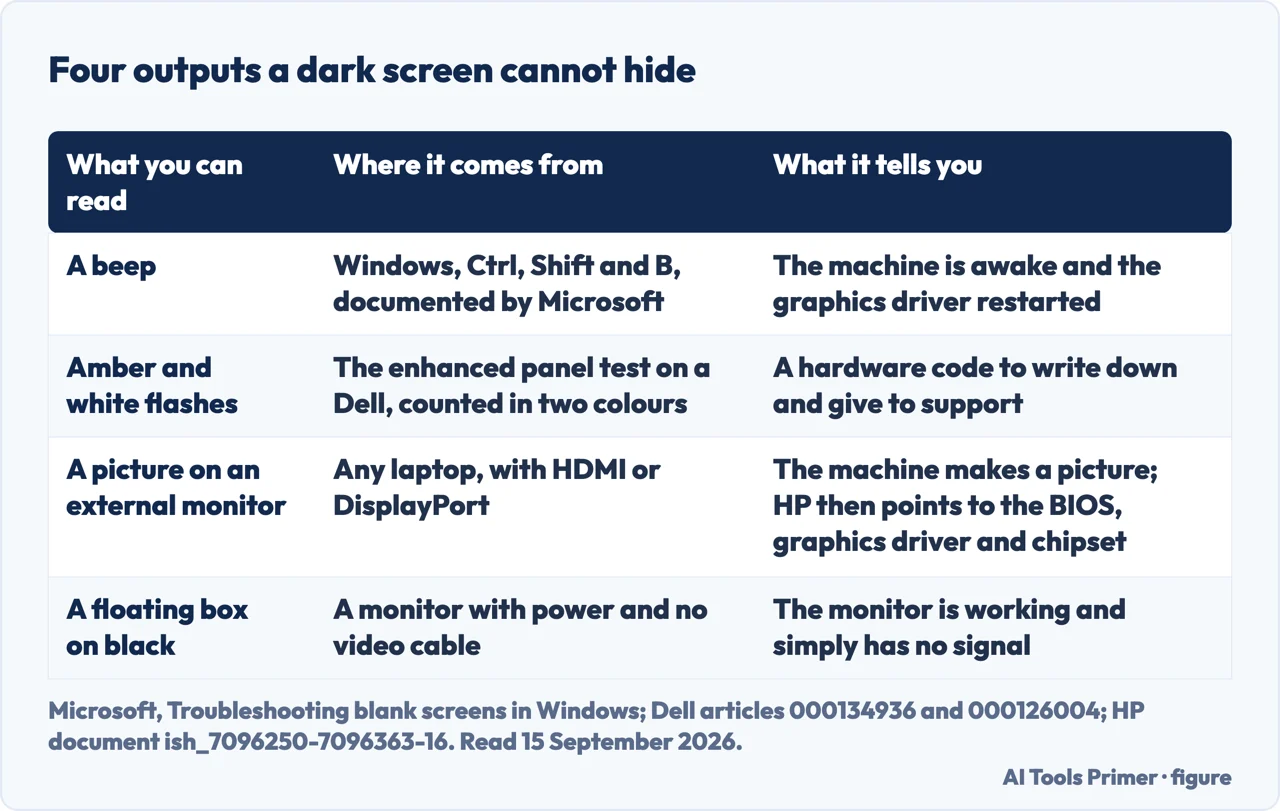
The LED step is the one worth reading twice, because it is the only place where the maker’s own test is designed to report without using the screen. On a Dell laptop with a current BIOS, the enhanced panel test flashes the battery or power light in a counted pattern of amber and white, and Dell publishes the four codes it can produce. That is a diagnostic channel that does not care whether there is any light behind the panel, which is precisely what this fault needs. It is also the reason to write the pattern down rather than remember it: Dell’s own advice when a test fails is to note what you saw, count the flashes, and photograph the machine before contacting support.
What none of these tests can tell you
Six documents were read in full for this page on 15 September 2026, five from Dell and HP and one from Microsoft. Between them they are honest about four limits, and the first is the one that makes this symptom different from every other display fault.
- A test you cannot see is not a test that failed. The colour sequence, the floating box, the error message: all of them are output aimed at your eyes. When there is no light, a silent result means “no light” and “nothing at all” equally well, and no page can separate them for you. That is why the beep and the LED are worth more here than on any other fault.
- The panel test does not look at software. Dell’s sentence stands on this page as on the others: “These tests only check your screen hardware. They do not check your Windows settings, graphics drivers, or software.” So a clean result does not mean the screen will light up in use.
- The LED codes need a BIOS that has them. Dell is explicit that the enhanced test is for newer laptops with an updated BIOS, and that if the laptop does not support it the basic colour test simply continues — and equally explicit about the catch: “If you cannot see anything on your laptop screen, connect an external monitor to perform the BIOS update.” Which means the output you most need is the one you may have to fix the machine to get.
- Nothing here names a component. None of the six documents read for this page distinguishes a failed backlight from a failed panel, a failed board or a failed cable, and none of them publishes a repair figure. Dell’s instruction when a test fails is to write down what you saw, count any flashes, photograph it, and contact support.
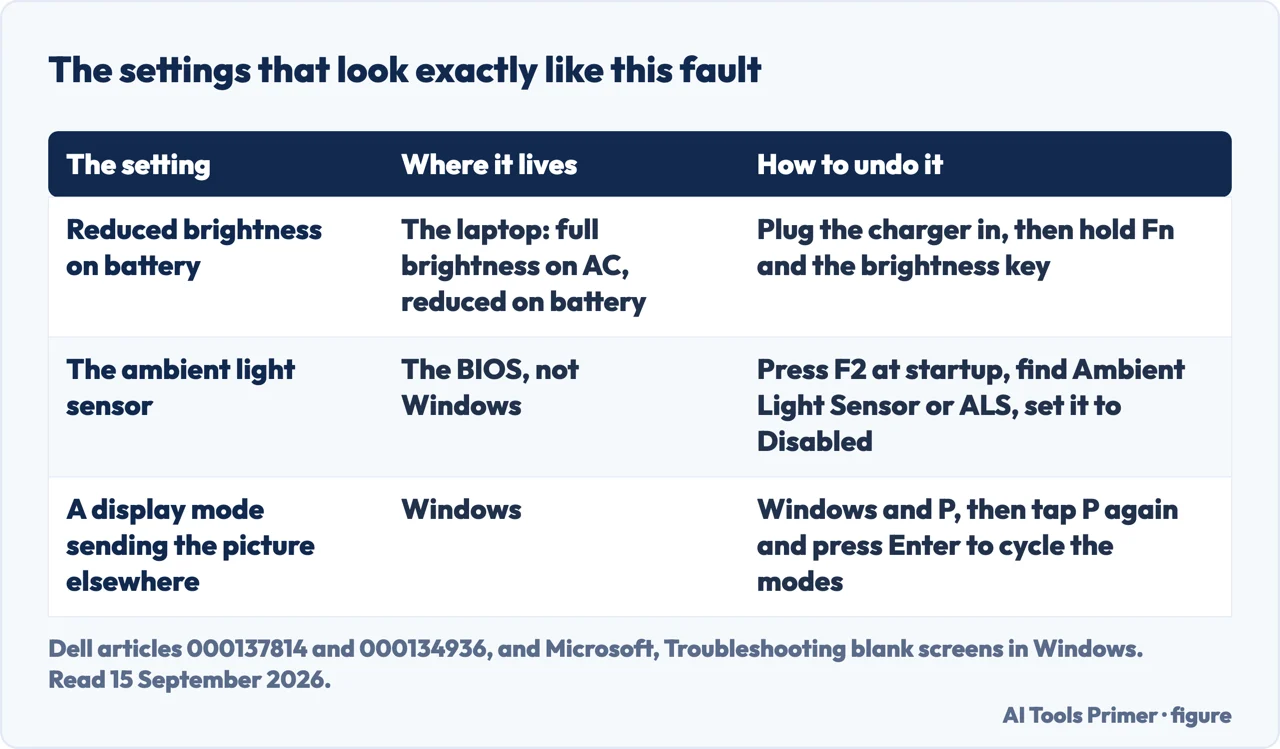
One case is worth separating out, because it is the commonest wrong turn on this symptom. A screen that is dark but has a faint picture visible when you tilt it towards a window, or hold a torch close to it, is a different thing from a screen that shows nothing under any light: the first has a panel still drawing and no illumination, the second may be receiving nothing to draw. That distinction is a reasonable one to make and it is ours — none of the six documents read for this page on 15 September 2026 describes the torch, and it is worth knowing that it comes from workshop practice rather than from documentation. What the documents do give you is the same fork from the other side, and it is less final than it sounds: if an external monitor shows a picture and the laptop screen does not, the machine is producing one, and HP’s next step for that result is firmware and drivers, not the panel.
Where this ends, and the honest version of it. A backlight is not a part you buy separately from a shop counter on most machines made in the last ten years: on a laptop it is inside the display assembly, and on a monitor it is a strip behind the panel that comes out only by opening the case. That is why so much of what is written about this fault is a repair tutorial rather than a diagnosis — the repair is interesting to write about and the diagnosis is not. The order that saves money is the opposite one. The four readable outputs cost nothing and take twenty minutes, and two of the causes above are settings rather than faults. If what remains is a panel replacement, it competes with the price of a different machine, and on a laptop old enough that a replacement costs little more, the comparison decides itself. None of the six documents read for this page publishes a figure for any of it; the only number worth having is a quote on your own machine set against what the machine is worth.
Two neighbouring cases. If part of the screen is dark and part of it is not, the evidence is better than it is here and the route is different: a half black screen starts from which built-in test is yours. And if the machine itself is not starting — no fans, no lights, nothing — the screen is not the question at all, and a computer that will not boot is the place to begin.
Where to start
Three ways in. If the screen is lit but showing the wrong thing, none of these is your page: this one is about a screen with no light.
- “How do I know it is even on?”
- Four things you can still read — what you can still read
- “Could this be a setting?”
- Two of them, and one is not in Windows — settings that look like a fault
- “Part of it works, part of it does not.”
- Better evidence, different page: when it is not the whole screen
What you can still read
A beep, an LED counted in two colours, an external monitor and a floating box on a monitor with no signal. Four outputs that do not need the screen to work.
Settings that look like a fault
Reduced brightness on battery and an ambient light sensor can both take a working screen down to where it looks dead. One of the two is set in the firmware, not in Windows.
When it is not the whole screen
A dark half, a dark patch or a dark corner are better evidence than a dark screen, because something is still working and can be compared with what is not.
Questions people also ask
What causes the backlight to stop working?
None of the six documents read for this page on 15 September 2026 names a cause, and this page does not either. They give a fork: if an external monitor shows a picture, the machine is producing one, and HP’s next step is the BIOS, graphics driver and chipset, not the panel. Past that, it takes a repairer.
My screen backlight is not working. What can I do to fix it?
Before anything else, two settings. Plug the charger in and hold the brightness key, because Dell documents that a laptop runs at reduced brightness on battery; then check the ambient light sensor, whose switch is in the BIOS rather than in Windows. After that, the four readable outputs: the beep, the LED pattern, an external monitor, and the floating box on a monitor with no signal.
How do I know whether the computer is still running?
Press Windows, Ctrl, Shift and B together. Microsoft documents this as resetting the graphics driver and adds that you should hear a beep or see a screen flicker if it worked. On a screen showing nothing the beep is the whole answer: the machine is awake and it heard you.
How to fix backlight failure on monitor?
On a desktop monitor, unplug the video cable and leave the power in. A working monitor with no signal draws a floating box on a black background. If there is no box and no light, that result does not separate a dead backlight from a dead monitor, and the comparison worth making is with the price of another monitor.
Is the black screen of death fixable?
That name covers more than one fault, and only one of them is this page. A screen that is dark with the machine plainly running is a display question; a machine that shows a black screen with an error message on it, or that will not start, is not. For the second, start at a computer that will not boot.
Not covered here. It will not walk through replacing a backlight strip or an inverter. Where that is the answer, it is the answer after the fork rather than instead of it.
It will not name the failed part. None of the six documents read for this page distinguishes a failed backlight from a failed panel, board or cable for this symptom.
It will not price the repair. None of the six publishes a figure, and a quote on your own machine set against what the machine is worth is the only comparison that decides anything. What holds instead is simple: where to start is the order the manufacturers themselves put their tests in, and each instruction stays attached to the company that published it.
Sources
- Dell, Fix Dell Screen Dimming and Flickering Caused By Ambient Light Sensor — article 000137814, last modified 30 April 2026 (the ambient light sensor: what it does, where it sits, the conditions that make it behave badly, the note that on AC power the screen is set to full brightness and on battery to reduced brightness to conserve energy, the Fn and brightness key route, and the instruction to disable the sensor from the BIOS by pressing F2 at startup and setting Ambient Light Sensor or ALS to Disabled) — www.dell.com, read 15 September 2026.
- Dell, How to Test Your Dell Laptop Screen — article 000134936, last modified 1 June 2026 (the enhanced built-in self-test and its LED reporting: watching the battery or power LED, counting both the amber and the white flashes, the four new diagnostic codes from four amber and three white to four amber and six white, the note that they replace the older two amber and seven or eight white codes, the requirement of an updated BIOS with the instruction to connect an external monitor to perform that update if nothing can be seen on the screen, and the statement that these tests only check the screen hardware and do not check Windows settings, graphics drivers or software) — www.dell.com, read 15 September 2026.
- Dell, Dell Display Pixel Guidelines — article 000126004 (the monitor checking procedure, read here for one step only: with the video cable unplugged and the power on, you should see a floating box on a black background, which means the monitor is working but has no video signal) — www.dell.com, read 15 September 2026.
- Dell, How to Run a Diagnostic Test on a Dell Monitor — article 000124390 (the self-test feature check, described for the case of a monitor connected to a computer whose screen remains dark or shows a blank screen, and the instruction that its steps live in the model’s own user guide) — www.dell.com, read 15 September 2026.
- Microsoft, Troubleshooting blank screens in Windows (the four situations a blank screen occurs in, and the basic steps: checking connections and power, pressing Windows, Ctrl, Shift and B to reset the graphics driver with the note that you should hear a beep or see a screen flicker if it worked, cycling display modes with Windows and P, and reaching Task Manager with Ctrl, Alt and Delete) — support.microsoft.com, read 15 September 2026.
- HP, HP Notebook and All-in-One PCs — Troubleshooting screen issues (Windows 11, 10), document ish_7096250-7096363-16 (the section on no image or a blank screen, which states that you must determine whether the blank screen is caused by a problem with the display panel or a problem starting the computer, and gives the external monitor procedure with both readings of the result) — support.hp.com, read 15 September 2026.
Written by Alberto Gulotta
Founder and editor of AI Tools Primer, writing from Palermo, Italy. Thirty-five years of taking computers apart, starting with a Commodore 64 — the long version is on the about page.
Something wrong on this page? Write to aitoolsprimer@gmail.com and it gets fixed.
Written on 16 September 2026 · last checked 23 September 2026.
Independence and limits
No affiliate links and no paid placements anywhere on this site. Nobody pays to appear here, and no company has seen this page before you did.
This is general information, not professional advice. Where a page touches money, health, safety or the law, it names its source and the date it was read — and your situation may still differ. See the privacy page and the cookie policy.