
Software · guide
How to turn on keyboard light, maker by maker
By Alberto Gulotta · Updated · 16 min read
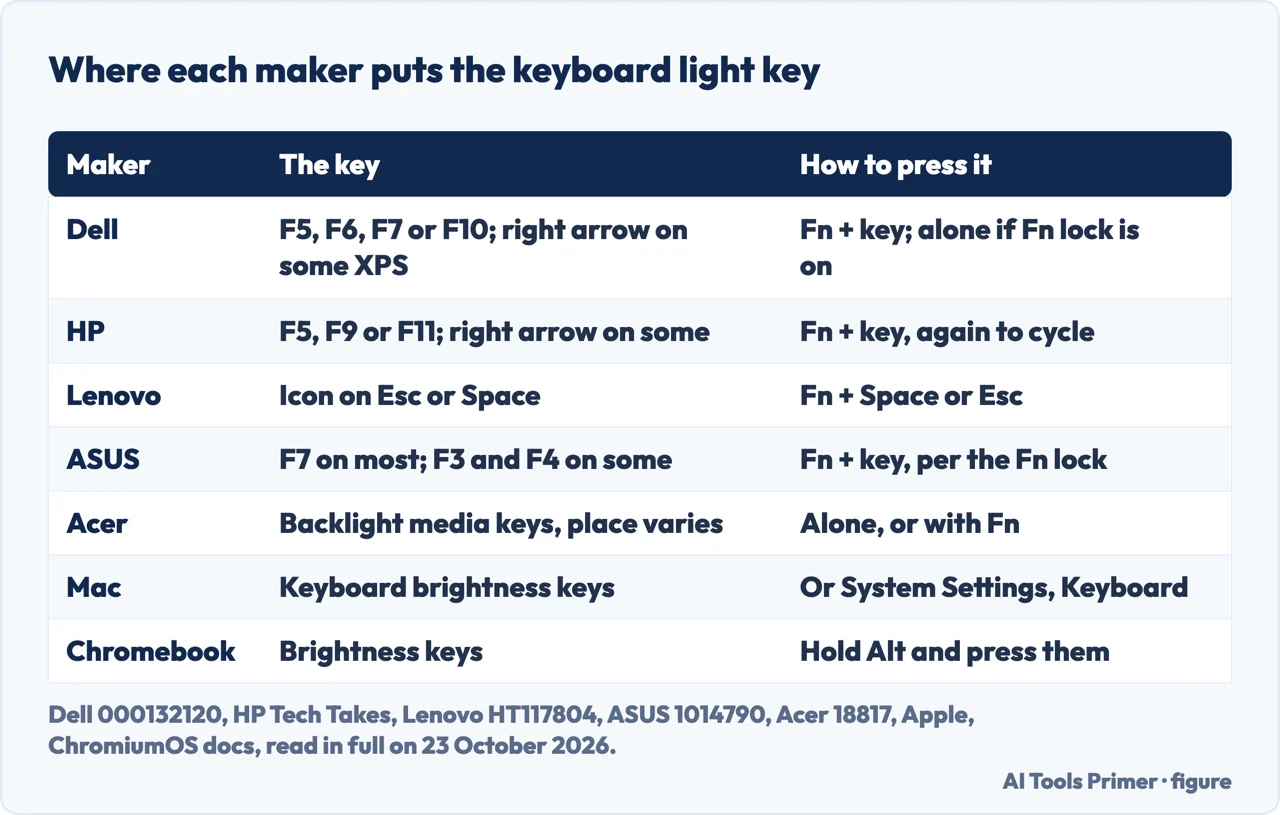
To learn how to turn on keyboard light on a laptop, look for the key with a small lit keyboard on it and press it, usually with Fn held down. Which key that is depends on the maker: Dell, HP, Lenovo, ASUS and Acer each document a different one, and the table below gives them from their own support pages.
Search for how to turn on lights on keyboard and Google’s summary offers one list of shortcuts for every brand without saying where they come from. The makers say more than that: not every laptop has the light, the Fn lock changes which press works, and a light that goes off on its own is usually a timer. The sections below take those in turn.
| Maker | The key, per the maker | How to press it | Where else |
|---|---|---|---|
| Dell | F5, F6, F7 or F10; the right arrow on some XPS models | Fn + the key; the key alone when Fn lock is on | BIOS, Keyboard, Keyboard Illumination |
| HP | Usually F5, F9 or F11; the right arrow on some models | Fn + the key, again to cycle the levels | OMEN Command Center on OMEN laptops |
| Lenovo | A light icon on Esc or the Space bar | Fn + Space or Esc | Lenovo Vantage, Input & Accessories |
| ASUS | F7 on most models; F3 and F4 on some; Up and Down on gaming models | Fn + the key, depending on the Function key lock | MyASUS, Armoury Crate |
| Acer | The backlight media keys, whose place varies | Alone, or with Fn if media keys are off | NitroSense or PredatorSense |
| Microsoft Surface | A key on the top row, on models that have the light | It cycles the levels, including off | Settings, Bluetooth & devices, Keyboard |
| Mac | The keyboard brightness keys | Keep pressing decrease to turn it off | System Settings, Keyboard; Control Center |
| Chromebook | The brightness keys | Hold Alt while pressing them | Quick Settings; Settings, Keyboard |
First, check that the light is there
Before looking up how to turn on backlit keyboard shortcuts, check that the laptop has one. Dell’s support article is the plainest about it: not all Dell laptops include a backlit keyboard, and the feature “cannot be added through software on models that do not ship with it”. Its test is the icon. If no key carries the backlight symbol, Dell says, the keyboard does not have backlighting; and in the BIOS, the Keyboard Illumination section is only listed on models with the hardware. On a Dell, a BIOS with no entry for laptop keyboard illumination is an answer in itself.
Lenovo’s check is the same in one line: if there is a backlight icon on Esc or the Space bar, the keyboard has the hardware. ASUS points to the user manual instead, and says that if neither the keys nor the manual’s chapter on hotkeys mention a backlit keyboard, “your laptop may not support the backlit keyboard feature”. Logitech, writing about its own keyboards, gives the way to tell the two symbols apart: the light key usually shows a small keyboard with rays coming off it, while the screen brightness key typically looks like a sun.
On a Windows laptop: the key, by maker
Dell. Hold Fn and press the key with the backlight icon, typically F5, F6, F7 or F10, or the right arrow on some XPS models; each press moves to the next level, Off, Low, High and back to Off. If nothing happens, Dell’s answer is the Fn lock. With it on, the backlight key works on its own without Fn; Fn + Esc switches the lock, and Dell says the state survives a restart. Alienware models with colour lighting use Alienware Command Center instead.
HP. HP’s Tech Takes guide says most HP laptops use Fn plus the backlight key, usually F5, F9 or F11, and on some models the right arrow; you may need to press it several times to cycle through the brightness levels. On OMEN laptops the OMEN Command Center controls the lighting too.
Lenovo. Lenovo’s support page for ideapad and ThinkPad uses Fn + Space or Esc, the keys that carry the icon, and gives a second place for the setting: Lenovo Vantage, under Device, Device Settings, Input & Accessories, Keyboard backlight.
ASUS. For most of its notebooks ASUS names Fn + F7, which steps the light up and finally off. Some models use F4 to brighten and F3 to dim, and gaming models usually use Fn with the Up and Down arrows. Whether Fn is needed at all depends on the Function key lock setting.
Acer. Acer’s answer page names no single key: find the keyboard backlight media keys, whose location varies, and press them alone if media keys are enabled or with Fn if they are not. On Nitro and Predator laptops the brightness slider is in NitroSense or PredatorSense, under Scenario.
Microsoft Surface. Microsoft’s page on Surface keyboards lists a top-row key that “cycles through the levels of keyboard backlight brightness, including off”, and notes that not all devices have it.
Is there a setting in Windows?
The guides disagree. HP’s guide says some HP laptops let you control the light through Windows, under Devices, Typing, if a keyboard backlight setting is available, and One World Rental sends readers to Devices, Keyboard. A Microsoft external moderator answering the same question on Microsoft Q&A in January 2026 wrote the opposite: “Windows itself does not provide a built-in setting for this feature”, because the backlight depends on the laptop’s hardware and manufacturer.
In our reading both can be true at once. Dell says its backlight is powered and controlled through the laptop’s embedded controller, not through Windows drivers, and that the controls work even when Windows has not loaded; so a Windows switch, where there is one, would be the maker’s addition. Microsoft documents one for its own Surface devices: on the models it lists, Settings, Bluetooth & devices, Keyboard has a toggle to change keyboard brightness automatically when lighting changes.
On a MacBook
Apple’s Mac User Guide gives three ways. On any Mac, choose Apple menu, System Settings, Keyboard, and drag the Keyboard brightness slider; all the way to the left turns the light off. If the keyboard has brightness keys, press increase or decrease, and keep pressing decrease to turn it off. Or add keyboard brightness to the menu bar or to Control Center and use the slider there. The MacBook Pro models with a Touch Bar are covered on the Touch Bar function keys.
On a Chromebook
Google’s list of Chromebook keys includes decrease and increase keyboard backlight brightness. The ChromiumOS documentation for the power manager explains how they are reached: hold Alt while pressing the brightness up or down keys, use the slider in Quick Settings, or use the slider in the Keyboard settings. Coolblue gives the same short version, the Alt key or the settings.
On an external keyboard
A desktop keyboard follows its own maker. Logitech’s guide says many keyboards have a dedicated backlight key on the function row, while the G512 and G513 need Fn held down with it, and lists the Logitech models with the light. Dell makes the same separation for its laptops: external USB and wireless keyboards have backlight controls of their own, managed through their own software.
When the light goes off by itself
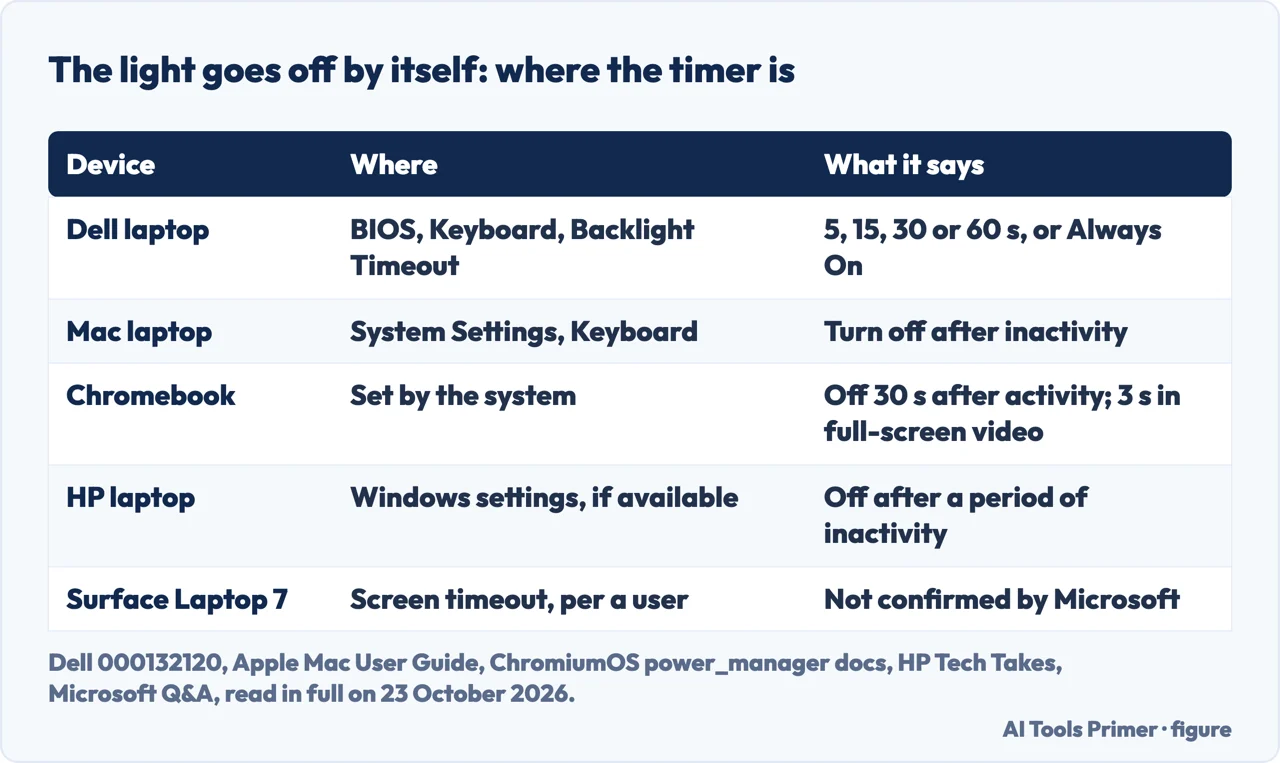
A light that turns off a few seconds after the last key press is usually a timer. Dell names it: some BIOS versions have a Keyboard Backlight Timeout under Keyboard, with common values of 5, 15, 30 or 60 seconds and Always On. Dell suggests Always On if the light seems to work and then turns off unexpectedly, and says this timer is independent of the Windows screen timeout.
On a Mac the setting is in System Settings, Keyboard, as a pop-up menu next to “Turn keyboard backlight off after inactivity”. On a Chromebook, the ChromiumOS documentation gives the defaults: the light stays on for 30 seconds after the last activity and then fades, and it turns off after three seconds when full-screen video is playing. HP’s guide mentions an inactivity timer in Windows on the models that have it. For the Surface Laptop 7, a user on Microsoft Q&A reported that the keyboard timeout follows the screen’s turn-off time in the power plan; no answer from Microsoft in that thread confirms it.
When it comes on and off with the room light
Some laptops let a light sensor decide. Dell says certain models with an ambient light sensor turn the keyboard light on in the dark and dim it or turn it off in bright light, and that this behaviour can be mistaken for a fault; the setting to switch it off sits in the BIOS, under Keyboard. Apple has the same option in System Settings, Keyboard, called Adjust keyboard brightness in low light, and notes the sensor sits near the camera, so the area should not be covered. Microsoft lists the Surface models that change keyboard brightness automatically.
When it will not come on at all
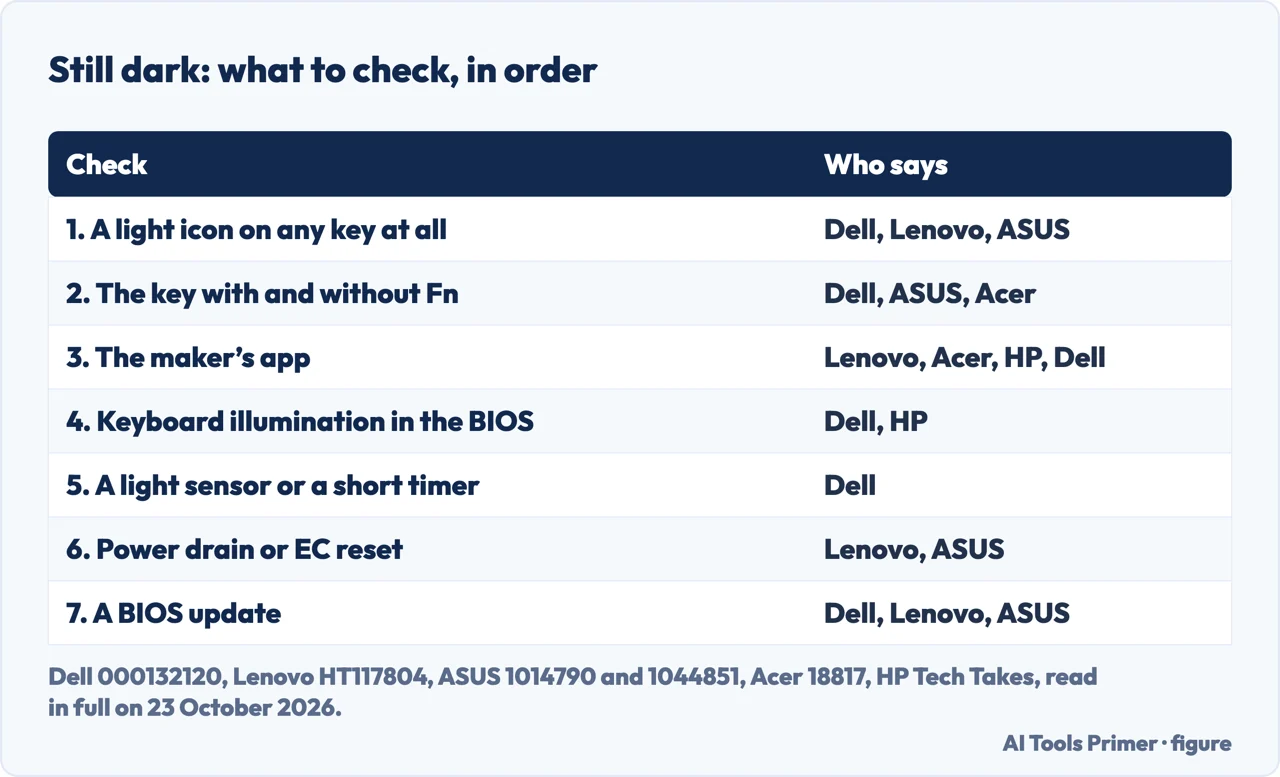
Put together, the makers’ troubleshooting pages give this order, in our reading. Confirm the icon. Try the key with and without Fn, since the Fn lock decides which one works (Dell, ASUS, Acer). Look in the maker’s app: Lenovo Vantage, NitroSense or PredatorSense, OMEN Command Center, Alienware Command Center. Then the BIOS: Dell’s Keyboard Illumination can be set to Disabled, Dim or Bright and takes priority over every shortcut, and HP’s guide also says to check the BIOS.
After that come resets and updates. Lenovo’s page asks you to try the key inside the BIOS or in Safe Mode, and then a power drain: unplug the charger and hold the power button for at least 10 seconds. ASUS starts with an embedded controller reset, then restoring the BIOS settings and updating the BIOS, Windows and drivers, then reinstalling its ASUS System Control Interface driver. Dell ends with a BIOS update, and lists a BIOS bug as the likely cause when the light worked before an update and stopped after it.
How to turn off keyboard light
The same key turns it off. On Dell, HP, ASUS and Surface laptops each press moves to the next level, and the last level is off; HP says to keep pressing until the light turns off completely. On a Mac, keep pressing the decrease key or drag the slider all the way to the left. To keep it off for good on a Dell, the BIOS setting Disabled leaves the backlight off regardless of keyboard shortcuts.
Where to start
Five ways in.
- “Nothing happens when I press it.”
- Check it is there — check
- “It goes off after a few seconds.”
- The timer — timeout
- “I’m on a Mac.”
- System Settings — mac
- “It is a Chromebook.”
- Alt and brightness — chromebook
- “It worked, and now it doesn’t.”
- The order of checks — not working
More on keyboards
The pages next to this one: a keyboard that types nothing, the Windows key, Surface and iPad keyboards, and the Touch Bar.
Light and power on a laptop
The screen’s own backlight, the Touch Bar, and the battery settings that turn the keyboard light down.
Questions people also ask
What is the shortcut key for keyboard light?
There is no single one. Dell names F5, F6, F7 or F10 with Fn; HP usually F5, F9 or F11 with Fn; Lenovo Fn with Space or Esc; ASUS Fn + F7 on most models. A Mac uses its keyboard brightness keys, a Chromebook Alt with the brightness keys.
How do I turn on my laptop keyboard backlight?
Find the key with the backlight icon and press it with Fn held down, or on its own if the Fn lock is on. If no key has the icon, Dell says the keyboard has no backlighting. If it has one and nothing happens, check the maker’s app and the BIOS, where Dell’s Keyboard Illumination can be set to Disabled.
How do I turn on a LED keyboard?
An external keyboard follows its own maker. Logitech says many of its keyboards have a dedicated backlight key on the function row, and that the G512 and G513 need Fn held with it. Dell notes that external keyboards have backlight controls of their own, managed through their own software.
How do I turn the keyboard light on Windows 11?
With the key on the laptop, not with Windows. A Microsoft external moderator on Microsoft Q&A wrote that Windows does not provide a built-in setting for it. Some makers add one: HP mentions a Windows setting on the models that have it, and Microsoft lists an automatic brightness toggle for some Surface models under Bluetooth & devices, Keyboard.
Why does my keyboard light turn off after a few seconds?
Because of a timer. Dell’s BIOS has a Keyboard Backlight Timeout with values from 5 to 60 seconds and Always On; on a Mac it is in System Settings, Keyboard; a Chromebook keeps the light on for 30 seconds after the last activity. Some laptops also dim it with a light sensor.
Not covered here. We did not test these keys or settings on a laptop for this page. The keys and settings are the makers’ own, from the support pages of Dell, HP, Lenovo, ASUS, Acer, Apple, Microsoft and Google and the ChromiumOS documentation, read on 23 October 2026. Coolblue, One World Rental and Logitech are guides, attributed where they are used; the answers on Microsoft Q&A come from a moderator and from users, not from Microsoft’s documentation.
Lenovo’s US glossary page on backlit keyboards gives no key combination, so this page uses Lenovo’s support article instead. The keys in the table are those the makers name for most models; a given model can differ, and its manual decides. The videos in the results were not watched.
The search volume and difficulty behind this page were read in Semrush on 29 August 2026.
Sources
- Dell — How to Turn on and Turn Off the Keyboard Light on a Dell Laptop (article 000132120, last modified 20 August 2026) — www.dell.com, read 23 October 2026.
- HP Tech Takes — How to Turn Keyboard Lighting On and Off on HP Laptops (31 July 2024) — www.hp.com, read 23 October 2026.
- Lenovo Support — Cannot turn on keyboard backlight - ideapad, ThinkPad (article HT117804) — support.lenovo.com, read 23 October 2026.
- ASUS Support — [Notebook] How to enable Backlit Keyboard (article 1014790) — www.asus.com, read 23 October 2026.
- ASUS Support — [Notebook] Troubleshooting - Keyboard backlight problems (article 1044851) — www.asus.com, read 23 October 2026.
- Acer Answers — How to Adjust Your Laptop’s Keyboard Backlight (updated 17 October 2025) — community.acer.com, read 23 October 2026.
- Apple — Mac User Guide: Turn your Mac keyboard’s backlighting on or off — support.apple.com, read 23 October 2026.
- Microsoft Support — Special keys and function keys for Surface Keyboards or Type Covers — support.microsoft.com, read 23 October 2026.
- Microsoft Q&A — How do I turn on/off my keyboard light? (moderator answer, January 2026) — learn.microsoft.com, read 23 October 2026.
- Microsoft Q&A — Microsoft Surface Laptop, 7th Edition Keyboard Backlight (user answers) — learn.microsoft.com, read 23 October 2026.
- Google Chromebook Help — Use your Chromebook keyboard — support.google.com, read 23 October 2026.
- ChromiumOS — Chrome OS Keyboard Backlight Behavior (power_manager documentation) — chromium.googlesource.com, read 23 October 2026.
- Logitech — How to Turn On, Off & Customize the Keyboard Light — www.logitech.com, read 23 October 2026.
- Coolblue — How do you turn on the keyboard lighting on your laptop? (30 September 2025; a retailer) — www.coolblue.de, read 23 October 2026.
- One World Rental — How to Turn On Keyboard Light on Windows & Mac (3 March 2025; a rental company) — oneworldrental.com, read 23 October 2026.
Written by Alberto Gulotta
Founder and editor of AI Tools Primer, writing from Palermo, Italy. Thirty-five years of taking computers apart, starting with a Commodore 64 — the long version is on the about page.
Something wrong on this page? Write to aitoolsprimer@gmail.com and it gets fixed.
Written on 23 October 2026.
Independence and limits
No affiliate links and no paid placements anywhere on this site. Nobody pays to appear here, and no company has seen this page before you did.
This is general information, not professional advice. Where a page touches money, health, safety or the law, it names its source and the date it was read — and your situation may still differ. See the privacy page and the cookie policy.