
Software · guide
MacBook Pro Touch Bar function keys: how to show F1 to F12
By Alberto Gulotta · Updated · 13 min read
The MacBook Pro Touch Bar function keys are buttons on the strip, not keys: hold the Fn key, or the Globe key on some models, and F1 through F12 appear. Apple documents two settings that keep them there, for every app or only for the apps you choose.
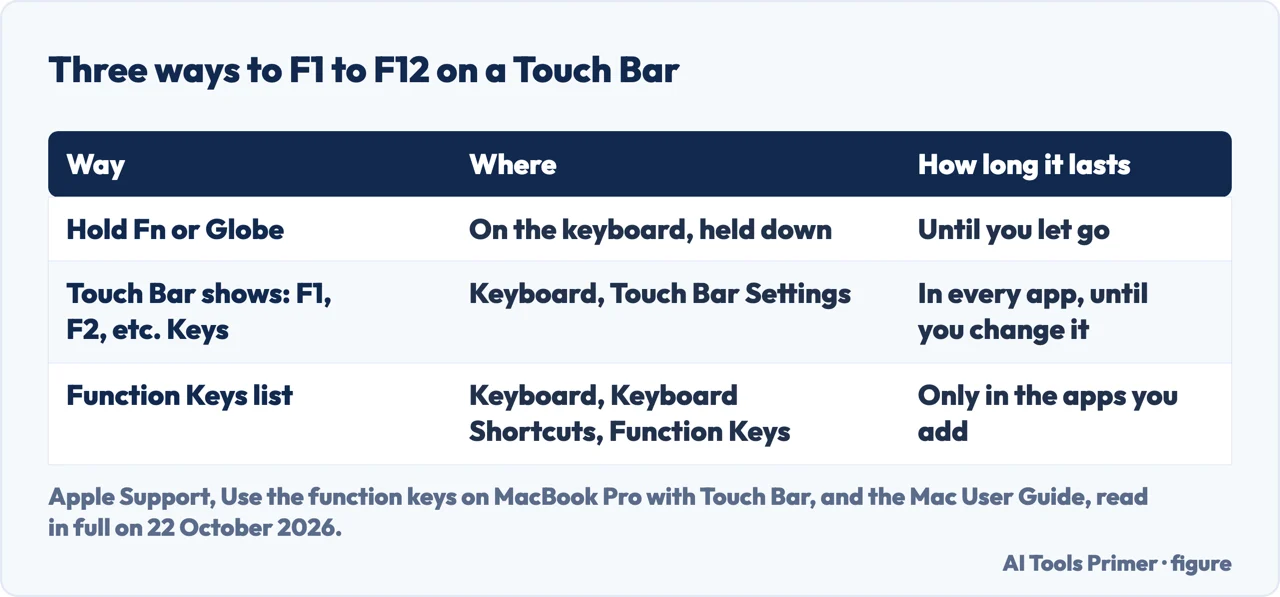
Which one fits depends on when you need the touch bar function keys, and in which programs. The table puts the three side by side; the sections below give Apple’s steps for each, and what users report about the Globe key.
| Way | Where you set it | How long it lasts | What it costs you |
|---|---|---|---|
| Hold Fn or Globe | Nothing to set, if the key is set to show the F keys | Until you let go | Nothing |
| Touch Bar shows: F1, F2, etc. Keys | System Settings, Keyboard, Touch Bar Settings | In every app, until you change it | The Control Strip and the app buttons |
| The Function Keys list | System Settings, Keyboard, Keyboard Shortcuts, Function Keys | Only in the apps you add | The app buttons, in those apps |
Hold the Fn or Globe key
The quickest way is the one Apple puts first: press and hold the Fn key, and F1 through F12 appear in the Touch Bar. On some models the key is the Globe key instead; Apple’s guide says it depends on your Mac model. Tap the function key you want while you hold it; as MacRumors puts it, the usual strip comes back when you stop holding the key.
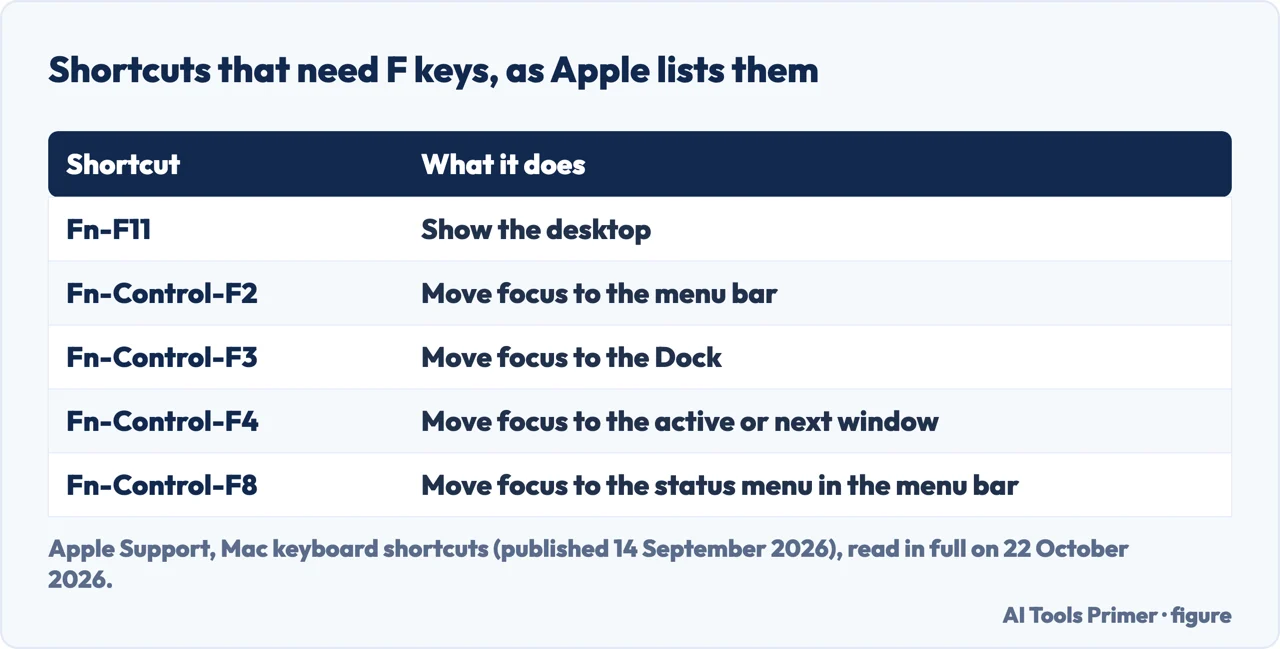
Shortcuts with a modifier work the same way, with one more finger. Apple’s example is Fn-Control-F3, which moves focus to the Dock: hold Fn (or Globe) and Control together, then tap F3 in the Touch Bar. Apple’s list of Mac keyboard shortcuts gives several of these, and the second figure below collects the ones that need an F key.
If holding the key shows something else, such as the expanded Control Strip, the key has been told to. Apple’s guide says to customize the Touch Bar in Keyboard settings so the function keys are shown when you press and hold the key: the option is called Press and hold fn key to (or the same with the Globe key), and its choices vary with what the bar shows.
The Globe key and its delay
One owner who moved from an Intel MacBook Pro of 2018 to the 13-inch M1 of 2020 noticed a pause. In an Ask Different question from July 2021, the asker describes the function keys appearing only after a delay when holding the Globe key, long enough to miss Fn-Control-F2 and Fn-Control-F3. Another user there explains the delay by the key’s second job: a short press of the same key does something else, such as switching input source.
The workaround two users gave is to set what a short press of the Globe key does to “Do Nothing”, so that the key goes straight to its press-and-hold behaviour. In January 2023 the asker reported that this setup still worked on macOS Ventura 13.1. The cost is whatever the short press did for you: in that thread it was dictation, which the asker brought back with a third-party app. This is users’ advice, not an Apple procedure.
Show F1 to F12 all the time
If you use the function keys more than anything the bar offers, make them the default. Choose Apple menu, System Settings, click Keyboard in the sidebar (you may need to scroll down), then click Touch Bar Settings. Set Touch Bar shows to F1, F2, etc. Keys. That pop-up menu also offers App Controls, Expanded Control Strip, Quick Actions and Spaces.
Two things change with it. Apple notes that Show Control Strip isn’t available when the bar shows the F1, F2 keys, so brightness and volume move off the bar. And the Fn key gets a new job: its choices vary depending on what the bar shows, and an Ask Different answer from 2017 describes using Fn to bring up App Controls or the expanded Control Strip instead.
MacRumors described the same setting in January 2022, in the System Preferences of that time, and noted the row stays until you change Touch Bar shows to something else. On macOS Ventura and later the path is System Settings, as above.
Only in some apps
Apple’s middle way is a list of apps that always get the function keys. Choose Apple menu, System Settings, then Keyboard. On macOS Ventura or later, click Keyboard Shortcuts, then select Function Keys from the list on the left; on macOS Monterey or earlier, click Shortcuts at the top of the window, then Function Keys. Click the add button (+) and choose an app. Whenever that app is in front, the F keys are in the bar.
Apple does not say what Fn does in those apps. The answer to an Ask Different question from 2017 says it does the inverse: holding Fn there hides the function row instead of showing it, and you add each app separately.
It is the setting for one program you use all day. In a Microsoft Q&A thread from February 2017, the asker could show the keys in Excel by holding Fn, but F4 did nothing. A user replied that the relative-to-absolute reference switch has always been Command-T in Excel for Mac. That is a user’s answer from 2017, not Microsoft documentation, and we did not check it in a current version of Excel.
The checkbox that is not for the Touch Bar
One setting has a name that sounds like the answer: “Use F1, F2, etc. keys as standard function keys”. Apple’s article on it is about the top row of keys on an Apple keyboard, the physical keys with symbols for brightness and Mission Control, and it says that if your Mac has a Touch Bar, you should read the separate article on function keys with Touch Bar.
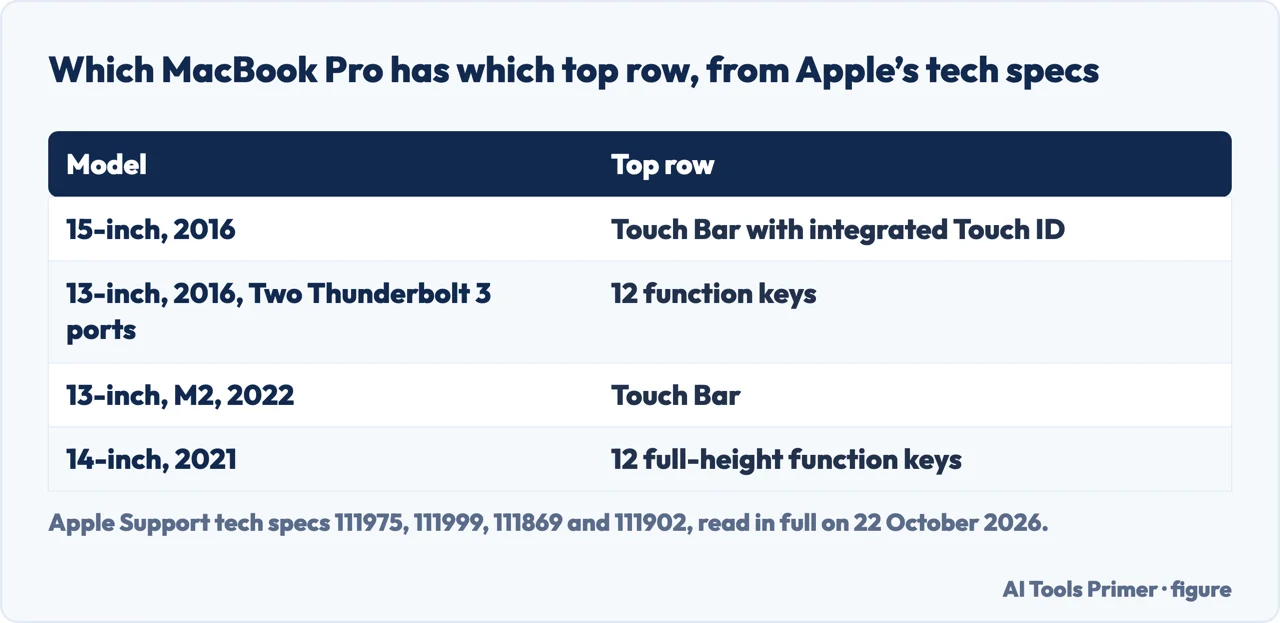
The checkbox matters if your MacBook Pro has real keys, as the 14-inch model of 2021 does in Apple’s tech specs. For those, Apple’s steps on macOS Ventura or later are System Settings, Keyboard, Keyboard Shortcuts, Function Keys, then the checkbox; on a Touch Bar Mac, the three ways above are the ones Apple gives.
The keys on screen instead
Apple also offers the function keys without the bar. Choose Apple menu, System Settings, then Keyboard. On macOS Ventura or later, click Edit next to Input Sources and turn on Show Input menu in menu bar; on Monterey or Big Sur, select the same option in the Input Sources pane; on Catalina or earlier, select Show Keyboard and emoji viewers in menu bar. Then click the viewer icon in the menu bar, choose Show Keyboard Viewer, and click its Fn key to see all the function keys.
On Windows, with Boot Camp
On a MacBook Pro running Microsoft Windows through Boot Camp, holding Fn still shows F1 to F12 in the Touch Bar. To keep them there, Apple’s steps start at the right of the Windows taskbar: click the up arrow for hidden icons, click the Boot Camp icon, choose Boot Camp Control Panel, allow it to make changes if asked, click the Keyboard tab and select “Use all F1, F2, etc. keys as standard function keys”. Windows’ own On-Screen Keyboard, under Ease of Access, also has an Fn key that shows the function keys.
Which MacBook Pro has a Touch Bar
Not every MacBook Pro from those years has one, which is worth checking before following any of this. In Apple’s tech specs, the 15-inch model of 2016 lists a Touch Bar with integrated Touch ID, while the 13-inch model of 2016 with two Thunderbolt 3 ports lists a keyboard with 12 function keys. The 13-inch M2 model of 2022 still lists a Touch Bar. The 14-inch model of 2021 lists 12 full-height function keys.
To see which you have, Apple’s easiest way is About This Mac in the Apple menu, which gives the model name. If your top row is made of physical keys, the checkbox in the section above is the setting you want.
Where to start
Five ways in.
- “I need F5 once.”
- Hold the key — hold
- “The keys come up late.”
- The Globe key — globe delay
- “I use them all day.”
- Show them always — always
- “Only in one program.”
- The app list — per app
- “My Mac has real keys.”
- The checkbox — standard keys
More on the Mac keyboard
The pages next to this one: the other keys a Touch Bar changes, and what to do when the keys themselves misbehave.
When the keys are not the problem
A keyboard that seems to ignore you, and an app that reads the same keys differently.
Questions people also ask
Why is my MacBook Touch Bar only showing function keys?
Either Touch Bar shows is set to F1, F2, etc. Keys in Keyboard, Touch Bar Settings, or the app in front is on the Function Keys list under Keyboard Shortcuts. Change the first back to App Controls, or remove the app from the list.
How do I get F keys on the Touch Bar?
Press and hold the Fn key, or the Globe key on some models. To keep them, set Touch Bar shows to F1, F2, etc. Keys, or add the apps that need them to the Function Keys list.
How do I get the F keys off the Touch Bar?
Undo whichever setting put them there: Touch Bar shows back to App Controls or the expanded Control Strip, and the app removed from the Function Keys list.
What do F1 to F12 do on a Mac?
It depends on the app. macOS itself uses some of them, for example Fn-F11 to show the desktop and Fn-Control-F2 to move focus to the menu bar, according to Apple’s list of keyboard shortcuts.
Not covered here. We did not test a Touch Bar for this page. The steps credited to Apple are from Apple Support, the Mac User Guide and Apple’s tech specs, read on 22 October 2026; the Globe key delay, the Do Nothing workaround, what Fn does in listed apps and the Excel F4 case are from users on Ask Different and Microsoft Q&A, as attributed.
The Reddit result and the Logik forum thread could not be read, and the videos in the results were not watched.
The search volume and difficulty behind this page were read in Semrush on 29 August 2026.
Sources
- Apple Support — Use the function keys on MacBook Pro with Touch Bar (published 27 May 2026) — support.apple.com, read 22 October 2026.
- Apple Mac User Guide — Use the Touch Bar on Mac — support.apple.com, read 22 October 2026.
- Apple Mac User Guide — Change Touch Bar settings on Mac — support.apple.com, read 22 October 2026.
- Apple Mac User Guide — Customize the Touch Bar on Mac — support.apple.com, read 22 October 2026.
- Apple Support — How to use the function keys on your Mac (published 8 December 2025) — support.apple.com, read 22 October 2026.
- Apple Support — Mac keyboard shortcuts (published 14 September 2026) — support.apple.com, read 22 October 2026.
- Apple Support — Identify your MacBook Pro model — support.apple.com, read 22 October 2026.
- Apple Support — MacBook Pro (15-inch, 2016) Technical Specifications — support.apple.com, read 22 October 2026.
- Apple Support — MacBook Pro (13-inch, 2016, Two Thunderbolt 3 ports) Technical Specifications — support.apple.com, read 22 October 2026.
- Apple Support — MacBook Pro (13-inch, M2, 2022) Technical Specifications — support.apple.com, read 22 October 2026.
- Apple Support — MacBook Pro (14-inch, 2021) Technical Specifications — support.apple.com, read 22 October 2026.
- MacRumors — How to Show Function Keys on a Mac’s Touch Bar (Tim Hardwick, 26 January 2022) — www.macrumors.com, read 22 October 2026.
- Ask Different (Stack Exchange) — Display fn keys by default in Touch Bar (August 2017, answers from users) — apple.stackexchange.com, read 22 October 2026.
- Ask Different (Stack Exchange) — How to immediately show the function keys on the 2020 MBP M1 Touch Bar? (July 2021, answers from users) — apple.stackexchange.com, read 22 October 2026.
- Microsoft Q&A — Where are the function keys on the touchbar? (February 2017, migrated from the community) — learn.microsoft.com, read 22 October 2026.
Written by Alberto Gulotta
Founder and editor of AI Tools Primer, writing from Palermo, Italy. Thirty-five years of taking computers apart, starting with a Commodore 64 — the long version is on the about page.
Something wrong on this page? Write to aitoolsprimer@gmail.com and it gets fixed.
Written on 22 October 2026.
Independence and limits
No affiliate links and no paid placements anywhere on this site. Nobody pays to appear here, and no company has seen this page before you did.
This is general information, not professional advice. Where a page touches money, health, safety or the law, it names its source and the date it was read — and your situation may still differ. See the privacy page and the cookie policy.