
Screens · guide
Touch Bar glitching or flickering on a MacBook Pro
By Alberto Gulotta · Updated · 14 min read
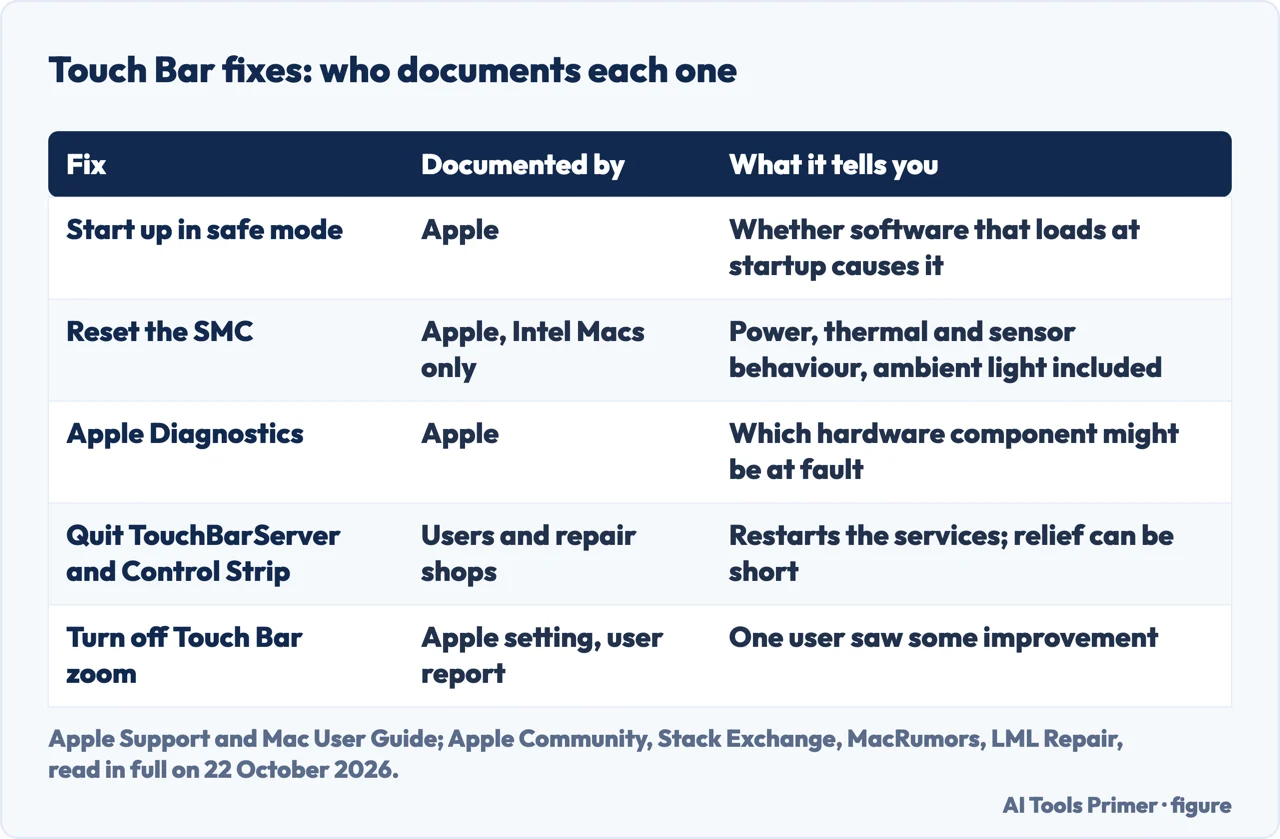
Touch Bar glitching on a MacBook Pro, as owners describe it, is a strip that flickers, flashes white when idle, or freezes. The fourteen Apple pages we read on 22 October 2026 give no procedure for it, only three tests that sort it out: safe mode, an SMC reset on Intel Macs, and Apple Diagnostics.
The fix you will see everywhere, quitting TouchBarServer, comes from users, and they report that it rarely lasts. When the fault survives all of it, owners describe a top case repair.
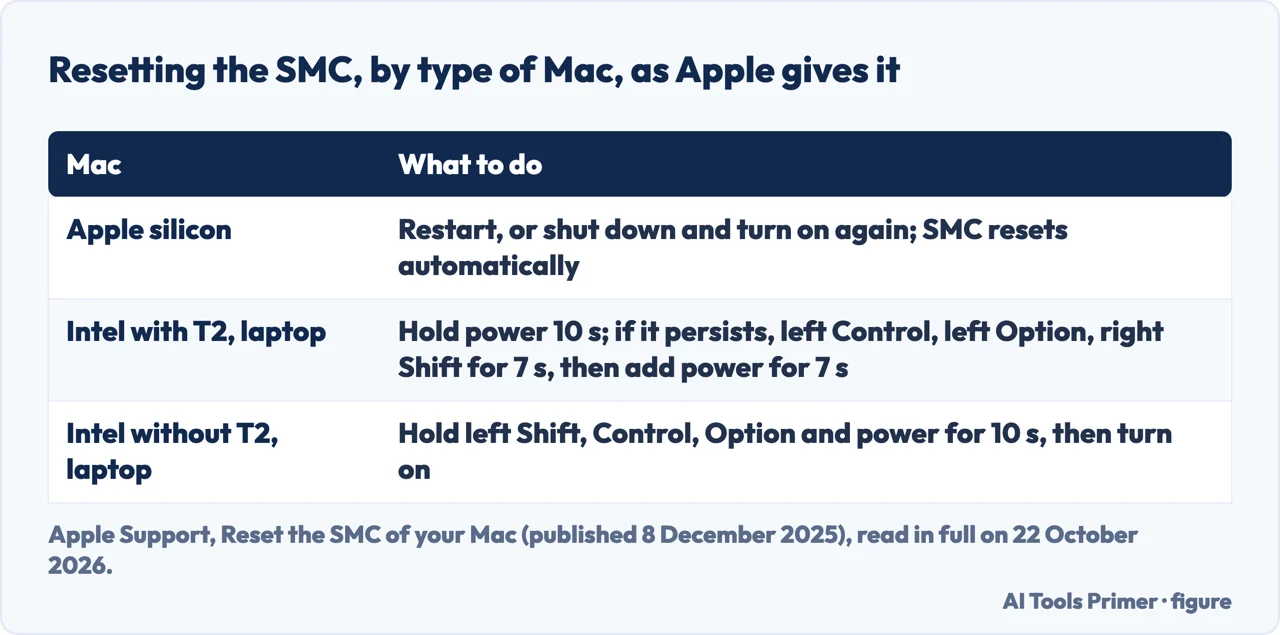
| Your Mac | Safe mode | SMC reset | Apple Diagnostics |
|---|---|---|---|
| Apple silicon (About This Mac shows “Chip”) | Hold the power button until startup options load, then Shift and Continue in Safe Mode | A restart is the reset | Hold the power button until Options, then Command-D |
| Intel with the T2 chip (MacBook Pro 2018 to 2020) | Hold Shift as it starts, until the login window | Power button for 10 seconds, then the key sequence | Hold D as it starts |
| Intel without the T2 chip | Hold Shift as it starts, until the login window | Shift, Control, Option and power for 10 seconds | Hold D as it starts |
First, rule out a setting
Some of what looks like a glitch is the Touch Bar doing what it was told. Apple keeps its options in one place: Apple menu, System Settings, Keyboard in the sidebar, then Touch Bar Settings. There you choose what the bar shows (App Controls, Expanded Control Strip, the F1, F2 keys, Quick Actions or Spaces), whether the Control Strip appears, and what holding the fn or Globe key does. A bar that shows only function keys, or never shows the Control Strip, is a setting, not a fault.
The second setting sits elsewhere. Touch Bar zoom, under System Settings, Accessibility, Zoom, shows a larger copy of the bar on the main screen while you keep a finger on it. In an Apple Community thread about a flickering bar, one user quoted another as saying that the Sonoma upgrade turned Touch Bar zoom on, and reported “some improvement after turning off Touch Bar zoom”. That is one report, not an Apple statement, but checking the switch costs nothing.
Apple’s Diagnostics article starts with installing the latest macOS updates. The original poster in the same thread blamed an update for starting the flicker, so note your current version before you change it.
Restarting the Touch Bar’s processes
The fix that appears in most of the results we read, and in Google’s AI Overview, is to restart the processes that draw the bar. Apple does not document it: none of the Apple pages we read mentions these processes. It comes from users and repair shops; LML Repair explains that quitting them forces macOS to restart the background services that drive the bar.
- From Activity Monitor. A MacRumors member describes searching Activity Monitor for TouchBar Server, quitting it, and quitting Control Strip as well; for that member the flicker stopped at once.
- From Terminal. Asurion, a repair chain, gives sudo pkill TouchBarServer; sudo killall ControlStrip, followed by your password. LML Repair, a parts shop, gives the same two names with killall.
What the people who tried it report is the useful part. In the Apple Community thread, the original poster says quitting Control Strip or Touch Bar Server helps “for the short periods of time” and that none of the fixes lasts. One member there runs a script that kills TouchBarServer every minute, so that the bar never dims after inactivity, and still says no fix except a logic board change has been found. If restarting the processes makes the flicker stop for a while and then come back, you have learned something: the fault survives a fresh start of the software that draws it.
Safe mode: software or hardware
Apple’s own test for this question is safe mode, which it says can help you identify whether issues are caused by software that loads as your Mac starts up. The steps depend on the chip. Choose Apple menu, About This Mac: an item labelled Chip means Apple silicon, an item labelled Processor means Intel.
- Apple silicon. Shut down, press and hold the power button until “Loading startup options” appears, select a volume, then press and hold Shift and click Continue in Safe Mode.
- Intel. Turn on or restart the Mac, then immediately press and hold Shift until you see the login window.
Either way, “Safe Boot” appears in the menu bar. The volunteer who answered first in the Apple Community thread put the reasoning plainly: if the flicker also occurs in safe mode, “it is probably a hardware issue, and you should take your mac in to service”; if it stops there and returns after a normal restart, something you installed is involved.
The SMC, and the light sensor
The System Management Controller manages power on a Mac. Apple’s article is cautious: “You most likely do not need to reset the SMC”, and it may help only on Intel-based Macs. Among the things Apple lists it as controlling are sensors, including the ambient light sensor and keyboard backlighting.
That matters here because the most repeated detail in the forums is about light. The person asking on Stack Exchange noticed that the bar stops flashing when a bright light shines on the ambient light sensor by the camera; an Apple Community member tried a torch on the sensor with the same result; the Reddit snippet in the results ties the flicker to the bar dimming to its lowest brightness. On a 2019 Intel MacBook Pro, the answer on Stack Exchange that worked was an SMC reset, and the bar “has behaved as expected ever since”.
- Apple silicon. There is nothing to do beyond a restart, or a shut down and power on, with the Mac plugged in: Apple says the SMC resets automatically.
- Intel with the T2 chip (Apple lists MacBook Pro models introduced in 2018 through 2020, except the 13-inch M1 of 2020). Hold the power button or Touch ID for 10 seconds, release, and turn the Mac on. If the problem persists, hold left Control, left Option and right Shift for 7 seconds, add the power button for 7 more, release, wait, and turn it on.
- Intel without the T2 chip. Hold left Shift, Control and Option, add the power button, keep all four held for 10 seconds, then release and turn the Mac on.
Repeat it only once. The original poster in the Apple thread had reset the SMC and NVRAM and found that the flicker came back after a while; a reset that helps for a day points the same way as a process restart that helps for a minute.
Apple Diagnostics, then the repair
If safe mode and the SMC have not settled it, Apple’s next tool is Apple Diagnostics, which it says can help determine which hardware component might be at fault. Shut down and disconnect accessories except keyboard, mouse, display, network and power. On Apple silicon, hold the power button until Options appears, then press and hold Command-D. On Intel, hold D as the Mac starts, or Option-D if D does not work. Apple notes that in macOS Tahoe 26 and later you choose which diagnostic to run, such as the keyboard; earlier versions choose for you. Keep any reference code it shows: it is what a service provider will ask for.
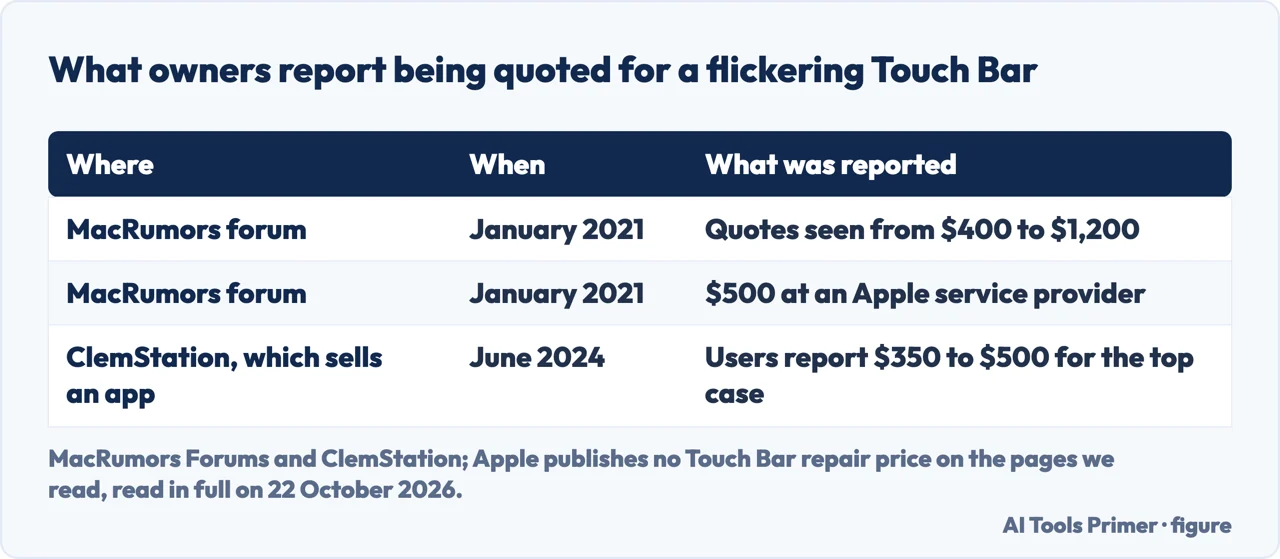
The fourteen Apple pages we read on 22 October 2026 give no price for a Touch Bar repair and name no service programme for it. What owners report is a top case: a member of the MacRumors forum wrote in January 2021 of quotes from $400 to $1,200, another of $500 at an Apple service provider, and two members describe a top case replaced under the keyboard programme of that era. ClemStation, which sells an app that hides the bar, says users report $350 to $500. These are reports, not prices.
A replacement by hand is possible but not small. The iFixit guide for the 2018 13-inch model was written by a user who paid about twenty dollars for a cheap replacement bar and says it completely fixed the white flicker when idle; it also means removing the logic board, and the old bar was so glued that it had to be scraped out bit by bit.
If you would rather live with it
Some owners decide the bar is not worth a top case. Three ways out appear in the results, none of them from Apple.
- Empty the bar. ClemStation describes setting Touch Bar shows to Expanded Control Strip, opening the customize window, and dragging every item off the bar. Its own caveat: the bar is then useless until you put the items back.
- An app. ClemStation’s own Hide My Bar turns the bar off with a shortcut; the company sells it, which is worth knowing when you read its advice. It says Escape and Touch ID keep working and that some users still see flicker at the edges.
- Tape. Owners on MacRumors and in the Apple Community covered the bar with black electrical tape, leaving Touch ID exposed. It hides the light; it fixes nothing.
Before you give up the function keys with the bar, Apple has a fallback: the on-screen Keyboard Viewer shows the function keys when you click its Fn key, as Apple’s article on the function keys describes.
Where to start
Five ways in.
- “It only started after an update.”
- Settings first — settings
- “Someone said to kill TouchBarServer.”
- The processes — services
- “Is it hardware?”
- Safe mode — safe mode
- “It flashes when the Mac is idle.”
- The SMC and the sensor — smc
- “What will a repair cost?”
- Diagnostics and repair — repair
More on MacBook faults
The pages next to this one: what Apple documents for a Mac that misbehaves, and the screens beside the bar.
Other screens that will not settle
Flicker on the main display and on other devices, each with its own first test.
Questions people also ask
How do you reset your Touch Bar?
Apple has no reset button for it. Users restart its processes by quitting TouchBarServer and Control Strip in Activity Monitor, or with sudo pkill TouchBarServer in Terminal. Apple’s own steps are safe mode, an SMC reset on Intel Macs, and Apple Diagnostics.
How to fix an unresponsive Touch Bar?
Check Touch Bar Settings under System Settings, Keyboard, and Touch Bar zoom under Accessibility, restart the Mac, then try safe mode. If it is still blank or frozen in safe mode, Apple Diagnostics is the next step, and the volunteer advice is service.
Is a flickering Touch Bar a hardware fault?
Often, by the accounts we read: process restarts and SMC resets help briefly, and owners describe top case replacements. Safe mode is the test: a flicker that continues there points to hardware.
Does the Touch Bar flicker more in the dark?
Several owners say so: the bar flashes as it dims, and shining a light on the ambient light sensor stops it. Apple lists that sensor among the things the SMC controls, which is why an SMC reset is worth one try on an Intel Mac.
Not covered here. We did not test a Touch Bar for this page. The steps credited to Apple are from Apple Support and the Mac User Guide, read on 22 October 2026; the process restarts, the light-sensor observation, the repair quotes and the workarounds are from users, repair shops and a software seller, as attributed.
The Reddit result could not be read, and the videos in the results were not watched.
The search volume and difficulty behind this page were read in Semrush on 29 August 2026.
Sources
- Apple Mac User Guide — Use the Touch Bar on Mac — support.apple.com, read 22 October 2026.
- Apple Mac User Guide — Change Touch Bar settings on Mac — support.apple.com, read 22 October 2026.
- Apple Mac User Guide — Zoom in on the Touch Bar on Mac — support.apple.com, read 22 October 2026.
- Apple Mac User Guide — Start up your Mac in safe mode — support.apple.com, read 22 October 2026.
- Apple Support — Reset the SMC of your Mac (published 8 December 2025) — support.apple.com, read 22 October 2026.
- Apple Support — Mac computers with the Apple T2 Security Chip — support.apple.com, read 22 October 2026.
- Apple Support — Use Apple Diagnostics to test your Mac — support.apple.com, read 22 October 2026.
- Apple Support — Use the function keys on MacBook Pro with Touch Bar — support.apple.com, read 22 October 2026.
- Apple Community — Mac Book Pro 2019, Touch Bar started flickering and won’t stop (July 2023, answers from users) — discussions.apple.com, read 22 October 2026.
- Ask Different (Stack Exchange) — Touch Bar flashing bright white light when Mac is idle (December 2022) — apple.stackexchange.com, read 22 October 2026.
- MacRumors Forums — The dreaded TouchBar Flicker (January 2021, posts from members) — forums.macrumors.com, read 22 October 2026.
- Asurion — What to do when your MacBook Pro Touch Bar stops working — www.asurion.com, read 22 October 2026.
- LML Repair — MacBook Pro Touchbar Flickering, Fix & Repair — www.lmlrepair.com, read 22 October 2026.
- ClemStation — The Best 3 Solutions to Fix Macbook Pro Touch Bar flickering issues (June 2024, seller of Hide My Bar) — clemstation.com, read 22 October 2026.
- iFixit — 2018 MacBook Pro 13” Touch Bar Replacement (guide written by a user) — www.ifixit.com, read 22 October 2026.
Written by Alberto Gulotta
Founder and editor of AI Tools Primer, writing from Palermo, Italy. Thirty-five years of taking computers apart, starting with a Commodore 64 — the long version is on the about page.
Something wrong on this page? Write to aitoolsprimer@gmail.com and it gets fixed.
Written on 22 October 2026.
Independence and limits
No affiliate links and no paid placements anywhere on this site. Nobody pays to appear here, and no company has seen this page before you did.
This is general information, not professional advice. Where a page touches money, health, safety or the law, it names its source and the date it was read — and your situation may still differ. See the privacy page and the cookie policy.