
Software · guide
What to do when a MacBook won't turn on but is charging
By Alberto Gulotta · Updated · 12 min read
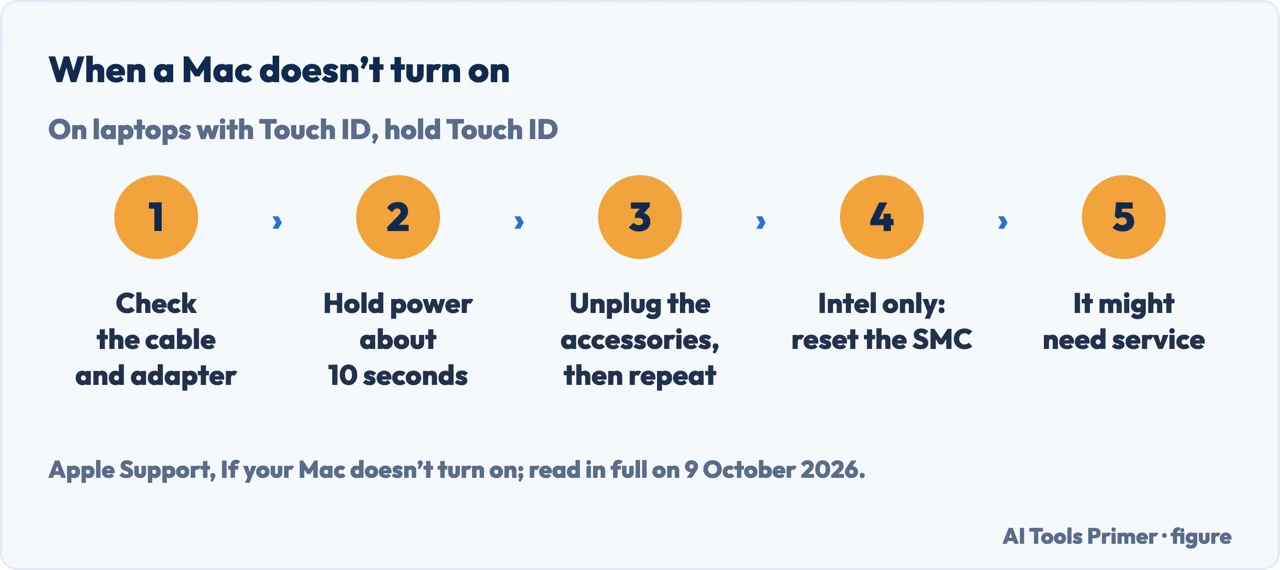
If a MacBook won't turn on but is charging, Apple’s order is: check the cable and adapter, hold the power button (Touch ID on laptops that have it) for about 10 seconds, press it normally, then repeat with every accessory unplugged. If anything appears on screen, the Mac is on but not starting up, and the fix is different.
| What | What Apple’s page says | Page |
|---|---|---|
| Holding the power button (Touch ID on laptops that have it) | About 10 seconds, then press and release it normally | If your Mac doesn’t turn on |
| If the Mac still won’t charge | Shut down and close the display for 30 seconds | USB-C and MagSafe adapter pages |
| Resting the adapter for line noise | 30 seconds on the USB-C page, 60 seconds on the MagSafe page | USB-C and MagSafe adapter pages |
| The SMC reset | Intel-based Macs only; not needed with Apple silicon | If your Mac doesn’t turn on |
| A firmware revive (Apple silicon or T2 only) | A second Mac on macOS 14 or later, and a USB-C cable for data and charging, not Thunderbolt 3 | How to revive or restore Mac firmware |
Off, or on with a dark screen?
Apple splits the problem in two. Its page for a Mac that doesn’t turn on says that if the screen shows a flashing question mark, a circle with a line through it, or anything else, the Mac is turned on but isn’t starting up; and if it seems to be on but the screen stays blank, the issue could be software related. Those cases have pages of their own, and the steps further down follow them.
Signs that it is on. iFixit’s troubleshooting page lists signs of power to check: keyboard lights, the Caps Lock light when pressed, the Touch Bar, a fan or warm air from the vents, the display backlight, best seen in a dark room, and a sound when the charger is connected, plus trackpad clicks on MacBook Pro models from 2015, MacBook Air models from 2018 and all Retina MacBooks. With any response, it says, the issue is more likely related to a blank display.
What “charging” proves. A charging light says that power reaches the Mac, not that the Mac can start from it: that is our reading, and it is why the order below starts with the power anyway. How to read the light and the battery menu is in how to know if my Mac is charging.
The order Apple gives
These are the steps of Apple’s page for a Mac that doesn’t turn on, in its order. A MacBook that restarts but misbehaves is a different case, in how to restart MacBook.
- Check the power connections. Apple: make sure the cable is undamaged and plugged securely into the Mac and a working outlet, and try another compatible cable or power adapter if you have one.
- Hold the power button for about 10 seconds. Every Mac has one; on laptops with Touch ID, press and hold Touch ID. Then press and release the power button normally.
- Unplug every accessory and repeat. All of them, Apple says, including printers, drives, USB hubs and mobile devices, then the 10-second hold again.
- On an Intel-based Mac, reset the SMC. Apple says it might help on an older Intel-based Mac, and that you don’t need to do this on a Mac with Apple silicon.
- Then service. If the Mac still doesn’t turn on, Apple says it might need service.
When the charger is the doubt
The cable. Apple’s page for a USB-C adapter that isn’t charging says some USB-C cables only support data transfer and won’t charge a Mac, so the cable you swap in must support charging. If the Mac charges only when the cable is wiggled, Apple says to stop using that cable and get the cable and power supply evaluated.
The outlet and the adapter. Apple’s adapter pages, written for a Mac laptop that won’t charge, say to plug a lamp into the outlet to confirm it works; if the Mac still won’t charge, to shut it down, close the display for 30 seconds, open it and try to charge again; and on an Intel-based Mac, to reset the SMC. The adapter can switch itself off when its voltage protection senses line noise from the outlet: unplug it from the wall, wait 30 seconds on the USB-C page or 60 on the MagSafe page, and plug it back in. Apple names lights with ballasts and refrigerators on the same circuit as possible sources.
The wattage. Apple says you should use a USB-C power adapter with equal or greater wattage than the one that came with the Mac.
The MagSafe light. On MagSafe 3, the indicator glows amber when the battery is charging or charging is on hold; if it flashes amber repeatedly, Apple says it may indicate a charging issue, and its steps are to disconnect the cable and the adapter, wipe the MagSafe 3 port and connector with a dry cloth, check the USB-C ends for debris, and connect again; if the light keeps flashing, try another MagSafe 3 cable or USB-C cable.
When it is on but doesn’t start
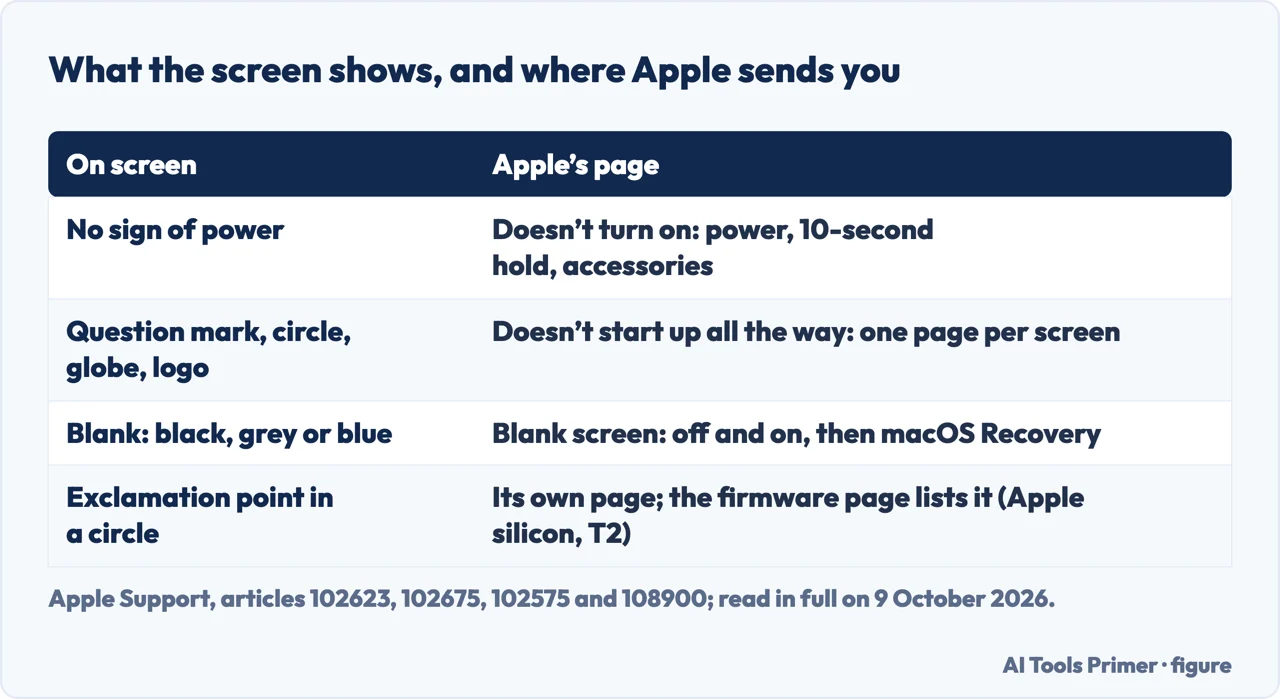
Apple’s page for a Mac that doesn’t start up all the way lists the screens it can stop at: a question mark, a circle with a line through it, a globe with a warning symbol, an Apple logo or progress bar, a blank screen, Options with a gear icon, an exclamation point in a circle, and Recovery Assistant with a first-aid symbol, among others. Each has its own page. Apple sends a Mac that seems to be on with a blank screen to the blank-screen page, and one that doesn’t seem to turn on at all back to the steps for a Mac that doesn’t turn on.
On, but the screen stays blank
Turn it off and on. Apple says a blank screen, black, grey or blue, should appear once or more as a Mac starts up. If it seems to be turning on but is stuck there, press and hold the power button for up to 10 seconds, until the Mac turns off, then turn it on again.
Then macOS Recovery. If the Mac starts up from Recovery, use Disk Utility to repair the startup disk and restart; if the blank screen comes back, start up from Recovery again and reinstall macOS.
If it won’t start from Recovery. With an external display used instead of a built-in one, Apple says to make sure the issue isn’t with that display; if the blank screen continues, the Mac might need service. Apple’s firmware page adds that, rarely, a Mac with Apple silicon or the Apple T2 Security Chip needs its firmware revived or restored: among four issues it lists a Mac that starts up to an exclamation point in a circle and one that turns on to a blank screen other solutions haven’t resolved, and it names a power failure during a macOS installation as one of the rare circumstances.
Reviving the firmware from a second Mac
What you need. The affected Mac, which must have Apple silicon or the T2 chip; another Mac of any model using macOS 14 or later, on the internet, with enough storage (Apple says 32GB should be more than enough); and a USB-C to USB-C cable that supports data and charging, not a Thunderbolt 3 cable. Both Macs on power. On the laptop, the cable goes into the DFU port, and nothing else in any other USB port except power; with MagSafe, use MagSafe for power.
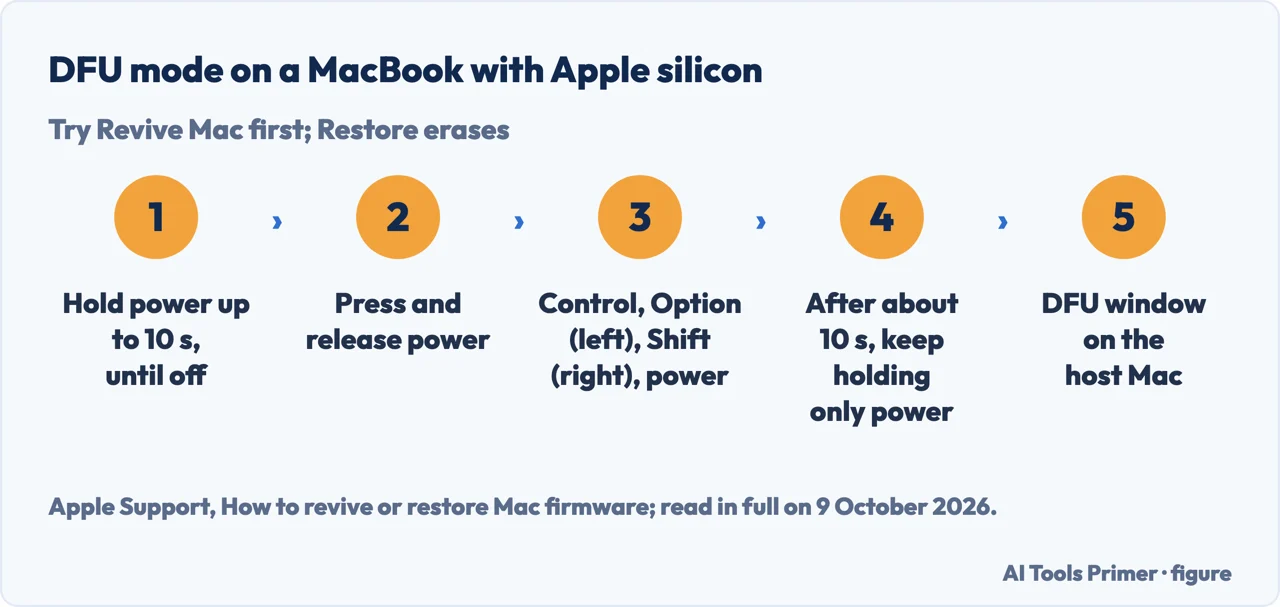
DFU mode on a laptop with Apple silicon. Hold the power button for up to 10 seconds until the Mac turns off; if it turns on instead, Apple says to repeat this. Press and release it, then immediately hold four keys together: Control and Option on the left, Shift on the right, and the power button. After about 10 seconds release them all except power, and keep holding power for up to 10 more seconds, until the host Mac shows a DFU window in the Finder. If the host Mac first shows an alert asking to allow the accessory to connect, release the power button and click Allow. On a laptop with the T2 chip, the four keys are held for about 3 seconds, and for that alert you release all keys.
Revive before restore. Apple says to try Revive Mac first: it can be faster and doesn’t erase the Mac. Restore Mac erases it and restores factory settings, which is the step to take only if reviving fails; what a factory reset leaves behind is in how to factory reset MacBook.
Beyond Apple’s steps. iFixit’s page lists causes that include parts inside the case: a faulty charger or outlet, the battery (most MacBooks will boot without it, it says, slowly and with the fans high), firmware, the power-in board, a trackpad or its cable damaged by liquid, the Wi-Fi card, storage on older models, and the logic board last. Its hard reset is about fifteen seconds instead of Apple’s about ten, and for a Mac from 2018 or newer it adds twenty seconds on the power button to force a normal boot attempt if the Mac was put in DFU mode by accident. Apple’s last step remains service; the same question on Windows laptops, with each maker’s button times, is in computer won’t turn on.
Which versions. Apple’s pages carry their own dates: If your Mac doesn’t turn on, 2 June 2025; If your Mac doesn’t start up all the way, 15 September 2025; the blank screen page, 31 January 2025; the firmware page, 16 June 2026; the USB-C adapter page, 7 April 2026; the MagSafe page, 4 May 2026. The firmware steps apply only to Macs with Apple silicon or the T2 chip, and the SMC reset only to Intel-based Macs.
Where to start
Five ways in.
- “Is it off, or just dark?”
- The signs — off or dark
- “What does Apple say to do?”
- The order — apple steps
- “Is it the charger?”
- The checks — charging checks
- “The screen stays black.”
- Recovery — blank screen
- “It won’t start from Recovery.”
- The firmware — revive firmware
Other Mac guides
Charging, restarting, resetting, and the same question on other laptops.
Questions people also ask
Why is my MacBook not turning on but it's fully charged?
In our reading, a full battery shows power arrived, not that the Mac can start. Apple separates a Mac that doesn’t turn on from one that is on with a blank screen, and iFixit says signs of power make the second more likely. Then Apple gives macOS Recovery and, rarely, on Apple silicon or T2, a firmware revive.
Why is my MacBook not turning on while it's charging?
Apple’s first checks are the power itself: an undamaged cable plugged in securely, another compatible cable or adapter, and a working outlet. Its adapter pages add a USB-C cable that may only carry data, an adapter that switches off on line noise, and, if the Mac still won’t charge, shutting down and closing the display for 30 seconds.
How to turn on a MacBook when it's dead but charging?
Apple says to press and hold the power button, or Touch ID on laptops that have it, for about 10 seconds, then press and release it normally; next, unplug every accessory and repeat. iFixit’s page gives about fifteen seconds for its hard reset.
What is the Mac Black Screen of Death?
It isn’t a term on any of the Apple pages read here. Apple’s page for a blank screen, black, grey or blue, says to turn the Mac off and on, then use macOS Recovery to repair the disk or reinstall macOS; its firmware page adds a revive on Apple silicon or T2 if those fail.
Not covered here. It does not cover opening the case, battery replacement, liquid damage repair, or Mac desktops beyond the firmware steps.
Sources
- Apple Support — If your Mac doesn’t turn on (article 102623) — support.apple.com, read 9 October 2026.
- Apple Support — If your Mac doesn’t start up all the way (article 102675) — support.apple.com, read 9 October 2026.
- Apple Support — If your Mac starts up to a blank screen (article 102575) — support.apple.com, read 9 October 2026.
- Apple Support — How to revive or restore Mac firmware (article 108900) — support.apple.com, read 9 October 2026.
- Apple Support — If your USB-C power adapter isn’t charging your Mac laptop (article 102464) — support.apple.com, read 9 October 2026.
- Apple Support — If your MagSafe cable or power adapter isn’t working (article 102372) — support.apple.com, read 9 October 2026.
- iFixit — MacBook Won’t Turn On (troubleshooting) — www.ifixit.com, read 9 October 2026.
Written by Alberto Gulotta
Founder and editor of AI Tools Primer, writing from Palermo, Italy. Thirty-five years of taking computers apart, starting with a Commodore 64 — the long version is on the about page.
Something wrong on this page? Write to aitoolsprimer@gmail.com and it gets fixed.
Written on 9 October 2026.
Independence and limits
No affiliate links and no paid placements anywhere on this site. Nobody pays to appear here, and no company has seen this page before you did.
This is general information, not professional advice. Where a page touches money, health, safety or the law, it names its source and the date it was read — and your situation may still differ. See the privacy page and the cookie policy.