macOS Monterey 12 or later
requirement oneBelow that version the button does not exist. Apple redirects you to a longer procedure instead — the steps for selling, giving away or trading in a Mac, minus the part about this feature.

Software · guide
By Alberto Gulotta · Updated · 13 min read
Working out how to factory reset MacBook takes about four clicks. The part worth reading first is what Apple says the feature leaves behind, because it is not what the phrase suggests.
“Use the Erase All Content and Settings feature to quickly and securely erase all of your data, settings, and apps, while maintaining the operating system currently installed.”
That last clause is the whole difference between what a Mac does and what the phrase “factory reset” usually implies. The macOS on the machine afterwards is the macOS that was on it before — same version, same updates, not a fresh copy of whatever it shipped with. If the reason for erasing was a suspicion about the operating system itself, this is not the tool that addresses it, and Apple’s wording says so without arguing about it.
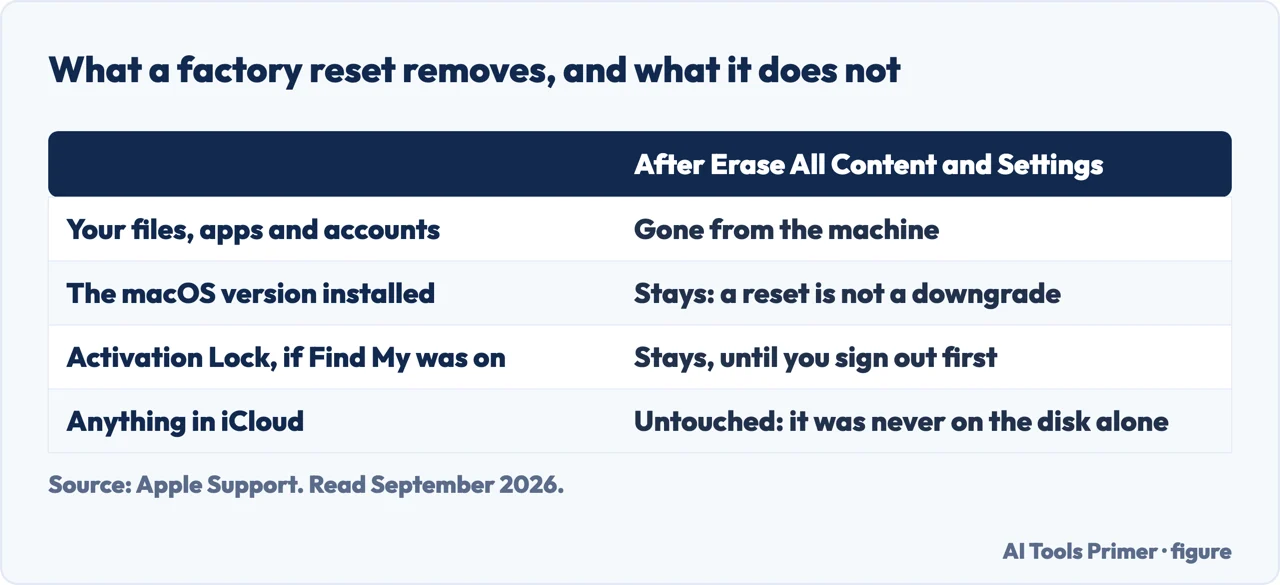
The feature is called Erase All Content and Settings, and if you have met it on an iPhone the name will be familiar — it is the same idea moved across. What opens is an erase assistant, and its job is to sign you out of things in the right order before it removes anything.
macOS Monterey 12 or later
requirement oneBelow that version the button does not exist. Apple redirects you to a longer procedure instead — the steps for selling, giving away or trading in a Mac, minus the part about this feature.
Apple silicon, or a T2 chip
requirement two“Erase All Content and Settings requires macOS Monterey 12 or later and a Mac with Apple silicon or Mac with the Apple T2 Security Chip.” Both conditions have to hold, not either one.
No Windows partition
the message that stops itA message about “other volumes” needing to be erased first points at Boot Camp. Apple’s instruction is to use Boot Camp to remove Windows and its partition.
Those requirements are worth checking before you go looking for the button, because a Mac that does not meet them does not show a greyed-out version — it simply has no such option, and people conclude they are in the wrong menu. Apple’s fallback is a redirection rather than a second button: “To erase your Mac and reset it to factory settings, you can instead follow the steps for what to do before you sell, give away, or trade in, or recycle your Mac, but disregard the instructions for using Erase All Content and Settings.” And a Mac that is none of those things is sent somewhere else again — “If you have a different type of Mac, see Erase and reinstall macOS.”
The route — macOS Ventura 13 or later
Four clicks to the button, then an assistant that asks for two different passwords.
The backup is not a prompt to wait for inside the process. The Mac User Guide puts it in a warning before the first step: “Erasing your Mac removes all the information from it. Before you start, back up your Mac with Time Machine.” Before you start — the erase happens whether or not anything asks you.
Apple tells you how to erase. The UK cyber security centre publishes the list of what to settle first, and it is the part people discover afterwards: that you have a backup of what you want to keep; that you know the logins for the services this Mac signs into without asking; that anything in the house it controls can be controlled from something else; and — the one that locks people out — that if you use this device to verify your online accounts, for example by confirming codes, “you’ll need to make sure this works on another device”. Its instruction about when: check it, “and check that it works”, before erasing.
And the option to say yes to by mistakeThe same guidance names a trap that appears during the erase itself: “You may be given the option to keep your personal files when erasing your data. Make sure you don’t choose this option if you’re selling, trading in, or giving your device away.”
The assistant first wants your administrator credentials — Apple is specific: “enter the password for your macOS user account. It’s the same password you use to log in to your Mac.” Separately it asks for your Apple Account password, and that is the other one. Confusing the two is a reliable way to get stuck at the first screen of a process that is otherwise unremarkable.
Before anything happens the Mac User Guide tells you to “Review the list of items to be removed in addition to your content and settings. If your Mac has multiple user accounts, click next to your Mac user name to review the items.” The list defaults to showing you yours, and a shared machine has other people’s underneath it.
The guide’s description of what Erase Assistant does is blunt about scope: it “Erases all volumes (not just the volume you’re on)” and “Erases all user accounts and their data (not just your own user account)”. And one message during the erase looks like a way out and is not: “because this signs you out of Apple services, you might get a message asking whether you want to sign back in to your Apple Account or iCloud so that you can continue using those services.” Apple’s instruction is to ignore it.
A recent addition, and one worth knowing about: on a Mac with Apple silicon running macOS 26 or later that “was previously repaired, or you’re not sure”, Apple says to use Repair Assistant to check for an unfinished repair before erasing.
Both public bodies that write about this are careful in the same way, and it is worth having their wording rather than a reassurance. The UK guidance calls the built-in erase “the best way to make sure that your data is completely erased” — and then hangs an asterisk on the word: “A determined expert — using specialist tools — may still be able to recover the data on a device.”
The American standard defines the whole subject the same way. Media sanitization, it says, “refers to a process that renders access to target data on the media infeasible for a given level of effort”. Not impossible — infeasible, measured against an effort. For selling a laptop to a stranger that is the right answer and it is enough. It is also why neither body promises more than it can.
Worth knowing where that standard comes from: it is published by the US standards institute, the current revision is dated September 2025, and one of its two authors works for a maker of the storage chips it is about.
How you know it finished, and what to do if you are selling it. “When the erase process is complete, your Mac displays ‘Hello’ on the screen. The Mac can now be set up for a new user.” On the way there it may ask you to turn on a Bluetooth keyboard or mouse — Apple notes that if the accessory “doesn’t connect within 30 seconds, turn the accessory off and back on” — and it may ask you to pick a Wi-Fi network. If the Mac is going to somebody else, Apple’s instruction at the “Hello” screen is to leave it alone: don’t use the setup assistant, just “press and hold the power button on your Mac until it turns off”.
One question this page cannot answer for you is whether an erase is the right response to whatever is wrong. Apple describes the feature as a way to erase settings, data and apps — not as a repair. If the machine is slow, or a drive is reporting problems, those have their own answers and neither of them is reached from this menu.
And it will not tell you that erasing makes a Mac faster. Apple makes no such claim about this feature, the operating system is unchanged afterwards, and a page that promised it would be promising something nobody has measured.
The guides below cover the three things worth doing around this one: the backup that should come first, the checks worth running before you conclude an erase is needed, and the rest of the handover if the Mac is going to somebody else.
Three ways in. If the Mac is being sold, the third one is the important one.
Four clicks in Ventura, a different path in Monterey, and nothing at all below that. Plus the two hardware conditions that decide whether the option exists.
Data, settings and apps go — every account on the machine, not only yours. The operating system stays, at the version it was on.
The erase signs you out and turns off Activation Lock. What is left is knowing when to stop — and Apple says to stop at the word Hello.
Not covered here. It will not tell you an erase speeds up a Mac. Apple does not claim it, the operating system is the same one afterwards, and nobody here has measured it.
It will not walk you through erasing a Mac that cannot use this feature. Apple publishes two different procedures for that case depending on what you want to end up with, and sending you down the wrong one would cost more than sending you to read them.
And it will not recommend third-party erasing software. The feature described here is built in, documented, and free. What holds instead is simple: what erasing keeps and what it removes is Apple’s own description, and the backup warning is Apple’s too, not a precaution added afterwards.
Written by Alberto Gulotta
Founder and editor of AI Tools Primer, writing from Palermo, Italy. Thirty-five years of taking computers apart, starting with a Commodore 64 — the long version is on the about page.
Something wrong on this page? Write to aitoolsprimer@gmail.com and it gets fixed.
Written on 22 August 2026 · last checked 23 September 2026.
Independence and limits
No affiliate links and no paid placements anywhere on this site. Nobody pays to appear here, and no company has seen this page before you did.
This is general information, not professional advice. Where a page touches money, health, safety or the law, it names its source and the date it was read — and your situation may still differ. See the privacy page and the cookie policy.