Control + click
“Press and hold the Control key while you click an item.” This works with any mouse or trackpad, changes no settings, and is the one to use on somebody else’s machine.

Software · guide
By Alberto Gulotta · Updated · 8 min read
The gesture is easy. Finding it is not, and the reason people struggle with how to right click on a mac has almost nothing to do with the hardware. It is a vocabulary problem, and Apple states it in the first line of its own page.
“On your Mac, a right-click is called a secondary click or Control-click.”
Apple’s own first sentence on the subject, and the reason this is hard to look up rather than hard to do. The words “right click” are not the words the machine uses, so the setting you are hunting for in System Settings is not called that, and the menu it opens is not called that either. Learn the three names and the whole thing takes a minute.
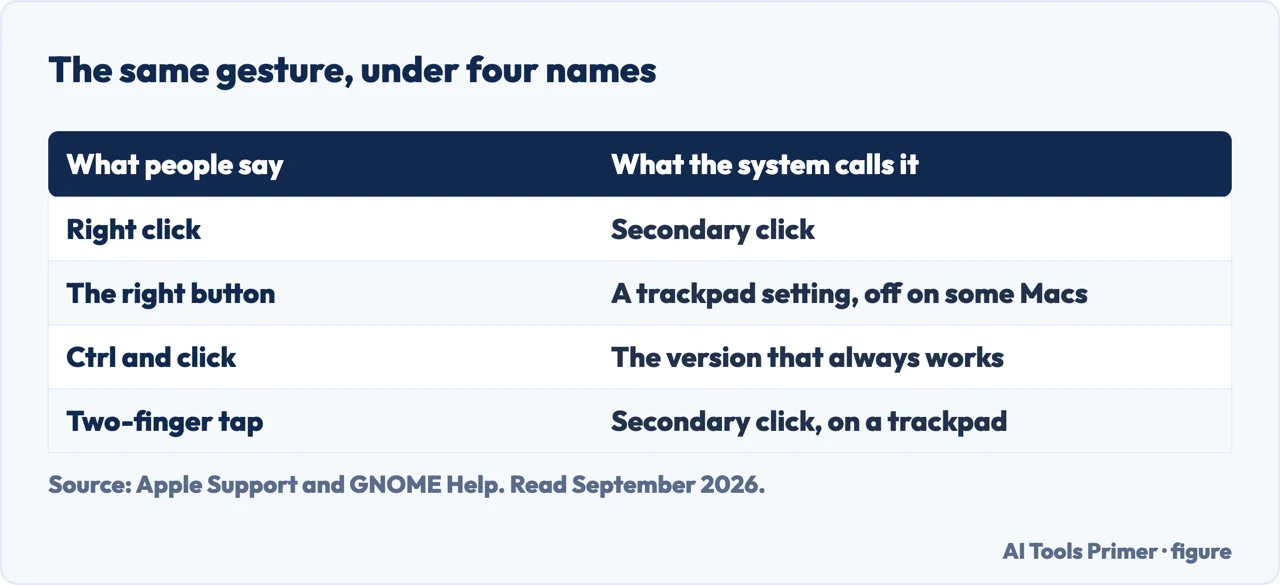
There are three ways to do it, and they are worth knowing separately rather than picking one, because each answers a different situation: one needs no setup at all, one is the trackpad you are already touching, and one is the mouse you brought from your last computer.
“Press and hold the Control key while you click an item.” This works with any mouse or trackpad, changes no settings, and is the one to use on somebody else’s machine.
Apple lists the gesture plainly: “Secondary click (right-click)” — “click or tap with two fingers.” The pop-up menu in Settings is where you change it to something else.
And the option that surprises people arriving from Windows: “You can choose to click the right or left side of the mouse surface, whichever is most comfortable for you.”
The first of those is the one to learn first. Control and click works on every Mac, with every pointing device, with nothing configured — which makes it the answer on a borrowed machine, on a Mac in a shop, and in the first ten minutes of owning one before you have opened Settings at all. Apple frames the other two routes as the ones that “may need” a settings change; this one needs nothing.
The trackpad version is the one you end up using on a laptop, and Apple’s wording is worth reading closely: the gesture is “click or tap with two fingers.” Those are two different things on a Mac — Apple lists Tap to click separately, as its own gesture with its own setting. So if two fingers appear to do nothing, the question is which of the two you are actually doing, and both answers live in the same Settings pane.
The mouse version contains the detail that matters if you have arrived from Windows and expect a physical button on the right. Apple’s own phrasing is a choice rather than a fact about the hardware: you “can choose to click the right or left side of the mouse surface.” A left-hander setting up a Mac can put the secondary click where their finger already is, which is a choice the settings pane makes explicit rather than one you have to work around.
There is also a key for it, and Apple names one keyboard that has it. Apple: “If you have a Magic Keyboard with Touch ID and Numeric Keyboard (USB-C), you can use the Contextual Menu key (located below the F13 key) to open a shortcut menu with your keyboard.”
Which is worth knowing for two reasons. If you have that keyboard, there is a dedicated key you have probably never pressed. And if you do not, it explains why an instruction you read somewhere referred to a key your keyboard does not have.
Once you have the gesture, the names are the last obstacle, because the same idea appears under several of them and the instructions you find will use whichever one their author learned.
Four names for two things
A practical note about searching for any of this. The phrase to type into System Settings is secondary click, because that is what the setting is called there. That single substitution is most of what this page is for, and it applies well beyond this one setting: a great deal of the difficulty in moving between two operating systems is that both of them have a word for the thing and the words are different.
One more thing worth knowing if the Mac is new to you and the mouse is not. Apple is explicit that its Magic Mouse gestures “require a Magic Mouse”, and that models with a USB-C port need macOS Sequoia 15.1 or later. So the gesture list you find in Apple’s documentation is describing Apple’s hardware, and a mouse from somewhere else is its manufacturer’s question rather than this page’s.
Apple is not alone in avoiding the word. GNOME calls the same thing a “simulated secondary click” and puts it in the accessibility panel, where it exists for a stated reason: it is “useful if you find it difficult to move your fingers individually on one hand, or if your pointing device only has a single button”. Its version is a hold rather than a tap — you right-click “by holding down the left mouse button”, with an adjustable delay. Two systems, the same careful vocabulary, and the same underlying fact: the gesture is not tied to a second physical button at all.
The guides below take it four ways: the keyboard route that always works, the trackpad settings, the mouse settings, and the vocabulary that makes the rest of macOS easier to search.
Four ways in.
The real subject of this guide. Two operating systems, two sets of words, and a search box that only answers to one of them.
Not covered here. It will not tell you to install a utility for this. Every route on this guide is in macOS already, and one of them needs no settings at all.
It will not pretend the Apple mouse is broken. It offers a choice of which side, which is a different arrangement rather than a missing one.
And it will not describe a two-finger tap and a two-finger click as the same gesture. Apple lists both, they depend on different settings, and confusing them is why the trackpad sometimes seems to ignore you. What holds instead is simple: the naming and the two-finger gesture are quoted from Apple’s own documentation, with the Contextual Menu key.
The four operations everything else on a computer is built out of.
Written by Alberto Gulotta
Founder and editor of AI Tools Primer, writing from Palermo, Italy. Thirty-five years of taking computers apart, starting with a Commodore 64 — the long version is on the about page.
Something wrong on this page? Write to aitoolsprimer@gmail.com and it gets fixed.
Written on 22 August 2026 · last checked 23 September 2026.
Independence and limits
No affiliate links and no paid placements anywhere on this site. Nobody pays to appear here, and no company has seen this page before you did.
This is general information, not professional advice. Where a page touches money, health, safety or the law, it names its source and the date it was read — and your situation may still differ. See the privacy page and the cookie policy.