Windows
Microsoft’s shortcuts- Copy: Ctrl + C — “or Ctrl + Insert”.
- Paste: Ctrl + V — “or Shift + Insert”.
- Undo: Ctrl + Z.

Software · guide
By Alberto Gulotta · Updated · 9 min read
The shortcuts take a line each and are below. The part worth knowing is what happens in between — because on Windows the clipboard can remember everything you have copied, and it is switched off until you ask for it.
Windows
Microsoft’s shortcutsMac
Apple’s shortcutsTwo things in those lists are worth a second look. Microsoft publishes alternatives — “Ctrl + Insert” and “Shift + Insert” — which are useful on a keyboard where the usual combination is awkward, or in a program that has taken Ctrl + C for something else. And Apple says outright that “using keyboard shortcuts is the fastest way to copy and paste”, which is a rare thing for documentation to rank.
On a Mac there are two other routes to the same commands, both from Apple: Control-click the selection for a shortcut menu — “you can also set up a right-click on a mouse or trackpad that opens the same shortcut menu” — or use Edit → Copy and Edit → Paste from the menu bar at the top of the screen.
When Paste is greyed out, the problem is the destination. Apple states it twice on the same page, once for each route: “If the Paste command is dimmed or unavailable, you can’t paste content in that location.” That is a more useful reading than it looks. A greyed-out Paste is not a sign that the copy failed — it is the place you are trying to paste into declining what is on the clipboard. The thing to change is where you are pasting, not how you copied.
Now the part that changes what copying is.
“When you copy content on your PC, it’s automatically copied to your clipboard.”
That sentence is worth reading twice for what it implies rather than what it says. Copying puts something somewhere — a place that persists, that can be listed, and that can be synced to other machines. It is not a momentary act between two keystrokes. Which means the obvious question about a password or a card number pasted from a browser has a real answer: it is in a place, and that place has a clear button.
“To turn your clipboard on for the first time, select Windows logo key + V, and then select Turn on.”
Windows keeps a history of what you have copied — and it is off until you switch it on. Microsoft describes what it buys: “You can paste multiple items from your clipboard history, and you can also pin the items you tend to use all the time and sync your clipboard history to the cloud.” The clipboard holding one thing at a time is a default, not a limit.
What the history does once it is on
Microsoft’s own descriptions of the four things it adds.
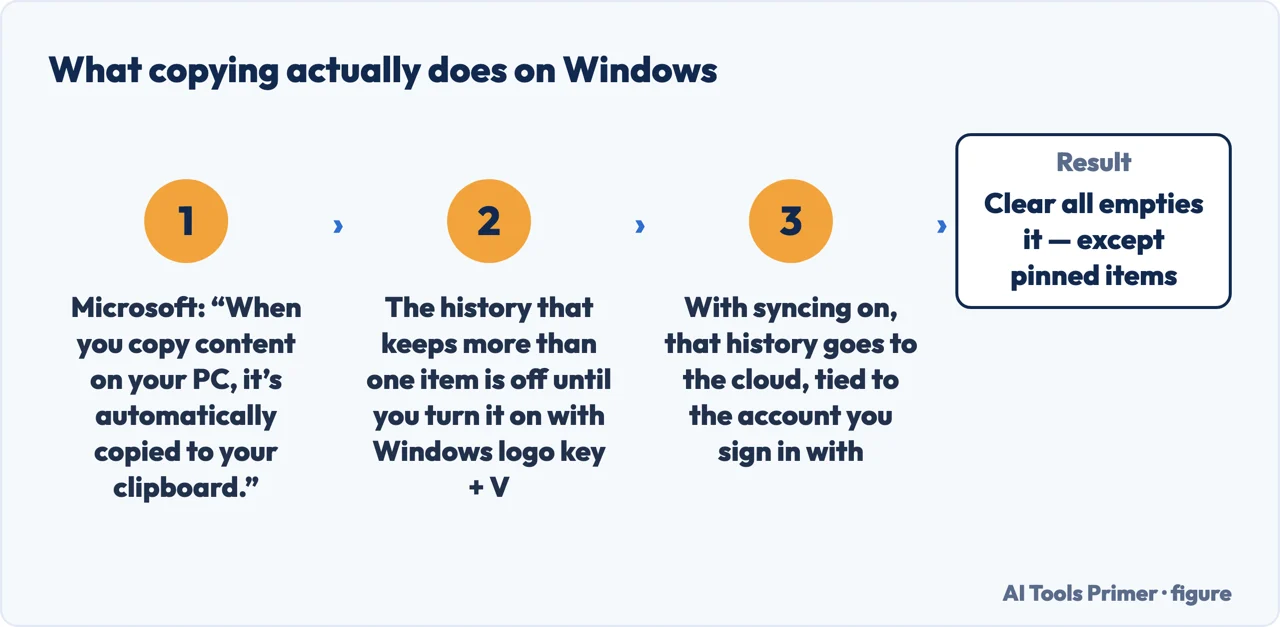
The syncing item deserves care rather than enthusiasm, because of what it means in practice. With it on, something copied on one machine is available on another, tied to the account you sign in with. That is genuinely useful for moving a link or a paragraph between a laptop and a desktop — and it is worth knowing before copying anything you would not want leaving the machine, because Microsoft is explicit that the history goes to the cloud.
The clearing instruction has a matching detail: everything goes “except pinned items”. So the convenience of pinning something you paste all day carries a consequence — a pinned item survives the clear-out, on the device and in the cloud, until it is deleted individually.
What this page will not do is tell you the Mac has the same history. Apple documents copy, paste, undo and the three routes to them; the multi-item history described here is the Windows feature Microsoft documents, and claiming an equivalent elsewhere would be inventing a feature to keep the page symmetrical.
Nor will it recommend a clipboard manager. Those exist, they are a category rather than a product, and judging one would mean running it for long enough to have a view worth publishing — which this site has not done.
The guides below take it three ways: the shortcuts, the clipboard itself, and the Mac-specific business of moving files rather than copying them.
Three ways in. If you have lost something you copied, take the second.
Ctrl or Command, plus the alternatives Microsoft publishes and the two menu routes Apple documents. And what a dimmed Paste command is telling you.
Off until you press Windows key + V and turn it on. Then many items, pinning, and an optional sync to the cloud tied to your account.
Copying leaves the original where it was. Moving is a different operation, and on a Mac it is not where people look for it.
Not covered here. It will not tell you the clipboard holds one thing. On Windows that is a default which Microsoft documents how to change.
It will not claim the Mac has the same history. Apple documents copy, paste and undo; inventing a matching feature to keep the page tidy would be inventing.
And it will not recommend a clipboard manager. That would need running one against real work, which this site has not done. What holds instead is simple: the Windows and Mac shortcuts are Microsoft’s and Apple’s own, along with the clipboard history instruction and what pinning, syncing and clearing do to it.
The four operations everything else on a computer is built out of.
Written by Alberto Gulotta
Founder and editor of AI Tools Primer, writing from Palermo, Italy. Thirty-five years of taking computers apart, starting with a Commodore 64 — the long version is on the about page.
Something wrong on this page? Write to aitoolsprimer@gmail.com and it gets fixed.
Written on 22 August 2026 · last checked 23 September 2026.
Independence and limits
No affiliate links and no paid placements anywhere on this site. Nobody pays to appear here, and no company has seen this page before you did.
This is general information, not professional advice. Where a page touches money, health, safety or the law, it names its source and the date it was read — and your situation may still differ. See the privacy page and the cookie policy.