
Software · guide
Chromebook dying: a short battery, a shutdown, or the end of updates
By Alberto Gulotta · Updated · 15 min read
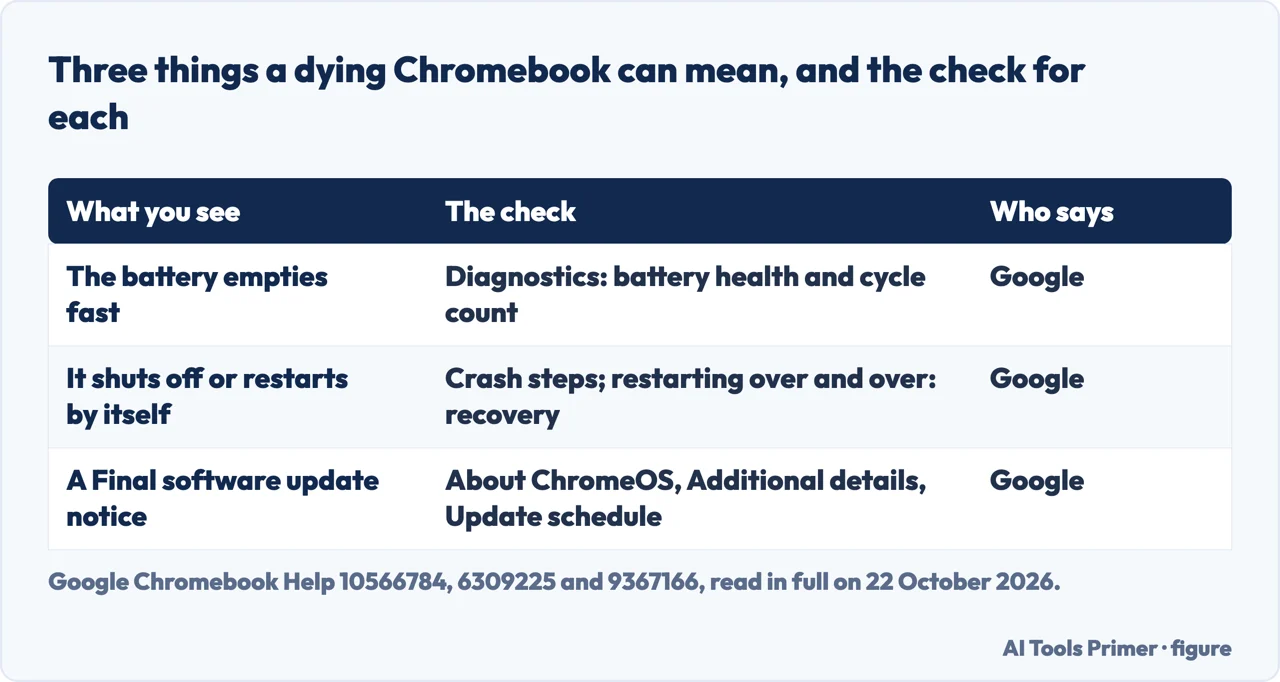
A Chromebook dying can mean three different things, and each has its own check. A battery that empties faster than it used to shows as low battery health in the Diagnostics app. A Chromebook that shuts itself off has Google’s own steps. And a Chromebook at the end of its life has a date, shown in its settings.
The sections below take them in that order: reading the battery’s health, making a charge last with Battery Saver, a Chromebook that turns itself off, the update date and what changes after it, including the 2034 date Google set in September 2026, and how to choose between a new battery and a new Chromebook.
| What you see | What to check | Where it is |
|---|---|---|
| The battery empties much faster than it used to | Battery health and cycle count | Settings, About ChromeOS, Diagnostics |
| It shuts off, or turns off and back on over and over | Crashes, extensions, and recovery for the restart loop | Google’s hardware and system problems page |
| A “Final software update” notification | The date of the last update | Settings, About ChromeOS, Additional details, Update schedule |
Is it the battery? Read its health first
Google’s tool for this is the Diagnostics app, available on ChromeOS version 90 and up: at the bottom right, select the time, then Settings, then About ChromeOS and Diagnostics, or type Diagnostics in the launcher. Its Battery section shows the battery’s health, its cycle count and the electrical current, and its discharge test measures the rate of charge and discharge over a fixed period. Google says that if that rate is very low, there may be a problem with the battery or the charging port.
The number to look at is health. In a February 2024 Google community thread, a Chromebook went from 100% to 62% in about an hour of use. The first thing a Diamond Product Expert asked for was a screenshot of the Battery health section, and the Expert’s reading of it was that “anything below 85% would show signs of failure”. How-To Geek draws its line lower: below 80%, replace the battery or get a new Chromebook. Neither figure is Google’s, and they are not the same figure, so treat them as two people’s rules of thumb rather than a published limit.
Health is not the only explanation for a fast drop. In the same thread, a second Diamond Product Expert pointed out that a video or a game at full brightness for an hour might drain a battery that fast on its own. And to the owner’s worry about charging overnight, a Platinum Product Expert answered: “The battery wouldn’t deteriorate that quickly just from keeping it plugged in.” If the worry is long hours on the charger, ChromeOS has its own setting for that, which holds the battery around 80%; it is explained on Chromebook won’t charge.
One more detail from that thread is worth knowing if your Chromebook was bought refurbished. The same Platinum Product Expert reported a refurbished HP Elite C1030 that showed 84% health with a single battery cycle, and suggested the refurbishing may reset the cycle count, or fit a battery that was already worn. So a low cycle count on a used machine does not prove a young battery; the health figure is the better guide.
Making a charge last: Battery Saver, and what else uses power
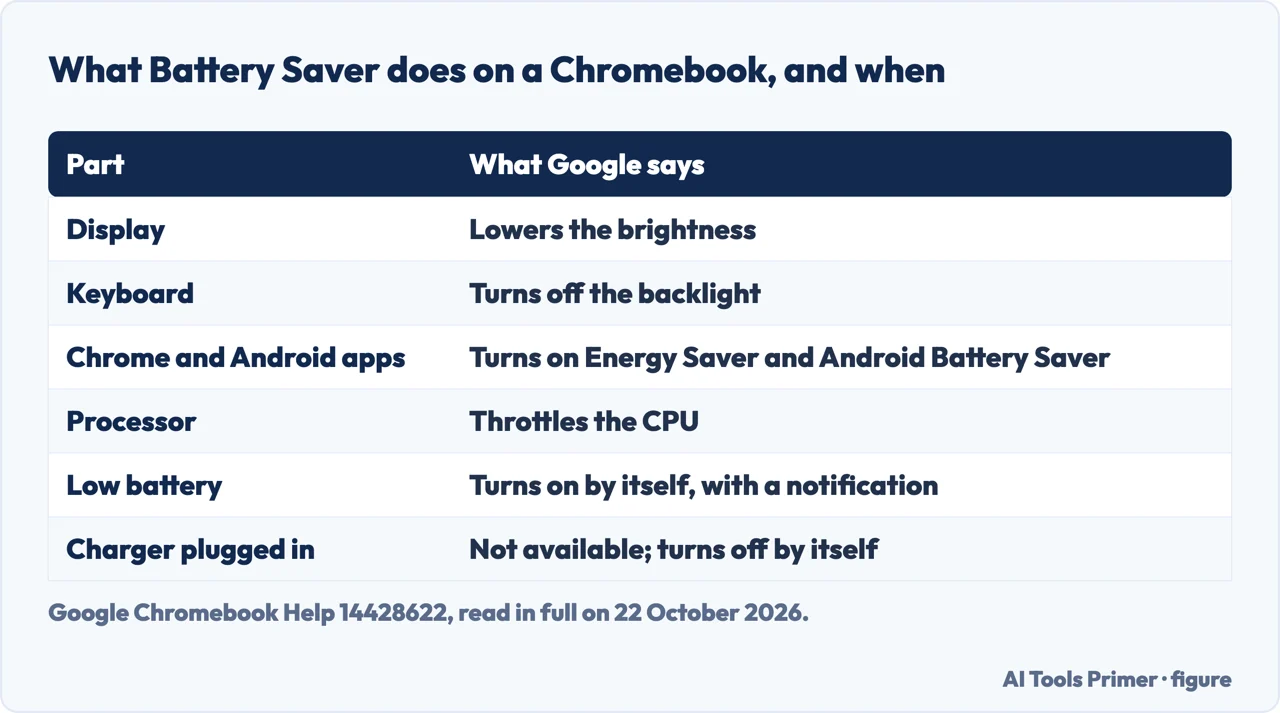
ChromeOS has a Battery Saver mode, and Google lists what it does: it lowers the display brightness, turns off the keyboard backlight, turns on Chrome Energy Saver, turns on Android Battery Saver when you use apps, and throttles the CPU. To switch it on yourself, click the battery icon at the bottom right, then Settings, System preferences, Power, and turn on Battery Saver. It also switches itself on: when the battery gets low and you have not turned it on, a notification tells you it has been turned on automatically. It does not work on the charger. Google says “When you plug in your Chromebook to charge, Battery Saver isn’t available”, and it turns itself off when you plug in. You know it is on when the battery icon shows a yellow plus sign.
ASUS, on its page about short battery life, starts from a fact before any setting: the battery is a consumable part, its capacity declines over time, and a shorter battery life with age is, in its words, “a normal phenomenon”. Its list of settings then covers screen brightness and speaker volume, the keyboard backlight where there is one, unplugging USB and Bluetooth devices you are not using, turning Bluetooth off, and making sure the Chromebook sleeps when idle and when the lid is closed. ASUS gives that path as Settings, Device, Power; Google’s current pages put the same options under Settings, System preferences, Power.
How-To Geek’s list adds what runs in the background: many open tabs, apps that did not close properly, extensions that run code in the background, and Android or Linux apps such as games. It also names weak Wi-Fi or Bluetooth signals, because the radios work harder at the edge of their range, and an out-of-date system. To see what is busy, Google’s page on tabs that keep refreshing opens the Task Manager with Shift + Esc; How-To Geek gives Search + Esc for the ChromeOS Task Manager. A restart also closes whatever did not close on its own.
When it shuts off by itself
A Chromebook that goes dark while it still has charge is a different problem from a weak battery, and Google files it under system problems. For a Chromebook that crashes or freezes, Google’s order is: turn it off and back on, close all apps and browser windows, hard refresh a tab that causes it with Ctrl + Shift + R, uninstall apps or extensions you added recently, then reset the Chromebook, and finally recover it. For a Chromebook that turns off and then back on, over and over, Google’s first step is recovery, with a tip to test the memory in Diagnostics.
Some shutdowns are the Chromebook going to sleep, and that is a setting, not a fault. Google’s page on sleep says you put a Chromebook to sleep to save battery by closing the lid, and that to keep it awake you set “While inactive and plugged in” and “While inactive and on battery” to Keep display on, under Settings, System preferences, Power. wikiHow’s first fix for a Chromebook that keeps turning off is that same change. It will keep the screen on, and it is the opposite of what ASUS recommends for battery life, so use it only if the screen going dark is the actual complaint. On a work or school Chromebook, Google says you might not be able to change the sleep settings at all.
wikiHow also suggests turning off newly installed extensions and any Chrome Flags you enabled, since flags are experimental features, and checking the charger and its connector. When the screen stays black and the Chromebook will not wake, the hard reset and recovery steps are on Chromebook black screen, and a Chromebook that will not take a charge is on Chromebook won’t charge.
When the Chromebook itself reaches the end: the update date
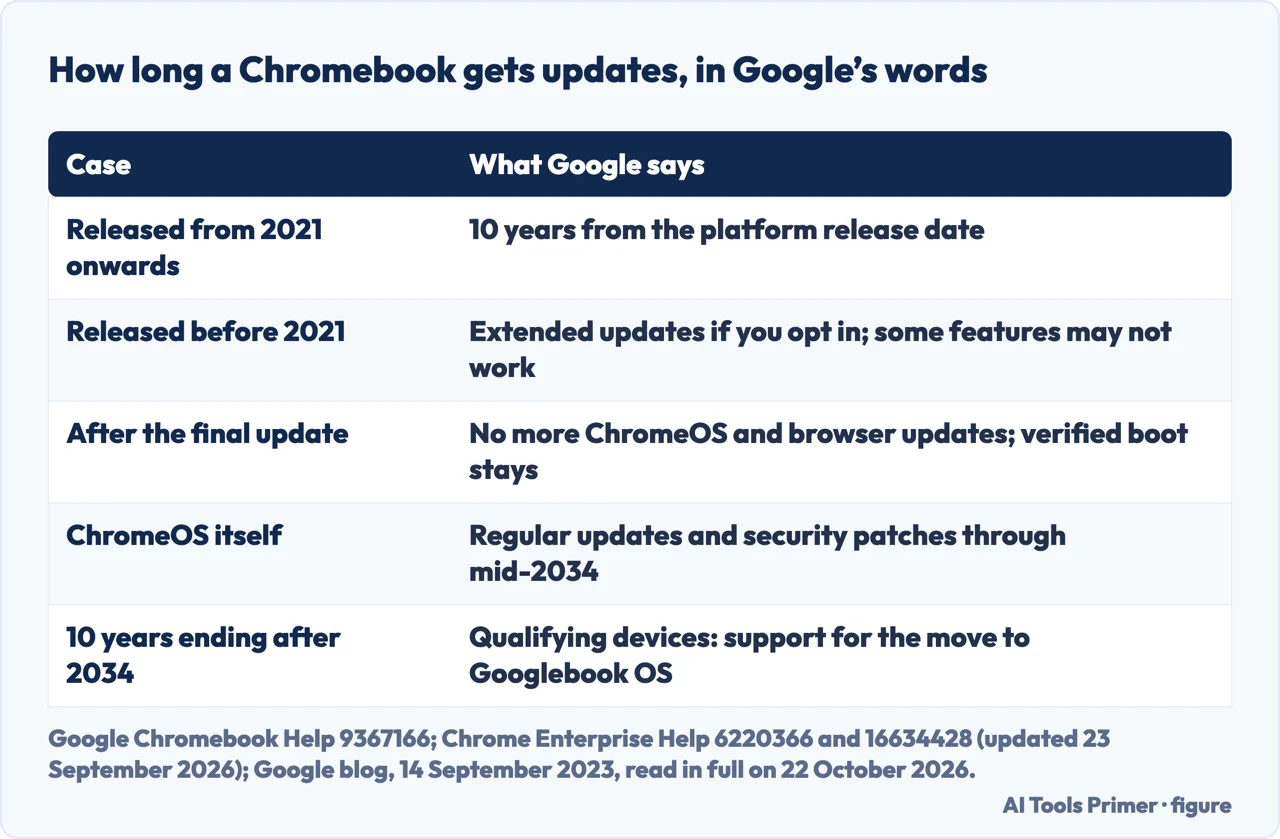
How long a Chromebook lasts, and whether one is still worth having in 2026, has a date for an answer, and every Chromebook can show its own: at the bottom right, select the time, then Settings, then About ChromeOS, select Additional details, and the Update schedule section says when the Chromebook will get its last update. A Chromebook that has reached it shows a “Final software update” notification. After that, Google says, it gets no more ChromeOS and browser updates, which means no more security updates, bug fixes and new features, and some apps that need a recent version may stop being supported. Google adds: “Existing features may stop working.”
How long that is depends on the platform, not on when you bought the Chromebook. Google’s Auto Update policy gives ChromeOS devices updates for “10 years from the platform release date”, where a platform is the set of components a manufacturer chose for the device. Google’s blog, announcing the change on 14 September 2023, said Chromebooks released from 2021 onwards get the 10 years automatically, starting in 2024, while for those released before 2021 users and administrators have the option to extend updates; Google’s policy page says those older devices must opt in, and that some features and services might not be supported on them. Google also notes that the “End of Sale” date is set by the manufacturer and has nothing to do with update eligibility. A Chromebook past its last update still has verified boot: Google says it checks itself at every start-up and, if it finds the system tampered with, repairs itself.
There is now a second date above all of these. On a page for administrators, last updated on 23 September 2026, Google says: “ChromeOS devices will continue to receive regular updates and security patches through mid-2034.” The same page announces Googlebook OS, the system for Google’s new Googlebooks, and says that for qualifying devices whose 10-year lifecycle runs past 2034, Google is committed to supporting the move to Googlebook OS, and that many newer commercial Chromebook models will be able to upgrade, with details on eligibility still to come. 9to5Google, reporting the page on 28 September 2026, noted that 2034 had earlier come up in a court case as the year Google would phase out ChromeOS. In our reading, for a Chromebook bought now, the shorter of its own 10 years and mid-2034 is the date to plan around, unless it turns out to be one of the models that can move.
A new battery, or a new Chromebook?
How-To Geek puts the choice in three conditions for a battery replacement: the Chromebook is still in its support period, the replacement costs reasonably little against a new Chromebook, and you can do it yourself or know someone who can at a fair price. It recommends a new Chromebook instead when the device is near or past its Auto Update Expiration date, or when the battery costs too much to make sense. Whether a battery can be replaced at all depends on the manufacturer, and both the Diamond Product Expert in the Google thread and ASUS end at the same step: ask the manufacturer.
The figures that circulate are individual cases, not prices. The Platinum Product Expert in that thread paid $49 for a battery replacement through a store membership; that was one machine and one store. Before buying anything, How-To Geek names one last software step for a battery that drains far faster than before: a Powerwash, which erases the Chromebook, so back up first. Google’s steps and what they erase are on Powerwash a Chromebook. And if the update date, not the battery, is what is running out, the routes to Windows programs on the same machine are on Windows on a Chromebook.
Where to start
Four ways in.
- “The battery runs down fast.”
- Check its health — battery health
- “I need it to last longer.”
- Battery Saver — battery saver
- “It turns itself off.”
- Shutdowns — shuts off
- “Is it too old now?”
- The update date — end of updates
More on Chromebooks
The pages next to this one: charging, a screen that stays black, a full reset, and Windows programs.
Batteries on other devices
The same question on a phone or a laptop.
Questions people also ask
Why does my Chromebook keep dying?
If the battery empties fast, check its health in Diagnostics: a Google Diamond Product Expert treats anything below 85% as a sign of failure. Bright screens, many tabs, extensions and games also drain it; Battery Saver cuts some of that.
How do I know if my Chromebook is dying?
Look at two things in Settings. Diagnostics shows battery health and cycle count. About ChromeOS, Additional details, shows the Update schedule, the date of the last update; a Final software update notification means it has been reached.
Are Chromebooks still good in 2026?
Google says Chromebooks get 10 years of updates from the platform release, and on 23 September 2026 it said ChromeOS will get regular updates and security patches through mid-2034, with many newer commercial models able to move to Googlebook OS.
What is the typical lifespan of a Chromebook?
For updates, Google’s answer is 10 years from the platform release date, opt-in for models released before 2021, and no later than mid-2034 for ChromeOS itself. The battery wears on its own schedule, which ASUS calls normal.
Not covered here. We did not test a Chromebook for this page. The steps credited to Google and ASUS are from their support pages, and the update dates from Google’s Chromebook Help, Chrome Enterprise and Education Help and the Google blog, all read on 22 October 2026; the advice from Google’s Product Experts, How-To Geek and wikiHow is attributed where it is used.
The two battery health thresholds, 85% and 80%, are a Product Expert’s and How-To Geek’s, not Google’s. The Reddit result could not be read, and the videos in the results were not watched. Which Chromebooks will move to Googlebook OS had not been published when we read Google’s page.
The search volume and difficulty behind this page were read in Semrush on 29 August 2026.
Sources
- Google Chromebook Help — Use Diagnostics to troubleshoot your issue — support.google.com, read 22 October 2026.
- Google Chromebook Help — Extend your battery life with Battery Saver — support.google.com, read 22 October 2026.
- Google Chromebook Help — Fix hardware and system problems — support.google.com, read 22 October 2026.
- Google Chromebook Help — Sign out or turn off your Chromebook — support.google.com, read 22 October 2026.
- Google Chromebook Help — Check your Chromebook’s update schedule — support.google.com, read 22 October 2026.
- Chrome Enterprise and Education Help — Auto Update policy — support.google.com, read 22 October 2026.
- Chrome Enterprise and Education Help — What the Googlebook announcement means for your ChromeOS devices (last updated 23 September 2026) — support.google.com, read 22 October 2026.
- Google blog — Chromebooks will get 10 years of automatic updates (14 September 2023) — blog.google, read 22 October 2026.
- Google Chromebook Community — My Chromebook battery drains much too quickly! (February 2024, answers from Product Experts) — support.google.com, read 22 October 2026.
- ASUS Support — [Chromebook] Troubleshooting: Short Battery Life on Chromebook (updated 22 September 2023) — www.asus.com, read 22 October 2026.
- How-To Geek — Why Your Chromebook Battery Drains Fast (And How to Fix It), Sydney Butler, 28 June 2025 — www.howtogeek.com, read 22 October 2026.
- wikiHow — Why Does My Chromebook Keep Turning Off? (co-authored by Luigi Oppido) — www.wikihow.com, read 22 October 2026.
- 9to5Google — Google says Chromebook updates end in 2034, many models move to Googlebook OS, Ben Schoon, 28 September 2026 — 9to5google.com, read 22 October 2026.
Written by Alberto Gulotta
Founder and editor of AI Tools Primer, writing from Palermo, Italy. Thirty-five years of taking computers apart, starting with a Commodore 64 — the long version is on the about page.
Something wrong on this page? Write to aitoolsprimer@gmail.com and it gets fixed.
Written on 23 October 2026.
Independence and limits
No affiliate links and no paid placements anywhere on this site. Nobody pays to appear here, and no company has seen this page before you did.
This is general information, not professional advice. Where a page touches money, health, safety or the law, it names its source and the date it was read — and your situation may still differ. See the privacy page and the cookie policy.