
Software · guide
How to Powerwash Chromebook models, and what a reset erases
By Alberto Gulotta · Updated · 13 min read
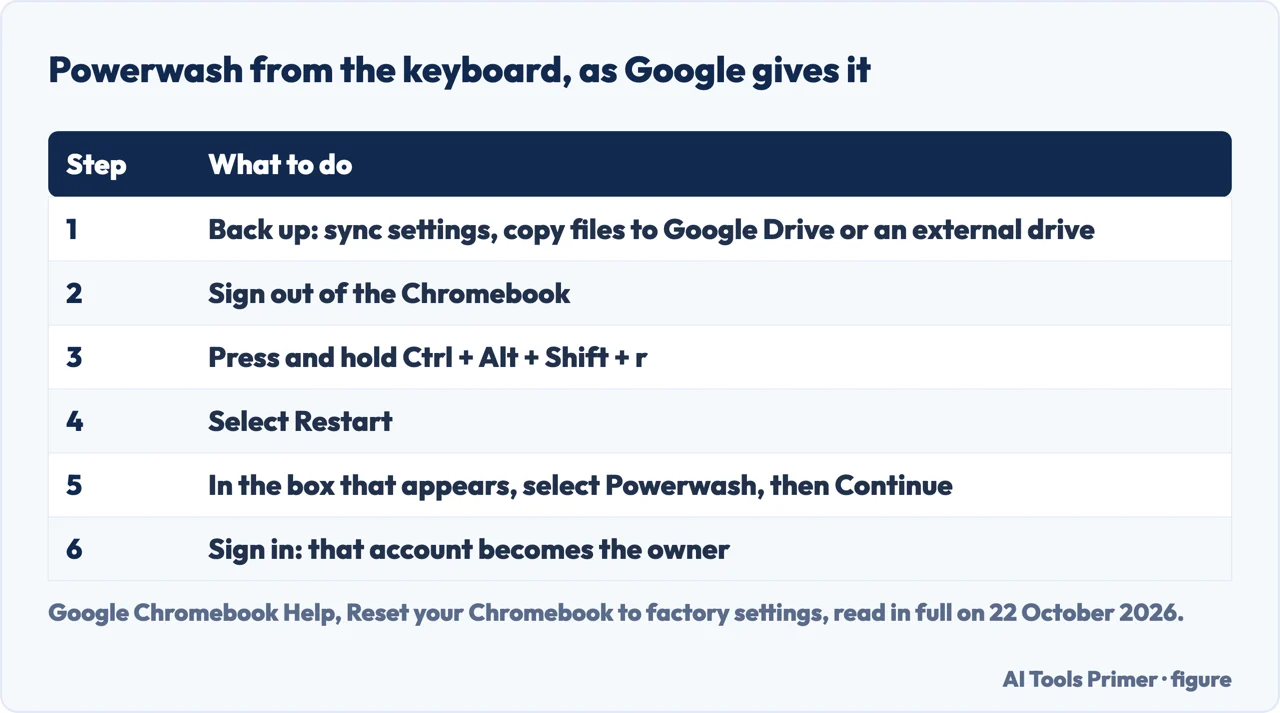
How to powerwash Chromebook models, the way Google gives it: sign out, press and hold Ctrl + Alt + Shift + r, select Restart, then Powerwash and Continue. A Powerwash is ChromeOS’s factory reset, and it erases user data on the Chromebook’s own drive.
Files on Google Drive or an external drive are kept, so back up first. A school or work Chromebook cannot be reset by its user; the administrator does it.
| On the Chromebook | After a Powerwash |
|---|---|
| Files in Downloads and the rest of the hard drive | Erased |
| Settings, apps and accounts on the device | Erased |
| Files on Google Drive | Kept |
| Files on an external drive | Kept |
| Information and settings synced to your Google Account | In the account, not on the drive |
| A few diagnostic and operational pieces of data | Kept |
Before you Powerwash
Whether you call it a Powerwash or ask how to reset Chromebook to factory settings, Google’s article starts with three steps, and the first two are about not needing it at all.
- Make sure you should reset. Google lists four reasons: the message “Reset this Chrome device”, problems with your user profile or settings, a Chromebook still not working normally after a restart, or a change of owner.
- Try the lighter steps first. Turn off your Chrome extensions one at a time, checking each time, then try a hardware reset. Only if neither fixes the problem does Google send you on to step three.
- Back up. Sync your information and settings to your Google Account, and copy your files to Google Drive or an external storage device. Google says the reset won’t delete any files on either.
Google’s files article explains why Downloads matters most: it is a temporary folder on the Chromebook’s own hard drive, and by default that is where files are saved. HP’s guide names two kinds of data that are not in Downloads: the Linux development environment, whose files and applications it says must be backed up by hand, and Android apps that keep their data on the device rather than in the cloud.
Have your Google Account password at hand too. The Chromebook will ask you to sign in at the end, and Google says the account you sign in with after the reset becomes the owner account.
How to Powerwash a Chromebook
How do you Powerwash a Chromebook? The steps on Google’s own page start from the sign-in screen, so they work even when the desktop misbehaves:
- Sign out of your Chromebook.
- Press and hold Ctrl + Alt + Shift + r.
- Select Restart.
- In the box that appears, select Powerwash, then Continue.
- Follow the steps that appear and sign in with your Google Account.
Then follow the setup instructions on screen and check whether the problem is gone.
From Settings. ASUS, in a support article last edited in October 2025, and HP describe a second way in, for a Chromebook you are signed in to: select the time at the bottom right, open Settings, expand Advanced, select Reset settings, and choose Reset next to Powerwash; then Restart, Powerwash and Continue. Google’s factory reset page gives only the keyboard route. Its newer Safety reset article places a Reset section under Settings, then System preferences, so the menu on a current Chromebook may not read Advanced. We have not checked it on a device.
Without a keyboard. For ASUS detachables, ASUS gives a sequence of buttons: hold Power, Volume Up and Volume Down for about 10 seconds, then use the volume keys and Power to choose Confirm Disabling OS Verification and, afterwards, Enable OS Verification. Google’s administrator page describes the same menu for Chromebook tablets, as a way to wipe the device that takes about 15 minutes.
The Ctrl + D method is Developer mode
Google’s AI Overview and HP’s guide both give a third method for a Chromebook you cannot sign in to: turn it off, hold Esc + Refresh and press Power, then press Ctrl + D at the recovery screen. HP calls it “a legitimate, Google-supported recovery procedure”.
Google documents it in one place we found, and it is the Chrome Enterprise help for administrators. There it is called Wipe a Chromebook—Developer mode: Ctrl + D begins Developer mode, the Chromebook deletes its local data, and when that is done you press Space and then Enter to return to secure mode. On the same page, the ordinary Powerwash is marked “preferred”.
The ChromeOS developers’ own page explains the side effect. Switching into or out of Developer mode triggers a wipe of the device’s data, which is why the method erases it. But Developer mode exists to change the system, and the page warns that such changes are “not supported by Google” and may void the warranty. If you go this way, finish the last step: back to secure mode.
A Powerwash is not a hard reset
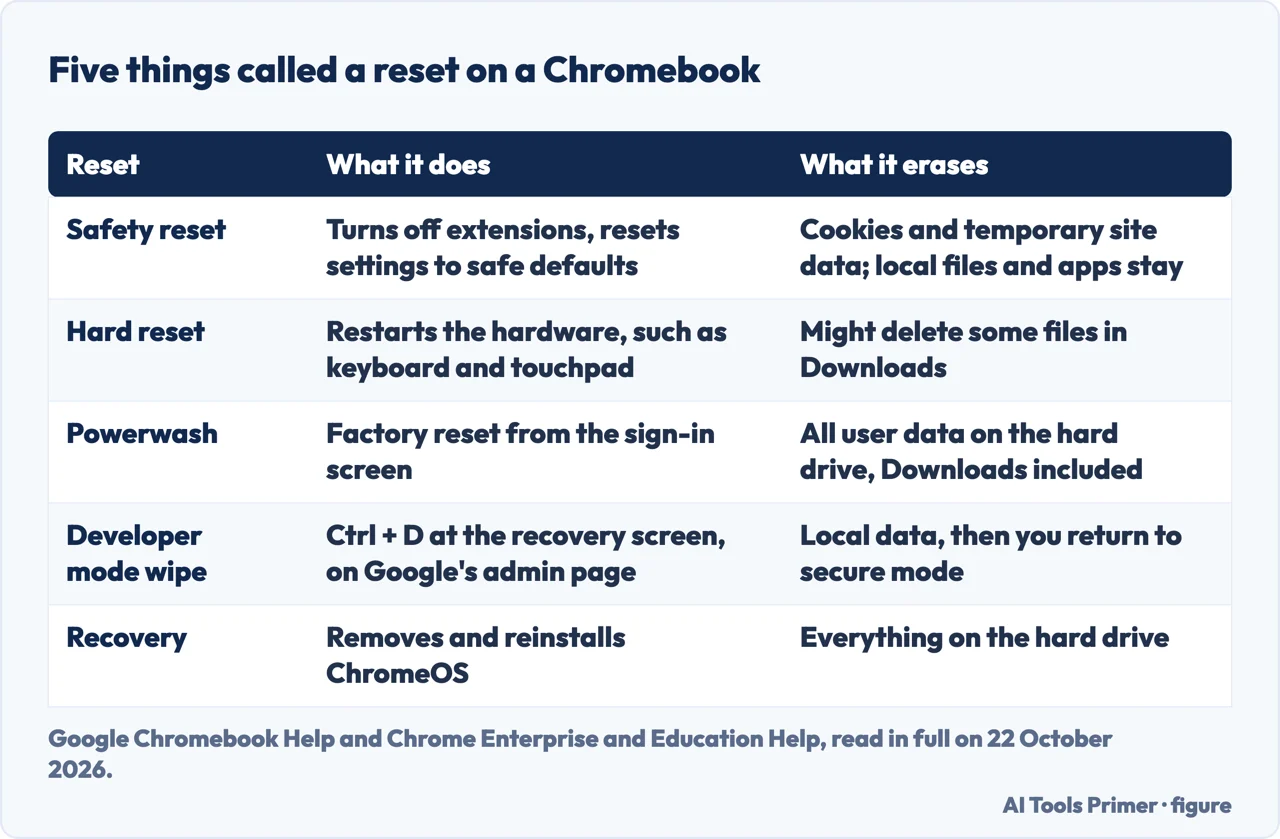
Asking how to reset a Chromebook can mean four different things, and Google’s pages treat them as different tools.
- Safety reset is the lightest. In Settings, then System preferences, under Reset, Google says it fixes unwanted pop-ups and network issues “without losing your local data and apps”. It turns off extensions, resets Chrome settings and shortcuts, and deletes cookies and temporary site data; bookmarks, history and saved passwords are not affected.
- A hard reset restarts the hardware, such as the keyboard and touchpad: on most Chromebooks, turn it off, hold Refresh and tap Power. Google says it might delete some files in Downloads, and to try it only after other fixes have failed. Our page on a Chromebook black screen has the model-by-model exceptions.
- Powerwash is the factory reset on this page.
- Recovery removes and reinstalls ChromeOS, for errors such as “ChromeOS is missing or damaged”. Google says it permanently erases everything on the hard drive. You enter it with Esc + Refresh and Power, and recover over the internet or from a USB drive of at least 8 GB made with the Chromebook Recovery Utility on another computer.
Google’s order goes from light to heavy: restart, then factory reset, then recovery. If a Powerwash does not fix the problem, it suggests checking whether the Chromebook is on the beta or dev channel and moving to a more stable one, before recovering.
A school or work Chromebook
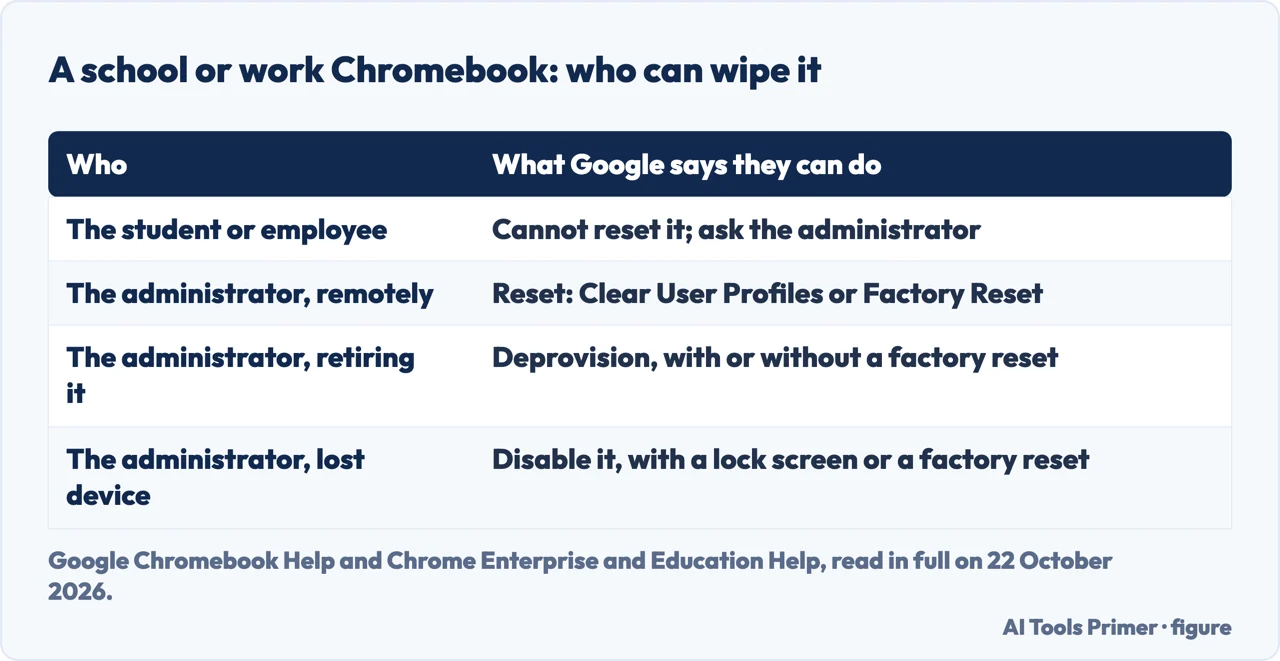
Google’s answer for the user is short: “If you use your Chromebook at work or school, you can’t reset it.” To wipe the data and re-enrol the device on the school or work network, contact the administrator, who is also the Chromebook’s owner. HP’s guide adds that some organisations allow a Powerwash, but the device then re-enrols itself on restart. So how to powerwash a school Chromebook, or how to reset a managed Chromebook, comes down to one step for the user: asking the administrator.
The administrator’s side is in Google’s Chrome Enterprise help. From the Google Admin console, a managed device can be reset remotely, choosing between Clear User Profiles and Factory Reset. Google notes that a device must be enrolled before anyone signs in to it, or it has to be wiped to restart enrolment. A device leaving the organisation is deprovisioned, which removes its policies, with or without a factory reset. A lost one is disabled, with a lock screen or a factory reset.
That is why a Powerwash does not free a Chromebook bought second-hand from a school or company. In an iFixit thread from 2016, a buyer whose used Dell Chromebook was still managed had tried Powerwash and recovery; the top answer, from another user, says that releasing the management is up to the organisation managing the device.
When the Powerwash will not start
In a Google forum thread from April 2023, a user wrote that the keyboard shortcut did nothing and that choosing Powerwash in Settings only restarted the Chromebook. The volunteer Product Experts who answered asked for the build details, from Settings, About ChromeOS, Additional details, and then pointed to recovery and to the manufacturer; the thread is now locked, with no fix reported.
Google’s documented next step is the same: recovery, which reinstalls ChromeOS and erases everything. If recovery fails too, Google sends you to the Chromebook’s manufacturer. HP lists the reasons the Powerwash option can be greyed out or missing: enterprise enrolment restrictions, Family Link parental controls, corrupted system settings and account limitations. On a Chromebook managed with Family Link, HP says the parent account must approve.
After the Powerwash
ASUS says the Chromebook then shows the welcome screen, as on the first day. HP’s guide says that signing back in automatically restores most of your experience, because what lives in your Google Account was never on the drive.
The first account to sign in becomes the owner, and a Powerwash is the only way Google gives to change it. Google’s page on owner accounts says: “It’s not possible to transfer owner permissions to another account on your Chromebook.” Only the owner changes settings such as the time zone, sign-in permissions and Wi-Fi preferences; to change the owner, reset the Chromebook and sign in first with the new owner’s account. That is also how to reset your Chromebook before selling or giving it away.
HP notes that the first setup needs a working internet connection, and that a Chromebook without one can look stuck on the Chrome logo.
Where to start
Five ways in.
- “I just want the steps.”
- The Powerwash — how
- “What will I lose?”
- Before you start — before
- “A video said Ctrl + D.”
- Developer mode — ctrl d
- “It’s a school Chromebook.”
- Managed devices — school
- “Nothing happens.”
- When it won’t start — not starting
More on Chromebooks
The pages next to this one: the Chromebook faults Google documents, and the routes beyond ChromeOS.
Factory resets on other devices
The same job on a Mac, a Windows PC and an iPhone, each with its own catch.
Questions people also ask
What does Ctrl+Alt+Shift+R do on a Chromebook?
From the sign-in screen, after you sign out, it brings up the reset box: select Restart, then Powerwash and Continue. Google gives it as the way to factory reset a Chromebook, and the reset erases all user data on the drive.
How to force a factory reset on a Chromebook?
The keyboard route works from the sign-in screen, without opening Settings. If ChromeOS will not start at all, Google’s next step is recovery, which reinstalls ChromeOS and erases everything. A school or work Chromebook is reset by its administrator.
Does a Powerwash delete everything on a Chromebook?
Everything on the Chromebook’s own drive, including Downloads, settings and apps. Google says files on Google Drive or an external drive are not deleted, and it keeps a few diagnostic and operational pieces of data.
Is a Powerwash the same as a hard reset?
No. A hard reset, Refresh held while tapping Power, restarts the hardware and might delete some files in Downloads. A Powerwash is the full factory reset, and a safety reset in Settings resets settings without deleting local data.
Not covered here. We did not Powerwash a Chromebook for this page. The steps are those Google, ASUS and HP document, read on 22 October 2026; the forum answers are from volunteers and users, as attributed.
The Settings route is ASUS’s and HP’s; Google’s factory reset page gives only the keyboard route, and the Settings menus may be named differently on a current Chromebook.
The Reddit result and the Provo City School District guide could not be read, and the videos were not watched.
The search volume and difficulty behind this page were read in Semrush on 29 August 2026.
Sources
- Google Chromebook Help — Reset your Chromebook to factory settings — support.google.com, read 22 October 2026.
- Google Chromebook Help — Reset your Chromebook to safe default — support.google.com, read 22 October 2026.
- Google Chromebook Help — Reset your Chromebook hardware — support.google.com, read 22 October 2026.
- Google Chromebook Help — Recover your Chromebook — support.google.com, read 22 October 2026.
- Google Chromebook Help — Find your Chromebook’s owner account — support.google.com, read 22 October 2026.
- Google Chromebook Help — Open, save, or delete files on your Chromebook — support.google.com, read 22 October 2026.
- Chrome Enterprise and Education Help — Wipe ChromeOS device data — support.google.com, read 22 October 2026.
- Chrome Enterprise and Education Help — Repair, repurpose, or retire ChromeOS devices — support.google.com, read 22 October 2026.
- Chromebook Help Community — how do i powerwash a chromebook (April 2023, answers from Product Experts) — support.google.com, read 22 October 2026.
- The Chromium Projects — Developer mode — www.chromium.org, read 22 October 2026.
- ASUS FAQ — Reset (Powerwash) your Chromebook to factory settings (edited 7 October 2025) — zentalk.asus.com, read 22 October 2026.
- HP Tech Takes — How to Factory Reset (Powerwash) a Chromebook — www.hp.com, read 22 October 2026.
- iFixit Answers — How to I factory reset my managed chromebook (2016, answers from users) — www.ifixit.com, read 22 October 2026.
Written by Alberto Gulotta
Founder and editor of AI Tools Primer, writing from Palermo, Italy. Thirty-five years of taking computers apart, starting with a Commodore 64 — the long version is on the about page.
Something wrong on this page? Write to aitoolsprimer@gmail.com and it gets fixed.
Written on 22 October 2026.
Independence and limits
No affiliate links and no paid placements anywhere on this site. Nobody pays to appear here, and no company has seen this page before you did.
This is general information, not professional advice. Where a page touches money, health, safety or the law, it names its source and the date it was read — and your situation may still differ. See the privacy page and the cookie policy.