
Screens · guide
How to fix a glitching chromebook screen, settings to hard reset
By Alberto Gulotta · Updated · 10 min read
How to fix a glitching chromebook screen: restart it and install ChromeOS updates, as ASUS does; display settings change the picture too, and Ctrl + Shift + 0 resets the resolution. Then a hard reset, on most Chromebooks Refresh held while tapping Power, and a Powerwash, which erases user data. The order is ours, from ASUS and Google.
| On the screen | What to try | Source |
|---|---|---|
| Too dark or too bright | The brightness keys; at the lowest setting the screen turns off | ASUS |
| Too yellow or too white | Night Light, in Settings › Device › Displays | ASUS |
| Everything too big or small | Ctrl + Shift + 0 resets the resolution | |
| Turned sideways | Ctrl + Shift + Rotate, or Orientation in Displays | Google, ASUS |
| Flicker or an abnormal display | Restart, update, hard reset, then reset or recovery | ASUS |
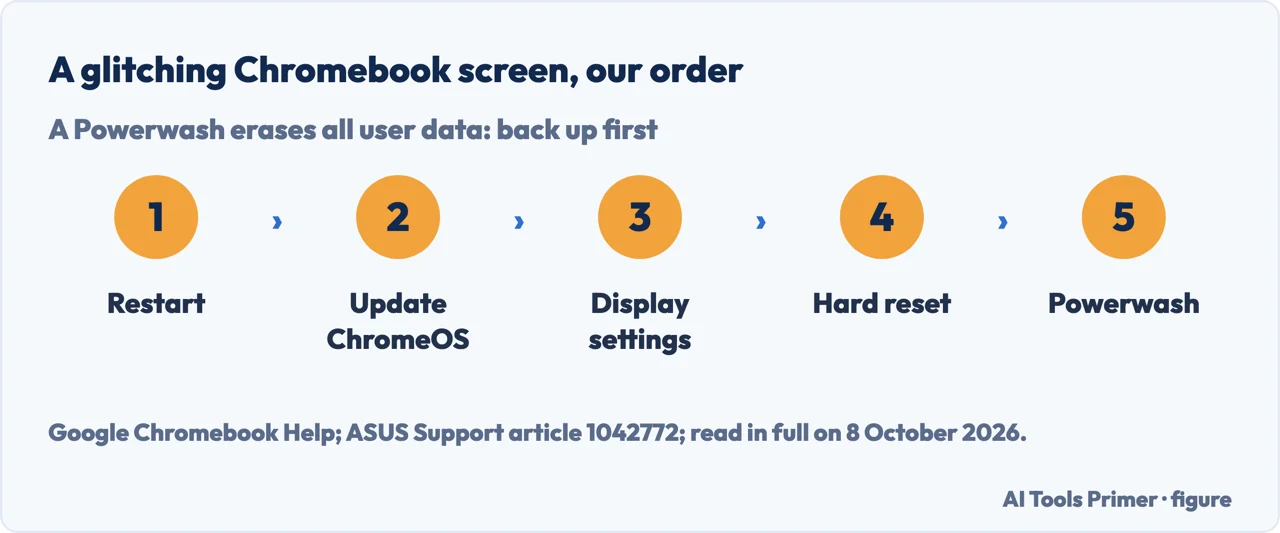
- Restart. ASUS: hold the Power button until the Chromebook shuts down, then turn it back on. For a Chromebook that crashes or freezes, Google also says to close all apps and browser windows.
- Update ChromeOS. Install any system update. ASUS lists it among its steps for display problems, and Google’s hardware page sends a slow Chromebook to the same check.
- Rule out a setting. Brightness, Night Light, display size and orientation change the picture without a fault; they are in the table above, and the shortcuts that do the same are below. ASUS also says to make sure there is no dust or dirt on the screen.
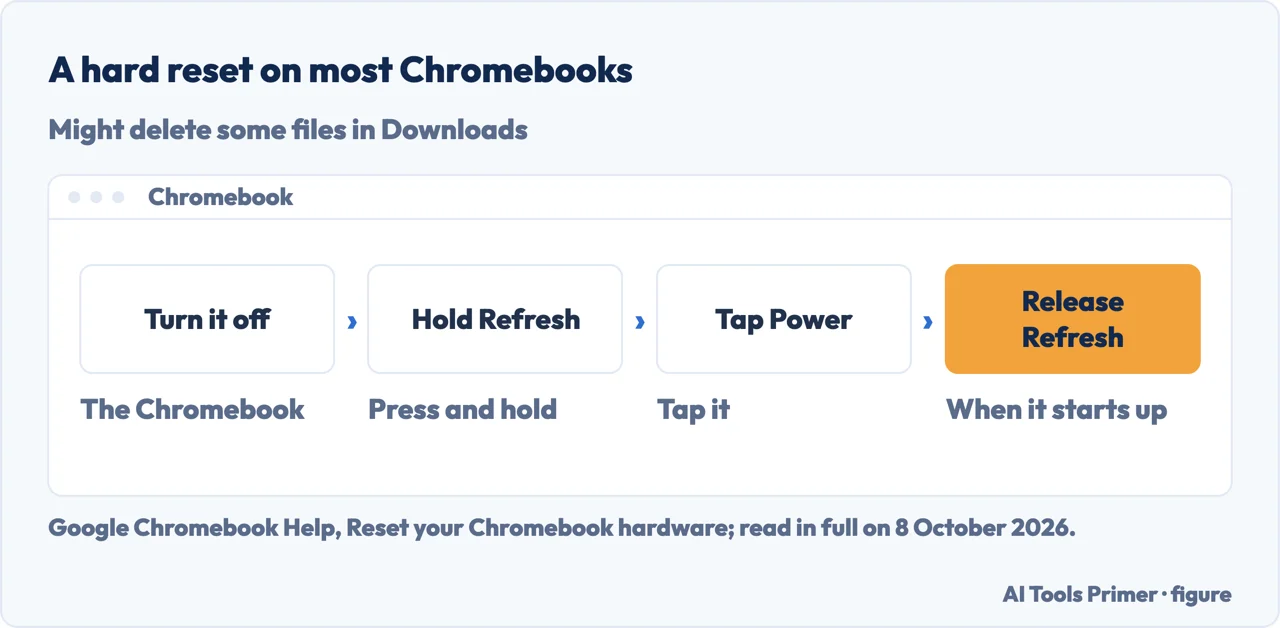
- Hard reset. On most Chromebooks: turn it off, press and hold Refresh and tap Power, and release Refresh when it starts up; or hold Back, Refresh and Power for at least 10 seconds. On tablets, Volume Up and Power for at least 10 seconds. Google says to try it only after other ways have failed, and that it might delete some files in the Downloads folder.
- Powerwash. A factory reset erases all user data on the Chromebook, including Downloads; files on Google Drive or an external drive are kept. Sign out, press and hold Ctrl + Alt + Shift + r, select Restart, then Powerwash and Continue. Google says a Chromebook used at work or school can’t be reset by its user: to wipe it and re-enrol it, contact the administrator.
- Recovery, then the maker. For serious problems, Google’s Powerwash page lists switching to a different version of ChromeOS and recovering the Chromebook, which reinstalls ChromeOS; its hardware page ends with the Chromebook’s manufacturer. ASUS sends display problems that survive a reset or recovery to its customer service.
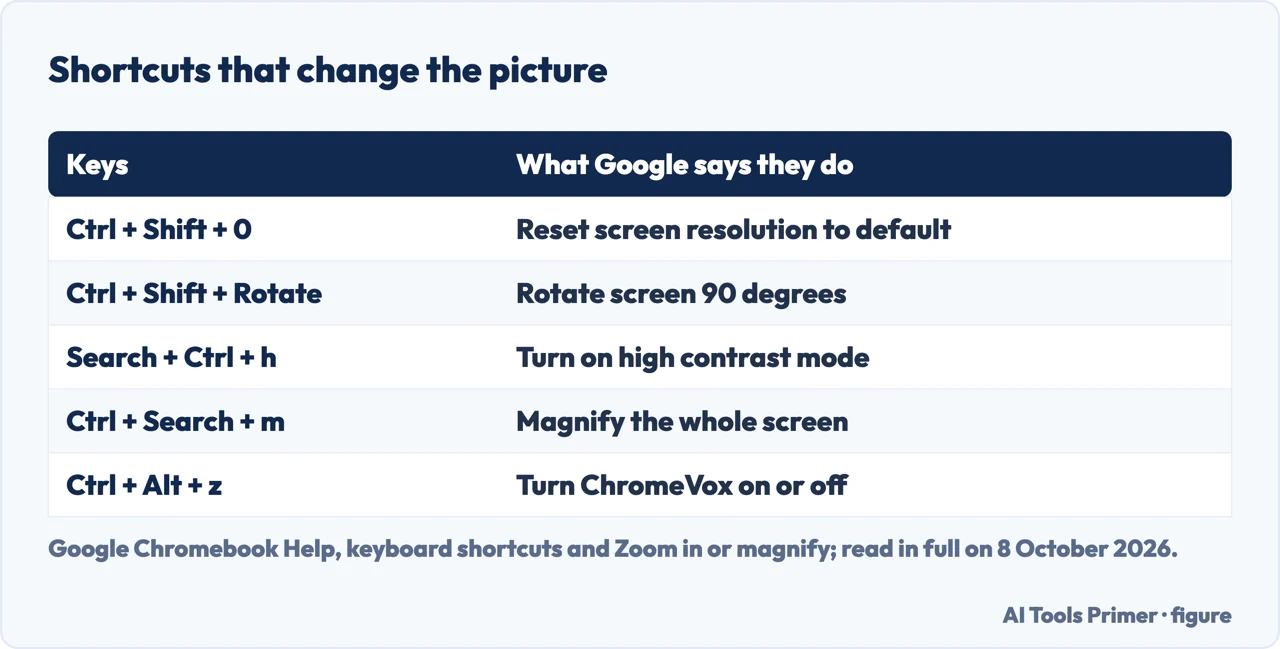
Shortcuts that change the screen
Resolution and rotation. Google’s list of Chromebook shortcuts: Ctrl + Shift and + or − changes the screen resolution, Ctrl + Shift + 0 resets it to the default, and Ctrl + Shift + Rotate turns the screen 90 degrees.
Contrast and magnifier. Search + Ctrl + h turns on high contrast mode. Ctrl + Search + m magnifies the whole screen and Ctrl + Search + d the top part of it; Ctrl + Alt with Brightness up or down changes the magnification.
Spoken feedback. Ctrl + Alt + z turns ChromeVox, the built-in screen reader, on or off.
Our reading. Pressed by accident, any of these changes the picture without anything being broken. That is our inference from the list, not something Google says about glitches.
The screen or the Chromebook?
What Google’s help covers. None of the Chromebook Help pages read for this guide is about a glitching or flickering screen. Google’s hardware page goes fault by fault, with steps such as restarting, updating and resetting the Chromebook, and most of its entries end with the manufacturer.
An outside screen. A monitor or TV connects by HDMI, DisplayPort, DVI, VGA or USB-C; in Settings, Device, Displays, Mirror Built-in Display shows the Chromebook screen on it. Our inference, not Google’s: if the picture on the monitor is clean while the built-in screen still glitches, the built-in panel or its cable is the likelier fault.
What the community says. In a Chromebook Community thread from January 2024, a Diamond Product Expert wrote that screen flickering is usually a hardware fault of the screen or of its cable, usually caused by a drop or rough handling of the hinges, and that there is no way to fix it other than a repair, with a full system restore as a last try. A Platinum Product Expert raised another cause: some Chromebooks have a sensor that puts the screen to sleep when a magnet comes near it. Google marks community content as possibly not verified or up to date.
Diagnostics. ChromeOS 90 and later has a Diagnostics app, under Settings › About ChromeOS. Google describes tests for the battery, CPU, memory, connectivity and the keyboard; its page lists no test for the screen.
A screen that stays blank
After a hard reset. If the screen is still completely blank, Google describes a verification bypass key sequence, and after that a factory reset: hold Power, double-tap Refresh, release Power, twice. Google says that if it reboots the Chromebook, user data is erased, the device runs an unsecured version of firmware and it restarts by itself after 15 minutes; an administrator can block the sequence.
Which Chromebooks. Google’s steps are for Chromebooks in general and say some models reset differently: a Chromebox or Chromebase by unplugging the power, others with a special reset button, by unplugging the power cable, or by removing and re-inserting the battery. The ASUS page is about the built-in screen of a Chromebook, says it may not suit every product in a series, and was last updated in August 2023; ASUS says the shortcut keys for certain models may be different.
Other screen faults. The wider family is in computer screen problems. An external monitor that flickers is in monitor flickering, one that is not seen at all in second monitor not detected, and marks on a laptop panel in a vertical black line on a laptop screen and half black screen.
Where to start
Five ways in.
- “Where do I start?”
- The steps in order — the steps in order
- “Did I press something?”
- The shortcuts — shortcuts that change the screen
- “Is the screen broken?”
- Screen or Chromebook — hardware or software
- “It stays black.”
- A blank screen — a blank screen
- “Which model?”
- Which Chromebooks — which chromebooks
More on screens
The screen faults that are not ChromeOS settings.
Questions people also ask
What does Ctrl+Alt+Z do on Chromebook?
Google’s list of Chromebook shortcuts says Ctrl + Alt + z turns ChromeVox, the built-in spoken feedback that reads the screen aloud, on or off. The resolution has its own shortcut: Ctrl + Shift + 0 resets it.
Why is my screen suddenly glitching?
The Google pages read for this guide name no single cause. Shortcuts change resolution, rotation and contrast; ASUS’s display steps go restart, update, hard reset, then reset or recovery. A Product Expert in Google’s community forum wrote that flickering is usually a fault of the screen or its cable, usually after a drop.
Can a Chromebook screen be fixed?
Google’s steps end with the Chromebook’s manufacturer, and ASUS sends display problems that survive a reset or recovery to its customer service. A Product Expert in Google’s community forum wrote that a flicker caused by the screen or its cable has no fix other than a repair, with a full system restore as a last try. Neither gives a price.
Why is my Chromebook screen distorted?
ASUS lists settings that look like faults: Night Light for a yellow or white tint, display size for items too large or small, and orientation. On Google’s list, Ctrl + Shift + 0 resets the resolution and Ctrl + Shift + Rotate turns the screen 90 degrees. For other problems, ASUS gives a restart, an update, a hard reset.
Not covered here. It does not cover a cracked or broken panel, the price of a repair, or a Chromebook used at work or school, which Google says its user can’t reset.
Sources
- Google Chromebook Help — Fix hardware and system problems: restart, apps, updates and the manufacturer — support.google.com, read 8 October 2026.
- Google Chromebook Help — Reset your Chromebook hardware: the hard reset, other models, and the blank-screen bypass — support.google.com, read 8 October 2026.
- Google Chromebook Help — Reset your Chromebook to factory settings: Powerwash and what it erases — support.google.com, read 8 October 2026.
- Google Chromebook Help — Chromebook keyboard shortcuts: resolution, rotation, high contrast and ChromeVox — support.google.com, read 8 October 2026.
- Google Chromebook Help — Zoom in or magnify your Chromebook screen: resolution and the magnifiers — support.google.com, read 8 October 2026.
- Google Chromebook Help — Connect your Chromebook to a monitor: ports and mirroring — support.google.com, read 8 October 2026.
- Google Chromebook Help — Use Diagnostics to troubleshoot your issue: the tests it runs — support.google.com, read 8 October 2026.
- Chromebook Community — Chromebook Screen Flickering, thread of 11 January 2024: two Product Experts’ answers — support.google.com, read 8 October 2026.
- ASUS Support — [Chromebook] Troubleshooting: How to fix Display issues with the built-in screen of a Chromebook (updated 2 August 2023) — www.asus.com, read 8 October 2026.
Written by Alberto Gulotta
Founder and editor of AI Tools Primer, writing from Palermo, Italy. Thirty-five years of taking computers apart, starting with a Commodore 64 — the long version is on the about page.
Something wrong on this page? Write to aitoolsprimer@gmail.com and it gets fixed.
Written on 8 October 2026.
Independence and limits
No affiliate links and no paid placements anywhere on this site. Nobody pays to appear here, and no company has seen this page before you did.
This is general information, not professional advice. Where a page touches money, health, safety or the law, it names its source and the date it was read — and your situation may still differ. See the privacy page and the cookie policy.