
Screens · guide
Vertical black line on laptop screen, and what the test proves
By Alberto Gulotta · Updated · 18 min read
A vertical black line on laptop screen has one useful first move, and it is not a cable. Dell and Lenovo both build a screen test into the machine that runs before Windows loads. It takes a minute, costs nothing, and settles which half is broken.
That matters because the line itself does not tell you anything. Dell lists the possibilities in one line on its troubleshooting page — “Lines on the screen can indicate a problem with the display panel, graphics card, or cables” — and those three have nothing in common except the symptom. One is a part you replace, one is a chip you cannot, and one is a connector. Guessing between them is how people pay for a panel that was never broken, and how other people wait three weeks for a driver update that was never going to help.
“These tests only check your screen hardware. They do not check your Windows settings, graphics drivers, or software.”
On Dell’s own page that sentence is a warning. Read the other way round it is the whole reason to run the test: it is the only thing you can do to the machine that looks at the panel and at nothing else. Everything else you might try — a driver, a cable, a restart, a setting — changes two things at once and tells you nothing about which of them mattered.
Three makers, three different answers
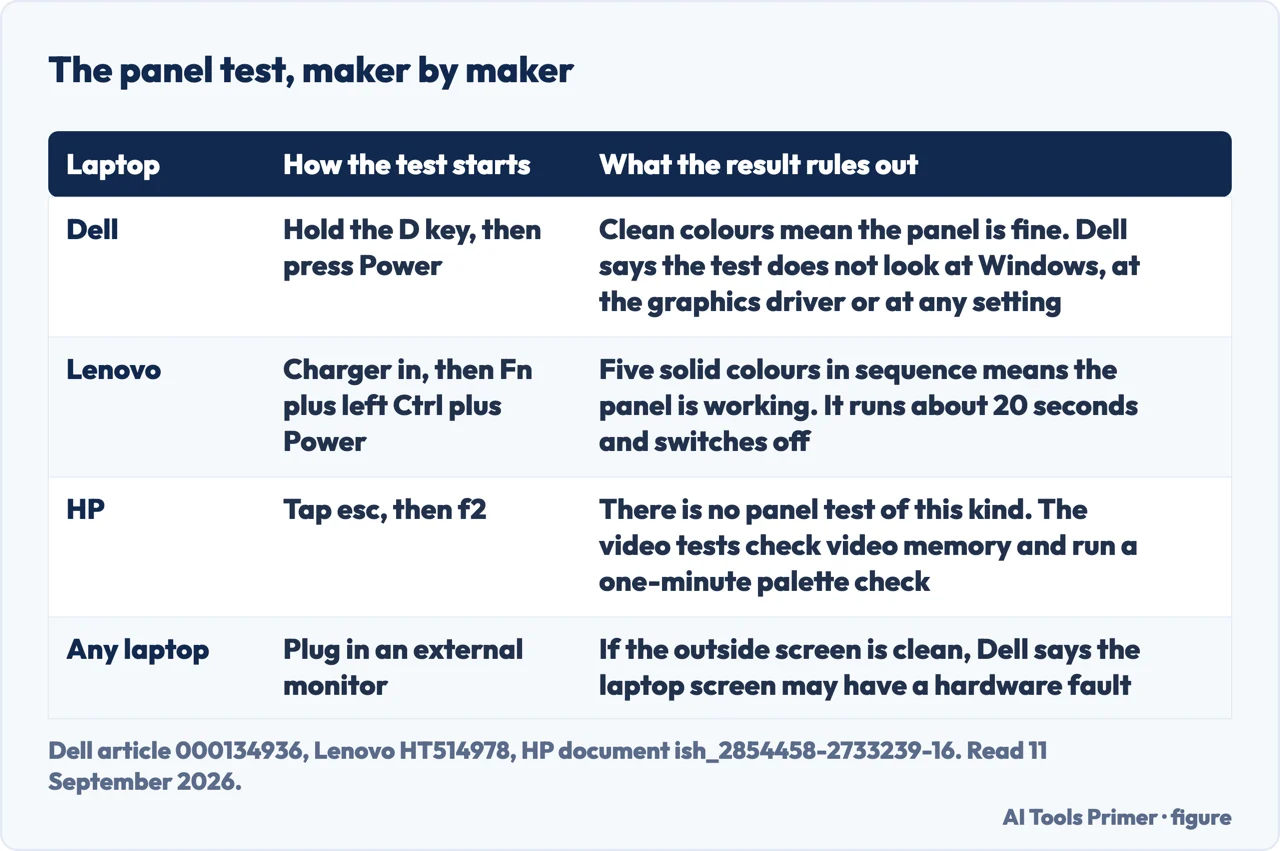
Each of the three documents its own machine and none of them mentions the others, so the comparison below is ours. The instructions inside it are theirs.
- Dell. Hold D and press the power button. The screen then “shows solid colors that fill the entire screen. The colors appear in this order: black, white, red, green, and blue.” Dell also says the test works “even if Windows is not starting normally”, which is the case where nothing else can be tried at all.
- Lenovo. Connect the charger first — Lenovo lists “Connect the AC power adapter.” as its own step — then “Press Fn, left Ctrl, and the power button at the same time.” It runs for a fixed time: “The test lasts for about 20 seconds and then the computer turns off automatically”.
- HP. There is no equivalent. HP’s diagnostics are opened by tapping esc and then f2, and its video tests are a “3-minute video memory test” and a “1-minute test of the three video color components”. Those look at the video hardware, not at the panel. On an HP the test that separates the two is the external monitor.
The odd thing about that table is that none of the three publishes it. Each of them describes its own machine on its own support page and none of them mentions the others, so a reader with an HP who has read the Dell instructions concludes that the test does not work rather than that it does not exist. The difference is worth saying plainly: Dell and Lenovo have a panel test; HP has video tests, which are not the same thing. HP’s tests check the video memory and the colour palette, which is the machine side of the picture, not the panel.
- Shut the laptop down completely and plug the charger in. Not sleep and not a restart: the test starts from off, before the operating system, which is exactly what makes its answer worth anything. Lenovo requires the charger; Dell asks for one too, and also says to disconnect external monitors, USB devices, docking stations and headphones first, so that nothing else is in the picture.
- Hold the key and press power. On a Dell, hold D and press the power button, keeping D down until colours appear. On a Lenovo, press Fn, left Ctrl and the power button together. On anything else, skip to the external monitor below: there is no key that does this.
- Look at every colour, corner to corner. The colours fill the whole screen one at a time precisely so that a fault has nowhere to hide. Dell says what to expect of a real one: “If you notice any problems, they will usually appear on multiple colors.” A line that shows on black and on blue and on red is not a coincidence of one image.
- Read the result the way the maker reads it. If the colours are clean, Dell’s conclusion is that “Your screen hardware is working correctly. The problem might be with Windows, your graphics driver, or a software setting.” Lenovo puts the same thing positively: “If the LCD panel displays at least five solid colors in sequence across the entire screen, it indicates that the LCD is functioning normally.” If the line is there, Dell is equally short: “Your screen may need professional service.”
- If there is no key for your laptop, use an external monitor instead. Dell documents this one for everybody: “Connect your laptop to a known-good monitor using HDMI, DisplayPort, or another compatible cable.” Then “If the external monitor displays correctly, your laptop’s screen may have hardware issue.” It is a slower version of the same question and it needs a second screen, which is the only reason it is not first.
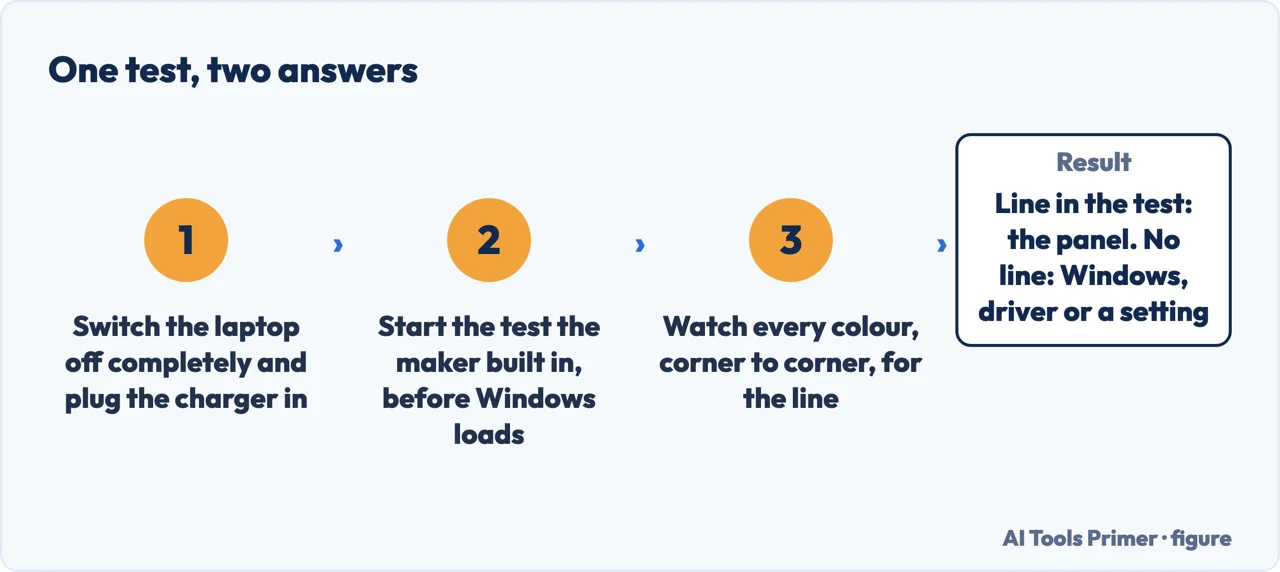
Two things about the result are worth holding on to, because they are the part that gets skipped. The first is that a clean test is not a disappointment: it is the expensive answer being ruled out. If every colour fills the screen without a mark, the panel is not what you are looking for, and what each display test actually proves takes the question on to the machine side — the driver, the setting, the cable.
The second is that a dirty test is not a diagnosis. It says the fault is in front of the video hardware, not which part in front of it. Dell’s enhanced version of the test, on laptops with a recent BIOS, adds the things a basic colour cycle cannot see — it asks you to watch for “Signs of cracks or spider-web patterns in the glass” and for “Pressure marks or spots” — and pairs them with codes flashed by the battery light. Dell also says what those codes replaced: “The enhanced diagnostic replaces the older two amber, seven white and two amber, eight white flash codes.” If you are reading an older guide and counting two amber flashes, that is why the count does not match.
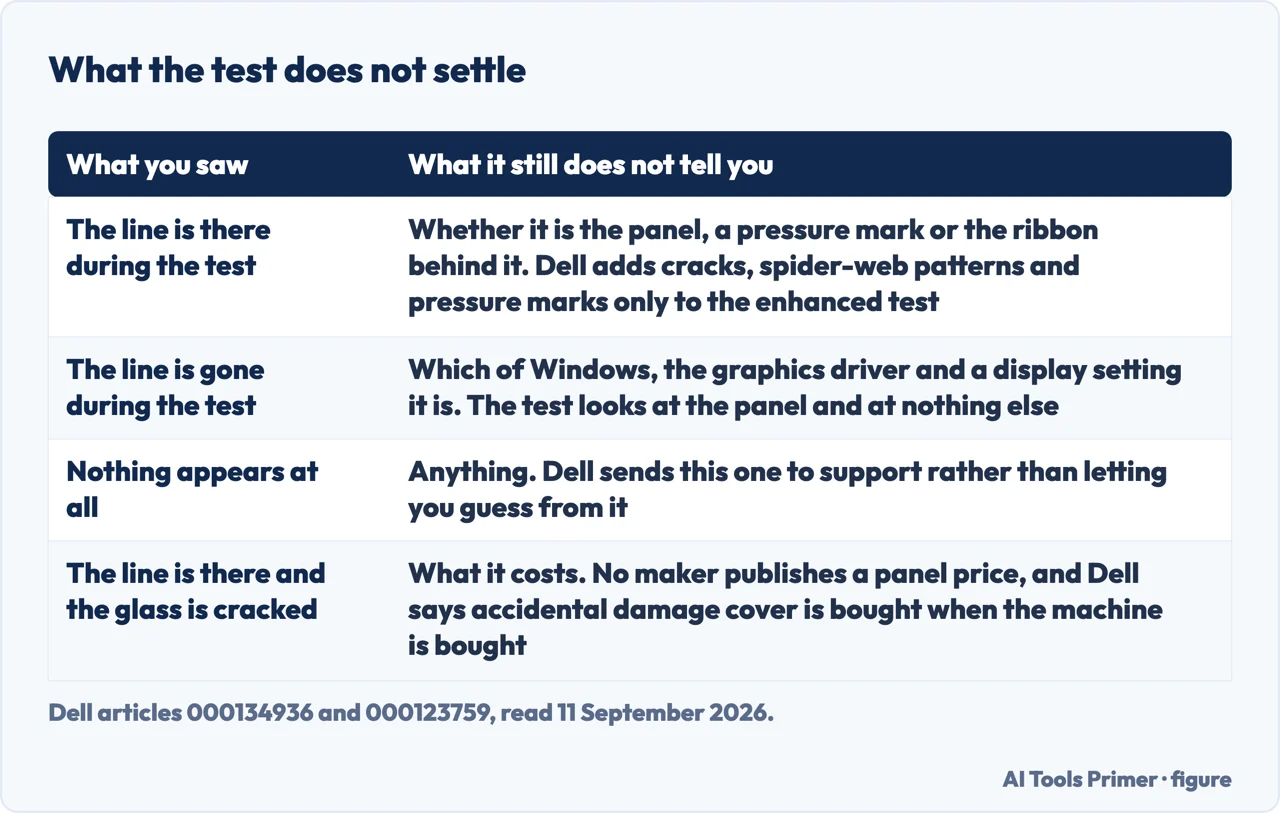
What none of them will tell you is the price. We looked for one on 11 September 2026 and there is not a published figure to quote: Dell’s article on cracked and broken screens gives no cost at all, Apple’s repair pages say the product has to be inspected for a personalised estimate and its iPhone screen price table did not load, and Lenovo’s self-test page ends at a link to support. What Dell does put in writing is the part that decides the bill, and it is about a decision taken long before the line appeared: “Dell offers Accidental Damage (Complete Care) as an optional service available at the time of purchase for Dell laptops, Venue phones, and tablets”, and “If such damage occurs and you do not have Accidental Damage coverage, you will be responsible for the full cost of repairs.” On the test page the same thing is said about the damage itself: “Physical damage to the screen typically is not covered under standard warranty”.
One last thing that has nothing to do with the line and everything to do with what happens next. If the test is clean and you are about to update a graphics driver, do it from the machine maker’s own page or the chip maker’s own page and nowhere else — which generic driver to look for covers the part that goes wrong. A driver updater found by searching is a worse problem than a line on a screen.
Where to start
Three ways in. If you have an HP, or any laptop that is not a Dell or a Lenovo, take the second.
- “Just tell me whether it is the screen.”
- The test the maker built in — the test the maker built in
- “There is no key for my laptop.”
- The slower version of the same question — when the line is not the panel
- “The test shows the line. Now what?”
- What it costs, and what it does not — before you pay for a panel
The test the maker built in
A colour cycle that starts from off, before the operating system, and looks at the panel and at nothing else. Dell and Lenovo each document their own.
When the line is not the panel
A clean test moves the question behind the glass: the driver, a setting, the cable, or the machine stopping altogether.
Before you pay for a panel
What the makers put in writing about cover, and where the rest of this subject lives.
Questions people also ask
How to fix vertical lines on laptop screen display?
Run the maker’s panel test first. If the line appears during it, the panel is the fault and Dell’s own conclusion is that the screen “may need professional service”. If it does not appear, the fix is on the software side: driver, display setting, or cable.
How do I remove a black line on my screen?
Nothing you can install removes it if the panel is the cause. Dell says the same about a related fault: “Software or driver updates don’t resolve dead pixel problems.” The test is what tells you which of the two you have before you spend anything.
Why did a line suddenly appear on my laptop screen?
Dell lists three causes for lines — the display panel, the graphics card, or the cables. A line that appears from one moment to the next is often the ribbon that carries the picture into the panel, which is why the lid angle sometimes changes it.
Does the test work if Windows will not start?
Yes, and that is one of its uses. Dell states that these tests “work even if Windows is not starting normally”, because they run from the machine’s own firmware rather than from the operating system.
My laptop is an HP. Is there a key for it?
No. HP’s diagnostics open with esc and then f2, and its video tests check video memory and the colour palette rather than the panel. On an HP the equivalent check is an external monitor.
Not covered here. It will not tell you what a replacement panel costs. None of the five Dell, HP and Lenovo support pages read for this guide publishes a figure, and repeating one from a site that sells the part would be quoting a price with an interest attached to it.
It will not walk you through opening the laptop. Dell puts a safety warning on its own page and points at its list of customer-replaceable parts, and a general disassembly procedure invented here would be more confident than the people who built the machine.
And it will not become a page per brand. Dell, HP and Lenovo are three rows of one table, because the only thing that differs between them is which keys start the test. What holds instead is simple: what the test proves is the wording of the company that wrote the test, and what it does not prove is left unproved here too.
Sources
- Dell, How to Test Your Dell Laptop Screen — article 000134936, last modified 1 June 2026 (the LCD built-in self test: holding the D key and pressing the power button; the colour sequence black, white, red, green and blue repeating until stopped; the preparation steps of shutting down completely, disconnecting external monitors, USB devices, docking stations and headphones and connecting the power adapter; the statement that these tests only check the screen hardware and do not check Windows settings, graphics drivers or software; the note that they work even if Windows is not starting normally; the list of what to look for, including horizontal or vertical lines and sections that stay dark, and the observation that problems usually appear on multiple colours; the enhanced test on laptops with an updated BIOS, which adds signs of cracks or spider-web patterns in the glass and pressure marks or spots and the battery LED codes of four amber plus three, four, five or six white flashes, replacing the older two amber seven white and two amber eight white codes; and the three readings of the result — clean colours meaning the screen hardware is working correctly and the problem might be with Windows, the graphics driver or a software setting; lines, dots, dark areas, pattern distortions or LED flashing meaning the screen may need professional service; and cracks, pressure marks or spider-web patterns meaning the glass is damaged and physical damage to the screen typically is not covered under standard warranty) — www.dell.com, read 11 September 2026.
- Lenovo, How to run the LCD Self-Test — ThinkPad, Lenovo Notebook, Thinkbooks, document HT514978, first published 23 February 2023 and last modified 28 July 2026 (that the LCD self-test is for testing the functionality of the LCD panel of a notebook without the need of an external display and can be used when the machine shows a blank screen when powered on; the three steps of turning the computer off, connecting the AC power adapter and pressing Fn, left Ctrl and the power button at the same time; the reading of the result, that at least five solid colours in sequence across the entire screen indicates that the LCD is functioning normally; that the test lasts about 20 seconds and then the computer turns off automatically, or can be ended with the power button; and the note that the Hardware Maintenance Manual should be checked to see whether a given model supports the test, with the applicable list covering most ThinkPad products released after 2022 and the named X, T, L, X1 and A series models) — support.lenovo.com, read 11 September 2026.
- HP, HP PCs — Testing for hardware failures, document ish_2854458-2733239-16 (that HP PC Hardware Diagnostics comes in a Windows version and a UEFI version and that the UEFI version is for use when Windows cannot start; the route into the component tests, holding the power button for at least five seconds to turn the computer off, then turning it on and immediately pressing esc repeatedly about once a second and pressing f2 when the menu appears; and the three video tests — a 3-minute video memory fast check, a 20-minute video memory check and a 1-minute test of the three video colour components — together with the separate touch screen test) — support.hp.com, read 11 September 2026.
- Dell, Laptop Screen Not Working: Fix Common Display Issues (the list of display symptoms including horizontal or vertical lines, with the statement that lines on the screen can indicate a problem with the display panel, graphics card, or cables; the hard reset that precedes the tests; the built-in LCD self-test described as identifying whether there is a hardware issue with the laptop’s LCD panel, with the conclusion that if the test passes the display problem is likely software related; the external monitor check, connecting the laptop to a known-good monitor using HDMI, DisplayPort or another compatible cable, pressing Windows key and P and choosing Duplicate or Extend, with the conclusion that if the external monitor displays correctly the laptop screen may have a hardware issue; and the answer that a dead or bright pixel usually indicates a hardware problem with the display and that software or driver updates do not resolve dead pixel problems) — www.dell.com, read 11 September 2026.
- Dell, Repair Options for Cracked and Broken LCD Screens on Dell Laptops, Tablets, and Phones — article 000123759, last modified 28 April 2026 (that Dell offers Accidental Damage, Complete Care, as an optional service available at the time of purchase for Dell laptops, Venue phones and tablets; that accidental damage such as a cracked or broken LCD screen is a common issue affecting these devices; and that if such damage occurs and the owner does not have Accidental Damage coverage, the owner will be responsible for the full cost of repairs) — www.dell.com, read 11 September 2026.
Written by Alberto Gulotta
Founder and editor of AI Tools Primer, writing from Palermo, Italy. Thirty-five years of taking computers apart, starting with a Commodore 64 — the long version is on the about page.
Something wrong on this page? Write to aitoolsprimer@gmail.com and it gets fixed.
Written on 11 September 2026 · last checked 23 September 2026.
Independence and limits
No affiliate links and no paid placements anywhere on this site. Nobody pays to appear here, and no company has seen this page before you did.
This is general information, not professional advice. Where a page touches money, health, safety or the law, it names its source and the date it was read — and your situation may still differ. See the privacy page and the cookie policy.