
Screens · guide
Monitor blue color problem, and the test that unplugs the computer
By Alberto Gulotta · Updated · 15 min read
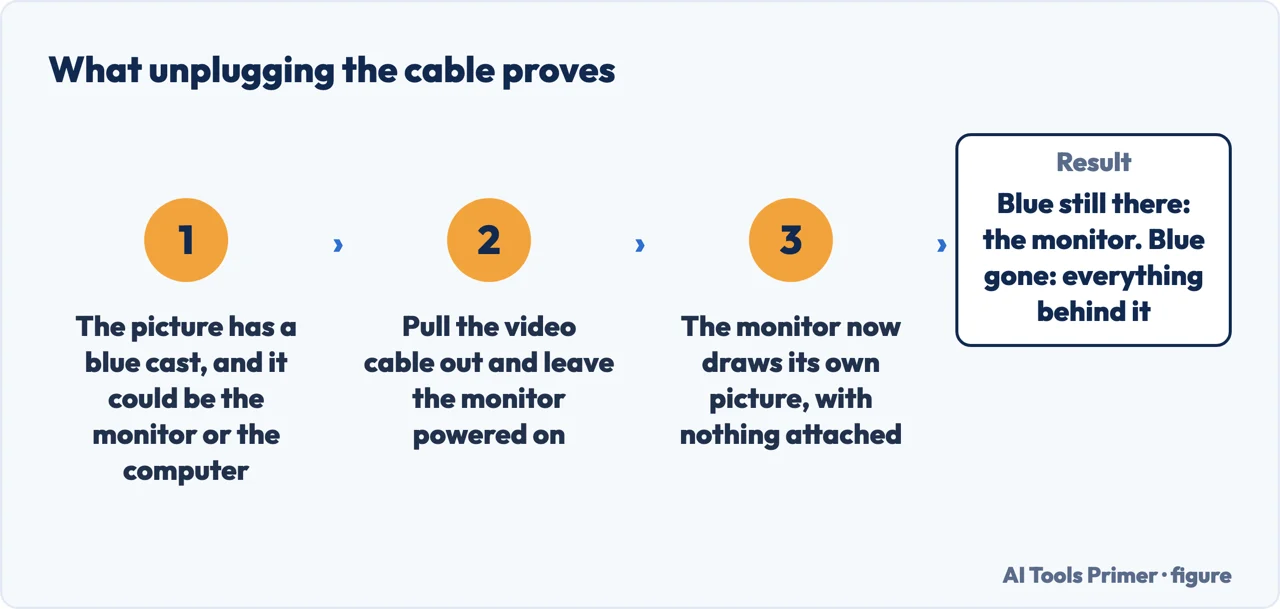
A monitor blue color problem has two possible homes — the monitor, or everything feeding it — and one test separates them for nothing. Pull the video cable out, leave the power in, and see whether the blue is still there. Everything else on this page depends on that answer.
The setting everybody turns off first moves the picture towards blue, not away from it.
Night light is the first thing suggested for a screen that has gone blue, and Microsoft’s own description of it points the other way: “turn on the night light and your display will show warmer colors at night that are easier on your eyes.” Warmer is the opposite end of the scale from blue. Switching night light off makes a display cooler, which is to say bluer — so if your screen looks blue with night light already off, turning it off again is not a step, and if the blue appeared on the day you switched it off, you have your answer and it is not a fault. Neither of those is a manufacturer’s sentence: they are what Microsoft’s description means when you read it in the direction of the complaint.
That correction is worth making before the steps because of where it sends people. The usual advice for a blue cast is a short tour of Windows: night light, accessibility settings, colour management, then the driver. Half of that tour is the right place to look and half of it is the wrong direction, and none of it is worth doing at all on a monitor that is producing the blue by itself. Two minutes with the cable out tells you which of those two situations you are in, and it is the only step here that cannot be wasted.
- Pull the video cable out of the monitor and leave the power in. This is Dell’s self-test feature check, and what it is for is the whole reason to start here: it “allows you to check if the Dell monitor is functioning properly as a stand-alone device.” With no computer attached, nothing in Windows can be reaching the panel.
- Run the monitor’s own diagnostic, the one that paints colours. Dell lists the symptoms it is for, and a colour fault is among them: you run it “when you notice screen abnormalities like flickering, distortion, clarity issues, fuzzy or blurry image, horizontal or vertical lines, color fade, distorted image.” The steps are not one key combination — Dell sends you to your own model’s user guide, under Troubleshooting, and notes separately that monitors with a joystick have their own route.
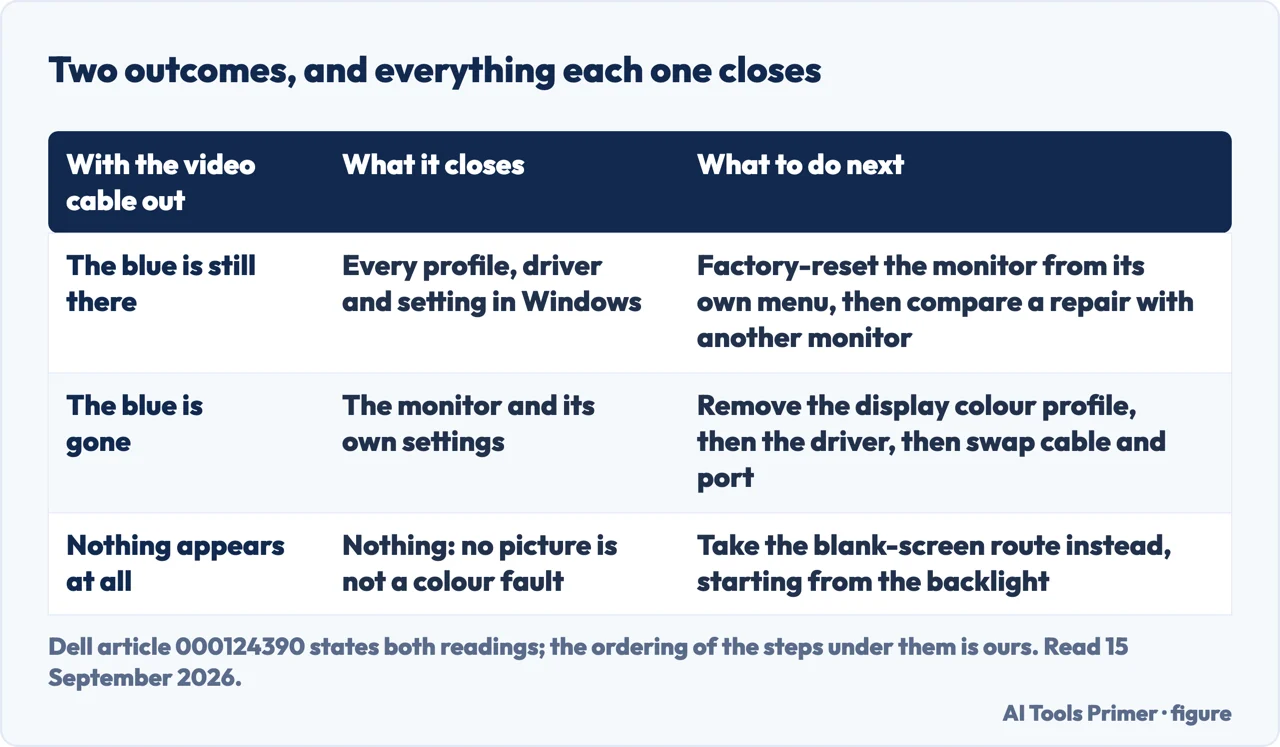
- If the blue is there in the self-test, reset the monitor before anything else. Every monitor keeps its own colour preset and colour temperature, and those live in the monitor rather than in the computer. Dell documents the way back: the Factory Reset option in the On-Screen Display menu, again per model, in the user guide. It costs nothing and it undoes a preset somebody chose by accident two years ago.
- If the blue is gone in the self-test, remove the display colour profile. Windows keeps one profile per display and it survives driver updates, which is why updating the driver so often changes nothing. Microsoft documents both halves in the same place: Settings, System, Display, Color profile, then “Remove a color profile” or “Set a default color profile”.
- Then swap the cable, and the port. A damaged or badly seated cable is the one cause that can sit on either side of the two tests above, because it is not in the monitor and not in Windows. Swapping both is ten minutes and it removes the last thing that is neither.
- Photograph the screen next to a phone showing the same picture. A cast is hard to judge by memory, and a second screen showing the same picture is the simplest comparison there is. Note the date on it.
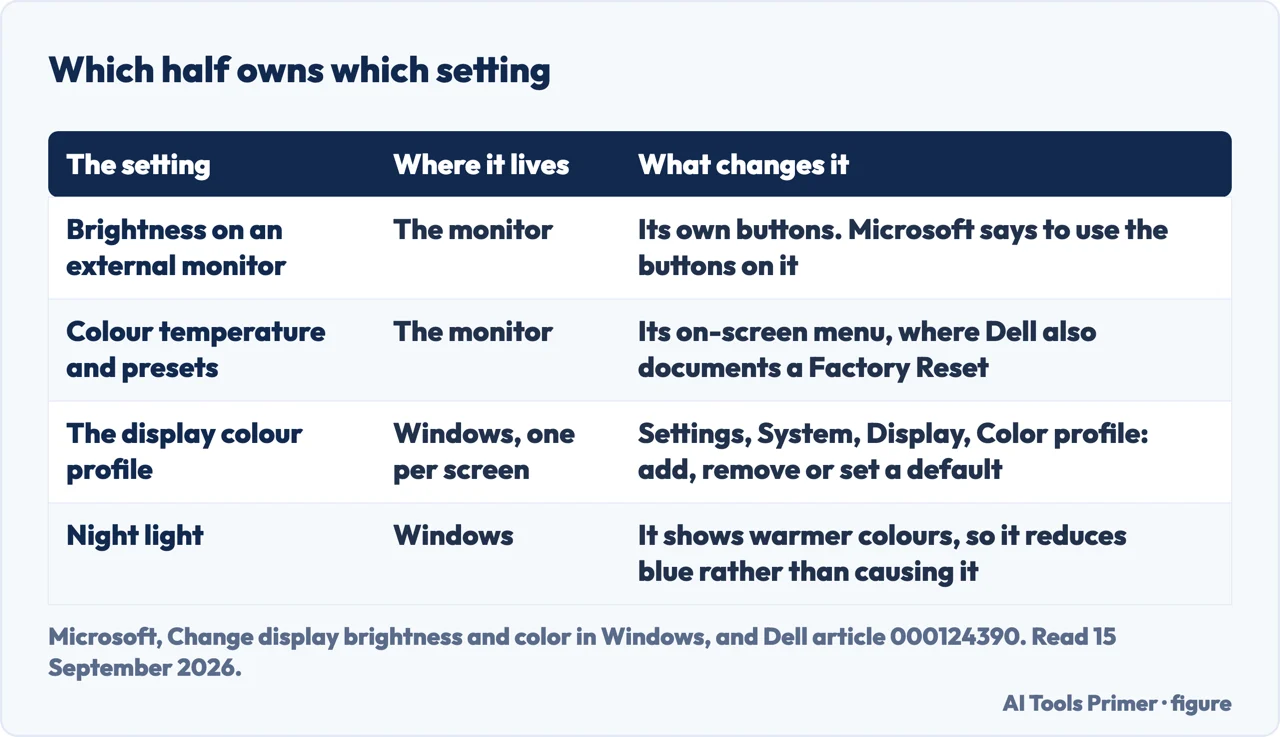
The table above is the shape of the whole question. A monitor is not a peripheral that Windows drives: it is a device with its own settings, its own memory of them and its own menu, and the computer can see almost none of it. Microsoft says as much about brightness, which is the setting that looks most like a Windows control and is not one. Colour temperature and colour presets sit in the same place, behind the monitor’s own buttons, and a preset called something like “Cool” will produce a blue cast that no software step on any page will ever reach. That is why the factory reset in the monitor’s own menu comes before the driver and not after it.
What each test does not look at
Three documents were read in full for this page: Dell’s self-test article and Microsoft’s colour page on 15 September 2026, and Dell’s pixel guidelines, for the gesture of the check, on 18 September 2026. The first two draw the line this question turns on: what belongs to the monitor and what belongs to the computer.
- The self-test does not look at Windows, and that is the point. It checks the monitor “as a stand-alone device”, so a blue cast that survives it cannot be a profile, a driver or a setting. Dell’s reading of the opposite result is equally plain: if the abnormality is not present in the self-test, the question moves to the computer.
- Windows does not look at the monitor’s own controls. Microsoft says so about the most basic one of all: “You might not see the Brightness slider on desktop PCs that have an external monitor. To change the brightness on an external monitor, use the buttons on it.” If Windows cannot reach the brightness, it cannot reach the colour preset either, and no amount of clicking in Settings will move it.
- Night light is not always there to be blamed. Microsoft notes that it “isn’t available if your device uses certain drivers, like DisplayLink or Basic Display”, and that a greyed-out toggle may mean the display driver needs updating. On a dock or a basic driver the setting people are told to check may not exist on that machine at all.
- Neither test names a part. Dell’s instruction when the self-test fails is to contact support for repair options, not to identify a component. Which is honest, and it is the point at which a page stops being able to help.
One more thing about profiles, because it is where a blue cast most often hides on a machine whose monitor is fine. A colour profile is a file describing how a display renders colour, and Windows keeps one per screen. A wrong one — installed by a monitor utility, carried over from a different display, or written by a calibration that went badly — produces a cast that looks exactly like a hardware fault and is not touched by anything done to the driver, because it is not part of the driver. Removing it is three clicks and it is reversible, which makes it the cheapest thing to try after the self-test. The same trap on a laptop, in green rather than blue, is in how to fix a laptop green screen.
What it is worth, and this is the one screen where the answer is usually short. A desktop monitor is a separate object with its own price, so a blue cast that survives the self-test is compared with the cost of another monitor rather than with the cost of a repair to something else. On an ordinary office or home monitor that comparison rarely favours the repair. It changes in two cases and only two: a large monitor, and one bought for colour work, where the panel is most of what you paid for. None of the three documents read for this page publishes a repair figure, and the only number worth having is a quote against the price of the same monitor new. The one thing worth doing before any of that is the factory reset, because it is free and it fixes the commonest cause of a cast that never was a fault.
Two neighbouring cases. If the picture is moving rather than tinted — a shiver, a pulse, a flicker at the edge of vision — the test is the same one but the reading is different, and that is monitor flickering. And if part of the monitor has gone dark rather than blue, the fault is not a colour fault at all: a half black screen starts from which of the three built-in tests is yours.
Where to start
Three ways in. If the monitor is not seen by the computer at all, none of these is your page: that is a detection failure.
- “Is it the monitor or the computer?”
- Cable out, power in — the test with nothing attached
- “Which half owns this setting?”
- Almost none of them are Windows — what windows cannot reach
- “The screen is not tinted, it is wrong another way.”
- Then start here: when it is not a cast
The test with nothing attached
The one step that cannot be wasted: with the video cable out, no profile, driver or setting can be reaching the panel, so whatever you see belongs to the monitor.
What Windows cannot reach
Brightness, colour temperature and the colour preset live in the monitor, behind its own buttons. Microsoft says so about the first, and the other two sit beside it.
When it is not a cast
A picture that moves, a half that has gone dark, a mark that stays in one place: three different faults that get described with the same words and are not this one.
Questions people also ask
How to fix monitor blue color?
Take the video cable out and leave the monitor powered on. If the blue is still there, reset the monitor from its own on-screen menu; Dell documents a Factory Reset option there. If the blue is gone, the cause is in the computer: remove the display colour profile in Settings, System, Display, Color profile, then look at the driver.
Why does my screen have a blue tinge?
Either the monitor is producing it or the computer is sending it. The commonest harmless cause is a colour preset chosen in the monitor’s own menu, which Windows cannot see or change; the commonest software cause is a wrong colour profile, which survives every driver update because it is not part of the driver.
Does turning off night light fix a blue tint?
It moves the picture the other way. Microsoft describes night light as showing warmer colours, so having it on reduces blue and turning it off increases it. If a screen started looking blue on the day night light was switched off, nothing is broken.
Why did my monitor go blue?
If it went blue suddenly and nothing else changed, check the monitor’s own menu first: presets can be changed by a stray press of the buttons on the bezel or edge. If it went blue after a driver update, a new monitor utility or a calibration, the colour profile is the place to look.
Is a blue tint screen always a sign the monitor is failing?
Not on its own. A cast that appears with the video cable unplugged belongs to the monitor, but that includes its settings as well as its panel, and a factory reset separates those two for nothing. A cast that is spreading, or that comes with flicker or with dark areas, is a different matter and is worth photographing with a date.
Not covered here. It will not cover a laptop’s own screen. There the cable cannot come out, so the test is a different one and it is in the green-screen page next door.
It will not walk through calibrating a display with a colorimeter. That is a choice about accuracy, not a repair, and it starts after this page ends.
It will not price a panel or a monitor repair. None of the three documents read for this page publishes a figure, and a quote against the price of the same monitor new is the only comparison that decides anything. What holds instead is simple: the test that unplugs the computer is Dell’s own, and where Dell sends you to your model’s user guide this page sends you there too.
Sources
- Dell, How to Run a Diagnostic Test on a Dell Monitor — article 000124390 (the two tests a monitor carries: the integrated self-test, also called built-in diagnostics, with the list of screen abnormalities that call for it including colour fade; and the self-test feature check, described as a way to check whether the monitor is functioning properly as a stand-alone device. Also the instruction that the steps live in each model’s own user guide under the Troubleshooting section rather than in a single key combination, the separate note for monitors with a joystick, the two readings of the result, and the Factory Reset option reached through the On-Screen Display menu) — www.dell.com, read 15 September 2026.
- Dell, Dell Display Pixel Guidelines — article 000126004 (read here for the monitor check only: turning off the computer and the monitor, unplugging the video cable from the monitor, plugging the power cable back in and turning the monitor on, and the statement that you should then see a floating box on a black background, which means the monitor is working but has no video signal. It is the article that writes down the gesture used in the first step and in the first figure; the self-test article above names the check and sends you to each model’s user guide for the steps) — www.dell.com, read 18 September 2026.
- Microsoft, Change display brightness and color in Windows (night light, described as showing warmer colours at night, with the note that it is not available if the device uses certain drivers such as DisplayLink or Basic Display and that a greyed-out toggle may mean the display driver needs updating; the statement that the Brightness slider may not appear on desktop PCs with an external monitor and that the buttons on the monitor are used instead; and colour profile management per display, including adding, removing and setting a default profile and calibrating, from Settings, System, Display, Color profile) — support.microsoft.com, read 15 September 2026.
Written by Alberto Gulotta
Founder and editor of AI Tools Primer, writing from Palermo, Italy. Thirty-five years of taking computers apart, starting with a Commodore 64 — the long version is on the about page.
Something wrong on this page? Write to aitoolsprimer@gmail.com and it gets fixed.
Written on 16 September 2026 · last checked 23 September 2026.
Independence and limits
No affiliate links and no paid placements anywhere on this site. Nobody pays to appear here, and no company has seen this page before you did.
This is general information, not professional advice. Where a page touches money, health, safety or the law, it names its source and the date it was read — and your situation may still differ. See the privacy page and the cookie policy.