
Screens · guide
How to fix laptop green screen: the frame that gives it away
By Alberto Gulotta · Updated · 14 min read
Before any driver: is the machine making the green, or is the panel? A test built into the laptop answers that in about two minutes, from cold, before Windows loads. This page starts there, because how to fix laptop green screen depends entirely on which of the two it turns out to be.
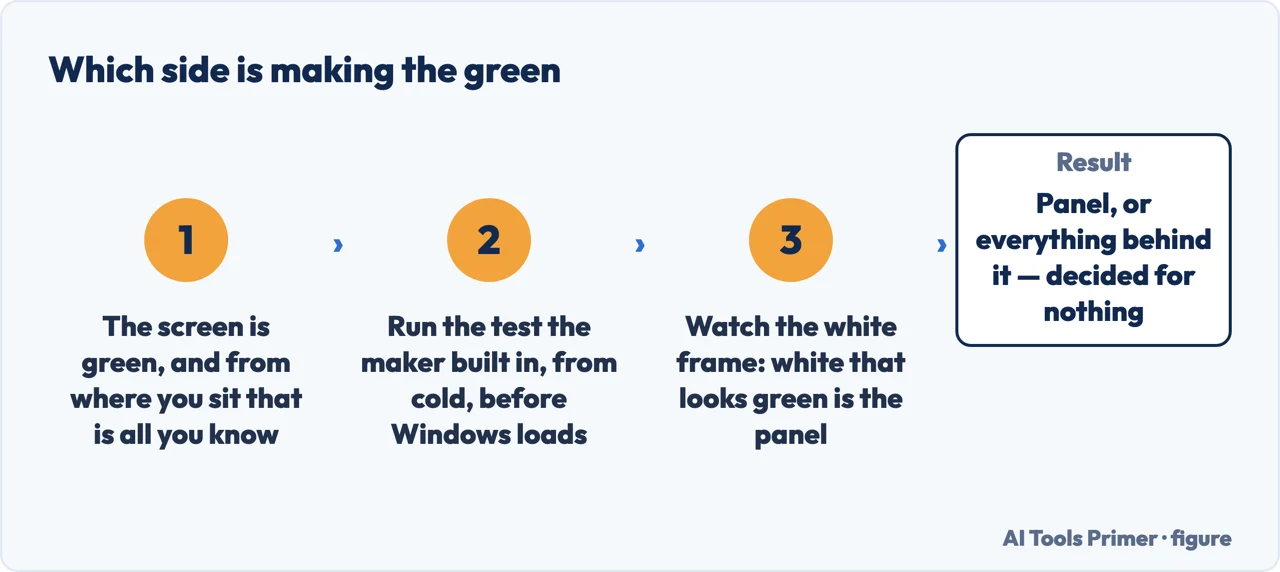
On the green frame, a green cast is invisible. Watch the white one.
Dell publishes the order the built-in test paints its colours in: the screen “shows solid colors that fill the entire screen. The colors appear in this order: black, white, red, green, and blue.” That sequence is the reason this test is worth running on a colour fault, and it is also the reason the test can be run on this fault and teach nothing. A screen with too much green in it looks perfectly correct while the green frame is up, and slightly wrong on red and blue, and unmistakably wrong on white and on black — white should be white and black should be black, and a cast has nowhere to hide on either. This is our reading of Dell’s published sequence, not a sentence from Dell: none of the three documents read for this page on 15 September 2026 tells you which frame to watch. It is also the only part of this you need to remember.
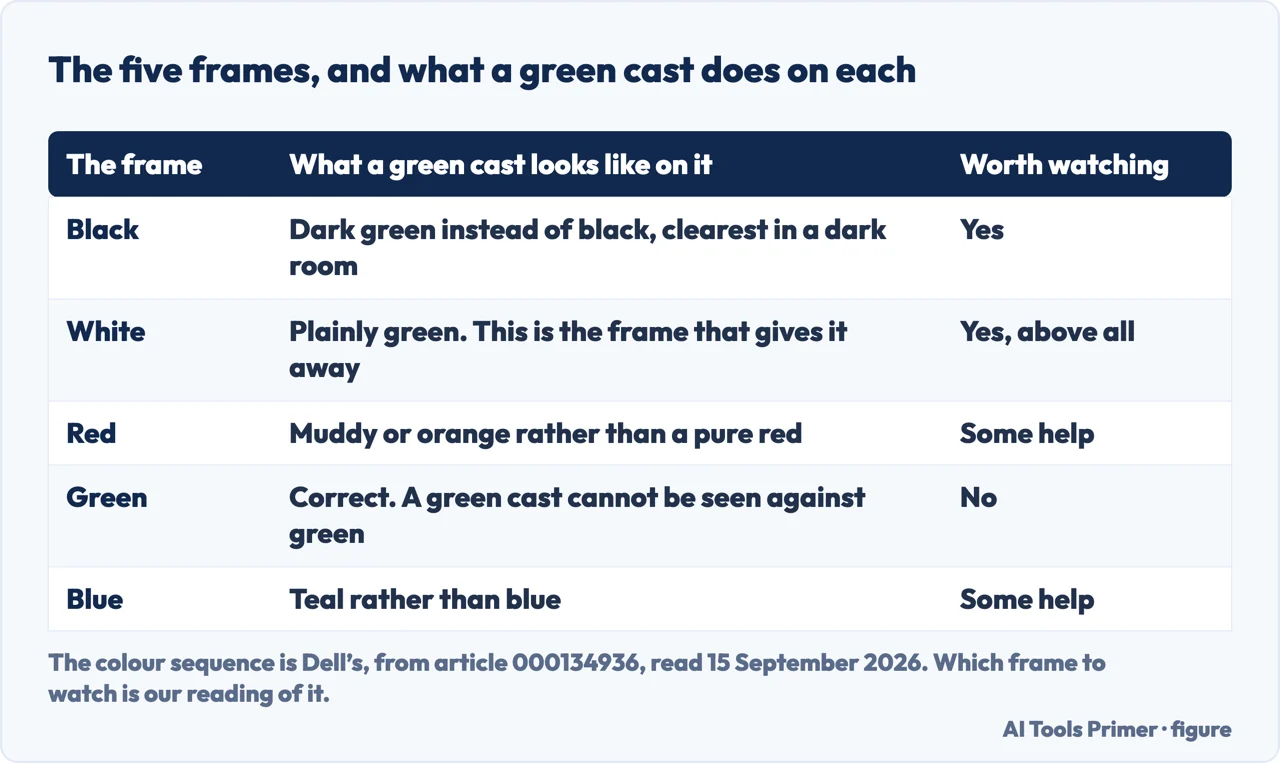
The order matters more than the steps, and it is the opposite of the usual one. Resetting the graphics driver, reinstalling it, rolling it back, removing whatever security software was installed last: all of those are reasonable things to do to a machine that is sending the wrong picture to a working screen. On a screen that is generating the green itself they are twenty minutes spent on the wrong half of the machine, and nothing about the symptom tells you which half you are in. The test does, and it costs two minutes, and you only have to run it once.
- Shut the laptop down completely and plug the charger in. Dell asks for both before the test, and the second is not a formality: “Connect your power adapter (charger) to your laptop, this is important for accurate results.” Disconnect external monitors, docks and USB devices while you are there.
- Start the panel test from cold. On a Dell, hold D and press the power button, and keep holding until colours appear. It runs before Windows loads, from the machine’s own firmware, so nothing you have installed can influence it. The key presses for other makers are set out in a vertical black line on a laptop screen.
- Watch the white frame and the black frame, and ignore the green one. White that looks green, or black that looks dark green, is the panel or the cable behind it. White that is white means the green you were seeing is not coming from the screen at all.
- If the test is clean, go to the colour profile before the driver. Windows keeps one per display and it can be removed: Settings, then System, then Display, then Color profile. Microsoft documents both moves there, “Remove a color profile” and “Set a default color profile”. A profile survives driver updates, which is why updating the driver so often changes nothing.
- Then the driver, in that order. Reinstalling or rolling back the graphics driver is the step everybody starts with; it is the right step only once the two above have ruled out the panel and the profile. Rolling one back is covered in graphics drivers.
- Photograph the screen, with the date. A cast that is spreading, coming and going, or changing when you move the lid is a different conversation with a repairer from one that has been the same since Tuesday, and photographs settle it where memory does not.
One thing about the colour profile is worth saying plainly, because it is where a green cast most often hides on a machine whose panel is fine. A profile is a file that describes how the display renders colour, and Windows keeps one for each screen. If a wrong one is set — installed by a monitor utility, carried over from another display, or written by a calibration that went badly — the cast it produces looks exactly like a hardware fault and survives everything done to the driver, because it is not part of the driver. Microsoft documents the place it is removed from, and it is three clicks: Settings, System, Display, Color profile.
What the test does not look at, and where the makers draw the line
Two documents, read in full for this page on 15 September 2026. The first says what its own test leaves out; the second says which colour faults it considers repairable at all.
- Dell, on the limit of the test. “These tests only check your screen hardware. They do not check your Windows settings, graphics drivers, or software.” So a clean test does not mean the green has gone: it means the green is being sent to a working panel.
- Dell, on a clean result. “Your screen hardware is working correctly. The problem might be with Windows, your graphics driver, or a software setting.” That sentence is the whole software half of this page, in the order Dell puts it.
- HP, on colour faults it does not expect to fix. Its guide gathers four conditions — a flickering screen, vertical lines, a “Solid horizontal green line” and “Incorrect colors” — under one sentence: “There are no adjustments or corrective actions for the conditions in this section and the screen requires repair.” A green line and a green cast are in the same list, and neither has a software step under it.
- HP, on when damage becomes visible. “This type of physical damage can be detected as early as the BIOS-level startup operations, before the computer boots into Windows.” Which is the same idea as the panel test, written by somebody else: the damage shows before the operating system has a chance to be blamed for it.
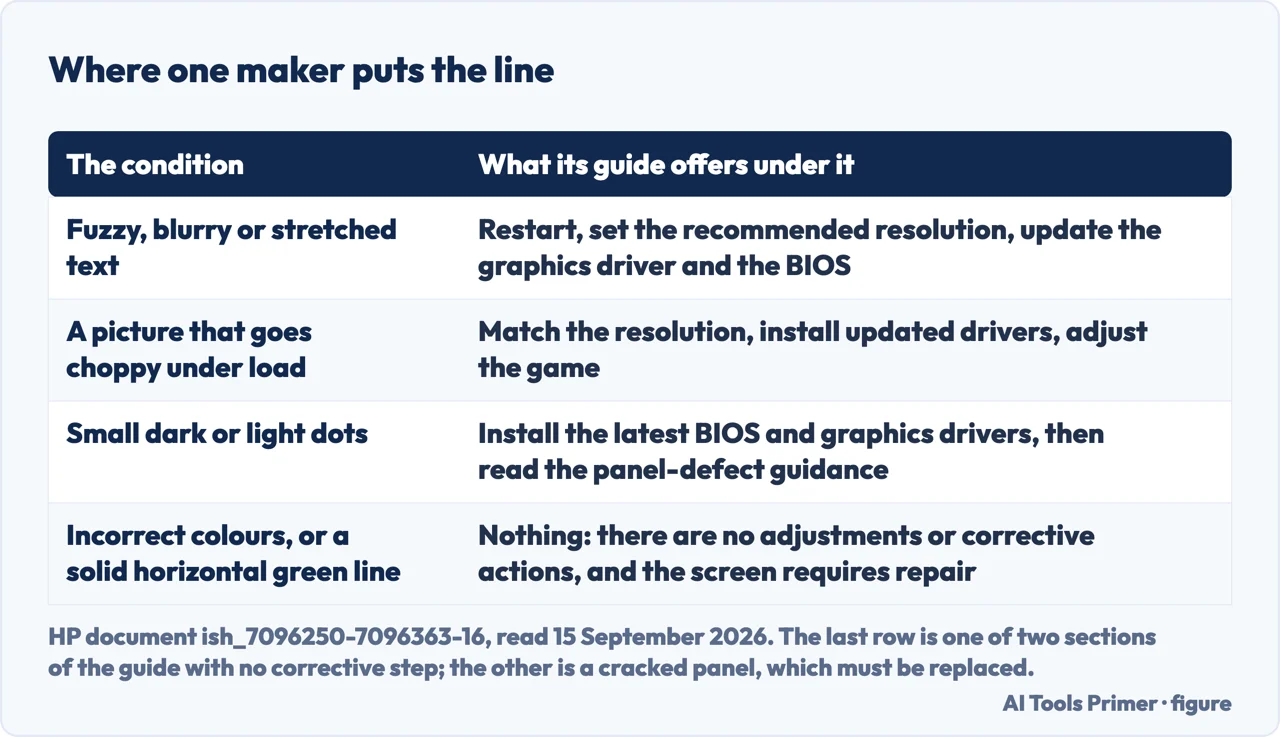
HP’s guide is worth reading for the shape of it as much as for the sentences. Its first sections — blurry text, a stretched image, a picture that goes choppy in a game — all have steps underneath: change the resolution, update the driver, update the BIOS. Then there is a section with no steps at all, and a green colour fault is in it. That is a maker saying, in the only way a support page can, that it has nothing to offer you in software for this one. Dell arrives at the same place from the other end: if the test is clean the problem is Windows, the driver or a setting, and if the test is not clean you are told to write down what you saw and contact support.
The part that decides what to do, and it is not technical. If the green survives the panel test, what is on the table is a display assembly, and on a laptop that competes with the price of a different laptop rather than with the price of the fault. Two things are worth checking before spending: whether the machine can take the next version of Windows at all, and whether the same money would buy more elsewhere. If the green does not survive the test, the repair costs nothing and the only thing at stake is the twenty minutes it takes to work through the colour profile and the driver. That is the whole reason for doing the test first: it decides which of those two conversations you are in, and it decides it for free.
Two neighbouring cases. If what you have is a green line rather than a green picture, the shape is the diagnosis and it belongs with the other lines: a vertical black line on a laptop screen has the panel test maker by maker. And if the colour is blue rather than green and the screen is a desktop monitor, the test is a different one — it runs with the computer unplugged — and that is a monitor with a blue colour problem.
Where to start
Three ways in. If the green arrives with everything stopping and a restart, that is not this page: it is a stop error.
- “Is it the panel or the machine?”
- One test, from cold — the test that decides
- “The test was clean. Now what?”
- Profile before driver — when the panel is fine
- “Everything stopped and the screen changed colour.”
- That is a stop error: Blue screen error
The test that decides
It runs from the machine’s own firmware before Windows loads, so nothing installed can influence it. Two minutes, once, and it decides which half of the page you need.
When the panel is fine
A clean test moves the question to Windows, and there the order is not the one the internet uses: the colour profile comes before the driver, because it survives driver updates.
When the colour is a shape
A green line, a patch, a mark: these are not colour faults at all. The shape of what you see is the diagnosis, and each shape has its own page.
Questions people also ask
Why is my computer screen suddenly green?
Either the panel is producing the green or the machine is sending it. Run the test built into the laptop from cold and watch the white frame: white that looks green is the panel, white that is white sends you to the colour profile and then to the graphics driver, in that order.
How do I fix my screen turning green?
Start with the two minutes that decide which fix applies. If the built-in test is clean, remove the display colour profile in Settings, System, Display, Color profile, then reinstall or roll back the graphics driver. If the test is not clean, no setting will help and the answer is a repair quote.
Can a green screen be fixed?
A green cast coming from Windows can be, usually for nothing. A green cast that survives the panel test is a display assembly, and HP puts incorrect colours in a list it introduces by saying there are no adjustments or corrective actions and the screen requires repair.
Is the green screen of death fixable?
None of the three documents read for this page on 15 September 2026 defines that phrase, so this page does not define it either. Two different faults get called it: a machine that stops and restarts, which is a crash rather than a display fault, and a picture that has turned green, which is what this page is about. For the first, start at a blue screen error.
Does updating the graphics driver fix a green tint?
Sometimes, and it is the third thing to try rather than the first. A wrong display colour profile produces the same cast and is not part of the driver, so it survives every update and every reinstall — which is why the driver step so often appears to do nothing.
Not covered here. It will not cover a Mac. The three documents read for this page are from Dell, HP and Microsoft, and a green tint on a MacBook is a separate question with separate documentation.
It will not name the component. If the green survives the test, which part of the display assembly it is takes somebody with the laptop open, and none of the three documents read here names one for this symptom.
It will not price a repair. The only number worth having is a quote on your own machine set against what the machine is worth. What holds instead is simple: the frame that gives it away is Dell’s own test, read as Dell reads it, and HP’s list of what cannot be adjusted is left as HP wrote it.
Sources
- Dell, How to Test Your Dell Laptop Screen — article 000134936, last modified 1 June 2026 (the LCD built-in self-test: the list of symptoms it is for, which includes colours that are faded or do not look right; the preparation, including shutting down completely, disconnecting external monitors, USB devices and docking stations, and connecting the power adapter because it is important for accurate results; the key held while the power button is pressed; the colour sequence of solid colours filling the entire screen in the order black, white, red, green and blue; the statement that these tests only check the screen hardware and do not check Windows settings, graphics drivers or software; and the reading of both results) — www.dell.com, read 15 September 2026.
- HP, HP Notebook and All-in-One PCs — Troubleshooting screen issues (Windows 11, 10), document ish_7096250-7096363-16 (the sections that carry steps — fuzzy, blurry or stretched images, a picture that becomes choppy under load, an image that shrinks when an external monitor is connected, small dark or light dots — and the two sections that carry none: the one that gathers a flickering screen, vertical lines, a solid horizontal green line and incorrect colours under the statement that there are no adjustments or corrective actions and the screen requires repair, and the one on a cracked panel, which can be detected as early as the BIOS-level startup operations, before the computer boots into Windows, and which must be replaced, with no actions available to correct it) — support.hp.com, read 15 September 2026.
- Microsoft, Change display brightness and color in Windows (colour profile management for each connected display: adding a profile, removing a profile, setting a default profile and calibrating, all from Settings, System, Display, Color profile; the description of automatic colour management; and the description of night light as a setting that shows warmer colours, which is the sentence that matters on the neighbouring question of a blue cast) — support.microsoft.com, read 15 September 2026.
Written by Alberto Gulotta
Founder and editor of AI Tools Primer, writing from Palermo, Italy. Thirty-five years of taking computers apart, starting with a Commodore 64 — the long version is on the about page.
Something wrong on this page? Write to aitoolsprimer@gmail.com and it gets fixed.
Written on 16 September 2026 · last checked 23 September 2026.
Independence and limits
No affiliate links and no paid placements anywhere on this site. Nobody pays to appear here, and no company has seen this page before you did.
This is general information, not professional advice. Where a page touches money, health, safety or the law, it names its source and the date it was read — and your situation may still differ. See the privacy page and the cookie policy.