
Screens · guide
Blue spot on phone screen: the screenshot that tells them apart
By Alberto Gulotta · Updated · 18 min read
A blue spot on phone screen is two completely different faults asked in the same words: a dot the phone is drawing, and a mark inside the panel. One is a setting and one is a repair. A screenshot separates them in about a second, and everything else depends on which one you have.
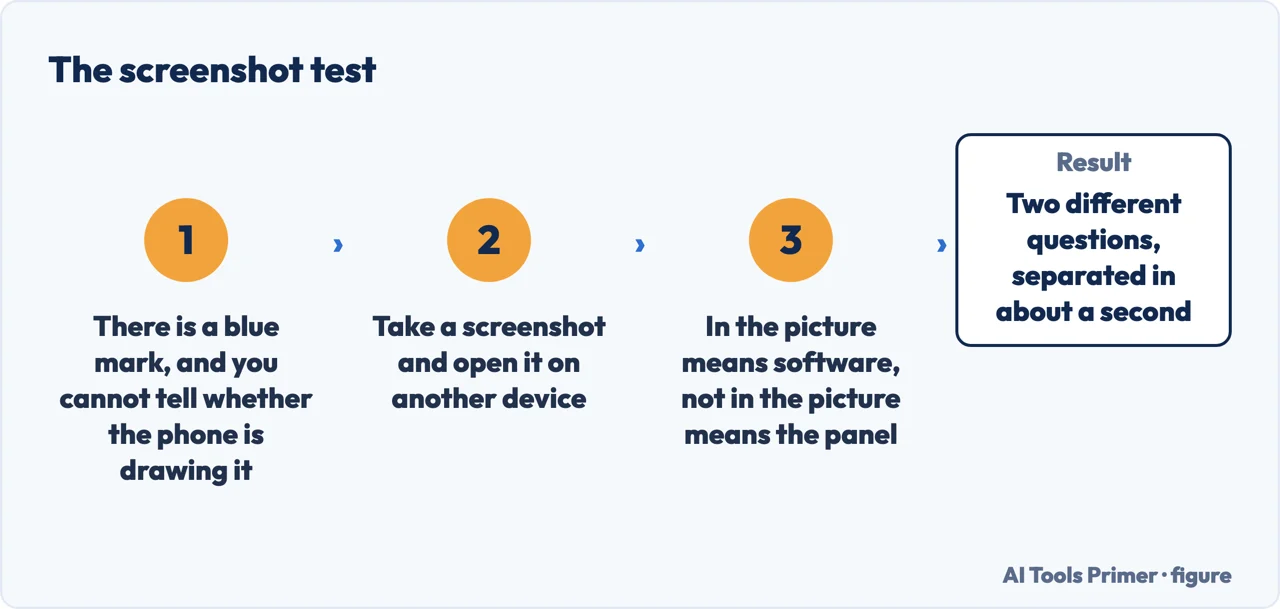
Take a screenshot of it. If the blue is in the picture, it is not in the screen.
A phone draws everything you see, and a screenshot is a copy of what it drew. So anything the phone is responsible for — a status-bar dot, a notification, an app doing something strange — comes out inside the screenshot; anything living in the panel does not. Send the screenshot to yourself and open it on another device. If the blue mark is there too, the phone is drawing it and the answer is in settings. If the screenshot is clean and the mark is still on the glass in front of you, nothing in software put it there and nothing in software will take it away. This is our test, not a manufacturer’s: none of the four documents read for this page on 15 September 2026 describes it. It takes a second and it separates two questions that are asked in exactly the same words.
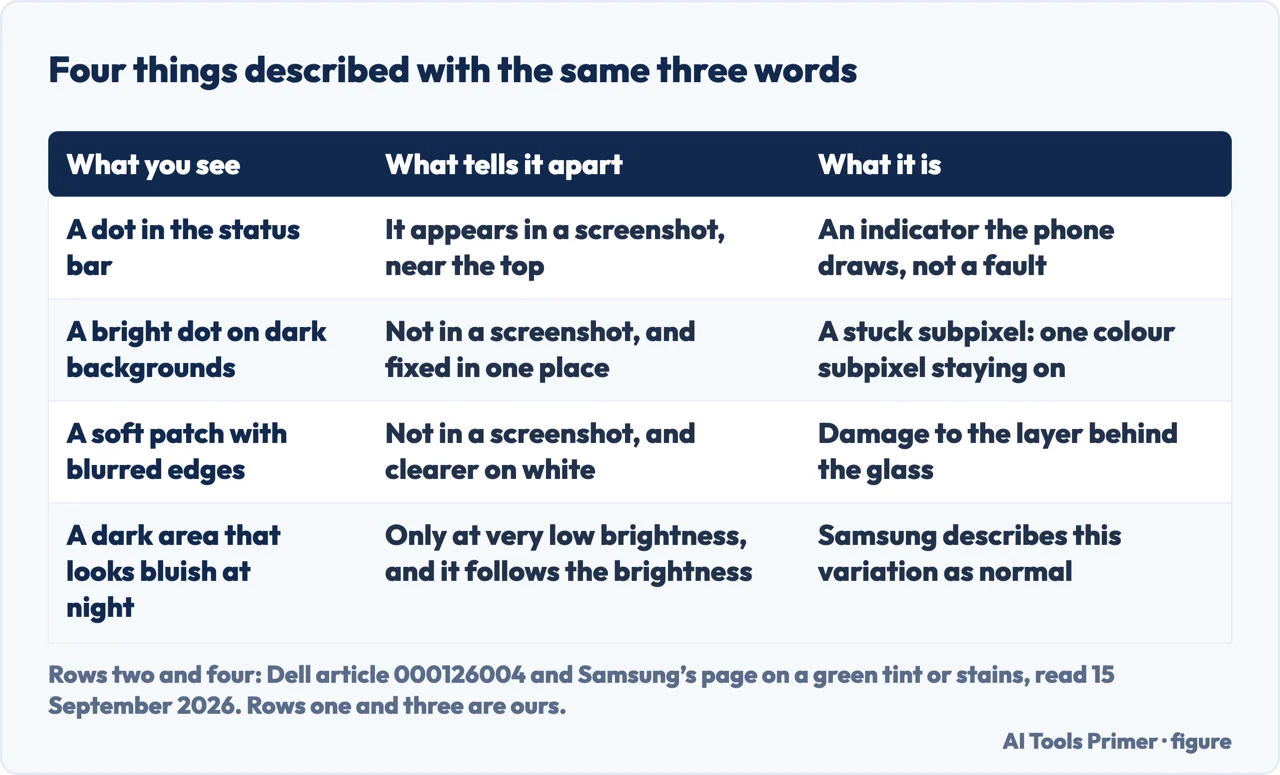
It is worth being blunt about why this comes first. Advice for this symptom splits into two piles that never meet: one pile is about privacy indicators, messaging settings and permission managers, and the other is about dead pixels, pressure damage and repair prices. Both piles are right, for different readers, and neither tells you which reader you are. The screenshot does, and once you have the answer half of everything ever written about this becomes irrelevant to you.
One thing sits between the two piles and belongs to neither, which is probably why it is so rarely mentioned: the case. In the forum thread read for this page, the mark several readers were describing turned out to be produced by a tight case pressing on the back of the phone, and it came and went as the case went on and off. Nothing is broken in that situation and nothing needs paying for, and the test is to take the case off and wait a minute. It is the cheapest thing on this page after the screenshot.
- Screenshot it, and look at the screenshot somewhere else. In the picture means software; not in the picture means the panel. Everything below follows from which of those two you got.
- If it is in the picture and it sits in the status bar, it is an indicator. The phone is drawing it on purpose, which makes it a signal rather than a fault, and not a screen problem at all.
- If it is in the picture and it moves with what is on screen, restart in safe mode. Samsung documents what that proves: safe mode “disables all downloaded apps and loads only the original software that came with your phone or tablet, allowing you to determine if the issue is caused by an app or with the device itself.” If the mark is gone in safe mode, an app you installed is drawing it.
- If it is not in the picture, clean the glass properly first. It sounds beneath the problem and it is the first thing a display maker tells you to rule out. Dell’s pixel guidance puts dust in the list of things that are not stuck pixels at all: “Dots that disappear when you clean the screen (these are dust)”. Use a dry lint-free cloth, and do not press.
- Take the phone out of its case, and look again. One long forum thread, written in November 2012 about an HTC-built Verizon Droid DNA and read in full for this page on 15 September 2026, ends with several readers finding the same thing on the same model: a faint blue mark that appeared with a tight case on, went when the case came off, came back when the case went on again, and could be produced on demand by pressing the back of the phone in one particular spot. That is a set of reader reports rather than a manufacturer’s statement, and it is here because it costs nothing and is reversible. Do not press on the screen itself to test it: a display maker’s own guidance is that applying pressure can crack the screen or damage internal components.
- Look at it on white, then on black, then from a normal distance. A single bright blue dot visible against dark backgrounds is what a display maker calls a bright subpixel: Dell describes it as “One color subpixel stays on, creating a colored dot on dark backgrounds.” A patch the size of a fingertip, with soft edges, that is more obvious on white, is a different thing and is not about pixels at all.
- Photograph it with the date, and know that the photograph will lie. Samsung says so plainly about marks on its own screens: “Photos of the issue generally appear worse than what actually appears on the screen itself because cameras typically enhance the contrast in low light situations.” Keep the photograph anyway, because whether the mark is spreading is the only fact that changes what to do.
If the mark is in the panel, one more piece of context matters before you decide anything, and it is the part that most often turns a worry into nothing. Samsung publishes a page about discoloured areas on its own screens which says that in low brightness “dark areas of the screen may appear discolored or stained, or to have a slight green tint. This is normal and does not affect the performance of the device.” The reason it gives is worth understanding because it applies to blue as much as to green: an OLED panel makes its own light pixel by pixel, and at very low brightness tiny differences between pixels become visible as patches. On a dark wallpaper at night that can look exactly like damage. The same page is where the warning about photographs comes from, and the two together explain a lot of the alarm this symptom causes.
The test this family runs on does not exist on a phone
On a laptop and on a monitor the maker builds in a test that paints colours across the panel and settles the question. Four documents were read in full for this page on 15 September 2026, and here is what they say about the same thing on a phone.
- Samsung’s diagnostics page lists twenty-six tests, and none of them is a display test. The list includes Touch screen, Flashlight, Sensors, Camera and Battery status; there is no entry that paints a colour across the panel. Touch screen checks the layer that feels your finger, which is not the layer that makes the picture. The page adds its own caution: the tests listed “may vary depending on the model of your device”.
- Safe mode separates an app from the device, not the panel from the signal. That is Samsung’s own description of it, and it is a useful test for the wrong half of this question. It is why the screenshot has to do the work instead.
- The one published threshold comes from a display maker, and phones are not in it. Dell writes down what “normal viewing distance” means — “about 35 to 50 cm, and for large format monitors it’s around 100 to 150 cm” — and counts defects against it. That is a monitor and laptop policy. It is quoted here because it is a measurable rule rather than an opinion, and because no comparable number appears in the three phone pages read for this guide.
- Nobody promises a fix for a dot that is in the panel. Dell is blunt about the methods that circulate: “Do not attempt to fix stuck pixels yourself”, because they “can cause further damage to your display” and “Applying pressure can crack the screen or damage internal components”. For a dead one it adds: “The only solution is replacing the display panel.”
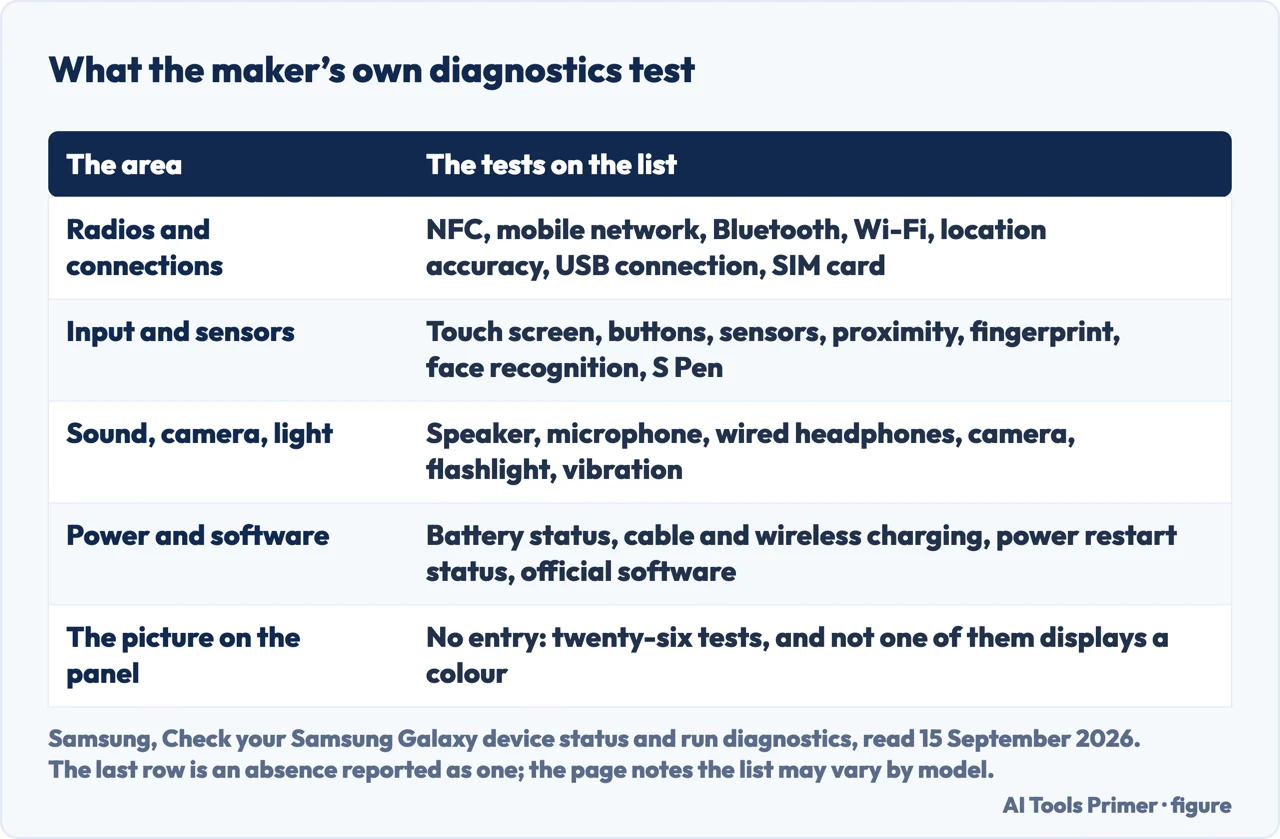
The absence in that list is worth a moment, because it is the difference between this page and the ones beside it. On a laptop, a maker gives you a test that paints black, white, red, green and blue across the panel from the firmware, and a blue mark either survives it or does not. A phone maker’s own diagnostics app, on the page read here, offers twenty-six checks and not that one. So on a phone the evidence has to be built rather than run, and a screenshot plus a white background plus a black background is the closest thing available. The laptop version of the same reasoning is in white spots on a phone screen and in black marks on a computer screen, which are the two neighbouring shapes.
What it costs, and why a phone is the worst device for this fault. On a laptop a panel can be replaced on its own; on a monitor the whole object has a price you can compare against. On a phone the display usually comes as an assembly with the glass and the touch layer bonded to it, so a single blue dot and a shattered screen are often the same repair and the same bill. That is worth knowing before spending an evening on it: the question is not really how to remove the dot, it is whether a dot you can only see on dark backgrounds is worth the price of a display assembly on a phone that may be two or three years old. None of the four documents read for this page publishes a figure for a phone display, and the honest advice is to get a quote, photograph the mark with a date, and decide again in a month with the two photographs side by side.
Two neighbouring cases. If the mark is a line rather than a spot, the shape is the diagnosis and it belongs with white horizontal lines on a phone screen. And if the whole picture has a blue cast rather than one blue area, that is a colour fault and not a mark: on a desktop screen it is a monitor blue colour problem, where the test runs with the computer unplugged.
Where to start
Three ways in. If the phone has been in water, none of these is the first page: liquid damage changes the order of everything.
- “Is the phone drawing it?”
- One screenshot — the screenshot test
- “It is in the glass. What is it?”
- Four things it can be — what the mark can be
- “My phone got wet.”
- Then start here instead: Liquid detected iPhone
The screenshot test
Anything the phone draws appears in a screenshot; anything in the panel does not. One second, and it decides which half of this subject you need.
What the mark can be
A single bright dot, a soft patch, a normal variation at low brightness and an indicator in the status bar are four different things described with the same three words.
When the shape is different
A line, a half, a shiver: the shape of what you see decides which page answers it, and none of these three is a spot.
Questions people also ask
How to fix a blue spot on a mobile screen?
First find out whether the phone is drawing it: take a screenshot and open it elsewhere. If the blue is in the screenshot, it is a setting or an app and safe mode will tell you which. If it is not in the screenshot, clean the glass, and after that a display maker’s advice is not to attempt a fix yourself, because pressure can crack the screen.
How to fix blue spots on phone screen when there are several?
The same screenshot decides it; several marks change the reading, not the method. Scattered single dots visible on dark backgrounds behave like stuck subpixels. Several soft patches near an edge or a corner look to us more like pressure or impact, and Samsung’s dead-pixel page, after safe mode and a reset, sends anyone still seeing a problem to a service centre.
Why is there a little blue dot on my phone screen?
Take a screenshot and look at it on another device. If the dot is in the picture, the phone is drawing it — an indicator, a notification or an app — and it is not a screen fault. If the screenshot is clean and the dot is still on the glass, it is in the panel.
Why does my screen have a blue spot?
A single bright blue dot on dark backgrounds matches what a display maker calls a bright subpixel. A soft blue patch looks to us more like pressure or impact damage to the layer behind the glass. A dark area looking bluish only at very low brightness may not be a fault — Samsung describes that variation as normal on its own panels.
Will a pixel-fixing app remove it?
Not for a dead one, and at some risk for a stuck one. Dell’s guidance is that software tools of this kind are not officially supported, that they may void the warranty, and that applying pressure can crack the screen or damage internal components. For a dead pixel it says the only solution is replacing the display panel.
Not covered here. It will not tell you what your phone maker will do about it. Warranty thresholds for coloured dots differ by make and model, and the only published threshold quoted here is a display maker’s policy for monitors and laptops.
It will not walk through opening a phone. On most models the display comes as an assembly, and the useful decision is whether to pay for one rather than how to fit it.
It will not price a phone display. None of the four documents read for this page publishes a figure, and a quote on your own model is the only number that decides anything. What holds instead is simple: everything above is Samsung’s or Dell’s own wording about what that mark is, including Samsung’s own admission that a camera makes it look worse.
Sources
- Samsung, Check your Samsung Galaxy device status and run diagnostics (the Samsung Members and Device care self-diagnostic features: how they are reached, the instruction that you can run an individual test or all of them, and the list of the checks offered — twenty-six of them on the page as read, including NFC, buttons, speaker, camera, Bluetooth, USB connection, SIM card, sensors, touch screen, flashlight, microphone, Wi-Fi, fingerprint recognition and battery status — with the page’s own note that the available tests may vary depending on the model. Read here for what the list contains and for what it does not: there is no test that displays a colour across the panel) — www.samsung.com, read 15 September 2026.
- Samsung, Pink lines or dead pixels on Galaxy phone or tablet’s display (the statement that pink lines or small dots could be stuck or dead pixels, that having a couple of dead pixels is not unusual and that individual pixels are typically unnoticeable; and the safe mode procedure, with the explanation that it disables all downloaded apps and loads only the original software that came with the device, so as to determine whether the issue is caused by an app or with the device itself; and, after safe mode and a factory data reset, the instruction to visit a Samsung walk-in service center or schedule a repair service online if the issue is still there) — www.samsung.com, read 15 September 2026.
- Samsung, Galaxy phone or tablet screen has green tint or stains (the statement that in low brightness situations dark areas of the screen may appear discoloured or stained and that this is normal and does not affect the performance of the device; the explanation that an OLED panel showing black or very dark colours at low brightness can show small variations in colour as stains; and the note that photographs of the issue generally appear worse than what actually appears on the screen because cameras typically enhance the contrast in low light situations) — www.samsung.com, read 15 September 2026.
- Android Central Forum, “My display has a very faint blue dot in the middle” (a reader thread from November 2012 about an HTC-built Verizon Droid DNA, cited here as reader reports and not as documentation: several people describing the same faint blue mark on the same phone, the discovery that it appeared with a tight case fitted and disappeared when the case was removed, and that pressing the back of the phone in one place produced it on demand. Read in full on 15 September 2026, after an AI summary of this question cited it — the rule here is that the citations of a summary are opened before the summary is judged) — forums.androidcentral.com, read 15 September 2026.
- Dell, Dell Display Pixel Guidelines — article 000126004 (the vocabulary of pixels, subpixels and partial subpixels; the definitions of a bright pixel, a dark pixel, a bright subpixel described as one colour subpixel staying on and creating a coloured dot on dark backgrounds, and a dark subpixel; the published normal viewing distance of about 35 to 50 cm, and about 100 to 150 cm for large format monitors; the checking procedure on black, white and the three colours; the note that dots which disappear when you clean the screen are dust; and the instruction not to attempt to fix stuck pixels yourself, with the four reasons given and the statement that for a dead pixel the only solution is replacing the display panel. Quoted here as a display maker’s published policy for monitors and laptops, not as a phone policy) — www.dell.com, read 15 September 2026.
Written by Alberto Gulotta
Founder and editor of AI Tools Primer, writing from Palermo, Italy. Thirty-five years of taking computers apart, starting with a Commodore 64 — the long version is on the about page.
Something wrong on this page? Write to aitoolsprimer@gmail.com and it gets fixed.
Written on 16 September 2026 · last checked 23 September 2026.
Independence and limits
No affiliate links and no paid placements anywhere on this site. Nobody pays to appear here, and no company has seen this page before you did.
This is general information, not professional advice. Where a page touches money, health, safety or the law, it names its source and the date it was read — and your situation may still differ. See the privacy page and the cookie policy.