
Software · guide
How to get Windows on Chromebook, and what each route costs
By Alberto Gulotta · Updated · 15 min read
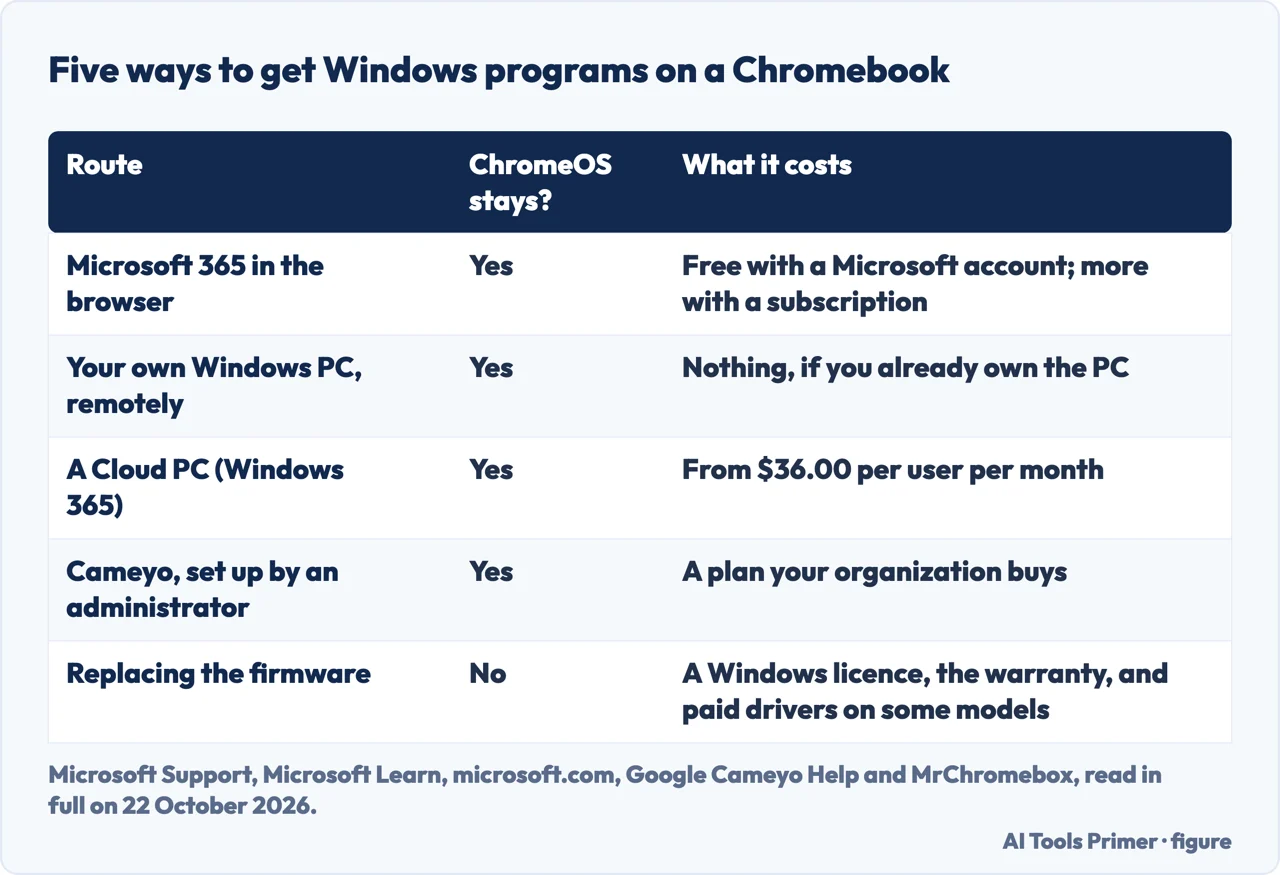
There is no Windows installer for ChromeOS, so how to get Windows on Chromebook has two kinds of answer: run Windows somewhere else, on your own PC or in Microsoft’s cloud, and show it on the Chromebook, or wipe ChromeOS and put Windows in its place.
The first kind keeps the Chromebook as it is and works on ARM models too. The second works only on Intel and AMD models, takes a firmware change that Google does not support, and leaves some hardware without drivers.
| Route | ChromeOS stays? | What it costs | Who can use it |
|---|---|---|---|
| Microsoft 365 in the browser | Yes | Free with a Microsoft account; more features with a subscription | Anyone |
| Your own Windows PC, remotely | Yes | Nothing extra, if you own the PC | Anyone with a Windows PC left switched on |
| A Cloud PC (Windows 365 Business) | Yes | From $36.00 per user per month | Up to 300 users per plan |
| Cameyo | Yes | Bought by the organization | Managed Chromebooks, set up by an administrator |
| Replacing the firmware | No | A Windows licence, the warranty, paid drivers on some models | An Intel or AMD Chromebook you own |
Why the Windows installer will not open
A Chromebook runs ChromeOS, and a Windows program is a file that ChromeOS cannot run. In a Microsoft Q&A thread from June 2024, the owner of a Lenovo Chromebook Duet downloaded Microsoft’s Windows 11 Installation Assistant and got this message from ChromeOS instead: “This file is designed for a PC using Windows software.” The answer the asker accepted, from an Independent Advisor (a volunteer, not Microsoft staff), adds a second obstacle: the tablet’s MediaTek Helio P60T processor is not on Microsoft’s list for Windows 11.
So the answers to can you install Windows on a Chromebook come in two families. In the first, Windows runs somewhere else, on a PC you own or in Microsoft’s cloud, and the Chromebook shows it in a window. ChromeOS stays exactly as it is, and nothing on the Chromebook is modified. In the second, ChromeOS is wiped and Windows is installed in its place, which is possible only on some models and is not supported by Google. A volunteer Product Expert on Google’s own forum put the situation plainly in April 2026: “There’s no simple way of running Windows on a Chromebook.”
If what you need is Word, Excel or Outlook
If the Windows program you need is Word, Excel, PowerPoint or Outlook, there is a browser version. Microsoft’s support article on Chromebooks is explicit that the desktop versions cannot be installed: “You can’t install the Windows or Mac desktop versions of Microsoft 365 or Office 2016 on a Chromebook.” It adds that the Android versions of Office, Outlook, OneNote and OneDrive are not currently supported on a Chromebook either.
What works is the web. Open Chrome, go to www.microsoft365.com, and sign in: Word, Excel, PowerPoint, OneNote and OneDrive open in the browser, and Outlook is at www.outlook.com. Microsoft says a free Microsoft account lets you view files and do basic editing; signing in with the account tied to a Microsoft 365 subscription unlocks the more advanced editing features. Microsoft suggests a shortcut or a bookmark for quick access.
Using a Windows PC you already own
If there is a Windows computer at home or at work, the Chromebook can show its screen and drive it. Windows itself never leaves that computer, which has to be switched on and reachable. There are two documented ways.
- Windows App, from Microsoft. Microsoft’s table of what Windows App connects to marks Remote PC as available on Android and Chrome OS, through the app from the Google Play Store, on Chrome OS 126 or later. The catch is on the other side: Microsoft’s Remote Desktop article says the PC you connect to must be running the Pro edition of Windows, while the device you connect from can run anything. Our page on Windows 11 Pro vs Home covers what the upgrade costs.
- Chrome Remote Desktop, from Google. On the Windows PC, go to remotedesktop.google.com/access and download the host under “Set up Remote Access”; then open the same address on the Chromebook, pick the computer and enter its PIN. Google’s help page covers Mac, Windows and Linux computers and names no Windows edition. It says every session is fully encrypted.
Renting a Windows PC in the cloud
With no Windows PC to connect to, Microsoft will rent one. Windows 365 gives each user a Cloud PC that runs in the Microsoft Cloud. Microsoft’s instructions for opening one list ChromeOS among the supported systems: you go to windows.cloud.microsoft in a browser such as Chrome and select Open in browser on the Cloud PC card.
The plans are sold to businesses and priced per user. On 22 October 2026 Microsoft’s Windows 365 Business page listed three plans, each a monthly subscription that renews automatically, for up to 300 users:
- 2 virtual processors, 8 GB of memory and 128 GB of storage: $36.00 per user per month;
- 4 virtual processors, 16 GB and 128 GB: $56.00;
- 8 virtual processors, 32 GB and 256 GB: $108.80.
The smallest of those can be tried free for up to 30 days, one trial per version for each customer, with a credit card; the subscription fee is charged when the trial ends unless you cancel. Microsoft also warns that when a subscription is cancelled, all associated data is deleted.
A school or work Chromebook
Google’s documented answer for organizations used to be Parallels Desktop for ChromeOS, which ran a full copy of Windows on the Chromebook itself. It needed a Parallels licence for every user, a Windows licence and an administrator to deploy a Windows image. That route has closed: Google’s administrator help says the product is being discontinued, and Parallels supported existing customers only until 21 April 2026.
The same Google page now points to Cameyo, which Google acquired in 2024. Cameyo does not install Windows: it delivers Windows programs from a server. Google says it turns any legacy application into a progressive web application that users open from the app shelf. Its help centre describes it as a platform for deploying apps on managed devices, set up from the Google Admin console. A student or employee cannot add it alone; the request goes to whoever manages the Chromebook.
The same applies to the other routes on this page. Google warns that on a work or school Chromebook you might not be able to use Linux, and Chrultrabook’s list of prerequisites for replacing ChromeOS begins with a Chromebook you own, because managed devices are unable to be modified.
Linux and WINE
The answer recommended in the Google forum thread names a middle route: WINE, from winehq.org, run inside the Linux development environment that ChromeOS can switch on. That part is documented by Google. Linux is off by default; to turn it on, go to Settings, then About ChromeOS, then Developers, and select Set up next to Linux development environment.
WINE itself is not part of Google’s documentation, and the volunteer who suggested it adds that it is not for beginners. We have not tested it, and whether a particular Windows program runs under it is a question for that program.
How to put Windows on a Chromebook in place of ChromeOS
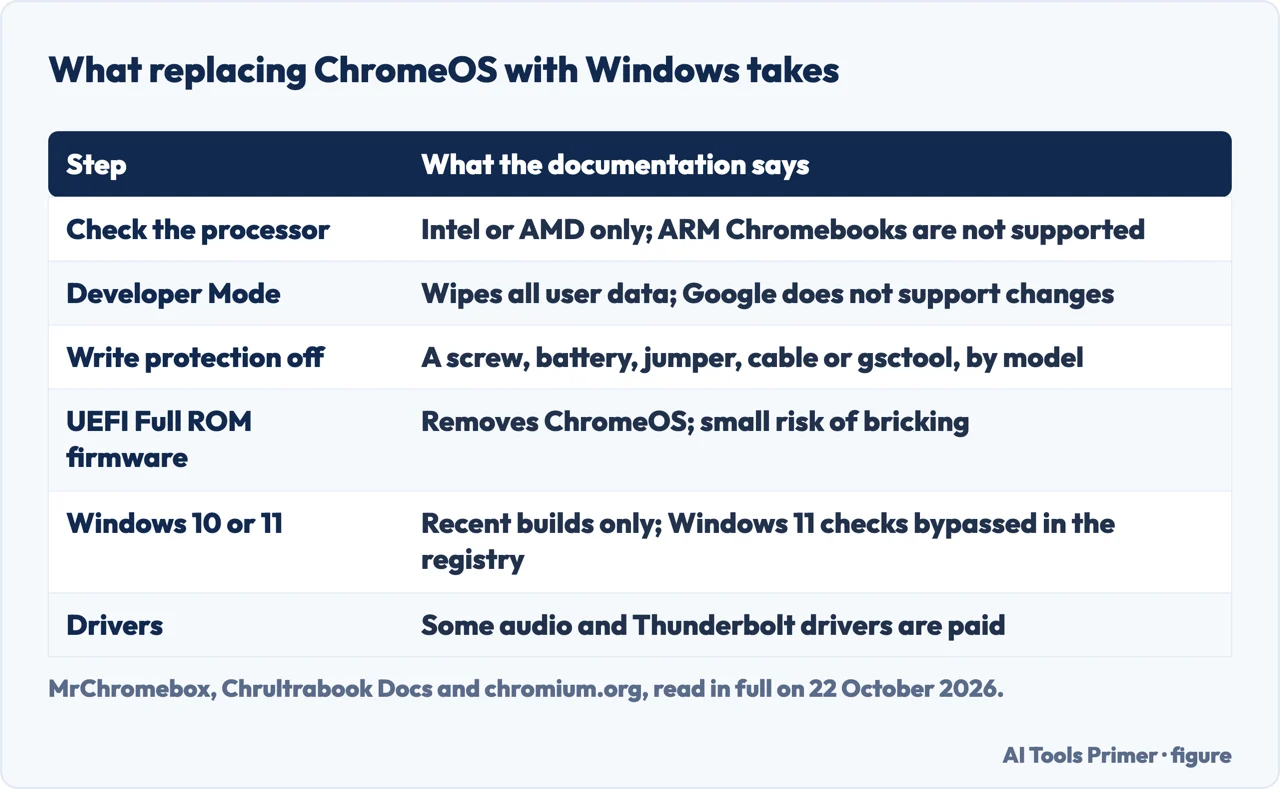
This is the route the guides in Google’s results describe as how to install Windows on a Chromebook, and it is a firmware job before it is an operating system job. Google’s firmware boots ChromeOS through its own payload, so Windows needs different firmware. The usual replacement is the UEFI Full ROM firmware from the MrChromebox project, after which drivers from CoolStar and the Chrultrabook documentation take over. MrChromebox’s own flowchart is blunt: if you need Windows, you must use UEFI Full ROM. The steps, in the order the documentation gives them:
- Check the model. MrChromebox firmware supports only Intel and AMD processors; ARM-based Chromebooks, such as the MediaTek Duet above, are not supported at all. Find the board name, which Chrultrabook says is shown at the bottom of the recovery screen or under HWID at chrome://system, and look it up on MrChromebox’s Supported Devices list and Chrultrabook’s device status page, which says how well Windows runs on it.
- Back up and enable Developer Mode. Switching between normal and Developer Mode wipes all user data, and the battery must be plugged in. The ChromeOS developers’ own page warns that changes you make are “not supported by Google” and may void the warranty.
- Turn off hardware write protection. Depending on the model this means removing a screw, disconnecting the battery, a jumper, a SuzyQ cable, or a gsctool command on models with the Ti50 security chip, generally those from 2023 on.
- Flash the firmware. MrChromebox’s Firmware Utility Script installs UEFI Full ROM. This removes ChromeOS entirely, carries what the project calls a small risk of bricking the device, and going back means restoring the stock firmware from a backup. The project budgets one to three hours for the whole process.
- Install Windows. Chrultrabook supports only recent Windows 10 and 11 builds, from a USB drive made with Ventoy, Rufus or Microsoft’s media creation tool, and warns against unofficial versions such as tiny11. For Windows 11 it documents two registry values that skip the TPM and Secure Boot checks during setup.
- Add the drivers. MrChromebox says Windows support depends largely on CoolStar’s custom drivers for the touchpad, touchscreen and audio, which CoolStar lists by model, and some are paid: Chrultrabook lists the audio drivers for several Intel generations and the Thunderbolt 4 driver for Tiger Lake and Alder Lake as purchases.
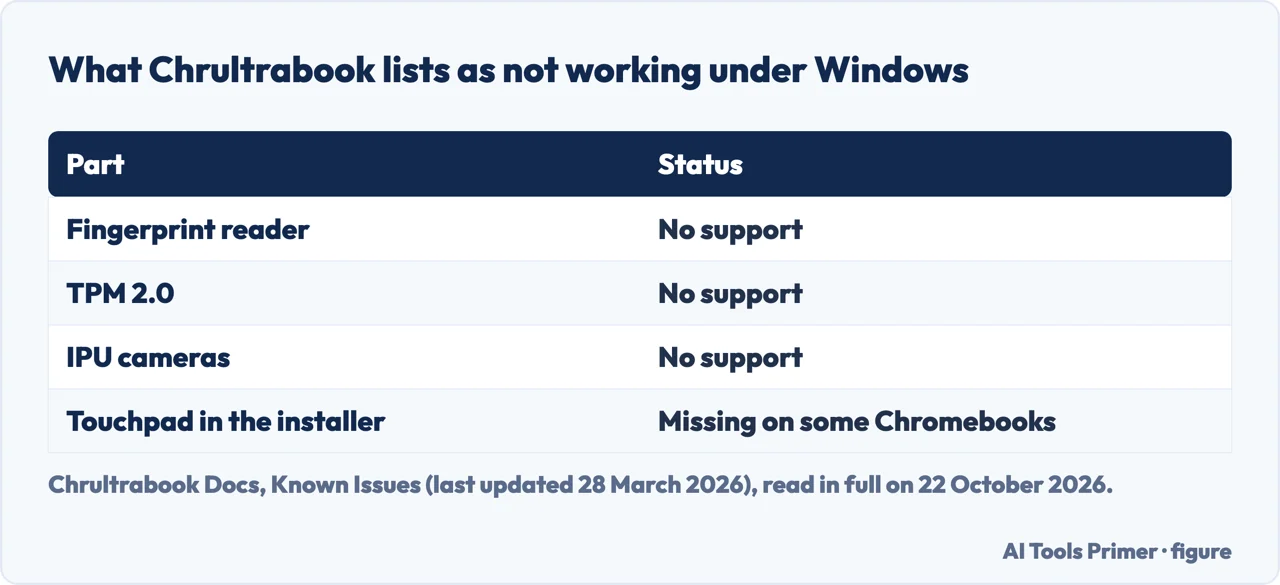
The machine you end up with has gaps. Chrultrabook’s list of known issues under Windows: no fingerprint reader, no TPM 2.0, no IPU camera, and on some Chromebooks no touchpad in the installer. A licence for Windows itself is also needed, at Store prices our Windows 11 editions page lists. MrChromebox’s FAQ ends the question of buying a Chromebook for this: “Buying any Chromebook with the intention of running Windows or Linux is not a great idea.”
There is one case where the project sees value in it. A Chromebook that has reached the end of its update period, which MrChromebox says now runs to 10 years for newer devices, can carry on with another system instead of becoming e-waste.
Which route to take
- You need documents and email. Microsoft 365 in the browser; nothing to install.
- You need one program that only exists for Windows, and own a Windows PC. Connect to it from the Chromebook, with Chrome Remote Desktop or, if the PC runs Windows Pro, Windows App.
- You need Windows every day and have no PC. A Windows 365 Cloud PC works from the Chromebook’s browser, at a monthly price per user, with a 30-day trial of the smallest plan.
- The Chromebook belongs to a school or employer. Ask the administrator about Cameyo; do not try to modify it.
- Your own Intel or AMD Chromebook is out of updates, or you want the project. The firmware route, accepting the loss of ChromeOS, the warranty risk and the missing hardware.
If the Chromebook is also misbehaving, our pages on a Chromebook black screen and a glitching Chromebook screen cover the reset and Powerwash steps Google documents, which are worth trying before anything on this page.
Where to start
Five ways in.
- “I just need Word and Excel.”
- Microsoft 365 — office
- “I have a Windows PC at home.”
- Remote access — remote
- “It’s a school Chromebook.”
- Managed devices — managed
- “I want Windows instead of ChromeOS.”
- Replacing it — replace
- “Just tell me which.”
- Choosing — choose
More on Chromebooks and Windows
The pages next to this one: the Chromebook faults Google documents, and the Windows side of the question.
Questions people also ask
Can I download Windows for my Chromebook?
You can download it, but ChromeOS cannot run it: the installer is a Windows program, and ChromeOS answers that the file is designed for a PC using Windows software. Windows can only replace ChromeOS after a firmware change, on Intel and AMD models.
How can I convert my Chromebook to Windows?
By replacing its firmware with MrChromebox’s UEFI Full ROM, which removes ChromeOS, then installing Windows 10 or 11 and CoolStar’s drivers. It needs Developer Mode, which wipes the device, and write protection turned off.
Can a Chromebook run Windows?
Not as it comes. It can show a Windows PC running elsewhere, through Chrome Remote Desktop, Windows App or a Windows 365 Cloud PC. Running Windows on the Chromebook itself means replacing ChromeOS, and MrChromebox lists no ARM model as supported.
Can you get Windows on a Chromebook from school?
Not by yourself: Chrultrabook says managed devices are unable to be modified. Google now points administrators to Cameyo, which delivers Windows programs as web apps, after Parallels Desktop for ChromeOS was discontinued.
Not covered here. We did not test any route on a Chromebook for this page. The steps are those Microsoft, Google, MrChromebox and Chrultrabook document, read on 22 October 2026; the forum answers are from volunteers, as attributed.
Windows 365 prices are those of Microsoft’s US Business plans page on 22 October 2026 and change over time; the Cameyo page we read gives no price.
The Reddit and Spiceworks results could not be read, and the videos were not watched.
The search volume and difficulty behind this page were read in Semrush on 29 August 2026.
Sources
- Microsoft Q&A — Install Windows 11 on a Chromebook (June 2024, answers from volunteers) — learn.microsoft.com, read 22 October 2026.
- Chromebook Help Community — how do I get windows on this Chromebook? (April 2026, answers from Product Experts) — support.google.com, read 22 October 2026.
- Microsoft Support — How to access Microsoft 365 on a Chromebook — support.microsoft.com, read 22 October 2026.
- Microsoft Learn — Connect to Windows devices and apps with Windows App — learn.microsoft.com, read 22 October 2026.
- Microsoft Support — How to use Remote Desktop — support.microsoft.com, read 22 October 2026.
- Google Chrome Help — Access another computer with Chrome Remote Desktop — support.google.com, read 22 October 2026.
- Microsoft Learn — Accessing Cloud PCs — learn.microsoft.com, read 22 October 2026.
- Microsoft — Compare Windows 365 Business plans and pricing — www.microsoft.com, read 22 October 2026.
- Chrome Enterprise and Education Help — Set up Parallels Desktop for ChromeOS — support.google.com, read 22 October 2026.
- Parallels Knowledge Base — End of Life announcement for Parallels Desktop for Chrome OS — kb.parallels.com, read 22 October 2026.
- Cameyo Help — ChromeOS and Cameyo — support.google.com, read 22 October 2026.
- Cameyo by Google — Virtualization solutions — cameyo.google, read 22 October 2026.
- Chromebook Help — Set up Linux on your Chromebook — support.google.com, read 22 October 2026.
- The Chromium Projects — Developer mode — www.chromium.org, read 22 October 2026.
- MrChromebox.tech — Frequently Asked Questions — docs.mrchromebox.tech, read 22 October 2026.
- MrChromebox.tech — Getting Started — docs.mrchromebox.tech, read 22 October 2026.
- MrChromebox.tech — Developer Mode — docs.mrchromebox.tech, read 22 October 2026.
- MrChromebox.tech — Supported Devices — docs.mrchromebox.tech, read 22 October 2026.
- Chrultrabook Docs — Prerequisites — docs.chrultrabook.com, read 22 October 2026.
- Chrultrabook Docs — Installing Windows (with paid drivers) — docs.chrultrabook.com, read 22 October 2026.
- Chrultrabook Docs — Known Issues (last updated 28 March 2026) — docs.chrultrabook.com, read 22 October 2026.
- CoolStar — How to install Windows 10/11 on a Chromebook — coolstar.org, read 22 October 2026.
Written by Alberto Gulotta
Founder and editor of AI Tools Primer, writing from Palermo, Italy. Thirty-five years of taking computers apart, starting with a Commodore 64 — the long version is on the about page.
Something wrong on this page? Write to aitoolsprimer@gmail.com and it gets fixed.
Written on 22 October 2026.
Independence and limits
No affiliate links and no paid placements anywhere on this site. Nobody pays to appear here, and no company has seen this page before you did.
This is general information, not professional advice. Where a page touches money, health, safety or the law, it names its source and the date it was read — and your situation may still differ. See the privacy page and the cookie policy.