
Software · guide
Windows 11 Pro vs Home: six additions, and one on Microsoft’s chart
By Alberto Gulotta · Updated · 11 min read
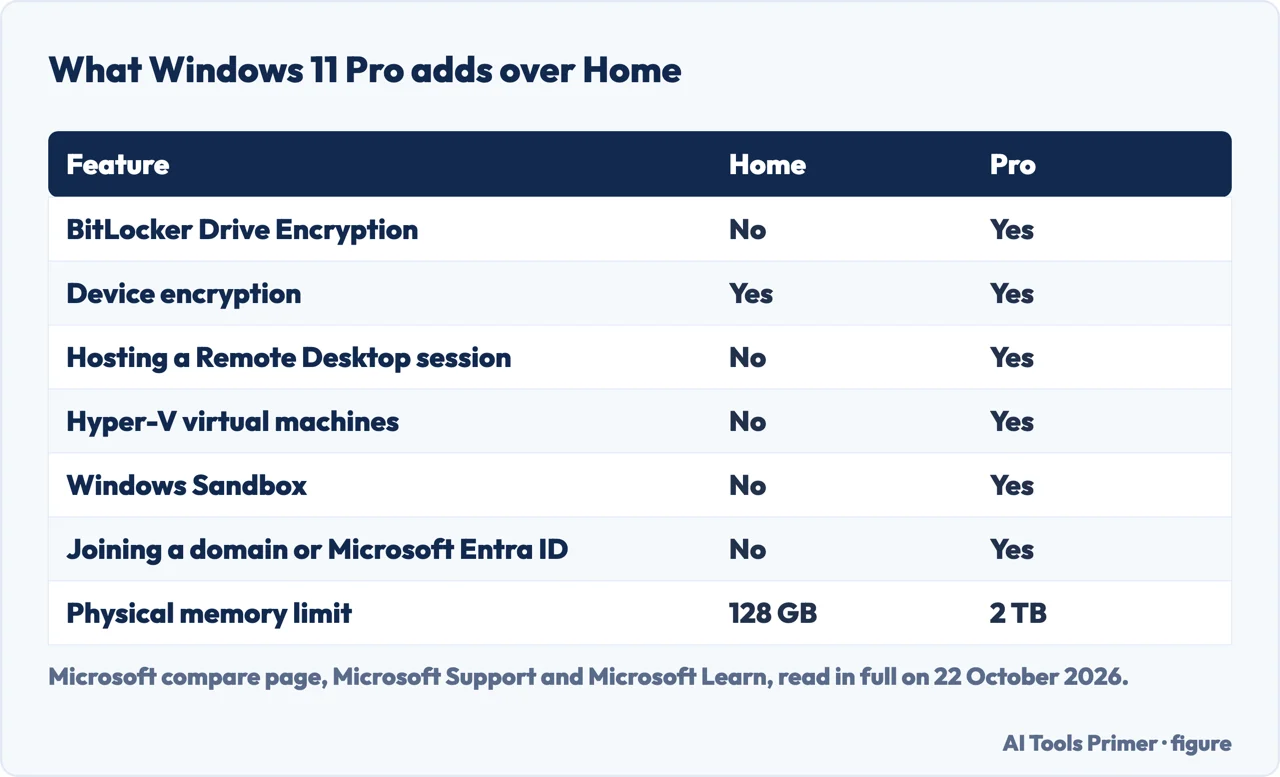
Windows 11 Pro vs Home comes down to a short list. Microsoft’s documentation gives Pro six things Home does not have: BitLocker Drive Encryption, hosting a Remote Desktop session, Hyper-V, Windows Sandbox, joining a domain or Microsoft Entra ID, and a memory limit of 2 TB instead of 128 GB. PCMag and CNET, comparing the two, both conclude that Home is enough for most people.
Microsoft’s own comparison page is shorter still. Its Home vs. Pro tab, read on 22 October 2026, lists nine security features, and BitLocker Drive Encryption is the only one ticked for Pro alone: device encryption, Windows Hello, Secure Boot and the rest are ticked for both. On the same day the US Microsoft Store asked $139.00 for a Windows 11 Home download and $199.99 for Windows 11 Pro.
| Feature | Home | Pro | Where Microsoft says so |
|---|---|---|---|
| BitLocker Drive Encryption | No | Yes | Compare page; Device Encryption article |
| Device encryption | Yes | Yes | Compare page; Device Encryption article |
| Being the PC that Remote Desktop connects to | No | Yes | How to use Remote Desktop |
| Connecting to another PC with Remote Desktop | Yes | Yes | How to use Remote Desktop |
| Hyper-V | No | Yes | Install Hyper-V |
| Windows Sandbox | No | Yes | Windows Sandbox |
| Joining a domain or Microsoft Entra ID | No | Yes | Upgrade Windows Home to Windows Pro |
| Physical memory limit | 128 GB | 2 TB | Memory Limits for Windows releases |
| Download price, US Microsoft Store, 22 October 2026 | $139.00 | $199.99 | Microsoft Store |
Encryption: Home already has it, Pro adds the controls
Home is not unencrypted. Microsoft describes Device Encryption as a Windows feature that turns on BitLocker encryption automatically for the operating system drive and fixed drives, and says it is available on a wider range of devices than BitLocker Drive Encryption, including those running Windows Home. BitLocker Drive Encryption itself is available on the Pro, Enterprise and Education editions.
The account matters more than the edition. Device Encryption switches itself on, with a recovery key attached to the account, when you first sign in with a Microsoft account or a work or school account. Microsoft adds: “If you’re using a local account, Device Encryption isn’t turned on automatically.” In that case an administrator turns it on in Settings, Privacy & security, Device encryption.
If that setting is missing, Microsoft’s check is System Information, run as administrator, and the value of Device Encryption Support. It names the reason: a TPM that is not usable, a recovery environment that is not configured, or Secure Boot switched off.
What Pro adds is control. CNET points to encrypting external drives as well, and choosing what is encrypted and how; PCMag notes that Pro’s BitLocker lets an administrator encrypt a PC remotely. Where the recovery key ends up is on our page about the BitLocker recovery key.
Remote Desktop: only the PC you connect to needs Pro
Microsoft’s rule runs in one direction. The PC you connect to “must be running Windows Pro edition of Windows”; the device you connect from can run Home, Pro or a different operating system altogether. CNET’s example: with one desktop and two laptops that reach it, only the desktop needs Pro.
Microsoft’s steps on the PC you will connect to:
- Open Settings, System, About, and check that Edition, under Windows specifications, shows Windows 11 Pro.
- Go to Settings, System, Remote Desktop, turn on Remote Desktop and select Confirm.
- Note the name under PC name.
- On the other device, open Remote Desktop Connection on Windows, Windows App on a Mac or an iPhone, or the Remote Desktop app on Android, enter that PC name and sign in.
On Home the missing half is the host, not the client. CNET’s way round it is a third-party remote desktop tool, for which the Windows edition does not matter.
Hyper-V and Windows Sandbox
Hyper-V is Microsoft’s own way of creating and running virtual machines, and its installation guide is plain: “The Hyper-V role can’t be installed on Windows 10 Home or Windows 11 Home.” It lists Windows 11 Pro or Enterprise and a 64-bit processor with Second Level Address Translation (SLAT).
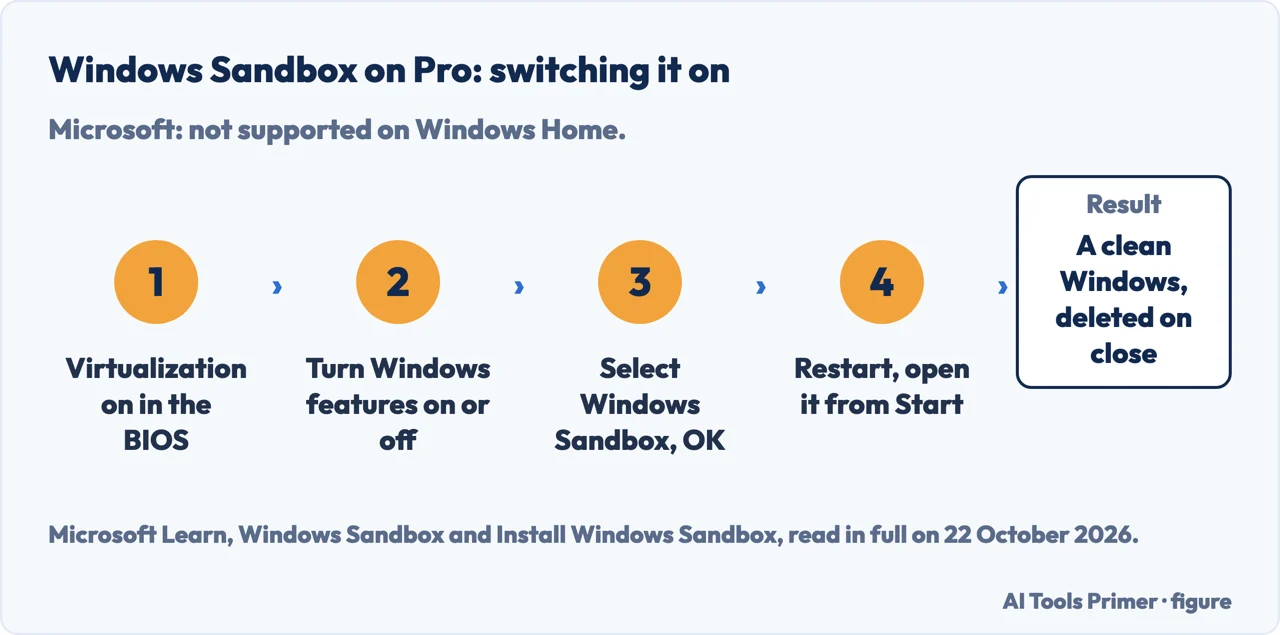
Windows Sandbox is the one most likely to matter on a home PC. Microsoft describes it as a disposable virtual machine: each launch is a fresh copy of Windows, and closing it deletes all software, files and state. Among the uses Microsoft lists are opening an untrusted email attachment and trying new software for the first time. And: “Windows Sandbox is currently not supported on Windows Home edition.”
On Pro it still has requirements of its own: virtualization switched on in the BIOS, at least 4 GB of RAM (8 GB recommended), at least 1 GB of free disk space and at least two CPU cores. It is switched on in Turn Windows features on or off; if it is not in that list, Microsoft says the computer does not meet the requirements. Since Windows 11 version 24H2, built-in Store apps such as Calculator, Photos and Notepad are not available inside it.
The business features, and the memory limit
The rest of Pro is for PCs that an organization manages. Microsoft’s upgrade page names the ability to join a domain or Microsoft Entra ID. PCMag’s list, taken from the Microsoft Store documentation, adds a private catalog of company apps in the Microsoft Store, and CNET adds Group Policy and mobile device management. On a PC that no organization manages, CNET’s view is that these features are wasted.
Microsoft’s table of physical memory limits gives Windows 11 Home 128 GB and Windows 11 Pro 2 TB, on both x64 and Arm64 PCs. CNET calls going past 128 GB the rarest of the reasons to choose Pro.
Price, and moving from Home to Pro
On 22 October 2026 the US Microsoft Store listed Windows 11 Home (Download) at $139.00 and Windows 11 Pro (Download) at $199.99. Both pages say the copy is for PCs that need a new license for Windows and meet the minimum system requirements.
The articles in the search results carry their own numbers. PCMag, updated in January 2026, gives $139.99 for Home, $199.99 for Pro and a list price of $99.99 for the Home-to-Pro upgrade; CNET rounds to $140 and $200. We did not read the upgrade price ourselves: Microsoft’s route to it starts inside an activated copy of Windows 11 Home, which we did not have.
Coming from Windows 10 is a different case. PCMag and CNET both note that a PC that meets the requirements moves to Windows 11 for free, and CNET adds that it keeps its edition: Windows 10 Home becomes Windows 11 Home, and Windows 10 Pro becomes Windows 11 Pro. That route is on our page about upgrading to Windows 11.
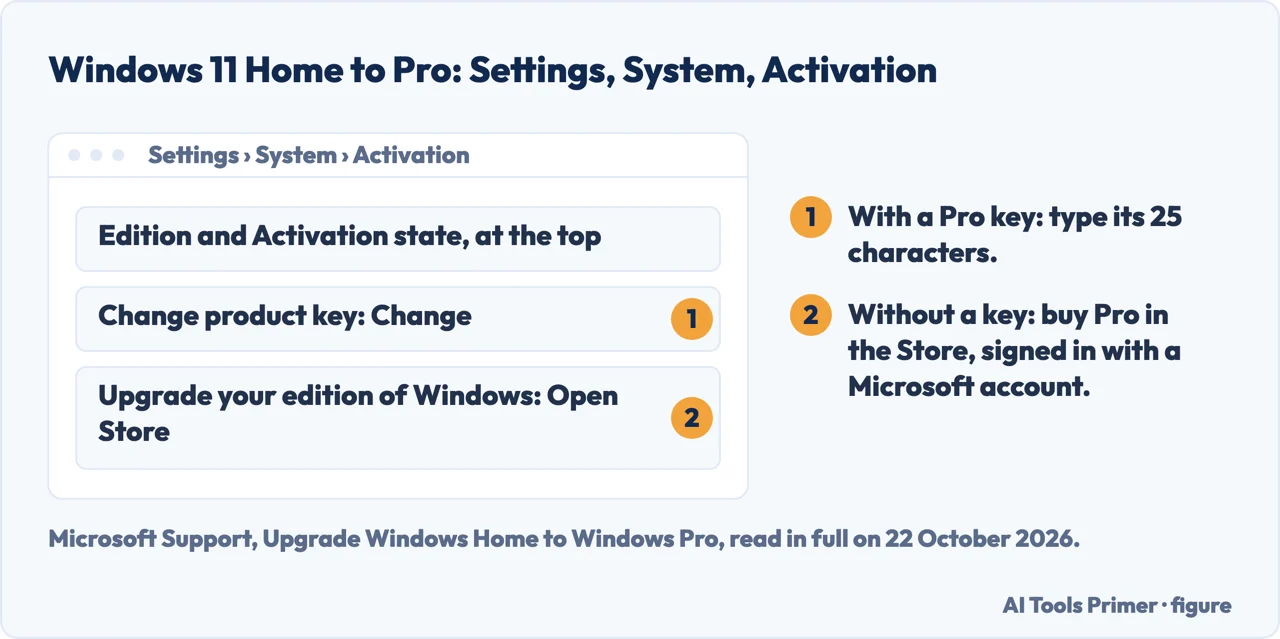
Microsoft’s steps for the upgrade apply only to an activated copy of Windows 11 Home:
- Open Settings, System, Activation. The edition and the activation state are shown at the top.
- With a Pro product key: next to Change product key, select Change and enter the 25-character key.
- Without one: expand Upgrade your edition of Windows, select Open Store, and buy Pro signed in with your Microsoft account.
- After the purchase, Windows prompts you to install Windows 11 Pro and restart.
If Upgrade your edition of Windows is not there, Microsoft says the PC may already be on Pro, or the edition upgrade may not be available.
Which one you have, and which one you need
The edition is in Settings, System, About, under Windows specifications. Pro earns its price if you need one of these:
- to reach this PC with Microsoft’s Remote Desktop from another device;
- full BitLocker, for example on external drives, beyond the automatic Device Encryption;
- Hyper-V virtual machines or Windows Sandbox;
- to join a work domain or Microsoft Entra ID;
- more than 128 GB of memory.
If none of them applies, PCMag’s conclusion is that “Windows 11 Home is best for most people”, and CNET’s verdict is that Home “does everything most of us need”. The list above comes from Microsoft’s documentation; the two conclusions are the publications’ own.
Where to start
Five ways in.
- “Does Home encrypt my drive?”
- Encryption — encryption
- “I want to reach this PC from elsewhere.”
- Remote Desktop — remote desktop
- “I need a virtual machine.”
- Hyper-V and Sandbox — virtual machines
- “How much, and how do I upgrade?”
- Price and upgrade — price and upgrade
- “Which one do I need?”
- Deciding — which
More on Windows 11
The pages next to this one: getting onto Windows 11, and the key that unlocks an encrypted drive.
Questions people also ask
Is Windows 11 Pro worth it over Home?
Only if you need one of its additions: hosting Remote Desktop, full BitLocker, Hyper-V, Windows Sandbox, joining a domain or Microsoft Entra ID, or more than 128 GB of memory. PCMag and CNET both conclude that Home is enough for most people.
Does Windows 11 Home have encryption?
Yes. Device Encryption turns on BitLocker encryption automatically for the system drive and fixed drives when you sign in with a Microsoft account. With a local account you turn it on yourself in Settings, Privacy & security, Device encryption.
How much does it cost to upgrade Windows 11 Home to Pro?
PCMag gives a list price of $99.99 for the upgrade; Microsoft’s route to it is Settings, System, Activation, Open Store, and we could not read it in the Store ourselves. A full Windows 11 Pro download cost $199.99 in the US Microsoft Store on 22 October 2026.
Is Windows 11 Pro better for gaming?
PCMag lists the gaming features, such as Auto HDR and DirectStorage, among those both editions share. The additions Microsoft documents for Pro are about encryption, remote access, virtual machines, management and memory.
Not covered here. We did not install either edition for this page. The differences are those Microsoft documents, read on 22 October 2026, and the conclusions are PCMag’s and CNET’s, as attributed.
Prices are those of the US Microsoft Store on 22 October 2026 and change by country and over time; the Home-to-Pro upgrade price was not read in the Store. The Reddit thread among the search results could not be read.
The search volume and difficulty behind this page were read in Semrush on 29 August 2026.
Sources
- Microsoft — Compare Windows 11 versions (Windows 11 Home vs. Pro tab) — www.microsoft.com, read 22 October 2026.
- Microsoft Store — Windows 11 Home (Download) — www.microsoft.com, read 22 October 2026.
- Microsoft Store — Windows 11 Pro (Download) — www.microsoft.com, read 22 October 2026.
- Microsoft Support — Upgrade Windows Home to Windows Pro — support.microsoft.com, read 22 October 2026.
- Microsoft Support — Device Encryption in Windows — support.microsoft.com, read 22 October 2026.
- Microsoft Support — How to use Remote Desktop — support.microsoft.com, read 22 October 2026.
- Microsoft Learn — Install Hyper-V in Windows and Windows Server — learn.microsoft.com, read 22 October 2026.
- Microsoft Learn — Windows Sandbox — learn.microsoft.com, read 22 October 2026.
- Microsoft Learn — Install Windows Sandbox — learn.microsoft.com, read 22 October 2026.
- Microsoft Learn — Memory Limits for Windows and Windows Server Releases — learn.microsoft.com, read 22 October 2026.
- PCMag — Windows 11 Home vs. Pro: What You Gain From Upgrading (and What You Don’t), updated 14 January 2026 — www.pcmag.com, read 22 October 2026.
- CNET — Windows 11 Home vs. Windows 11 Pro: Which Edition Do You Actually Need? — www.cnet.com, read 22 October 2026.
Written by Alberto Gulotta
Founder and editor of AI Tools Primer, writing from Palermo, Italy. Thirty-five years of taking computers apart, starting with a Commodore 64 — the long version is on the about page.
Something wrong on this page? Write to aitoolsprimer@gmail.com and it gets fixed.
Written on 22 October 2026.
Independence and limits
No affiliate links and no paid placements anywhere on this site. Nobody pays to appear here, and no company has seen this page before you did.
This is general information, not professional advice. Where a page touches money, health, safety or the law, it names its source and the date it was read — and your situation may still differ. See the privacy page and the cookie policy.