
Software · guide
How to disable hardware acceleration in Chrome, now called graphics
By Alberto Gulotta · Updated · 11 min read
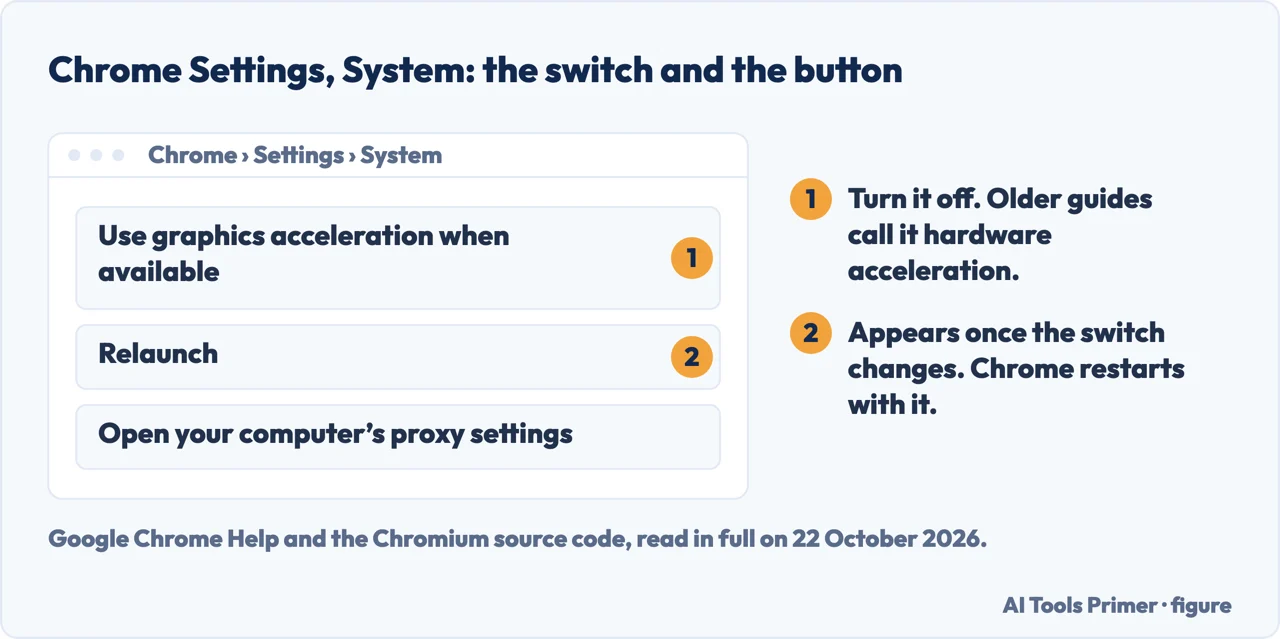
How to disable hardware acceleration in Chrome: open the menu, select Settings, then System, turn off Use graphics acceleration when available, and select Relaunch. On Windows, Mac and Linux that is the whole job, and the change takes effect only once Chrome has restarted.
The name is where people get stuck. Google’s own help article still calls the switch Use hardware acceleration when available, and so do Loyola University’s IT page and a Google forum answer from 2024; Chromium, the code Chrome is built from, labels it Use graphics acceleration when available. On a Chromebook there is no such switch at all.
| Where Chrome runs | What to change | Where it is documented |
|---|---|---|
| Windows, Mac, Linux | Settings, System, Use graphics acceleration when available, then Relaunch | Google Chrome Help; Chromium source |
| Chromebook | No such switch in Settings; Chrome flags only | Chromium source; Chromebook Community; Panopto |
| A PC your organization manages | The HardwareAccelerationModeEnabled policy | Chrome Enterprise Help; Chromium source |
The steps, on Windows, Mac and Linux
Google’s steps sit in its article on fixing Chrome when it crashes or will not open, under the heading Fix hardware acceleration issues, with the reason in one line: “There could be a problem with how your computer’s hardware works with Chrome”.
- Open Chrome’s menu, the three dots at the top right that Google calls More, and select Settings.
- In the list on the left, select System.
- Turn off Use graphics acceleration when available. Google’s article still writes it as Use hardware acceleration when available; on the screen it is the graphics one.
- Select Relaunch, which appears beside the switch once you change it, or close Chrome and open it again.
The restart is part of the change. In Chrome’s own code the Relaunch button shows only while the switch differs from the value Chrome had when it started, and the policy that controls the same setting is marked as one Chrome does not pick up while it is running. Until Chrome restarts, the browser is still drawing the way it was.
For the tabs that were open, Google’s crash article gives Ctrl + Shift + T on Windows and Command + Shift + T on a Mac to reopen them. Our page on reopening closed tabs has the rest.
Why you cannot find “hardware acceleration” in Settings
Because the word on the screen is graphics. Chromium, the code Chrome is built from, labels the switch Use graphics acceleration when available, and the developer note beside it describes it as the checkbox that makes Chrome render through graphics acceleration, the GPU, when it is available. Loyola University New Orleans’ IT help page, among the search results, still says Use hardware acceleration when available.
The gap has cost people time. In a Chrome Help Community thread from May 2024, a user who could not find the hardware switch listed what the System page did show, Use graphics acceleration when available among them. The Diamond Product Expert who answered sent them to a Windows setting instead, Hardware-accelerated GPU scheduling, which is a different switch with a different job. The thread has been locked with 1,862 people marked as having the same question.
The same user wrote that searching the menu for hardware acceleration found nothing. Graphics is the word to search for.
How to check that it is off
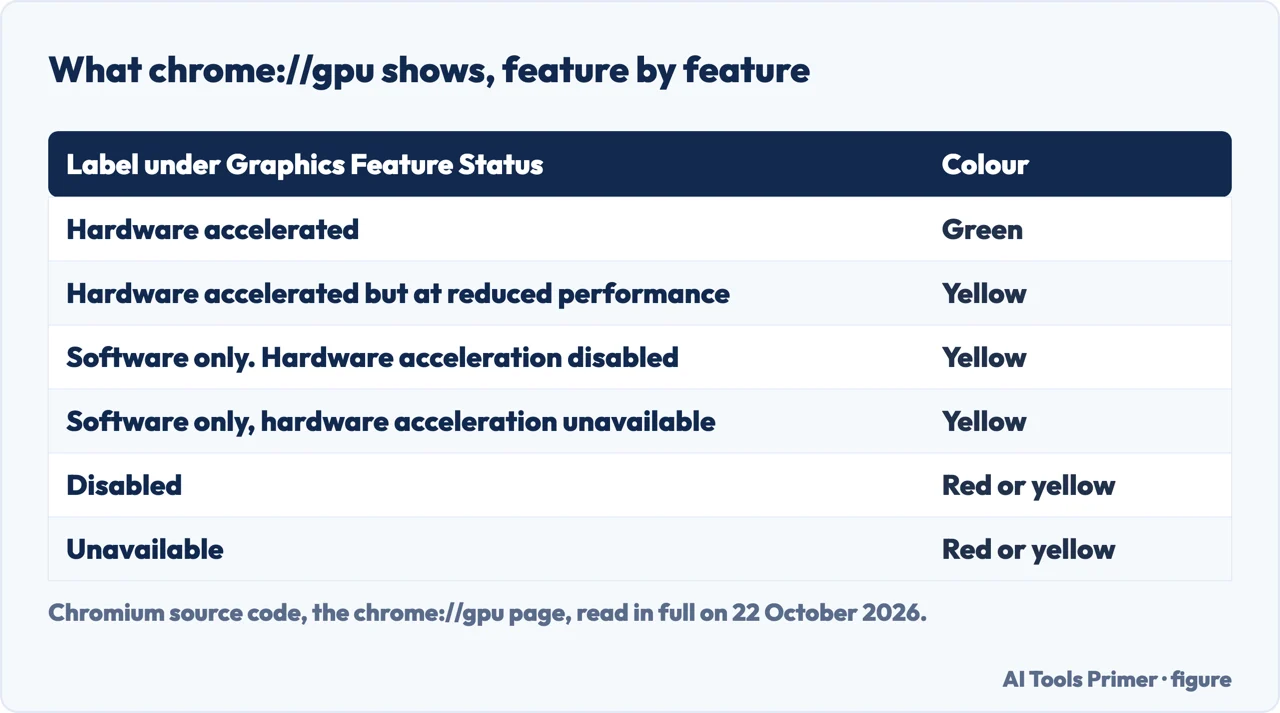
Type chrome://gpu into the address bar after the restart. The page lists Chrome’s graphics features under the heading Graphics Feature Status, each with a coloured label. The labels come from a fixed list in Chromium’s code:
- Hardware accelerated, in green, means the feature is using the graphics chip.
- Software only. Hardware acceleration disabled, in yellow, is the wording for a feature that has been switched off.
- Software only, hardware acceleration unavailable, also yellow, is the wording for a feature Chrome could not use the chip for.
Disabled and unavailable are different words in that list, and only the first describes something switched off. We have not compared the page before and after on a real computer: the labels above are the ones the code can show.
When turning it off is the right fix
Google ties the switch to one diagnosis. In its crash article it is one of three things to try when a page fails in Chrome but works in another browser, next to reinstalling Chrome and reinstalling extensions. Google’s separate article on videos and games that will not play has five steps, from JavaScript to resetting the internet connection, and hardware acceleration is not among them.
For administrators, Google’s advice on running Chrome on virtual desktops is direct: if the virtual desktop server has no graphics processing units, set the hardware acceleration policy to false. Loyola’s IT page suggests it when Chrome is running slow.
With the switch on, Chrome uses the graphics chip where it is available; off, its graphics features show as Software only in chrome://gpu’s words. So the test is simple: turn it off, relaunch, and see whether the flicker, black area or freeze goes. If nothing changes, turn it back on the same way and look elsewhere, starting with our page on browser extensions.
The Windows setting with a similar name
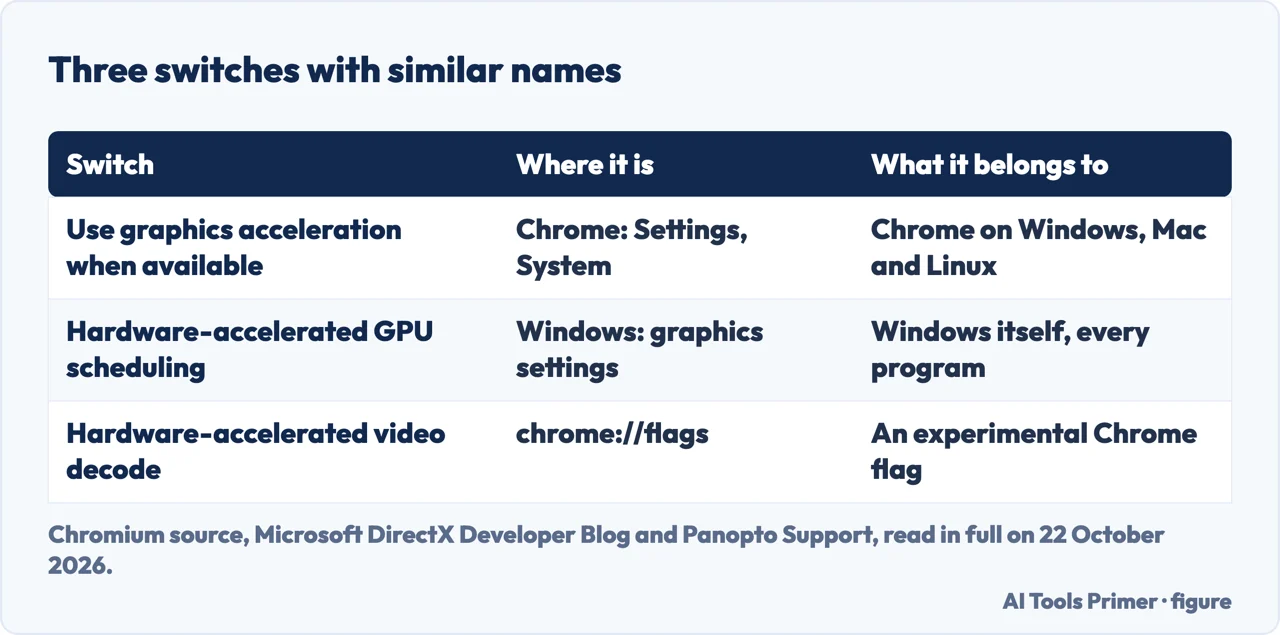
Hardware-accelerated GPU scheduling belongs to Windows, not to Chrome. Microsoft’s DirectX team introduced it with the Windows 10 May 2020 update as “a user opt-in, but off by default option”: with the right graphics hardware and driver, Windows hands most of the scheduling of work on the graphics chip to the chip itself. In 2020 Microsoft placed it under Settings, System, Display, Graphics settings, and said it appears only when both the graphics chip and its driver support it.
It is a setting of Windows as a whole, and Chrome’s own switch is a separate one in Chrome’s settings. If the problem is in Chrome, Chrome’s switch is the one Google documents. A graphics driver that is out of date is a separate question, covered on our page about updating graphics drivers.
On a Chromebook there is no switch
In Chromium’s code, the System section of Chrome’s settings and the graphics switch inside it are left out of ChromeOS, which is why people searching a Chromebook’s settings for it come up empty. In a Chromebook Community thread from March 2026, a Platinum Product Expert answered: “Not all Chromebooks have this option”, and pointed to an experimental flag instead.
What the answers offer are flags, not settings, and they do not agree:
- Panopto’s support article, written for Chromebooks, opens chrome://flags, searches for Hardware-accelerated video decode, sets it to Disabled and selects Relaunch.
- The Product Expert in the Community thread named a different flag, Override software rendering list, and said to make sure it is Disabled, then reboot.
Both are vendor and volunteer advice, not Google documentation, and Panopto calls chrome://flags the Experiments page. Our page on a Chromebook screen that glitches covers that problem.
On a PC your organization manages
The same setting exists as a Chrome policy, HardwareAccelerationModeEnabled, captioned Use graphics acceleration when available. Chromium’s definition gives it two values, true to enable graphics acceleration and false to disable it, supported on Chrome on computers since version 46, and marked as one Chrome does not pick up while it is running.
Natural Networks, an IT support company, publishes the registry form for Windows: a key at HKEY_LOCAL_MACHINE, SOFTWARE, Policies, Google, Chrome, and inside it a DWORD named HardwareAccelerationModeEnabled, 0 to disable and 1 to enable. On a work computer that is the administrator’s job, not the user’s.
Where to start
Five ways in.
- “Just the steps.”
- The steps — steps
- “It is not in my settings.”
- The name — not found
- “Did it work?”
- Checking — check
- “I am on a Chromebook.”
- Chromebook — chromebook
- “My work PC will not let me.”
- Managed PCs — managed
More on Chrome
The pages next to this one: what an extension can do to the browser, the tab you just closed, and the graphics driver underneath.
Questions people also ask
Where is hardware acceleration in Chrome settings?
In Settings, System, under the name Use graphics acceleration when available. Older guides, and Google’s own help article, still call it Use hardware acceleration when available.
Do I need to restart Chrome after turning off hardware acceleration?
Yes. Chrome shows a Relaunch button beside the switch once it changes, and the setting is not applied while Chrome is running.
Why is there no hardware acceleration option on my Chromebook?
In Chromium’s code the System section of Chrome’s settings is not built for ChromeOS. The answers in Google’s Chromebook Community point to experimental flags instead, and they are volunteer advice.
How to turn off hardware acceleration in Chrome on a Mac?
The same way as on Windows: Chrome’s menu, Settings, System, turn off Use graphics acceleration when available, then Relaunch. The switch is the same on Windows, Mac and Linux; it is ChromeOS that has none.
How do I turn hardware acceleration back on in Chrome?
The same way: Settings, System, turn Use graphics acceleration when available back on, and select Relaunch.
Not covered here. We did not switch the setting on a computer for this page. The steps are Google’s, the names are read from the Chromium source code, and the Chromebook flags are the advice of a vendor and a volunteer, as attributed; all were read on 22 October 2026.
The Reddit thread and the taptu.com guide among the search results could not be read, and the videos were not watched.
The search volume and difficulty behind this page were read in Semrush on 29 August 2026.
Sources
- Google Chrome Help — Fix Chrome if it crashes or won’t open — support.google.com, read 22 October 2026.
- Google Chrome Help — Fix videos & games that won’t play — support.google.com, read 22 October 2026.
- Chrome Enterprise and Education Help — Optimize Chrome browser on virtual desktops — support.google.com, read 22 October 2026.
- Chromium source — settings_strings.grdp (the System page labels) — chromium.googlesource.com, read 22 October 2026.
- Chromium source — system_page.ts (when the Relaunch button shows) — chromium.googlesource.com, read 22 October 2026.
- Chromium source — HardwareAccelerationModeEnabled policy definition — chromium.googlesource.com, read 22 October 2026.
- Chromium source — info_view.ts (the chrome://gpu labels) — chromium.googlesource.com, read 22 October 2026.
- Google Chrome Help Community — use hardware acceleration when available can’t find (May 2024) — support.google.com, read 22 October 2026.
- Chromebook Help Community — How to turn off hardware/graphic acceleration on my Chromebook? (March 2026) — support.google.com, read 22 October 2026.
- Panopto Support — How to Turn off Hardware Acceleration on Chromebooks — support.panopto.com, read 22 October 2026.
- Natural Networks — Disable Hardware Acceleration in Chrome Using the Registry — kb.naturalnetworks.com, read 22 October 2026.
- Loyola University New Orleans IT — Disabling Hardware Acceleration in Google Chrome — it.loyno.edu, read 22 October 2026.
- Microsoft DirectX Developer Blog — Hardware Accelerated GPU Scheduling (30 June 2020) — devblogs.microsoft.com, read 22 October 2026.
Written by Alberto Gulotta
Founder and editor of AI Tools Primer, writing from Palermo, Italy. Thirty-five years of taking computers apart, starting with a Commodore 64 — the long version is on the about page.
Something wrong on this page? Write to aitoolsprimer@gmail.com and it gets fixed.
Written on 22 October 2026.
Independence and limits
No affiliate links and no paid placements anywhere on this site. Nobody pays to appear here, and no company has seen this page before you did.
This is general information, not professional advice. Where a page touches money, health, safety or the law, it names its source and the date it was read — and your situation may still differ. See the privacy page and the cookie policy.