
Software · guide
How to remove any extension from Chrome, and what it could see
By Alberto Gulotta · Updated · 10 min read
Removing one is four clicks, and they are below. The longer half of how to remove any extension from Chrome is deciding which ones should go — and for that, Google publishes something more useful than any checklist: its own grading of what an extension is allowed to do.
Removing one, in Google’s steps
Google’s steps, including the second Remove — the confirmation is part of its own instruction.
- Open Chrome on your computer.
- At the top right select More → Extensions → Manage extensions.
- On the extension you want to remove, select Remove.
- To confirm, select Remove again.
That screen is also where the audit happens, because it lists what is installed rather than only what you are looking for. Before going through it, Google’s own framing of what an extension may be allowed to do is worth having in mind.
Google’s own three levels of permission
Its framing of the warning is worth quoting exactly: “The warning doesn’t mean the app is dangerous, just that it can be.”
- High alert
- Access to “all data on your computer and the websites you visit”. Google: it “can access almost anything. This could be your webcam or personal files, inside or outside of your browser.”
- Medium alert
- Data on all the websites you visit — “read, request or modify data from every page you visit (bank account, Facebook)” — or on a specified list of sites.
- Low alert
- Bookmarks, browsing history, tabs and browsing activity, physical location, your list of installed extensions, and data you copy and paste. Read the next section before accepting that word.
Low alert includes: “Your browsing history: The app or extension can read and erase your browsing history.” And: “Data you copy and paste: The app or extension can access information you’ve copied and pasted.”
Those are Google’s words and Google’s classification, and this guide is reporting rather than disputing it. But the two items are worth saying out loud, because the label does not prepare you for them: an extension in the lowest of three tiers may read what you copy, and may erase your history rather than merely read it. Whether that matters depends on what passes through your clipboard, which is worth a moment’s thought before it is dismissed as low. The level describes the category, not the consequence.
The practical use of that grading is not to be alarmed by it. It is to notice the mismatch: an extension whose job is to change the colour of a page does not need to read every page you visit, and one that saves recipes does not need what you copy. The question is not whether a permission is dangerous but whether it is explained by what the extension is for.
Google also documents how much site access each extension has, and it is adjustable rather than fixed. From the Extensions menu, under “This can read and change site data”, there are three settings: when you select the extension — access only to the current tab, and only when you click it, with the note that “if you close the tab or window, you’ll have to select the extension to turn it on again”; on the current site; and on all sites. The first of those turns a permanent permission into one you grant a click at a time.
“Optional permissions will ask you to deny or allow permissions after the app or extension has been installed. When you allow optional permissions, you can’t change them after.”
Two things in one sentence, and the second is the reason to slow down. A permission granted in a prompt that appears days after installation is, by Google’s own description, not revisitable. If that is the situation, the decision is not “allow for now” — and the only remaining lever is removing the extension.
Google’s three levels describe how loudly you are told. There is a fourth case they do not cover, and the other browser maker publishes it: permissions that produce no message at all. Mozilla’s documentation for extension developers lists them by name — among them cookies, webRequest, storage, activeTab and unlimitedStorage — and its advice is to prefer activeTab over the broader alternative precisely because it “doesn’t display a permissions message when installing”.
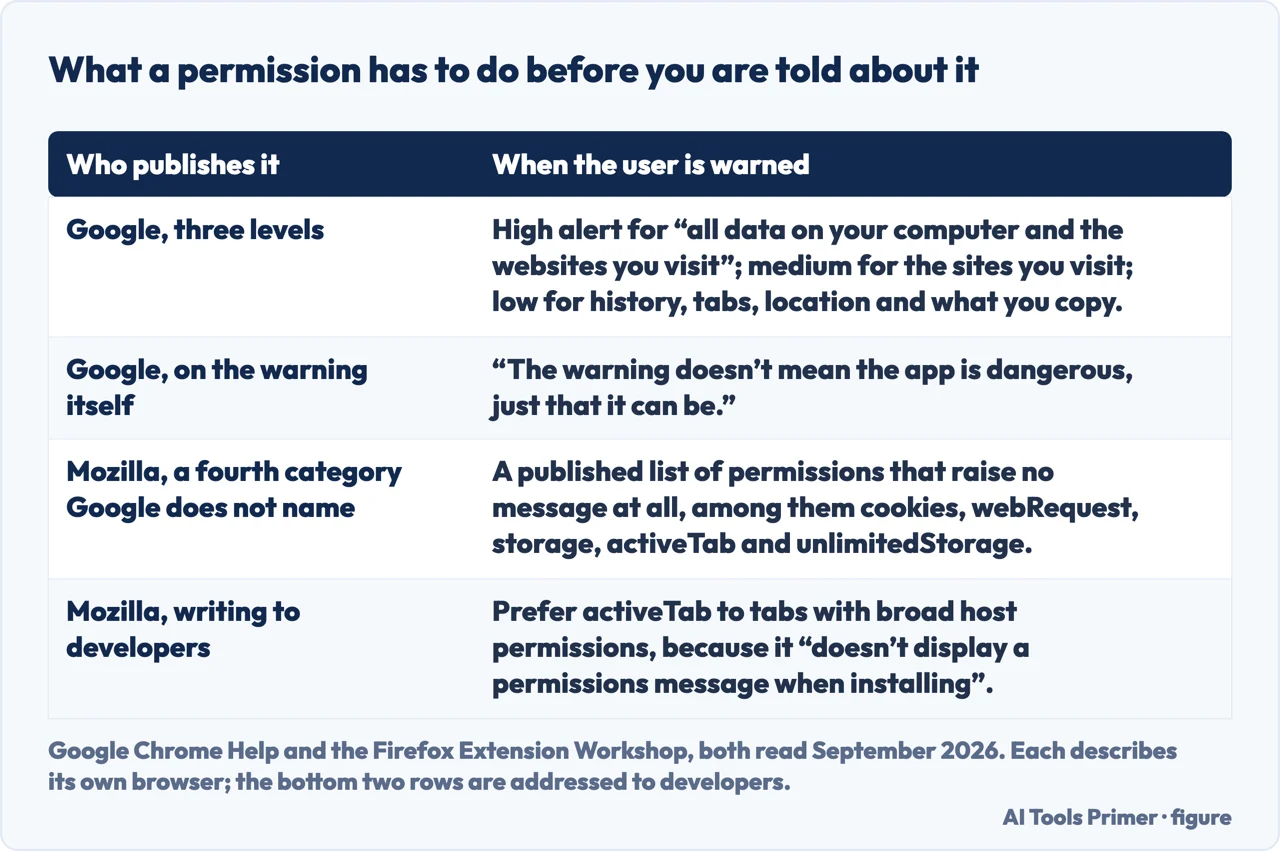
That is written to help developers avoid alarming people, and read from this side it says something else: the absence of a warning is not the absence of access. The two browsers draw the line in different places, and neither line is the same as the list of what an extension can actually do. Which is why the audit above is worth doing on the extensions you were never warned about as well as the ones you were.
Where the ones you do not remember came from. Google documents a route that does not involve the Chrome Web Store at all: “Sometimes, when you install an application on Windows or Mac, it also installs a Chrome extension.” The next time Chrome opens, you are offered Enable or Remove — which means an extension can arrive as a passenger of something else you chose to install.
Google names two other conditions worth knowing while auditing a list: you cannot add extensions “when you browse in Incognito mode or as a guest”, and if the computer belongs to a workplace or a school, “your organization might block some extensions”. So a list that cannot be changed is not always a fault either.
One more signal Google gives at installation time, for anybody adding rather than removing. With Safe Browsing’s Enhanced protection turned on, Chrome “warns you when an extension you want to install isn’t trusted” — and Google defines the word: extensions are trusted “when they’re built by a developer who follows the Chrome Web Store Developer Program Policies”, with the note that for new developers “it generally takes a few months to become trusted”. So not trusted does not mean bad; it can simply mean new, and Google says so rather than leaving the warning to be read as an accusation.
The guides below take it three ways: removing and auditing, what the permission levels mean, and the neighbouring questions about what is installed on a machine.
Where to start
Three ways in.
- “Just get rid of it.”
- Start at removing one
- “Which of these should I keep?”
- Go to the permission levels
- “I did not install this.”
- That is where they come from
Removing one
Four clicks and two confirmations, on the same screen that lists everything installed — which makes removal and audit the same trip.
The permission levels
Three tiers published by Google, with a framing worth quoting: the warning does not mean an extension is dangerous, only that it can be.
Where they come from
Google documents extensions arriving with desktop applications rather than from the store — which is the answer to a list containing something you never chose.
Not covered here. It will not tell you which extensions are safe. Google grades what they may do; whether a given one deserves it is a judgement about that extension, not about the category.
It will not treat “not trusted by Enhanced Safe Browsing” as an accusation. Google says trust is earned over months by following its developer policies, and a new extension has not had months.
And it will not skip what Google files under low alert. Reading and erasing browsing history, and access to what you copy and paste, are on that list, and the label is worth knowing before the list is. What holds instead is simple: the three permission levels and the framing that a warning does not mean an extension is dangerous are quoted from Google’s own Chrome documentation.
Sources
- Google, Chrome Web Store Help — Permissions requested by apps and extensions (the framing that a warning does not mean an app is dangerous, just that it can be; the high alert level covering all data on your computer and the websites you visit, including a webcam or personal files inside or outside the browser; the medium alert level covering data on all websites you visit or on a specified list; the low alert level covering your list of installed apps and extensions, bookmarks, browsing history with the ability to read and erase it, tabs and browsing activity including URLs and titles, physical location, and data you copy and paste; and that optional permissions are requested after installation and cannot be changed once allowed) — support.google.com, read 22 August 2026.
- Google, Chrome Help — Install and manage extensions (that extensions cannot be added in Incognito mode or as a guest; the instruction to approve only extensions you trust; that a workplace or school organisation might block some extensions; that installing an application on Windows or Mac sometimes also installs a Chrome extension, offering Enable or Remove the next time Chrome opens; that Safe Browsing’s Enhanced protection warns when an extension is not trusted, with trust defined as being built by a developer who follows the Chrome Web Store Developer Program Policies and generally taking new developers a few months to reach; the removal route via More, Extensions, Manage extensions, Remove and confirming Remove; and the three site-access settings, including access only when you select the extension, which must be re-selected if the tab or window is closed) — support.google.com, read 22 August 2026.
- Mozilla — Request the right permissions, Firefox Extension Workshop (the published list of API permissions that produce no user alert when an extension is installed, among them alarms, cookies, storage, theme, webRequest, activeTab and unlimitedStorage; the list of permissions that do trigger a warning, among them bookmarks, browsingData, downloads, geolocation, history, management, nativeMessaging, privacy, proxy, tabs and webNavigation; the advice to prefer activeTab over tabs with broad host permissions because activeTab does not display a permissions message when installing; and the advice to avoid the all_urls host permission where a narrower request would do) — extensionworkshop.com, read 6 September 2026.
Written by Alberto Gulotta
Founder and editor of AI Tools Primer, writing from Palermo, Italy. Thirty-five years of taking computers apart, starting with a Commodore 64 — the long version is on the about page.
Something wrong on this page? Write to aitoolsprimer@gmail.com and it gets fixed.
Written on 22 August 2026 · last checked 23 September 2026.
Independence and limits
No affiliate links and no paid placements anywhere on this site. Nobody pays to appear here, and no company has seen this page before you did.
This is general information, not professional advice. Where a page touches money, health, safety or the law, it names its source and the date it was read — and your situation may still differ. See the privacy page and the cookie policy.