
Software · guide
My Chromebook won't charge: what to check, and what is not a fault
By Alberto Gulotta · Updated · 16 min read
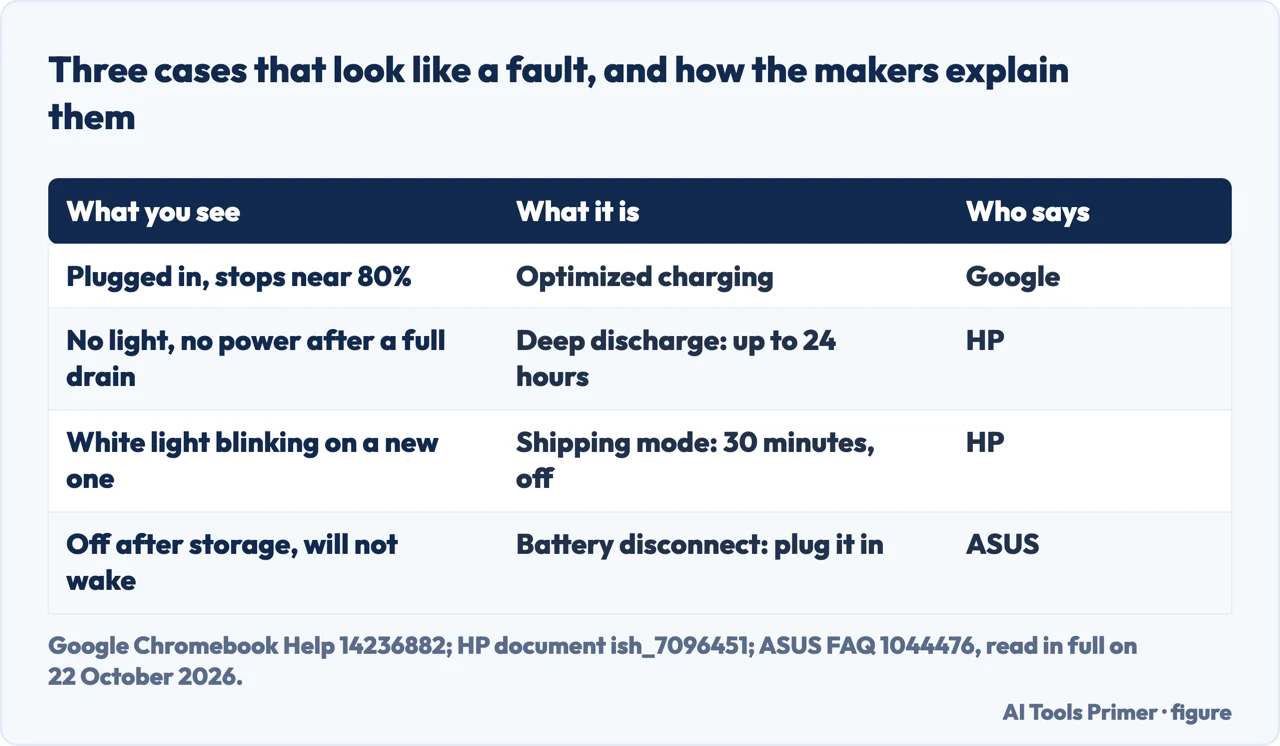
If my Chromebook won't charge is the problem, start with Google’s order: cables fully in at both ends, a working outlet, the charger unplugged and plugged back in, 30 minutes on charge, then a hard reset and the battery test in Diagnostics. Three cases look like a broken charger and are not, and the table lists them.
When a Chromebook won't charge, the sections below follow the same path: the hard reset each source describes differently, the 80% setting, a battery drained so far it shows no light, what the charging light means on each maker’s model, the charger and the port, the battery test, and the point where it becomes a repair.
| What you see | Who explains it | What it is, and what to do |
|---|---|---|
| Plugged in, but the battery stops around 80% | Optimized charging; turn it off, or select Fully charge now | |
| No light and no power after the battery ran flat | HP | Deep discharge; charge for at least 10 minutes, or up to 24 hours |
| A white light blinking on a new Chromebook | HP | Shipping mode; charge it switched off for at least 30 minutes |
| Off after storage, and the Power key does nothing | ASUS | Battery disconnect state; connect the charger |
Google’s order, and the hard reset each source describes differently
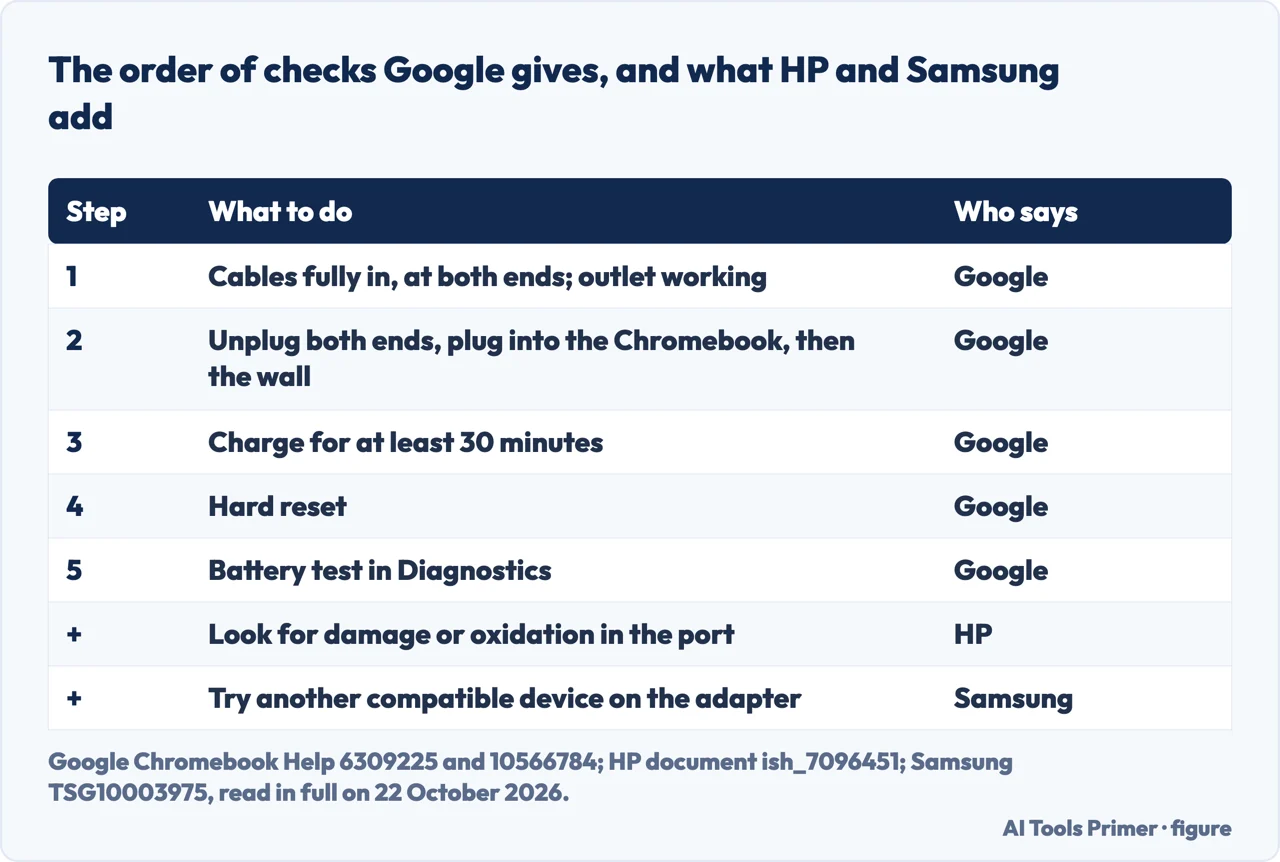
Google’s steps for a battery that won’t charge start with the obvious: the charger or adapter cables completely plugged in, both to the Chromebook and the wall, and an outlet that works. If it still won’t charge, unplug the charger from the wall and from the Chromebook, plug it back into the Chromebook first and then the wall, and charge for at least 30 minutes. Only then comes a hardware reset, and after that Google points to the Diagnostics app for the battery and to the Chromebook’s manufacturer.
The hard reset is where the sources part ways. Google’s own steps for most Chromebooks: turn it off, press and hold Refresh and tap Power, and release Refresh when it starts up; or hold Back + Refresh + Power for at least 10 seconds; on tablets, Volume Up and Power for at least 10 seconds. HP describes the same Refresh-and-Power sequence for its Chromebooks. Lenovo’s page for the N21 asks for it while the Chromebook is plugged in. iFixit’s guide does something else: disconnect the charger, hold the power button for at least 10 seconds, then reconnect. Google’s AI answer in the results also disconnects the charger, then holds Refresh and Power together for about 10 seconds.
The two makers also disagree on the cost. Google says to try a hard reset only after other ways have failed, because it “might delete some files in your Downloads folder”. HP’s document says: “A hard reset does not remove any local files or settings.” If Downloads holds something you need, Google’s caution is the one to follow. What the hard reset does to a screen that stays black, and what recovery erases, is on Chromebook black screen.
Plugged in, but it stops around 80%
This one is a setting. Google’s Optimized charging delays charging to full, because a Chromebook that spends long periods at full charge loses battery capacity over time. It has two modes. Adaptive charging keeps the battery around 80% and uses machine learning on your daily charging pattern to finish charging before you usually unplug. The second is blunter: “Charge limit: Limits the maximum battery charge to 80%.”
To change it: select the time at the bottom right, then Settings, System preferences, Power. Next to Optimized charging, select Change to pick a mode, or turn Optimized charging off if you want the Chromebook to charge to full every time. When Adaptive charging is holding the battery at around 80%, Google says a notification appears with a Fully charge now button that stops it temporarily. Google also says Adaptive charging is on automatically where the device supports it and the administrator allows it, so a school or work Chromebook may behave this way without anyone choosing it. The same 80% case on an iPhone and a Pixel is on phone not charging.
Completely dead: wait longer than you think
A battery drained to nothing may not show a light at all. HP’s document for its Chromebooks calls this a deep discharge state: although the battery light is off, “a smaller than normal charge current is being sent”. HP’s instruction is to charge for at least 10 minutes, or for up to 24 hours, pressing the power button now and then, and says it can take up to 24 hours for the battery to charge. If it does start, HP says to keep the adapter connected and let it charge for up to 24 hours before testing the battery. Samsung’s steps say that once the Chromebook powers on, turn it off and let it charge for at least one hour.
Two other states look like death and are not. HP says a white light blinking near the power connector on a Chromebook used for the first time means the battery is still in shipping mode: turn it off, connect the adapter, and charge for at least 30 minutes before starting it. ASUS, on a page it says is excerpted from Google, describes a battery disconnect state for long storage, such as the end of a school year: with the charger connected and the Chromebook on, you hold Refresh and Power (or, on models with a G key on the bottom row, hold Refresh and tap Power) and pull the cable while still holding Refresh. The Chromebook then will not turn on from the Power key or the lid until it is plugged in again. In our reading, that is the hard reset key sequence done while the cable comes out, so a Chromebook reset that way may only need its charger.
Samsung adds a route for a Chromebook that will not power on while its light blinks red: with the accessories removed, hold Esc + Refresh and Power, release Power first, and once the recovery screen appears, let it charge for ten minutes and restart. Samsung warns not to follow the on-screen recovery instructions unless the Chromebook is not charging, because recovering from a USB drive or SD card erases its data.
What the charging light says
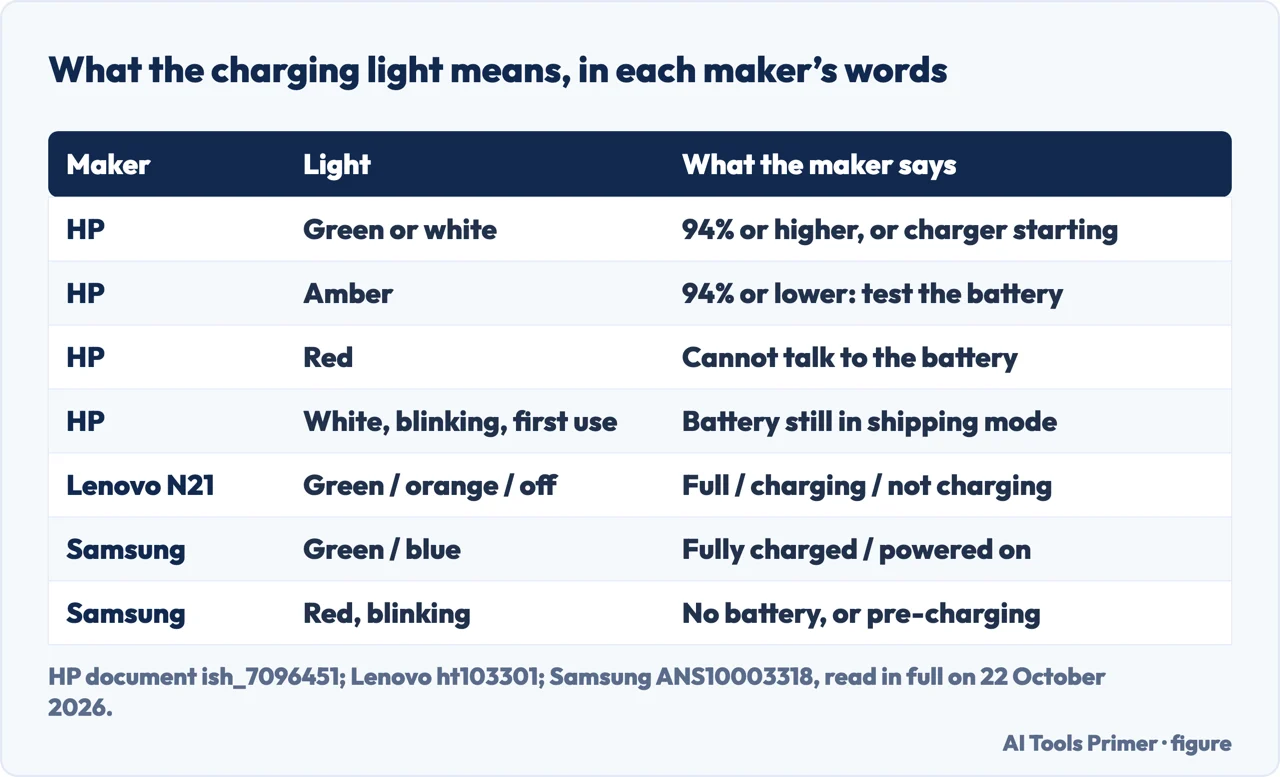
The light is the quickest test, and a Google Diamond Product Expert asks for its colour first, but the colours belong to the maker. HP: green or white means 94% or higher, or the charger initialising in the 15 seconds after you plug in; amber means 94% or lower, and HP’s next step is a battery test; red means the computer cannot communicate with the battery, and HP says to contact it. Lenovo, for the N21 Chromebook: green is a full charge, orange is charging, and no light means it is not charging. Samsung: green is fully charged, blue is powered on, and blinking red means no battery, or a battery that is pre-charging.
Samsung also separates the two kinds of silence. A Chromebook that does not power on and shows no blinking light may have a problem with the adapter or the charging port, and Samsung’s test is to connect a different compatible device to the same adapter. A blinking red light sends you to the recovery-screen route above.
The charger, the cable and the port
Lenovo’s page asks for the cable and adapter supplied with the Chromebook, and gives the reason: “Substitute cables by other manufacturers may deliver either more or less power than the Chromebook is engineered for.” ASUS says the same about its adapters, and adds a USB-C caveat: make sure the USB-C port you use supports charging and supplying power, and check the model’s user manual if you are unsure. Samsung says that on its Chromebooks with a USB-C charger, any USB-C port works. ASUS’s storage page notes that on older devices the charger must go into a USB-C port on the same side as the charging light.
So try every port. A Google Platinum Product Expert, answering a March 2026 thread in which a Chromebook dropped from 68% to 65% after four hours on the charger, asked exactly that, and guessed that on a model with a single port the port itself is at fault. HP’s document asks you to look for damage or oxidation in the port. For debris, iFixit suggests a dust blower or a cotton swab with 90% rubbing alcohol, and a Diamond Product Expert in the same thread suggested gently probing around the connector with a split toothpick after compressed air.
A borrowed charger is a test, not a fix. In a November 2024 thread, a user whose two Acer Chromebooks stopped charging later reported that a faulty transformer on the charger had cooked the battery in one, and that the other one’s battery heated up and caught fire on the same charger. It is one user’s account, but it is the reason the makers keep asking for the right adapter.
Testing the battery
If the Chromebook turns on, Google’s tool is the Diagnostics app: select the time, then Settings, then About ChromeOS, Diagnostics, or search for Diagnostics in the launcher. Its Battery section shows the battery’s health, cycle count and electrical current, and its discharge test measures the rate of charge and discharge over a fixed time. Google says a very low rate may mean a problem with the battery or the charging port.
HP has its own: the HP Support Assistant extension from the Chrome Web Store, which HP says might not be available on older Chrome devices or with 32-bit Chrome OS. With the adapter connected, choose Check your battery, then Run battery check; if it passes, disconnect the adapter and run it again, and if it fails, HP says to contact it.
iFixit and Google’s AI answer also give a terminal route: press Ctrl + Alt + T to open crosh and type battery_test, which iFixit says runs for 300 seconds by default. That command comes from them, not from a Google page we read, so the Diagnostics app is the place to start.
When it is the hardware
HP’s first step is a look: damage or oxidation in the charging port, a cracked display, other physical damage, and a battery that is swollen or deformed, which has its own HP document. Lenovo says the N21 has no panel giving direct access to the battery, and to contact Lenovo Service if you believe the battery needs to be reset. iFixit mentions a pinhole reset button on the bottom or side of some Chromebooks, pressed with a paperclip; Google’s hard reset page lists the models that reset that way, or by removing the battery.
Beyond that, iFixit names three parts: an old or faulty battery, the charging port or the board it sits on, and the motherboard. Google, HP, Lenovo, ASUS and Samsung all end their steps at the same place, with the manufacturer’s support, and the Product Expert above suggested the manufacturer for a Chromebook still under warranty, and a repair shop otherwise.
Where to start
Five ways in.
- “It stops at 80%.”
- A setting — stuck at 80
- “It is completely dead.”
- Wait longer — dead
- “The light is red.”
- Read the light — light
- “Is it the charger?”
- Charger and port — charger
- “Is it the battery?”
- Test it — test
More on Chromebooks
The pages next to this one: a screen that stays black, a full reset, and the faults Google documents.
Charging on other devices
The same complaint on a phone and a Mac, each with its own false alarm.
Questions people also ask
How do I reset my Chromebook battery?
Google’s hard reset is the usual step: turn it off, hold Refresh and tap Power. Lenovo says the N21 has no battery panel and to contact Lenovo Service if the battery needs a reset; iFixit mentions a pinhole button on some models.
How do I force my Chromebook to charge?
Google, HP and the others describe checks rather than a way to force it. Start by ruling out Optimized charging, which holds the battery around 80%: select Fully charge now in its notification or turn it off under Settings, System preferences, Power. A deeply drained battery can take up to 24 hours, HP says.
How do I bring my dead Chromebook back to life?
Charge it longer than seems reasonable: HP says from 10 minutes to 24 hours for a battery in deep discharge, pressing Power now and then. If it was stored in the battery disconnect state, ASUS says it wakes only once it is plugged in.
Why is my Chromebook plugged in but not charging?
Often a cable or port: Google starts with cables fully in and a working outlet, and a Product Expert suggests trying every USB-C port. If it stops near 80%, that is Optimized charging. Red on an HP model means it cannot talk to the battery.
Not covered here. We did not test a Chromebook for this page. The steps credited to Google, HP, Lenovo, Samsung and ASUS are from their support pages, read on 22 October 2026; the advice from Google’s Product Experts, HP’s community moderators and iFixit is attributed where it is used, and the charger fire is one user’s account in a Google community thread.
The light colours are the ones each maker gives for the models its page covers, and Lenovo’s page is for the N21 Chromebook. The crosh battery test comes from iFixit and Google’s AI answer, not from a Google support page. The Reddit, JustAnswer and Acer community results could not be read, and the videos in the results were not watched.
The search volume and difficulty behind this page were read in Semrush on 29 August 2026.
Sources
- Google Chromebook Help — Fix hardware and system problems (Battery won’t charge) — support.google.com, read 22 October 2026.
- Google Chromebook Help — Reset your Chromebook hardware — support.google.com, read 22 October 2026.
- Google Chromebook Help — Use Optimized charging — support.google.com, read 22 October 2026.
- Google Chromebook Help — Use Diagnostics to troubleshoot your issue — support.google.com, read 22 October 2026.
- HP Support — HP Chromebooks: Chromebook is not charging or does not turn on (document ish_7096451) — support.hp.com, read 22 October 2026.
- HP Support — HP Chromebooks and HP Chromebases: HP Support Assistant for Chrome operating system — support.hp.com, read 22 October 2026.
- Lenovo Support — How to Troubleshoot Charging: N21 Chromebook (modified 30 May 2025) — support.lenovo.com, read 22 October 2026.
- Samsung Support — Samsung Chromebook will not charge or power on — www.samsung.com, read 22 October 2026.
- Samsung Support — How to charge your Samsung Chromebook and get the best battery life — www.samsung.com, read 22 October 2026.
- ASUS Support — [Chromebook] Troubleshooting: Charging Issues with Chromebook (updated 24 July 2023) — www.asus.com, read 22 October 2026.
- ASUS Support — [Chromebook] How to store Chromebook for a long period of time — www.asus.com, read 22 October 2026.
- iFixit — Chromebook Not Charging (troubleshooting guide, Jacob Mehnert and one contributor) — www.ifixit.com, read 22 October 2026.
- Google Chromebook Community — Chromebook wont charge (March 2026, answers from Product Experts) — support.google.com, read 22 October 2026.
- Google Chromebook Community — 2 Acer Chromebooks not charging after latest update (November 2024) — support.google.com, read 22 October 2026.
- HP Support Community — Chromebook not charging (answer from an HP moderator) — h30434.www3.hp.com, read 22 October 2026.
Written by Alberto Gulotta
Founder and editor of AI Tools Primer, writing from Palermo, Italy. Thirty-five years of taking computers apart, starting with a Commodore 64 — the long version is on the about page.
Something wrong on this page? Write to aitoolsprimer@gmail.com and it gets fixed.
Written on 22 October 2026.
Independence and limits
No affiliate links and no paid placements anywhere on this site. Nobody pays to appear here, and no company has seen this page before you did.
This is general information, not professional advice. Where a page touches money, health, safety or the law, it names its source and the date it was read — and your situation may still differ. See the privacy page and the cookie policy.