
Software · guide
iPad Smart Keyboard not working: connector, iPadOS and model
By Alberto Gulotta · Updated · 8 min read
iPad Smart Keyboard not working: Apple says to check the keyboard is made for that iPad, update iPadOS, disconnect it, clean the Smart Connector on both with a soft, lint-free cloth, connect it again, and restart the iPad if it doesn’t respond. A Smart Keyboard needs no pairing, Apple says, but the iPad has to be in the type position.
| Keyboard | How it connects, or the iPadOS it needs, per Apple |
|---|---|
| Smart Keyboard | Smart Connector on the top edge of the keyboard and on the side of the iPad; nothing to pair or turn on |
| Smart Keyboard Folio | Smart Connector on the back of the iPad, with three small magnetic contacts; nothing to pair or turn on |
| Magic Keyboard Folio | Smart Connector on one edge of the iPad; the connector provides power and data, so nothing to charge or pair |
| Magic Keyboard for iPad Air | iPadOS 18.3 or later |
| Other Magic Keyboards | iPadOS 14.5 or later |
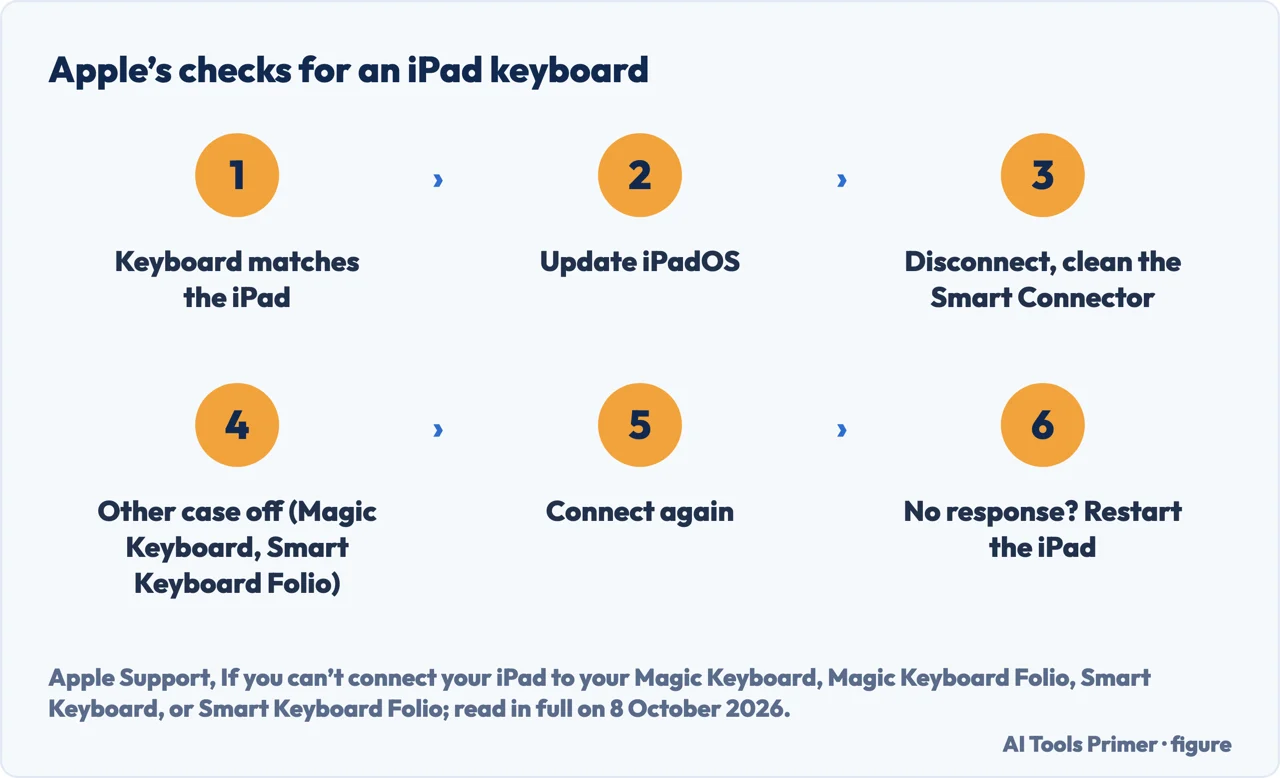
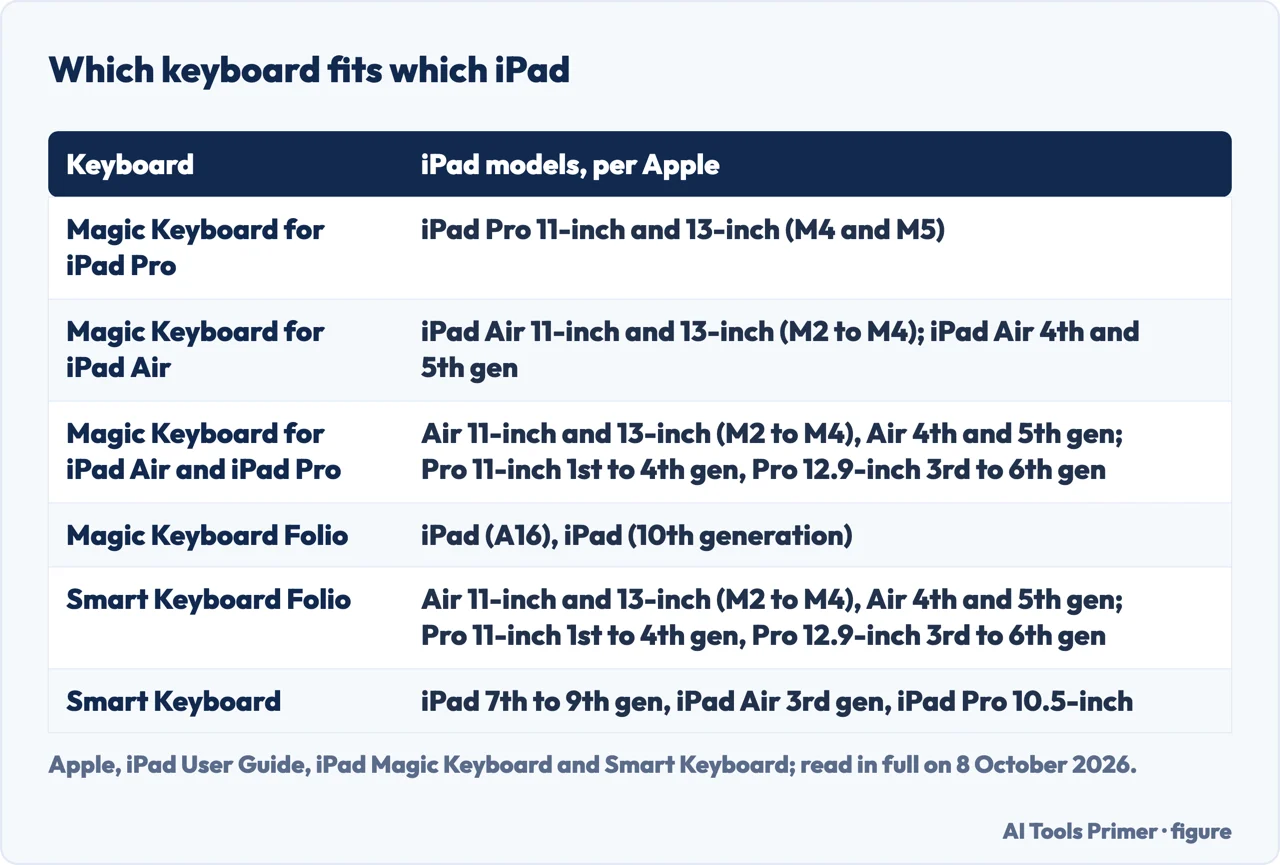
- Match the keyboard to the iPad. Apple’s first check is that the iPad and the keyboard work together; the table of models from Apple’s iPad User Guide is redrawn below.
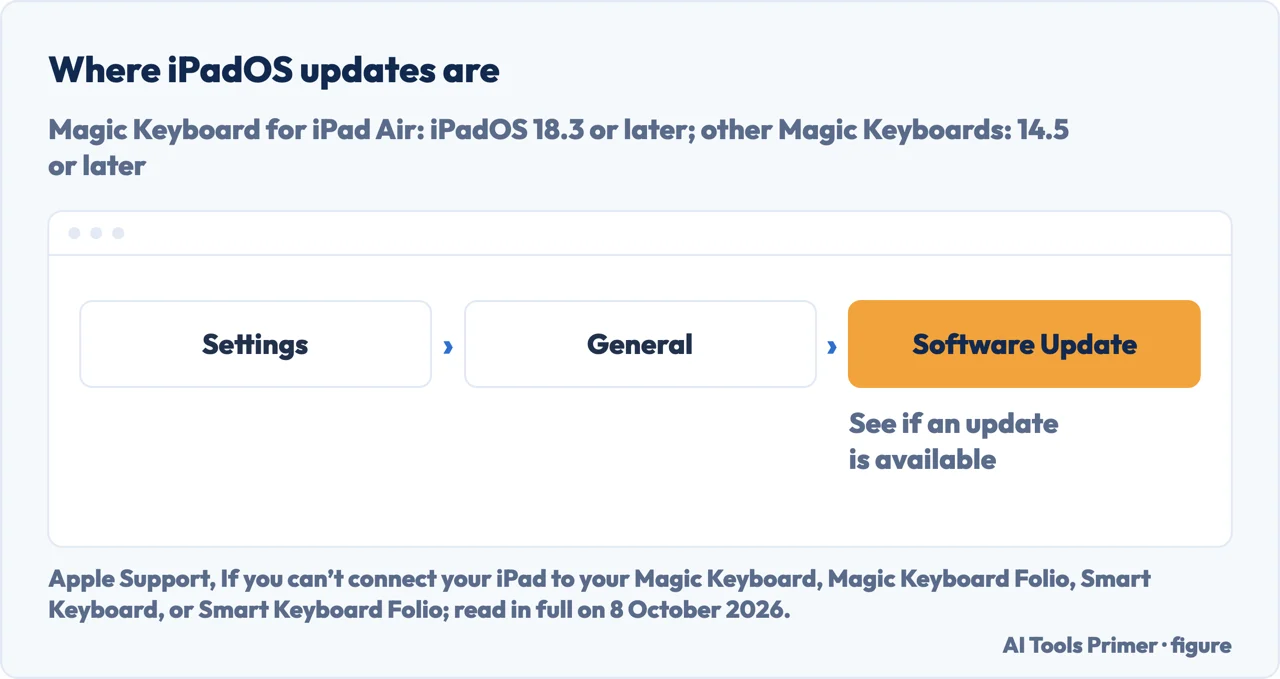
- Update iPadOS. Go to Settings and tap the Software Update Available notification, or tap General, then Software Update. Apple says Magic Keyboard for iPad Air requires iPadOS 18.3 or later, and the other Magic Keyboards iPadOS 14.5 or later.
- Disconnect and clean the Smart Connector. With a soft, lint-free cloth, clean the connector on the keyboard and on the back or edge of the iPad.
- Take off any other case. Apple says to remove any other case or cover when using Magic Keyboard or Smart Keyboard Folio.
- Connect it again, then restart. If the keyboard doesn’t respond straight away, Apple says to restart the iPad.
The type position
Why it matters. Apple says that to use a Smart Keyboard or Smart Keyboard Folio, the iPad needs to be in the groove above the number keys and folded in the type position. The Smart Keyboard folds into a triangle with the keyboard in front of the iPad.
No pairing. Unlike Bluetooth keyboards, Apple says, you don’t need to pair or turn on the Smart Keyboard or Smart Keyboard Folio: they connect through the Smart Connector. That they do not appear in the Bluetooth list is our reading of that sentence, not a line of Apple’s.
The on-screen keyboard. Apple says the software keyboard might be needed for accented characters or dictation. It appears from the keyboard button in the lower-right corner of the screen, then the show keyboard button.
Magic Keyboard Folio and the Accessory not supported alert
Which iPad. Apple’s page is for iPad (10th generation); its user guide lists iPad (A16) as well. The folio has two pieces: a back panel that attaches by magnets, and a keyboard that attaches to the Smart Connector on one edge of the iPad.
Flipped behind. With the keyboard turned to the back, facing away from the iPad, Apple says key presses don’t register.
Not detected. If the iPad does not detect the folio, or shows an Accessory not supported alert, Apple says to check for debris or plastic covering on the Smart Connector pins of the keyboard or on the iPad’s connector, to check the latest iPadOS, to remove the keyboard and reconnect it, and, if the iPad still doesn’t detect it, to restart the iPad.
Cards. The folio contains magnets, and Apple warns that a card with a magnetic strip placed inside it or between it and the iPad might be demagnetised.
What a repair company adds
Who. Asurion sells device repairs and protection plans, and its page suggests booking a repair at a uBreakiFix by Asurion store.
The connector. Asurion suggests compressed air or a microfiber cloth for debris in the Smart Connector; the Apple pages read for this guide name a soft, lint-free cloth and do not mention compressed air.
A force restart. Asurion says a force restart may be needed. On an iPad without a Home button, it says to press and release Volume Up, then Volume Down, and hold the top button until the iPad restarts; with a Home button, to hold the top and Home buttons together.
Erasing. Asurion lists a factory reset as a later step and warns that it erases data, so back up first. None of the Apple keyboard pages read for this guide include it.
A Bluetooth keyboard instead. For a Bluetooth keyboard, Asurion says to go to Settings › Bluetooth and reconnect it; when Bluetooth itself will not turn on, that is in why is my bluetooth not working.
Which iPads. Apple’s support pages were published between February 2024 and March 2026, and its user guide, which gives no date, lists the Smart Keyboard for iPad (7th, 8th and 9th generation), iPad Air (3rd generation) and iPad Pro 10.5-inch, and the Smart Keyboard Folio for iPad Air and iPad Pro models listed in the table.
Other keyboards. A Windows keyboard that will not type is in how to fix keyboard not typing when nothing is broken, a Surface Type Cover in Surface keyboard not working, and the screenshot keys on a tablet keyboard in how to screenshot on tablet with keyboard.
Where to start
Four ways in.
- “Where do I start?”
- Apple’s checks — apples checks
- “It types nothing at all.”
- The type position — type position
- “It says Accessory not supported.”
- Magic Keyboard Folio — magic keyboard folio
- “It is a Bluetooth keyboard.”
- A Bluetooth keyboard — a bluetooth keyboard
More on keyboards
Other keyboards that stop typing.
Questions people also ask
How do I fix an unresponsive keyboard on my iPad?
Apple says to check the keyboard is made for that iPad, update iPadOS, disconnect it, clean the Smart Connector on the keyboard and the iPad with a soft, lint-free cloth, remove any other case if using Magic Keyboard or Smart Keyboard Folio, reconnect, and restart the iPad if it doesn’t respond straight away.
Why am I not typing some letters on my iPad keyboard?
None of the Apple pages read for this guide covers single keys that fail. Apple says things like accented characters or dictation might need the on-screen keyboard. Its page for a keyboard that doesn’t respond gives a clean Smart Connector, an iPadOS update and a restart; trying them for single keys is our suggestion.
How do I get my iPad to recognize a keyboard?
For a Smart Keyboard or Smart Keyboard Folio, Apple says no pairing is needed: it connects through the Smart Connector, with the iPad in the type position. A Magic Keyboard needs iPadOS 14.5 or later, or 18.3 or later for Magic Keyboard for iPad Air.
Why is my iPad not detecting my keyboard?
Apple’s checks are a keyboard that matches the iPad, the latest iPadOS, a clean Smart Connector and, with Magic Keyboard or Smart Keyboard Folio, no other case. For Magic Keyboard Folio it adds looking for debris or plastic covering on the connector pins, removing and reconnecting the keyboard, and restarting the iPad if it still isn’t detected.
Not covered here. It does not cover keyboards from other makers beyond the Bluetooth note above, a keyboard that has had liquid on it, or repairs.
Sources
- Apple Support — If you can’t connect your iPad to your Magic Keyboard, Magic Keyboard Folio, Smart Keyboard, or Smart Keyboard Folio (published 10 March 2026) — support.apple.com, read 8 October 2026.
- Apple Support — Connect and use your Smart Keyboard Folio or Smart Keyboard with your iPad (published 11 March 2025): the Smart Connector and the type position — support.apple.com, read 8 October 2026.
- Apple Support — Set up and use Magic Keyboard Folio for iPad (10th generation) (published 7 February 2024) — support.apple.com, read 8 October 2026.
- Apple, iPad User Guide — iPad Magic Keyboard and Smart Keyboard: which keyboard fits which iPad — support.apple.com, read 8 October 2026.
- Asurion — iPad Smart Keyboard not working? Here’s how to fix it: the connector, a force restart, a factory reset — www.asurion.com, read 8 October 2026.
Written by Alberto Gulotta
Founder and editor of AI Tools Primer, writing from Palermo, Italy. Thirty-five years of taking computers apart, starting with a Commodore 64 — the long version is on the about page.
Something wrong on this page? Write to aitoolsprimer@gmail.com and it gets fixed.
Written on 8 October 2026.
Independence and limits
No affiliate links and no paid placements anywhere on this site. Nobody pays to appear here, and no company has seen this page before you did.
This is general information, not professional advice. Where a page touches money, health, safety or the law, it names its source and the date it was read — and your situation may still differ. See the privacy page and the cookie policy.