
Software · guide
Windows key not working: the switches that turn it off
By Alberto Gulotta · Updated · 9 min read
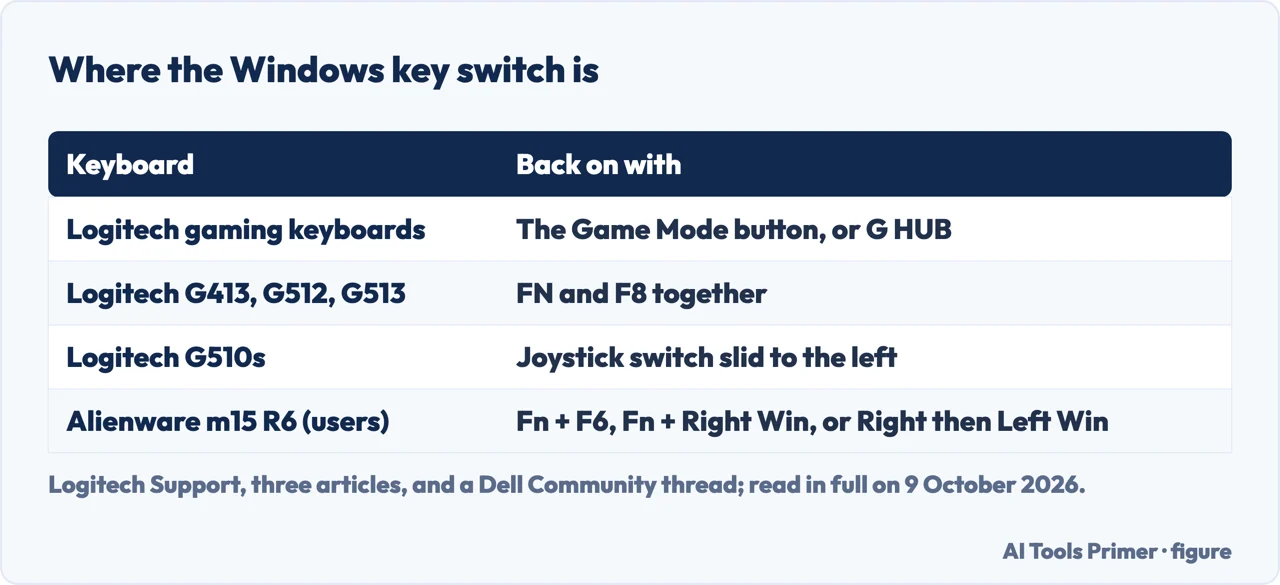
With the Windows key not working, a switch may have turned it off: Logitech says its gaming keyboards disable the Windows key in Game Mode, and users in a Dell Community thread on an Alienware m15 R6 report combinations that lock and unlock it. Meanwhile, Microsoft lists Ctrl+Esc as a shortcut that opens Start.
| Keyboard | The switch, and how it shows | How to turn it back on |
|---|---|---|
| Logitech gaming keyboards (general) | Game Mode disables the Windows and Context Menu keys | The Game Mode button; Game Mode can also be customised in G HUB |
| Logitech G413, G512, G513 | Game Mode disables the Windows, Menu and FN keys; its LED lights up | FN and F8 together |
| Logitech G510s | Game Mode; the joystick switch above F1 and F2 lights up | Slide the joystick switch to the left |
| Alienware m15 R6 (Dell Community, users’ reports) | A key lock users report; the right Windows key carries a lock icon | Users list Fn + F6, Fn + Right Win, and Right Win + Left Win (order sensitive) |
The key, the keyboard, or Windows?
A key switched off on purpose. Logitech says its gaming keyboards disable the Windows key in Game Mode so that you aren’t dropped out of a game if you press it by accident. On the G413, G512 and G513, Logitech says the Menu and FN keys are disabled too.
Another keyboard as a test. In the Dell Community thread on an Alienware m15 R6, the person asking noticed that the Windows key worked on a separate Logitech wireless keyboard, and concluded that the key wasn’t disabled in Windows itself. In our reading, if a second keyboard’s Windows key opens Start, the cause is on the first keyboard. In that thread the key came back after several restarts, and the person asking called it a mystery.
When the whole keyboard misbehaves. Keys that don’t type at all, or type late, are a different problem, in how to fix keyboard not typing. Dell’s keyboard guide says to make sure Filter Keys is off when key presses are slow to respond, and Sticky Keys and Toggle Keys for a computer that beeps while typing.
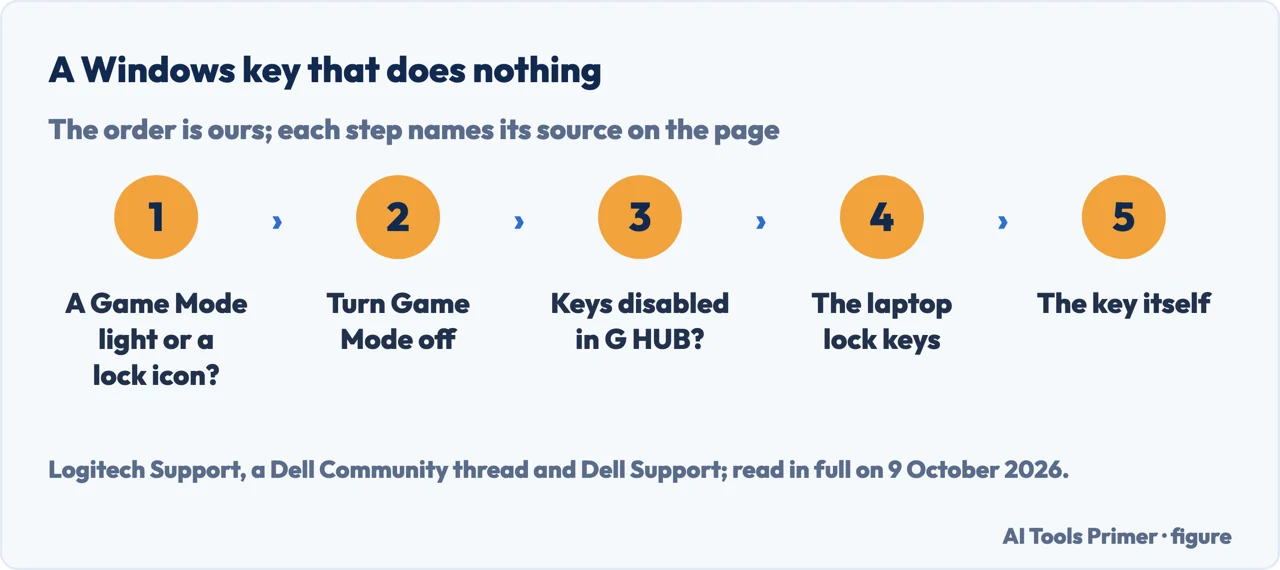
Getting the key back, in order
The order is ours; each step says whose it is. The Logitech pages read here give combinations for the models they name, so these are not for every gaming keyboard. A Surface or iPad keyboard has its own pages: Surface keyboard not working and iPad Smart Keyboard not working.
- Look for a Game Mode light or a lock icon. On the G413, G512 and G513, Logitech says the Game Mode LED lights up when the mode is active; on the G510s, the joystick switch above F1 and F2 lights up. On the Alienware m15 R6 in the Dell Community thread, the right Windows key has a lock icon.
- Turn Game Mode off. FN and F8 together on the G413, G512 and G513; slide the joystick switch to the left on the G510s; on other Logitech gaming keyboards, Logitech says to press the Game Mode button, or to customise it in G HUB.
- Check the keys disabled in the software. Logitech says more keys can be set to switch off in Game Mode with G HUB, and, for the G413, G512 and G513, in Logitech Gaming Software 8.98 and later, where disabled keys are grey and enabled ones blue. On those three models the Windows, Menu and FN keys cannot be enabled in Game Mode.
- On the Alienware m15 R6, the users’ combinations. In the Dell Community thread, one user lists Fn + F6, Fn + Right Win, and Right Win + Left Win, the last marked order sensitive, and says one of them is guaranteed to work on Alienware; another says only the last worked for them. These are users’ reports, not Dell’s documentation.
- Then the key itself. When a specific key is not working or sticks, Dell’s keyboard guide says to turn off the computer, clean around the key with a can of compressed air and retest. It adds that when a single key does not work there is no way to replace it on its own; a replacement keyboard is the option.
Getting by without it
Start. Microsoft’s list of keyboard shortcuts for Windows 11 and Windows 10 gives Ctrl+Esc to open Start, and HP’s list gives “The Windows key or ctrl + esc” for opening or closing the Start menu.
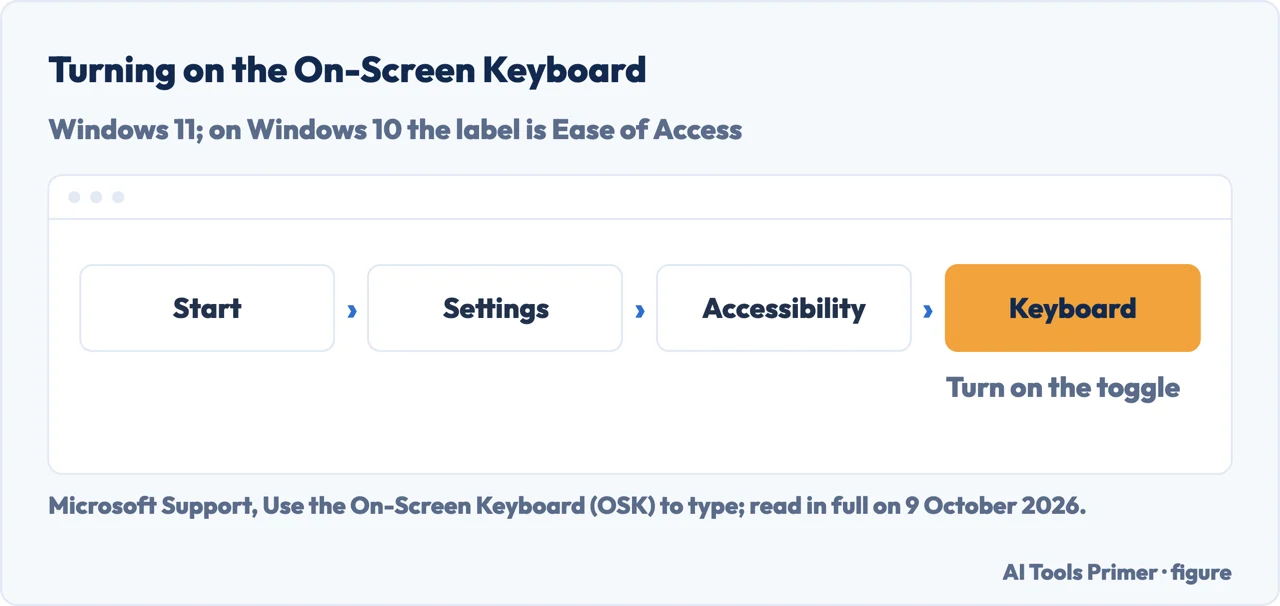
The On-Screen Keyboard. Microsoft describes it as a visual keyboard with all the standard keys, used with the mouse or another pointing device, or with a physical key or group of keys that cycles through the keys on the screen. On Windows 11: Start, Settings, Accessibility, Keyboard, and turn on the On-Screen Keyboard toggle; from the sign-in screen, the Accessibility button in the lower-right corner. On Windows 10, Microsoft gives Settings, Ease of Access, Keyboard, the toggle under Use the On-Screen Keyboard, and the Ease of Access button on the sign-in screen.
What stops working. In our reading, the shortcuts built on the key go with it; HP adds that available shortcuts vary with the computer, operating system, keyboard and software. HP’s list includes Windows key + r for the Run dialog, + e for File Explorer, + i for Settings, + l to lock the computer and + s for search, and Windows key + Print Screen to save a screenshot to the Screenshots folder; the other screenshot routes are in screenshots on Windows and, for detachable keyboards, how to screenshot on tablet with keyboard.
Which versions. Microsoft’s shortcut list and its On-Screen Keyboard page apply to Windows 11 and Windows 10. Two of Logitech’s pages name the keyboards they cover, and the disabled-keys setting for the G413, G512 and G513 is in Logitech Gaming Software 8.98 and later. The Dell Community thread is about an Alienware m15 R6, from August 2022 to May 2024. Dell’s keyboard guide is article 000131432, which Dell says isn’t tied to any specific product and doesn’t identify all product versions.
Where to start
Four ways in.
- “Is it the key or Windows?”
- The test — key or windows
- “It’s a gaming keyboard.”
- Game Mode — the order
- “I need Start now.”
- Without the key — without the key
- “Does this apply to mine?”
- The versions — which versions
Other keyboard guides
A keyboard that doesn’t type, a Surface or iPad keyboard, and screenshots from the keyboard.
Questions people also ask
How to fix an unresponsive Windows key?
Look for what switched it off. Logitech says Game Mode disables the Windows key on its gaming keyboards; on the G413, G512 and G513, FN and F8 toggle Game Mode. If a second keyboard’s Windows key works, the cause is, in our reading, the first keyboard; Dell says a single key can’t be replaced on its own.
How do I enable the Windows key?
Turn off whatever disabled it. On Logitech gaming keyboards that is Game Mode: its button, FN and F8 on the G413, G512 and G513, or the joystick switch slid left on the G510s. On an Alienware m15 R6, users in Dell’s community report Fn + F6, Fn + Right Win, or Right Win + Left Win, order sensitive.
What can I press instead of the Windows key?
Ctrl+Esc: Microsoft lists it as a shortcut that opens Start in Windows 11 and Windows 10, and HP lists it alongside the Windows key for opening the Start menu. The On-Screen Keyboard, under Settings, Accessibility, Keyboard on Windows 11 (Ease of Access on Windows 10), gives you a visual keyboard with all the standard keys.
How do I unlock the Windows key lock?
It depends on the keyboard. Logitech’s G413, G512 and G513 use FN and F8, the G510s a joystick switch slid to the left, and other Logitech gaming keyboards a Game Mode button. On an Alienware m15 R6, users in Dell’s community report Fn + F6, Fn + Right Win, or Right Win + Left Win, order sensitive.
Not covered here. It does not cover remapping keys in the registry, third-party remapping tools, or keyboards from makers whose pages were not read.
Sources
- Microsoft Support — Keyboard shortcuts in Windows — support.microsoft.com, read 9 October 2026.
- Microsoft Support — Use the On-Screen Keyboard (OSK) to type — support.microsoft.com, read 9 October 2026.
- Logitech Support — What is Game Mode on Logi Gaming keyboards? — support.logi.com, read 9 October 2026.
- Logitech Support — Game Mode and backlight control on the G413, G512 and G513 gaming keyboards — support.logi.com, read 9 October 2026.
- Logitech Support — Windows key stopped working on the G510s gaming keyboard — support.logi.com, read 9 October 2026.
- Dell — Keyboard Troubleshooting and Usage: The Definitive Guide (article 000131432) — www.dell.com, read 9 October 2026.
- Dell Community — m15 R6, Windows Key stopped working, and it’s not Fn + F6 (users’ thread) — www.dell.com, read 9 October 2026.
- HP Support — HP PCs, Keyboard shortcuts, hotkeys, and special keys (Windows) — support.hp.com, read 9 October 2026.
Written by Alberto Gulotta
Founder and editor of AI Tools Primer, writing from Palermo, Italy. Thirty-five years of taking computers apart, starting with a Commodore 64 — the long version is on the about page.
Something wrong on this page? Write to aitoolsprimer@gmail.com and it gets fixed.
Written on 9 October 2026.
Independence and limits
No affiliate links and no paid placements anywhere on this site. Nobody pays to appear here, and no company has seen this page before you did.
This is general information, not professional advice. Where a page touches money, health, safety or the law, it names its source and the date it was read — and your situation may still differ. See the privacy page and the cookie policy.