
Software · guide
How to turn on backlit keyboard Dell Inspiron 15 3000: which have it
By Alberto Gulotta · Updated · 13 min read
The short answer to how to turn on backlit keyboard Dell Inspiron 15 3000 models is the key with the light icon: F10 on the 3567 and F5 on the 3511, 3520, 3530 and 3535, pressed on its own or with Fn. If no key shows the icon, the laptop has no backlight, and Dell says software cannot add one.
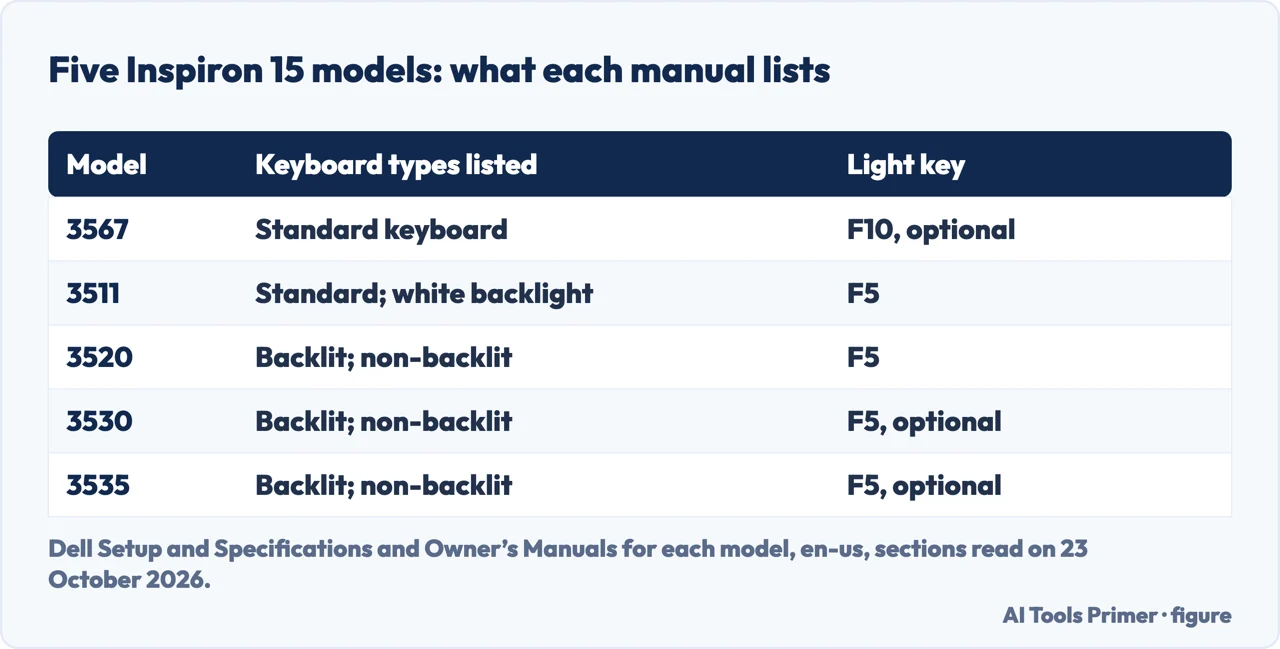
Dell’s general article covers every Dell laptop and does not name a single Inspiron 15 3000 model. The manuals do, one model at a time, and the table below sets five of them side by side. In all five the light is an option, so the first job is to find out whether yours has it.
| Model | Keyboards the manual lists | The light key | What the manual adds |
|---|---|---|---|
| 3567 | Standard keyboard | F10, marked optional | Keyboards without the light have F10 without the icon |
| 3511 | Standard keyboard; white backlight keyboard | F5 | Not applicable to a non-backlight keyboard |
| 3520 | Standard backlit keyboard; standard non-backlit keyboard | F5 | Not applicable to a non-backlight keyboard |
| 3530 | Standard backlit keyboard; standard non-backlit keyboard | F5, marked optional | Cycles off, low and high; BIOS default Disabled |
| 3535 | Backlit; non-backlit | F5, marked optional | BIOS default Disabled |
First, does your Inspiron 15 have the light?
Dell’s article gives a simple test: look for the backlight icon on a key. It names F5, F6, F7 or F10 as the usual places on Inspiron, Latitude and Vostro models, and says that “If no backlight icon is present on any key, the keyboard does not have backlighting.” The manuals agree for these models. The 3567 manual says that “Non-backlight keyboards have F10 function key without the backlight icon”, and the 3530 manual says the same about F5.
The specifications are a second test, and a less decisive one. The 3567 lists a single type, a standard keyboard, although its shortcut table still marks the F10 light as optional. The 3511, 3520, 3530 and 3535 manuals each list a backlit keyboard and a non-backlit one, so one model number comes both ways and the manual cannot tell you which you bought. Asurion adds two ways to find out: look on the function keys or the space bar for an icon like a glowing keyboard, or enter the laptop’s model on Dell’s support page to see its specifications.
The BIOS is the third. Dell says that “The BIOS only displays this setting on models with backlit keyboard hardware”, so a Keyboard menu with no Keyboard Illumination entry means no light.
If the icon is missing there is nothing to switch on. Dell writes that the light is a hardware option that “cannot be added through software on models that do not ship with it”. A 2014 thread in Dell’s community, about an Inspiron 3542, shows how long the question has been asked. One member answered that the model has no keyboard light, another pointed to the Quick Start Guide, where F10 is optional and recognised by its icon, and a third linked a backlit replacement keyboard and said the 3542 would take it. That last answer is a user’s, and no Dell page we read confirms it.
The key, and whether to hold Fn
On the 3567 the key is F10. On the 3511, 3520, 3530 and 3535 it is F5. Each press moves to the next level: the 3530 manual says the key can “cycle the keyboard backlight status through off, low-backlight, and high-backlight”, and Dell’s article gives the same order, Off, Low, High and back to Off.
Whether Fn is needed is where Dell’s pages part ways. The 3530 manual describes the top row as multimedia keys: press a key to run the task its icon shows, and press Fn + Esc to turn that off, after which the icon tasks need Fn. Dell’s article tells you to hold Fn in what it calls the default mode, and to press the key on its own only when the Fn lock is on. The 3511 and 3520 tables print the row as fn + F5, with Keyboard backlight as the primary behaviour and F5 behaviour as the secondary one, which settles nothing. The 3535 manual says in one place that the F keys do their software functions by default and that the icon tasks need Fn, and lists in its BIOS a Function Key Behavior setting whose default is Multimedia key.
From these pages alone we cannot say which state a given laptop ships in, so try both: the key on its own, then with Fn. If neither works, Fn + Esc swaps the two states. Dell says the state is stored in the embedded controller and survives a restart, and that a light on the Esc key or a Dell message on screen may confirm the change.
When it stays dark
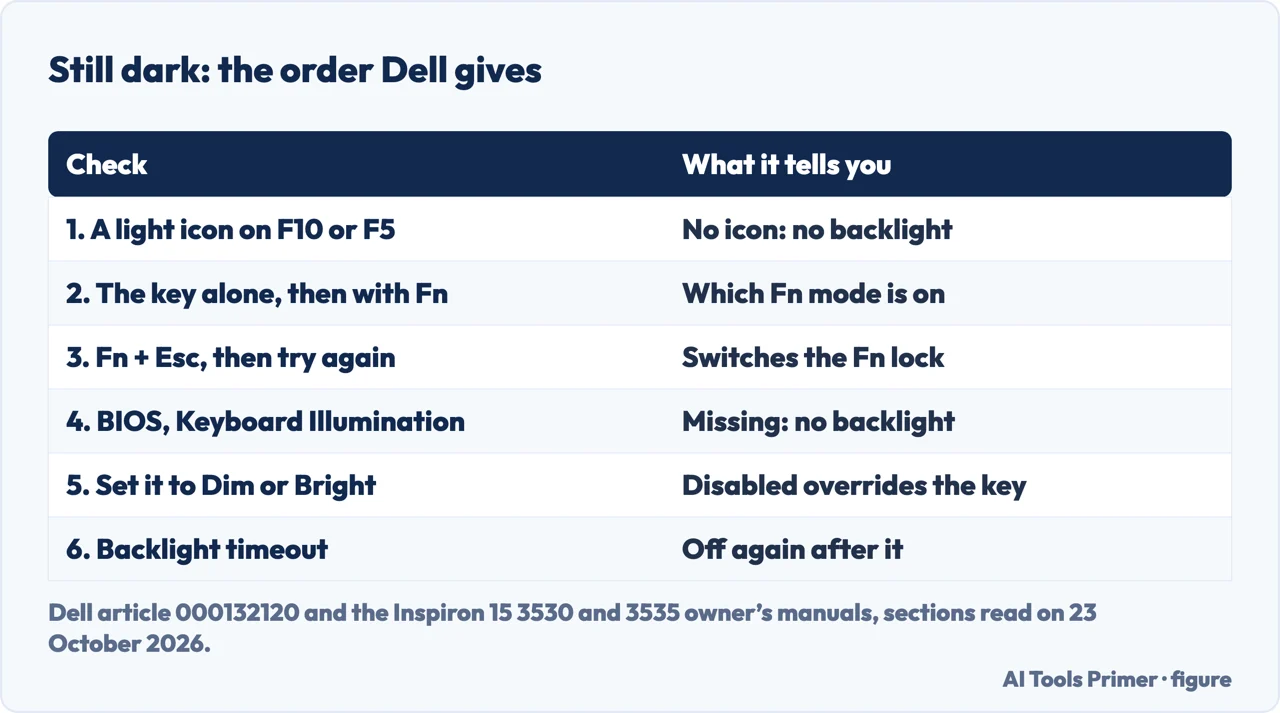
Dell’s article gives an order, and it is the one in the figure below. Confirm the icon. Try both Fn states and swap them with Fn + Esc. Then look at the BIOS, which Dell says takes priority over every shortcut: shut the laptop down fully, press the power button and press F2 once a second from the Dell logo, without holding it down, then open Keyboard and find Keyboard Illumination. Disabled keeps the light off whatever you press; Dim and Bright turn it on at low or full brightness when a key is pressed. Choose Apply Changes, then Exit, and test the key again.
The 3530 manual tells you to turn the computer on or restart it and press F2 immediately.
What the BIOS says on the 3530 and the 3535
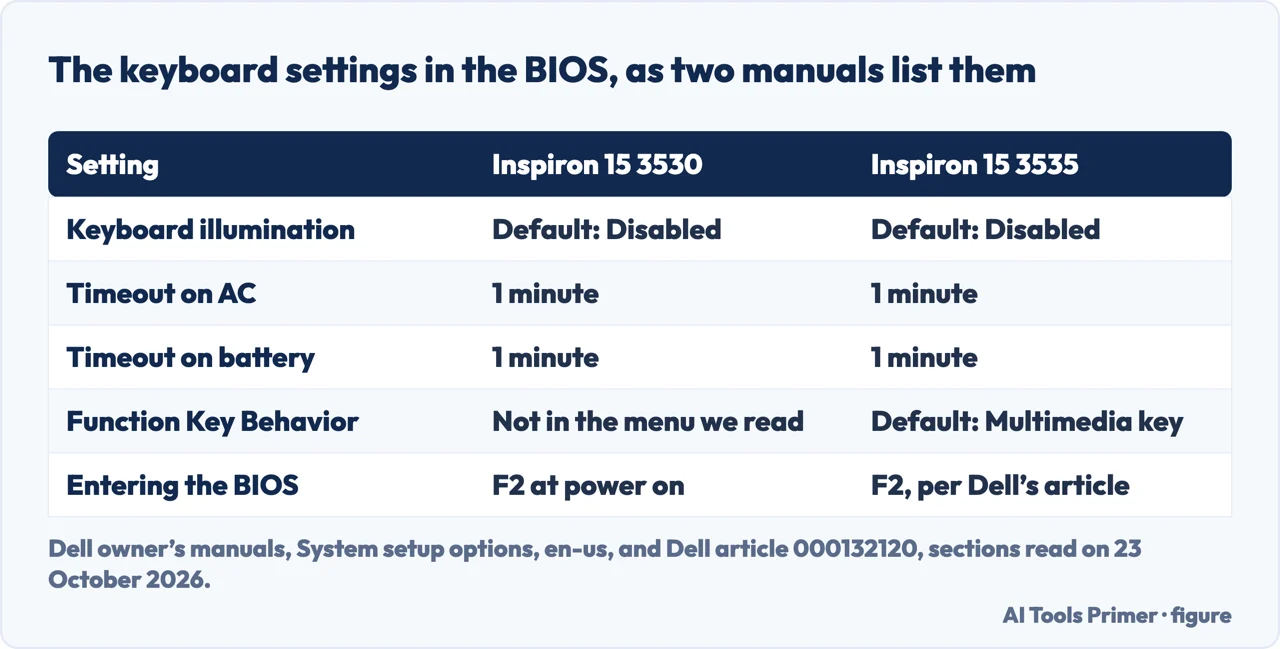
The two manuals give the same defaults for the light. In the 3530 manual the Keyboard illumination entry says that “By default, the Disabled option is selected”, and the 3535 manual lists Disabled as the default of Keyboard Illumination. Read literally, a 3530 or a 3535 still at that default would stay dark whatever the key does. We did not test this on a laptop, and the Dell pages we read do not say how a laptop that has the light is set when it leaves the factory, so treat the figure as what the manuals list, not as what your laptop holds: it may have been changed.
Both manuals also give a timeout for the light, one minute on AC power and one minute on battery. The 3530 manual adds that the timeout only takes effect when the backlight is enabled.
When it works and then goes dark
A light that goes off a short time after the last key press is usually the timeout, and on the 3530 and 3535 the manuals list a minute as the default. Dell’s article names the same setting for Dell laptops in general: some BIOS versions have a Keyboard Backlight Timeout with common values of 5, 15, 30 or 60 seconds and Always On. Dell suggests Always On if the light works briefly and then turns off unexpectedly, and says the setting is independent of the Windows screen timeout, so the display settings in the Windows power plan do not change it.
Two more things Dell mentions
A light sensor. Dell’s article says certain models have an ambient light sensor that turns the light on in the dark and dims it in bright light, and that this can be mistaken for a fault. Its fix is a BIOS entry for the sensor, set to Disabled. The 3530 and 3535 keyboard menus we read show no such entry, so this step is Dell’s general advice and may not apply to an Inspiron 15.
The BIOS version. Dell says an outdated BIOS can contain bugs that affect the light, and that a light that worked and stopped after an update points to one. Its answer is to update to the latest BIOS or roll back the version. For the update it says to connect the laptop to AC power first, because an interruption can leave it unable to boot, and to use SupportAssist: Update Software on the Home tab, then Start. Asurion also names SupportAssist and Peripheral Manager as places to look for a Keyboard or Lighting setting.
Where to start
Five ways in.
- “Does mine even have one?”
- Check it is there — check
- “Which key is it?”
- F10 or F5, with or without Fn — key
- “Nothing happens when I press it.”
- The order of checks — dark
- “What does the BIOS say?”
- Keyboard Illumination — bios
- “It goes off after a minute.”
- The timeout — timeout
More on keyboards
The pages next to this one: the key by laptop maker, a keyboard that types nothing, the Windows key, and Surface and iPad keyboards.
Light and power on a laptop
The screen’s own backlight and the battery.
Questions people also ask
Does the Dell Inspiron 15 3000 have a keyboard light?
Only on some. The 3567 manual lists a standard keyboard and marks the F10 light as optional; the 3511, 3520, 3530 and 3535 manuals each list a backlit and a non-backlit keyboard. An icon on F10 or F5 shows that yours has it.
Does the Dell Inspiron 15 keyboard light up?
It depends on the model and on the version bought. Look for the backlight icon on the key: Dell says that if no key has it, the keyboard has no backlighting, and the light cannot be added through software.
How do I make my Dell Inspiron keyboard light up?
Press the key with the light icon, F10 on the 3567 and F5 on the others in the manuals, on its own or with Fn. If nothing happens, press Fn + Esc and try again, then check Keyboard Illumination in the BIOS and set it to Dim or Bright.
How do I turn my keyboard backlight back on?
Press the backlight key again: each press moves to the next level, Off, Low, High. If it went dark after a minute, that is the timeout, which the 3530 and 3535 manuals list as one minute. If the key does nothing, the BIOS entry may be Disabled.
Can I add a backlight to an Inspiron that does not have one?
Dell says the light is a hardware option that cannot be added through software. A user on Dell’s community said a backlit replacement keyboard would work in an Inspiron 3542; no Dell page we read confirms that.
Not covered here. We did not test these keys or settings on an Inspiron for this page. They come from Dell’s manuals for the Inspiron 15 3567, 3511, 3520, 3530 and 3535 and from Dell’s article 000132120, sections read on 23 October 2026, and from Asurion. The Dell Community thread is from 2014 and 2015 and is made of users’ answers. Only the 3567 manual carries “3000” in its title; the others are named by model number, and we did not confirm the 3000 label for the 3530 and 3535.
The videos in the results were not watched. Dell Alienware models and other laptops with colour lighting use different software, covered by Dell’s article; the key by maker is on how to turn on keyboard light.
The search volume and difficulty behind this page were read in Semrush on 29 August 2026.
Sources
- Dell — How to Turn on and Turn Off the Keyboard Light on a Dell Laptop (article 000132120, last modified 20 August 2026) — www.dell.com, read 23 October 2026.
- Dell — Inspiron 15 3000 Setup and Specifications (3567), Keyboard shortcuts — www.dell.com, read 23 October 2026.
- Dell — Inspiron 15 3511 Setup and Specifications, Keyboard shortcuts — www.dell.com, read 23 October 2026.
- Dell — Inspiron 15 3520 Setup and Specifications, Keyboard shortcuts — www.dell.com, read 23 October 2026.
- Dell — Inspiron 15 3530 Owner’s Manual, Keyboard shortcuts — www.dell.com, read 23 October 2026.
- Dell — Inspiron 15 3530 Owner’s Manual, System setup options — www.dell.com, read 23 October 2026.
- Dell — Inspiron 15 3535 Owner’s Manual, Keyboard function keys — www.dell.com, read 23 October 2026.
- Dell — Inspiron 15 3535 Owner’s Manual, System setup options — www.dell.com, read 23 October 2026.
- Asurion — How to turn on Dell backlit keyboard (undated) — www.asurion.com, read 23 October 2026.
- Dell Community — Dell Inspiron 15 3000 series Backlit (July 2014 to December 2015, users’ answers) — www.dell.com, read 23 October 2026.
Written by Alberto Gulotta
Founder and editor of AI Tools Primer, writing from Palermo, Italy. Thirty-five years of taking computers apart, starting with a Commodore 64 — the long version is on the about page.
Something wrong on this page? Write to aitoolsprimer@gmail.com and it gets fixed.
Written on 24 October 2026.
Independence and limits
No affiliate links and no paid placements anywhere on this site. Nobody pays to appear here, and no company has seen this page before you did.
This is general information, not professional advice. Where a page touches money, health, safety or the law, it names its source and the date it was read — and your situation may still differ. See the privacy page and the cookie policy.