How to fix windows update error assumes there is something to fix. In Microsoft’s own documentation, several of the most common cases are not repairs at all — the space is in a place you were not looking, the update is being withheld deliberately, or the error message is one Microsoft describes as inaccurate.
Start with the case that defeats the standard advice, because the standard advice is to free up disk space and here that does nothing.
The space it wants may not be on your C: drive
From Microsoft’s article on a Windows Recovery Environment update, said twice on
the same page: “This update requires 250 MB of free space in the recovery
partition to install successfully.” And in the prerequisites: “The PC must have
250 MB of free space in the recovery partition to apply this update successfully.”
This is the case that defeats every generic instruction. The drive has plenty of room, the
update still fails, and clearing forty gigabytes on C: changes nothing — because the
space the installer wants is in a small separate partition that File Explorer does not list.
Microsoft publishes a manual resize procedure and a script for exactly this.
Two things follow. If the failure is this one, gigabytes freed on C: will not help, and the number to look for is small — two hundred and fifty megabytes, in a partition the file manager does not show. And if you have seen 0x80070643 after a recovery-environment update, Microsoft’s own note says the message may be wrong and the update may already have worked.
That leads to the other number problem, the one that makes the whole subject feel incoherent.
Why “2–3 GB” and “20 GB” are not two measures of the same thing
On Microsoft’s own blog, describing reserved storage: “On devices with
reserved storage, update will use the reserved space first.” And: “When it’s
time for an update, the temporary unneeded OS files in the reserved storage will be deleted and
update will use the full reserve area. This will enable most PCs to download and install an
update without having to free up any of your disk space, even when you have minimal free disk
space.”
Windows sets space aside in advance — the same post says it “will start at about
7GB”, adding that “the amount of reserved space will vary over time based on
how you use your device”. So the modest figure quoted for a monthly update and the large
figure quoted for an upgrade are not a contradiction: one is space that has already been
reserved on your behalf, the other is what a whole new version of Windows needs. Reading
them as two answers to one question is what makes the advice feel incoherent.
Whether your machine has it is checkable rather than guessable. Microsoft documents the
command: DISM.exe /Online /Get-ReservedStorageState. And it publishes where it does not
apply: “For devices that connect directly to Windows Update (WU), reserved storage works
out of the box. However, on IT managed devices using endpoint management tools such as
Windows Server Update Services or Configuration Manager, reserved storage doesn’t work
automatically.”
A note on sourcing: the 7 GB figure and the two sentences above come from a Microsoft blog
post, not from a support article. The DISM command and the managed-device exception are from
Microsoft Learn documentation.
Then the case where the machine is behaving correctly and the update simply will not come.
Some updates are withheld on purpose, and there is nothing to repair
“Safeguard holds prevent a device with a known issue from being offered a new
operating system version.” What you see: “the Windows Update page in the Settings
app displays a message stating that an update is on its way, but not ready for the device. Instead of the option to download and install the update, users see a message. This message means that the device is protected by one or more safeguard holds.”
And Microsoft’s own instruction: “We recommend that you don’t attempt to
manually update until issues have been resolved and holds released.”
That is the sentence worth the whole page for some readers. An update that will not arrive
is not always a fault: it can be Microsoft deliberately keeping it away from your hardware
because of a known problem, and the published advice is to wait rather than to force it. The
holds have identifiers — Microsoft refers to “safeguard holds by their 8-digit
identifiers” — and it publishes a Windows release health dashboard where known
issues for each release are listed.
The remaining number people quote at each other is ten days, and it is worth being exact about because it is neither a rule nor fixed.
What the support page says
with a caveat
“The option to go back to your previous version of Windows is only available for a
limited time after upgrading. In most cases, you have 10 days to go back.”
Note the words in most cases. Microsoft does not present ten days as a rule.
What the documentation says
2 to 60
The window is a setting: “Sets the number of days after an upgrade that an uninstall
can be initiated.” via DISM /Online /Set-OSUninstallWindow /Value:<days>.
And the bounds: “If you specify a value less than two or greater than 60”,
the system falls back to its default.
What happens at the end
automatic
When the window closes, the option closes with it: after that, going back is no longer offered.
Which is also why the drive looks fuller than usual until then — the previous version is still sitting on it for as long as the option is still open.
So “you have ten days” is a default with a caveat attached by Microsoft itself, and a value an administrator can set anywhere between two and sixty. On a work machine the window you actually have may not be ten days at all — and the page that tells you ten does not mention that it can be changed.
One possibility belongs before all the others, because it is not an error at all.
“Windows 10 reached end of support on October 14, 2025.” And the rule that
connects that to this question, from Microsoft’s lifecycle documentation:
“To receive monthly quality updates, customers must be on a supported version of
Windows.” A machine that has quietly stopped receiving updates may have nothing broken
in it. Microsoft also states plainly what continues: “You may continue to use Windows 10
after support ends; however, it will no longer receive quality updates, new or updated features, security updates, or technical support.”.
Microsoft states that fact plainly, and it is not the right party to ask what to do about it:
every answer available to it ends in a purchase. Two national bodies answer without selling
anything, and they agree with each other. The NCSC is blunt about the principle —
“Ideally, once out of date, technology should not be used.” — and its guidance
for people who cannot migrate yet opens by refusing to oversell itself: it “does not provide
a risk-free way of continuing to use obsolete products, but will help to reduce the risks of doing
so. The only fully effective way to mitigate this risk is to stop using the obsolete
product.” The reason it matters more as time passes:
“Weaknesses found in unsupported products will remain unpatched and will be
exploitable by relatively low skilled attackers.”
CISA adds the sentence that matters most to anyone living with an update that has been failing for a while rather than one that failed once. The window does not close. “Attackers may target vulnerabilities for months or even years after updates are available.” An update erroring since the spring is not a cosmetic annoyance that has proved harmless by lasting — the gap it leaves on day two hundred is the gap it left on day two. CISA’s summary of what carries on regardless is worth reading beside Microsoft’s “you may continue to use Windows 10”: “Continued use of EOL software poses consequential risk to your system that can allow an attacker to exploit security vulnerabilities.” Both statements are true, and only one of them is a reassurance.
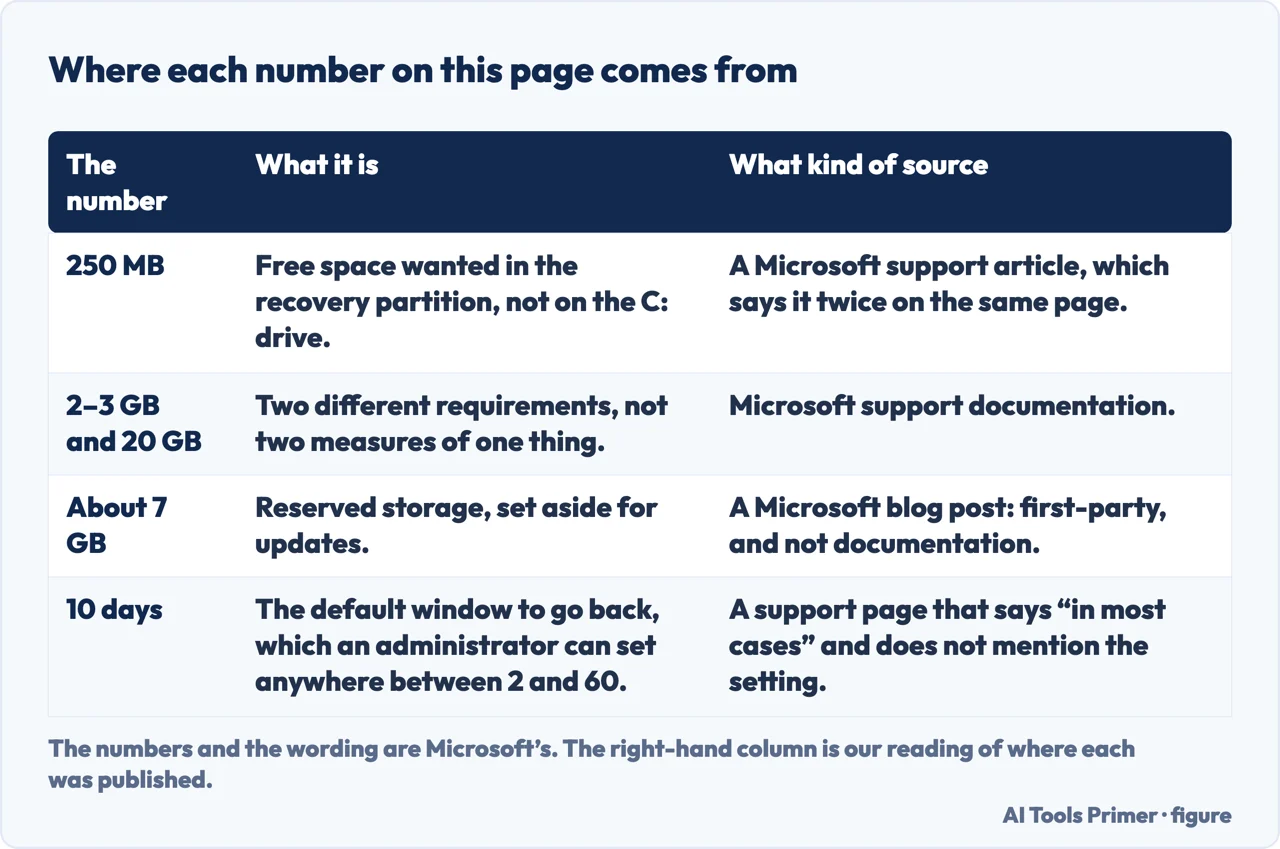
A note on sourcing, because it matters on this page more than most. The 250 MB figure, the safeguard holds, the uninstall window and the end-of-support date all come from Microsoft’s support articles and its Learn documentation. The reserved-storage figure of about 7 GB comes from a Microsoft blog post, which is first-party but not documentation, and this page says so where it uses it rather than letting it pass as a specification.
The numbers and the wording are Microsoft’s. Which kind of source published each is our reading. Figure drawn by AI Tools Primer.
A note on other guides. Google did not return readable search results while this page was written, so this page makes no claim about what is on Google’s first page for this question.
What this page will not do is give you a single sequence of steps. Microsoft publishes several, they are written for different failures, and the useful work here is telling you which failure you have before you start.
It will not tell you to empty the update cache as a first move. Microsoft puts a destructive version of that in its ordinary numbered list and a reversible version behind an advanced warning, which is a good reason to know which one you are being shown.
And it will not recommend a registry cleaner, a driver updater or a repair tool. Every check above is Microsoft’s own, and none of those products has been tested here.
Where to start
Three ways in. If you have already cleared plenty of disk space and it still fails, take the first.
Not covered here. It will not give you one sequence of steps. Microsoft publishes several, written for different failures, and knowing which failure you have is the work.
It will not tell you to clear the update cache first. There is a destructive version of that step and a reversible one, and they are not presented with the same warning.
It will not recommend a repair tool, a driver updater or a registry cleaner. Every check above is Microsoft’s own and costs nothing.
And it carries no affiliate links, which in a category full of one-click fixers is the whole business model this page declines. What holds instead is simple: every figure is labelled by where in Microsoft it comes from, and the risk of staying put is quoted from the security agencies, not from Microsoft.
Sources
Microsoft, KB5120221: Windows Recovery Environment update for Windows 10, version 21H2 and 22H2, 16 July 2026 — Microsoft Support (the Note that this update requires 250 MB of free space in the recovery partition to install successfully, and the Prerequisites entry on the same page stating that the PC must have 250 MB of free space in the recovery partition to apply this update successfully; and that no restart is needed after applying it) — support.microsoft.com, read 24 August 2026.
Microsoft, Windows 10 and reserved storage — Microsoft Community Hub, Files and Storage blog (that any update temporarily requires some free disk space to download and install; that on devices with reserved storage the update will use the reserved space first; and that when it is time for an update the temporary unneeded OS files in the reserved storage will be deleted and the update will use the full reserve area, enabling most PCs to download and install an update without having to free up any disk space, even with minimal free disk space) — techcommunity.microsoft.com, read 24 August 2026.
Microsoft, Safeguard holds for Windows — Microsoft Learn (that safeguard holds prevent a device with a known issue from being offered a new operating system version and that the offering is renewed once a fix is found and verified; that on devices using Windows Update the Windows Update page in the Settings app displays a message stating that an update is on its way but not ready for the device, which means the device is protected by one or more safeguard holds; and the recommendation not to attempt to manually update until issues have been resolved and holds released, with the caution that opting out of a safeguard hold can put devices at risk) — learn.microsoft.com, read 24 August 2026.
Microsoft, Go back to the previous version of Windows — Microsoft Support (the Note that the option to go back to a previous version of Windows is only available for a limited time after upgrading and that in most cases you have 10 days to go back; and that apps added, removed or updated after the upgrade might not be available or function properly after going back) — support.microsoft.com, read 24 August 2026.
Microsoft, DISM Operating System uninstall Command-Line Options — Microsoft Learn (that /Set-OSUninstallWindow sets the number of days after an upgrade that an uninstall can be initiated, with the syntax DISM /Online /Set-OSUninstallWindow /Value:; that if a value less than two or greater than 60 is specified the system uses the default value of 10; and the warning that if the days elapsed since installation is greater than this value you cannot go back to the old version of Windows) — learn.microsoft.com, read 24 August 2026.
National Cyber Security Centre, Obsolete products — Device security guidance (that ideally, once out of date, technology should not be used; that the guidance does not provide a risk-free way of continuing to use obsolete products and that the only fully effective way to mitigate the risk is to stop using the obsolete product; and that weaknesses found in unsupported products remain unpatched and are exploitable by relatively low skilled attackers) — www.ncsc.gov.uk, read 26 August 2026.
CISA, Understanding Patches and Software Updates (that updates should be installed as soon as possible because attackers may target vulnerabilities for months or even years after updates are available; and that continued use of end-of-life software poses consequential risk to a system by allowing an attacker to exploit security vulnerabilities, as well as causing compatibility issues and decreased performance) — www.cisa.gov, read 26 August 2026.
Microsoft, Lifecycle FAQ — Windows (that to receive monthly quality updates customers must be on a supported version of Windows; and that you may continue to use Windows 10 after support ends, however it will no longer receive quality updates, new or updated features, security updates, or technical support) — learn.microsoft.com, read 26 August 2026.
Microsoft, Extended Security Updates (ESU) program for Windows 10 (that Windows 10 reached end of support on October 14, 2025, and that ESU is available for eligible devices running Windows 10, version 22H2) — www.microsoft.com, read 26 August 2026.
Microsoft, DISM Reserved Storage Command-Line Options — Microsoft Learn (that for devices connecting directly to Windows Update reserved storage works out of the box, while on IT managed devices using endpoint management tools such as Windows Server Update Services or Configuration Manager it does not work automatically; and the DISM.exe /Online /Get-ReservedStorageState command for reading the current state) — learn.microsoft.com, read 26 August 2026.
AG
Written by Alberto Gulotta
Founder and editor of AI Tools Primer, writing from Palermo, Italy. Thirty-five years of
taking computers apart, starting with a Commodore 64 — the long version is on the
about page.
Written on 23 August 2026 · last checked 23 September 2026.
§
Independence and limits
No affiliate links and no paid placements anywhere on this site. Nobody pays to appear here,
and no company has seen this page before you did.
This is general information, not professional advice. Where a page touches money, health,
safety or the law, it names its source and the date it was read — and your situation may
still differ. See the privacy page and the
cookie policy.