The message Windows Resource Protection could not start the repair service is not one of the four messages Microsoft says a scan can end with. That is the useful part, and it is checkable: the article that lists them was read end to end on 23 September 2026, with two different tools, and this line is not in it.
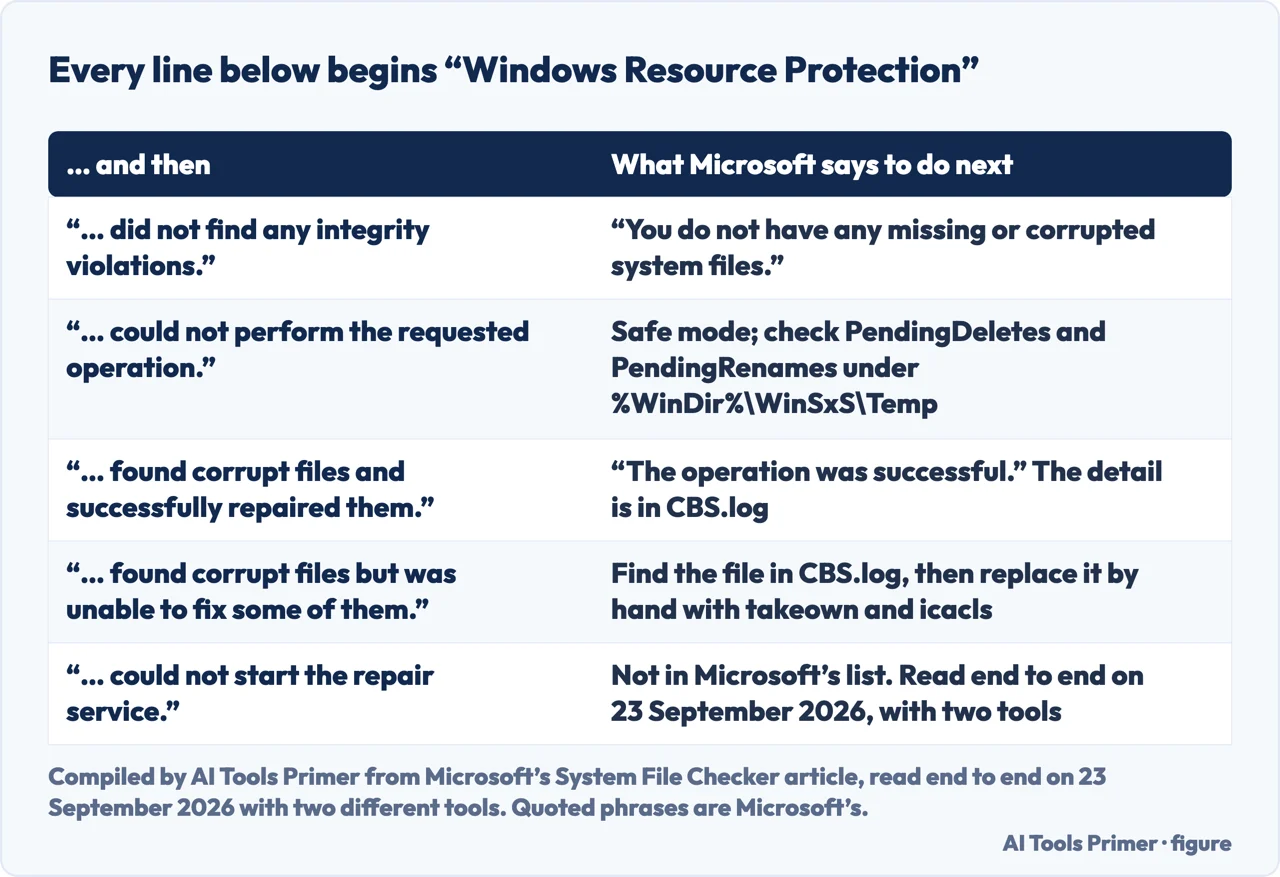
Microsoft’s four scan results, redrawn, with the fifth line that is not one of them. Figure drawn by AI Tools Primer.
Is this one of the messages a scan can end with?
No. Microsoft’s article on the System File Checker has a short table headed Scan result message, and it holds four rows. In full, they are: “Windows Resource Protection did not find any integrity violations”; “Windows Resource Protection could not perform the requested operation”; “Windows Resource Protection found corrupt files and successfully repaired them”; and “Windows Resource Protection found corrupt files but was unable to fix some of them”. Dell’s own page on running the checker repeats the same four, with the path to the log beside the two that found corrupt files.
The message you have is a fifth line, and the honest way to put what follows is narrowly: the page that tells you what a scan result means has nothing to say about it. That is a statement about the documentation, not about your computer. It is worth having anyway, because it tells you not to spend the evening hunting for a row in a table that does not contain it.
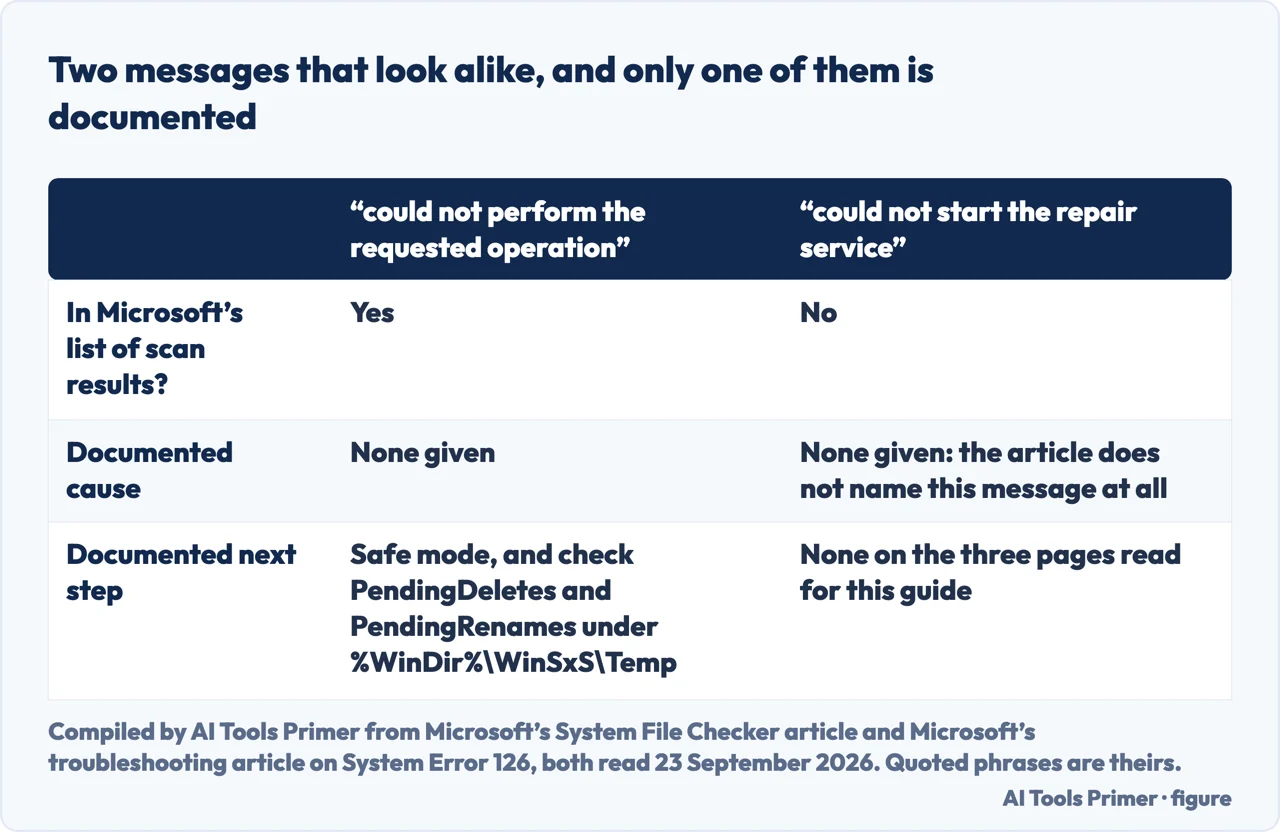
Two messages one word apart, and only one of them is in the documentation. Figure drawn by AI Tools Primer.
What Microsoft publishes about a repair service
The message names a repair service, so the next question is what Microsoft publishes about one. There is a troubleshooting article, and it is worth reading on its own terms.
“System Error 126 when you start the Windows Modules Installer service
(TrustedInstaller): The specific module could not be found”
That is the title of a Microsoft troubleshooting article about a Windows service that fails to start. It never mentions the System File Checker, and the
System File Checker article never mentions a service. Both were read end to end on
23 September 2026. This page is not going to join them up for you.
What that article documents is narrow, and older than it looks: it applies to Windows 7 Service Pack 1 and Windows Server 2008 R2 Service Pack 1. Its fix is to re-create a registry value under HKEY_LOCAL_MACHINE\SOFTWARE\Microsoft\Windows\CurrentVersion\Component Based Servicing\Version, and Microsoft warns that to create that key “you have to be an owner of the Component Based Servicing key”.
On any other version of Windows, or without System Error 126 in front of you, that procedure is not the one to follow. The next section is what the System File Checker article asks you to run, and in which order.
Should I run SFC or DISM first?
Microsoft answers this one in a single sentence.
First — repair the image
DISM.exe /Online /Cleanup-image /Restorehealth
Microsoft: “DISM provides the files required to repair your corrupted files. You
should run DISM prior to running the System File Checker.” That sentence is the
whole reason for the order. If Windows Update is itself broken, Microsoft gives a
second form that takes the files from a source you supply:
DISM.exe /Online /Cleanup-Image /RestoreHealth /Source:C:\RepairSource\Windows
      /LimitAccess
Then — check the files
sfc /scannow
Microsoft says the command “will scan all protected system files and replace
corrupted files with a cached copy”, and warns in a box of its own: “Do not
close this Command Prompt window until the verification is 100% complete.”
Dell puts a clock on it: “This process can take up to one hour to complete depending
on the configuration of the computer.”
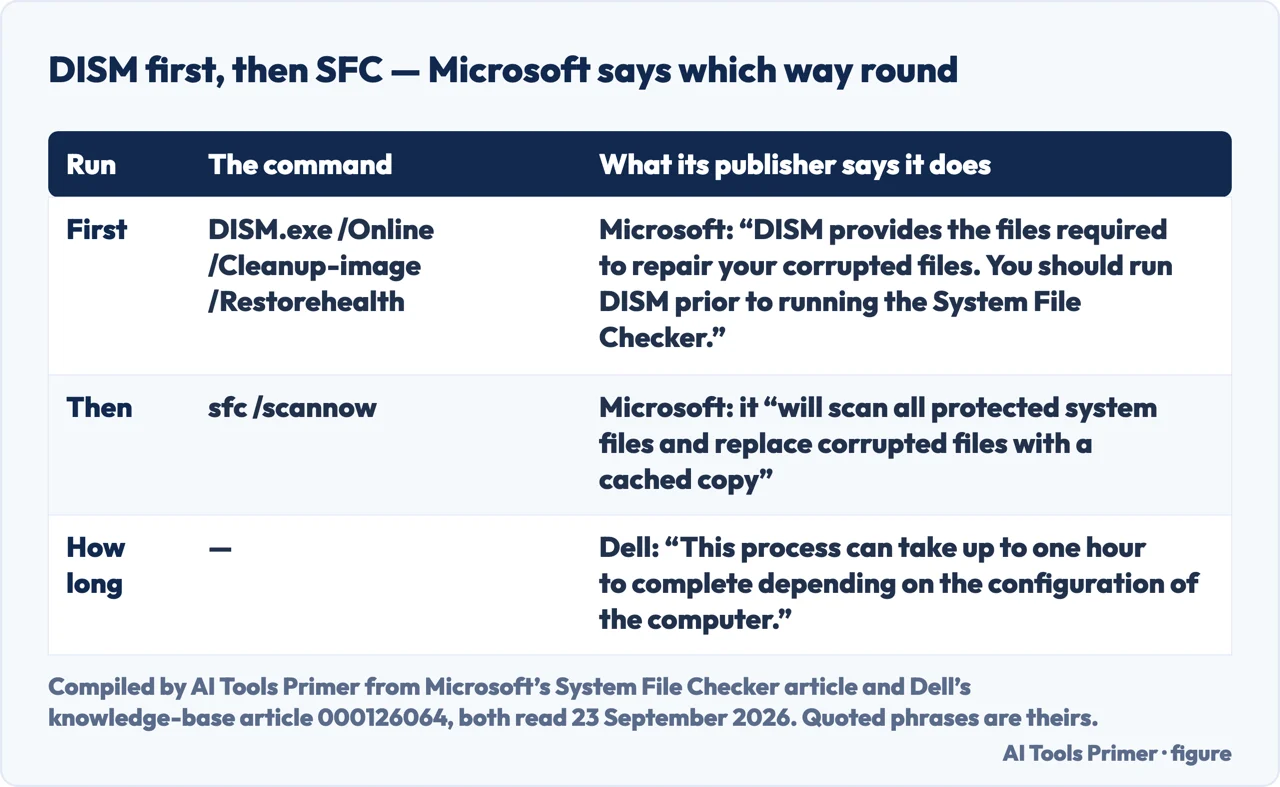
The order, and the sentence that sets it. Compiled from Microsoft’s and Dell’s pages. Figure drawn by AI Tools Primer.
Both commands need an elevated prompt, and Microsoft spells out the route: type cmd in the Search box, right-click Command Prompt in the results and select Run as administrator, then type the password or click Allow if you are asked. If Windows will not get far enough to give you a prompt, the pages on starting in safe mode and on the automatic repair loop come before this one.
What to check before any of this
Two things, and then the log. The first is that the neighbouring message — the one that is in the table, “could not perform the requested operation” — has a documented answer that is quick: run the scan in safe mode, and make sure the PendingDeletes and PendingRenames folders exist under %WinDir%\WinSxS\Temp. If the line on your screen is that one and not this one, the published fix is those two steps.
The second is the log, which is where Microsoft sends you for the details of a scan. Microsoft gives the command that pulls the relevant lines out of it onto your desktop: findstr /c:“[SR]” %windir%\Logs\CBS\CBS.log >“%userprofile%\Desktop\sfcdetails.txt”, with the warning that the file holds details from every run, so the date and time entries are what tell you which lines belong to the run you just did. And when the checker does find a file it cannot repair, Microsoft publishes the manual replacement in two commands, takeown /f on the file and then icacls <file> /grant administrators:F, before the good copy goes in.
Windows Resource Protection could not start the repair service — is it a scan result?
It is not one of the four that Microsoft lists. Its article on the System File Checker has a table of scan result messages with four rows, and this line is not among them. The article was read end to end on 23 September 2026 with two different tools to be sure.
Should I run SFC or DISM first?
DISM first. Microsoft: “DISM provides the files required to repair your corrupted files. You should run DISM prior to running the System File Checker.” The command is DISM.exe /Online /Cleanup-image /Restorehealth, and it needs an elevated prompt.
What is the repair service the message names?
The documentation read for this guide does not say. Microsoft publishes a troubleshooting article about the Windows Modules Installer service (TrustedInstaller) failing with System Error 126 on Windows 7 Service Pack 1 and Windows Server 2008 R2 Service Pack 1, but that article never mentions the System File Checker, and the System File Checker article never mentions a service.
How long does sfc /scannow take?
Dell publishes a figure: “This process can take up to one hour to complete depending on the configuration of the computer.” Microsoft adds the instruction that matters while you wait — “Do not close this Command Prompt window until the verification is 100% complete.”
Where do I see what the scan actually found?
In CBS.log. Microsoft gives the command that copies the relevant lines to your desktop: findstr /c:“[SR]” %windir%\Logs\CBS\CBS.log redirected to a text file. It warns that the file contains details from every run, so check the dates.
What if it says “could not perform the requested operation” instead?
That one is in the table, and Microsoft gives the answer: run the System File Checker scan in safe mode, and make sure the PendingDeletes and PendingRenames folders exist under %WinDir%\WinSxS\Temp.
Not covered here. It does not tell you why your machine shows this line. Neither Microsoft nor Dell publishes a cause for it on the three pages read for this guide, and inventing one would be the opposite of the point of the page.
It does not cover DISM’s own error codes, which are a separate question with separate documentation.
It is about Windows on a PC, not Windows Server, and it recommends no third-party program that offers to repair system files.
Sources
Microsoft, Use the System File Checker tool to repair missing or corrupted system files (the four scan result messages and the action Microsoft gives for each; that you should run DISM prior to running the System File Checker, with the command DISM.exe /Online /Cleanup-image /Restorehealth and the /Source and /LimitAccess variant; the route to an elevated command prompt; the instruction not to close the window until verification is 100% complete; that sfc /scannow will scan all protected system files and replace corrupted files with a cached copy; the findstr command that copies the [SR] lines of CBS.log to the desktop and the warning that the file holds details from every run; and the takeown and icacls commands for replacing a file by hand. Read end to end on 23 September 2026 with both transports, which returned about 1,590 words either way, to establish that that line — Windows Resource Protection could not start the repair service — does not appear in it) — support.microsoft.com, read 23 September 2026.
Microsoft, System Error 126 when you start TrustedInstaller (that the article applies to Windows 7 Service Pack 1 and Windows Server 2008 R2 Service Pack 1; that the error comes from the registry subkey HKEY_LOCAL_MACHINE\SOFTWARE\Microsoft\Windows\CurrentVersion\Component Based Servicing\Version; that the fix is to re-create the expandable string value of that subkey; and that to create the key you have to be an owner of the Component Based Servicing key and then grant yourself full access permissions. Read in full on 23 September 2026: it does not mention sfc or the System File Checker anywhere) — learn.microsoft.com, read 23 September 2026.
Dell, How to Run System File Checker in Windows, article 000126064 (that the System File Checker utility checks the integrity of Windows system files and repairs them if required; that the process can take up to one hour to complete depending on the configuration of the computer; the same four scan result messages with the path to CBS.log beside the two that found corrupt files; and the offline form sfc /scannow /offbootdir=c:\ /offwindir=c:\windows for running it from the recovery environment) — www.dell.com, read 23 September 2026.
AG
Written by Alberto Gulotta
Founder and editor of AI Tools Primer, writing from Palermo, Italy. Thirty-five years of
taking computers apart, starting with a Commodore 64 — the long version is on the
about page.
No affiliate links and no paid placements anywhere on this site. Nobody pays to appear here,
and no company has seen this page before you did.
This is general information, not professional advice. Where a page touches money, health,
safety or the law, it names its source and the date it was read — and your situation may
still differ. See the privacy page and the
cookie policy.