Windows update failed covers two opposite situations. Either the update tried, hit something and put itself back — in which case the machine already undid it for you — or it installed successfully and broke something, in which case undoing it is your job. Microsoft documents both, and the first one leaves a code behind.
The most common code is a record of a retreat
Microsoft, on the result code people see most often after a failed upgrade:
“A frequently observed result code is 0xC1900101. This result code can be thrown at any
stage of the upgrade process… 0xC1900101 is a generic rollback code, and usually
indicates that an incompatible driver is present. The incompatible driver can cause blue
screens, system hangs, and unexpected reboots.”
Read literally, that code is not a description of what went wrong: it is the record that
Windows tried, hit something, and put itself back. And it comes with a named suspect. If you
have seen this code, the useful next question is which driver — not what to clean or
reset. Microsoft even names where the evidence is kept, including
$Windows.~bt\Sources\Rollback.
That reframes the first case entirely. A rollback is not a failure of the machine to protect itself: it is the protection working, and it has already returned you to a working system. The work left is identifying the driver, which is a narrower and more answerable question than “why did the update fail”.
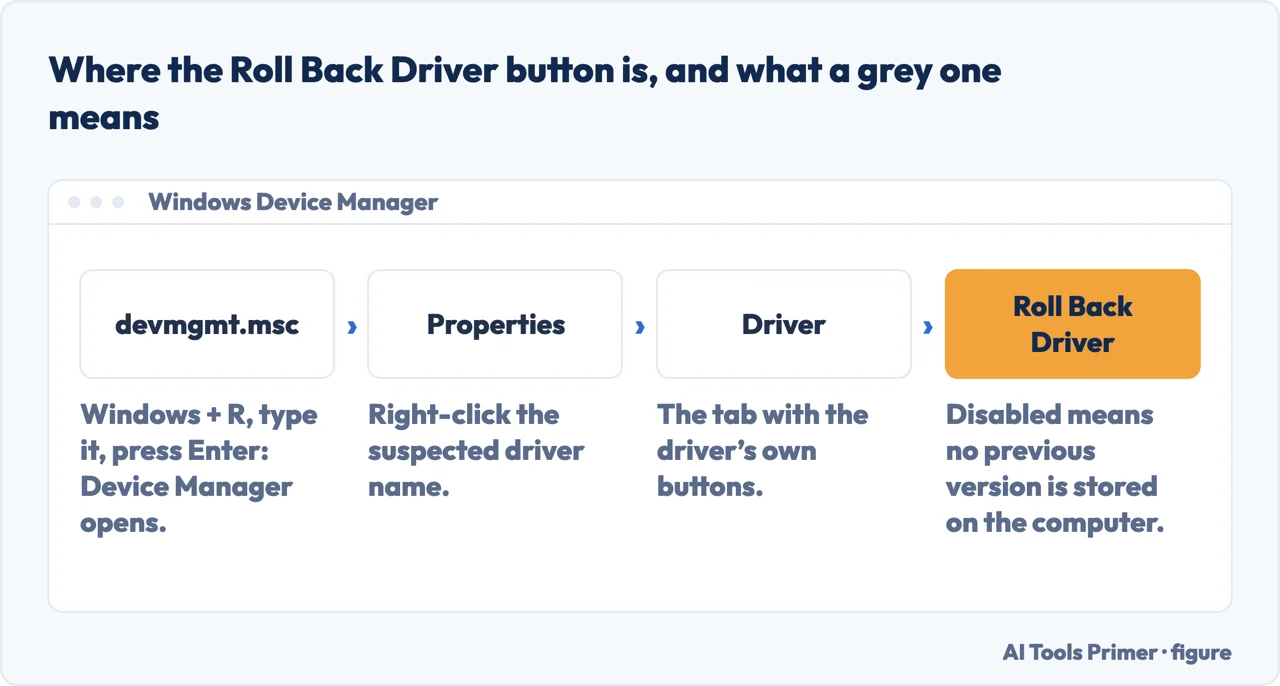
Microsoft names the suspect and stops there. The next question — where the rollback is actually done — is answered by the people who build the machines. Dell publishes the route and, more usefully, what it means when the button will not press: “If the rollback driver button is not available (disabled), it indicates that a previous version of the driver is not available on the computer.” It also names the marker to look for first, which is the part that turns “a driver” into this driver: the device that has stopped working “may be displayed in the Device Manager with an exclamation mark or a red cross”.
Where the rollback code sends you, published by a PC maker rather than by Microsoft. Route and note quoted from Dell, read September 2026. Figure drawn by AI Tools Primer.
The second case is the one where something must be removed, and Microsoft publishes three different routes depending on how much is broken.
One update
it installed, then broke things
“If you’ve recently installed a Windows Update and the update is causing your
device to have errors or other issues”, Microsoft’s page on uninstalling one is
the route.
With a limit stated flatly: “Some updates cannot be uninstalled.”
When Windows will not start
windows re
The same removal is available before Windows loads: “Once in Windows RE, select
Troubleshoot > Advanced options > Uninstall Updates.”
A machine that no longer boots is not out of options.
A whole version
go back
“If the option is available, select Go back. This will keep your personal files,
but it’ll remove apps and drivers installed after the upgrade.”
And, less expected: “Remove any user accounts you added after the
upgrade.”
The middle card deserves a sentence of its own. The removal is available from the recovery environment, before Windows loads — so a machine that will not start after an update is not beyond the ordinary remedy. The menu is two levels inside the recovery environment, and nothing on the failing screen names it.
Going back a whole version is the largest of the three, and it has a published price and a deadline.
What going back costs, and the door that closes
What it needs from you beforehand: “Keep everything in the windows.old and
$windows.~bt folders after the upgrade.”
What it takes: apps and drivers installed after the upgrade, and any user accounts added
since. “Apps that have been added, removed, or updated after the upgrade might not be
available or function properly after going back to the previous version of Windows.”
When the door closes on its own: “Ten days after you upgrade to Windows, your
previous version of Windows is automatically deleted from your PC.”
And if you close it yourself: “If you delete your previous version of Windows,
this can’t be undone (you won’t be able to go back to your previous version
of Windows).”
The first and the last of those belong together. The folder that looks like wasted space
after an upgrade is the only thing that makes going back possible, and every guide about
freeing up disk space points at it. Deleting it to make room is a decision, not housekeeping,
and Microsoft says in writing that it cannot be reversed.
There is a second thing people reach for when updates keep failing, and it does not do what it sounds like it does.
“You can pause updates for up to 35 days from the current date.”
With two conditions worth reading before using it: “When you pause updates, you’re
temporarily delaying updates until the date you choose. This doesn’t permanently turn
off” them — and “If updates are in progress when you pause updates,
those updates are canceled.”
That second sentence is the one that matters when an update is failing repeatedly. Pausing
is not a neutral wait: it cancels what is running. Which is useful if a download keeps
breaking halfway, and unhelpful if you pause during an install that would have finished.
One caution and one number, both from Microsoft. On removing a security update rather than any
other: “Before uninstalling a security update, make sure you understand the
risks.” And on how long recovery takes, which almost nothing else publishes:
“Typically, 30 minutes to 2 hours, depending on the method.” Microsoft
precedes it with the instruction that belongs before all of this: “Backup your data:
Always try to back up important files to an external drive or cloud service before proceeding
with recovery.”
So the order that follows from the documentation. If you have a code, read it first: the most common one names a rollback and points at drivers, which is a different investigation from a repair. If the update installed and something broke, remove that one update — from Windows if it starts, from the recovery environment if it does not — and expect that some cannot be removed at all. Only if a whole version is the problem use Go back, knowing what it takes with it and that the window closes by itself after ten days.
A note on other guides. Google did not return readable search results while this page was written, so this page makes no claim about what is on Google’s first page for this question.
What this page will not do is tell you which driver caused your rollback. Microsoft names where the logs are kept and publishes a tool for reading them; identifying it is work on your own machine, not something a page can do at a distance.
It will not tell you to delete windows.old to free space. It is the folder that makes going back possible, and Microsoft states plainly that removing it cannot be undone.
And it will not recommend pausing updates as a fix. It cancels updates in progress, it lasts at most 35 days, and Microsoft is explicit that it does not turn anything off permanently.
Where to start
Three ways in. If you have a code beginning 0xC1900101, take the first.
The most frequent result code is a generic rollback code that usually points at an incompatible driver, and Microsoft names where the evidence is kept.
Available from Windows, and from the recovery environment when Windows will not start — with the flat statement that some updates cannot be removed at all.
Not covered here. It will not name the driver behind your rollback. Microsoft says where the logs are; reading them is work on the machine itself.
It will not tell you to delete windows.old for space. It is what makes going back possible, and Microsoft says removing it cannot be undone.
It will not suggest pausing updates as a repair. It cancels what is in progress and lasts at most 35 days.
And it carries no affiliate links, including for the repair tools that advertise against exactly this error. What holds instead is simple: the rollback code and the ten-day window above are quoted from Microsoft support articles and Learn documentation, named where they are used.
Sources
Microsoft — Delete your previous version of Windows (that ten days after you upgrade to Windows your previous version is automatically deleted from your PC; the warning that within those ten days it is listed as a system file you can delete, that deleting it removes the Windows.old folder which contains the files that give you the option to go back, and that if you delete it this can’t be undone; and the Settings, System, Storage, Temporary files route with the Previous version of Windows check box) — support.microsoft.com, read 6 September 2026.
Microsoft, Windows 10 upgrade resolution procedures — Windows Client, Microsoft Learn (that a frequently observed result code is 0xC1900101, which can be thrown at any stage of the upgrade process except the downlevel phase; that it is a generic rollback code usually indicating an incompatible driver, which can cause blue screens, system hangs and unexpected reboots; and the suggestion to run setup with a minimal set of drivers and startup programs by performing a clean boot before upgrading) — learn.microsoft.com, read 24 August 2026.
Microsoft, How to uninstall a Windows Update — Microsoft Support (the route for when a recently installed update is causing errors or other issues; the flat statement that some updates cannot be uninstalled; the removal route from the Windows Recovery Environment when Windows will not start; and the caution that before uninstalling a security update you should make sure you understand the risks) — support.microsoft.com, read 24 August 2026.
Microsoft, Go back to the previous version of Windows — Microsoft Support (the instruction to keep everything in the windows.old and $windows.~bt folders after the upgrade; that in most cases you have 10 days to go back; and that apps added, removed or updated after the upgrade might not be available or function properly afterwards) — support.microsoft.com, read 24 August 2026.
Microsoft, Pause updates in Windows — Microsoft Support (that you can pause updates for up to 35 days from the current date; that pausing temporarily delays updates until the date chosen and does not permanently turn them off; and that if updates are in progress when you pause, those updates are canceled) — support.microsoft.com, read 24 August 2026.
Microsoft, Recovery options in Windows — Microsoft Support (the published answer to how long recovery takes: typically 30 minutes to 2 hours, depending on the method) — support.microsoft.com, read 24 August 2026.
Dell, How to Roll Back a Device Driver on Dell Windows Computers — Dell Knowledge Base (that in some rare instances a device can become unstable or stop functioning correctly when the device driver is updated, and that the driver rollback feature in Microsoft Windows helps restore the device driver to a previous version; the route of pressing Windows and R, typing devmgmt.msc, right-clicking the suspected driver name, choosing Properties, going to the Driver tab and selecting Roll Back Driver, then restarting; the note that the device driver that has stopped functioning may be displayed in the Device Manager with an exclamation mark or a red cross; and the note that if the rollback driver button is not available (disabled), it indicates that a previous version of the driver is not available on the computer) — www.dell.com, read 6 September 2026.
AG
Written by Alberto Gulotta
Founder and editor of AI Tools Primer, writing from Palermo, Italy. Thirty-five years of
taking computers apart, starting with a Commodore 64 — the long version is on the
about page.
Written on 23 August 2026 · last checked 23 September 2026.
§
Independence and limits
No affiliate links and no paid placements anywhere on this site. Nobody pays to appear here,
and no company has seen this page before you did.
This is general information, not professional advice. Where a page touches money, health,
safety or the law, it names its source and the date it was read — and your situation may
still differ. See the privacy page and the
cookie policy.