
Software · guide
Why won't my Dell laptop turn on, and which Dell fix to try first
By Alberto Gulotta · Updated · 11 min read
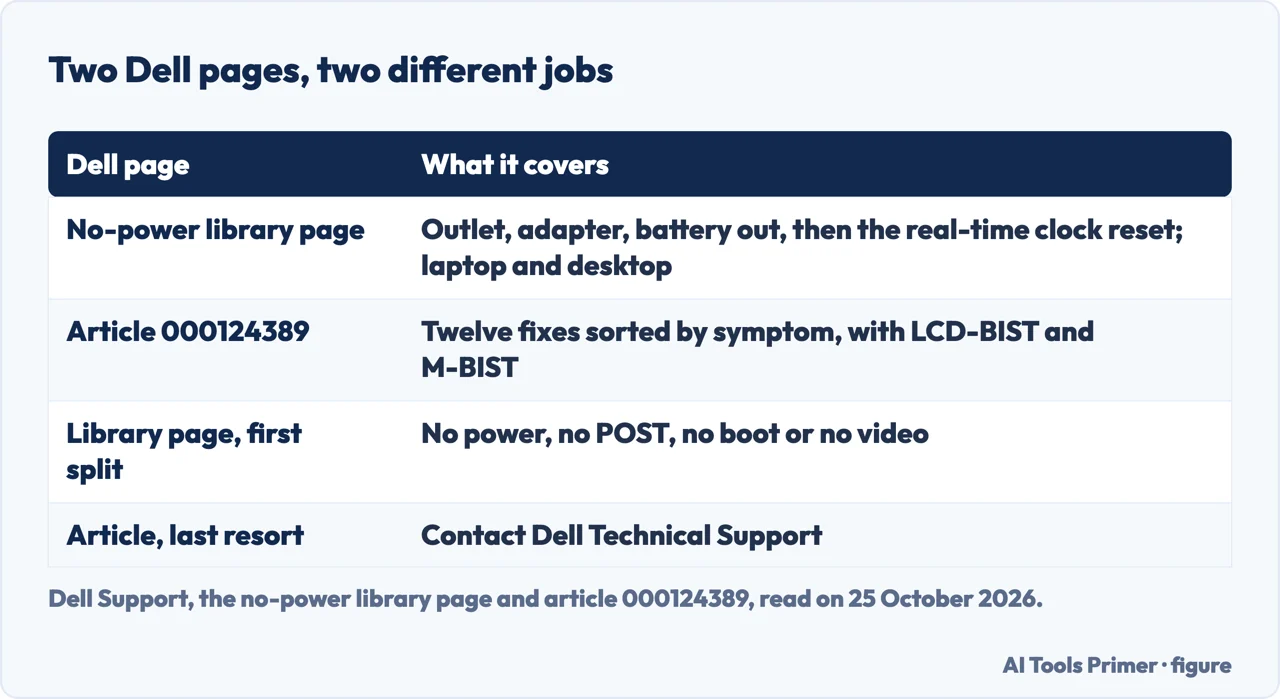
Why won't my Dell laptop turn on is answered by two Dell pages with different jobs: one starts with the outlet, the adapter and a real-time clock reset, the other sorts twelve fixes by symptom and adds two built-in tests. This page puts them in order and sets their hold times beside two other answers.
| Question | Dell’s answer | Where it comes from |
|---|---|---|
| Is it off, or only dark? | Press the power button and Caps Lock; if the lights respond, the laptop has power | Article 000124389 |
| Which test checks the system board? | M-BIST: hold the M key and press the power button while the laptop is off | Article 000124389 |
| Which test checks the screen? | LCD-BIST, for flicker, distortion, lines or faded colour | Article 000124389 |
| How long for the clock reset? | 30 to 35 seconds; under 25 or over 40 aborts it | No-power library page |
| When does Dell stop? | When nothing works, or when it suspects hardware failure or damage: contact Dell Technical Support | Both pages |
Off, or only dark?
Dell’s no-power library page begins by separating four cases that look alike when you press the button. No power means no lights, no fans and no sounds. No POST means the computer turns on but nothing shows, or it is stuck at the Dell logo. No boot means it passes that stage but Windows does not load. No video means it seems to run but the screen is blank. Only the first is the case that page treats as a power issue; for the others it sends you to separate troubleshooting guides.
Dell’s article 000124389, last modified on 3 October 2026, gives a two-step way to tell. Press the power button and check whether its LED glows steadily; press Caps Lock and check whether that light responds. If neither comes on, Dell says to follow its POST guide and then try the system-board test and the clock reset described below. If the lights come on, the laptop has power, and Dell says to run the screen test, then turn the brightness all the way up (a screen at its lowest setting in a bright room can look off), then connect an external monitor to see whether the screen is the problem.
The checks Dell puts first
On the library page the laptop steps are plain. Test the wall outlet with another working device, such as a lamp, and bypass a power strip or surge protector if you can. Look at the adapter, the cable and the laptop’s power port for damage; Dell says that if you see any, you should stop using the device and contact Dell Technical Support. Make sure the adapter is firmly connected at both ends, use a Dell-provided or Dell-approved adapter, and test with a known working one if you have it. If the battery is removable, take it out and try the laptop on the adapter alone; Dell says that if it turns on without the battery, you should contact Dell Technical Support. The page’s general checks also tell you to disconnect printers, external drives and other peripherals, because a faulty device can stop a computer from powering on.
The two built-in tests
Article 000124389 is where Dell describes two self-tests that the library page does not mention. LCD-BIST is for a laptop that seems to be on but shows flickering, distortion, blurriness, lines or faded colour; Dell says it tells you whether the problem is the panel itself or the video card and the computer’s settings, and points to a separate article for the steps, which we did not read.
M-BIST is for a laptop that will not power on when you suspect a fault on the system board, and Dell says it is available on supported Dell laptops only. Make sure the laptop is off, press and hold the M key and the power button together, and watch the battery indicator LED. In the outcome Dell labels as no system-board fault found, the screen cycles through solid colours for 30 seconds and then turns off. If there is a system-board failure, the battery status LED flashes an error code for 30 seconds; Dell says to use the user manual to identify the possible problem and to contact Dell Technical Support for repair options that depend on the warranty status.
The clock reset, and its numbers
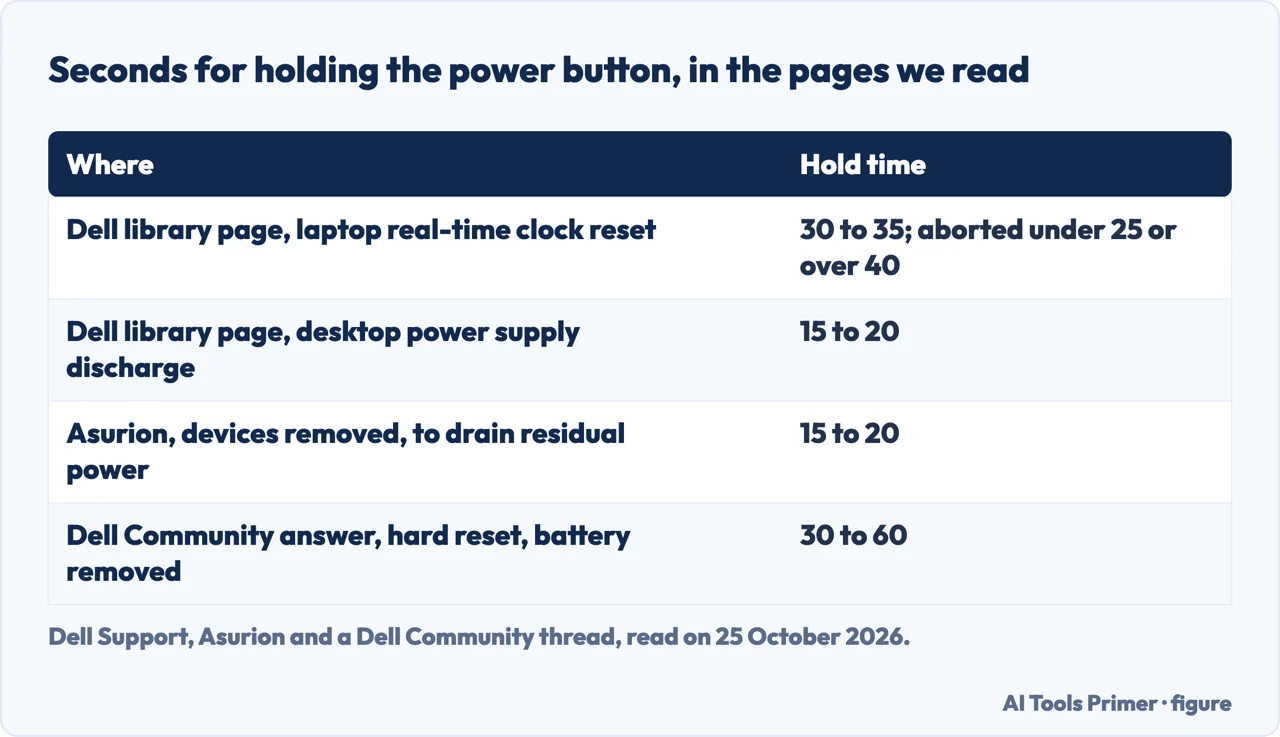
The real-time clock (RTC) reset restores the BIOS to factory defaults and resets the date and time, and Dell says the laptop may restart several times while it happens. Article 000124389 lists it as a fix for a laptop that has no power, does not POST or has no video. The library page gives the steps: disconnect all external devices, connect the AC adapter, press and hold the power button for 30 to 35 seconds, until the power LED blinks three times, then release it, reconnect and try to turn the laptop on. If the power is interrupted, or the button is held for less than 25 seconds or longer than 40 seconds, the reset is aborted, and Dell says to try again. It adds that the reset is available only on some Alienware, Inspiron, Latitude, Precision, Vostro and XPS laptops.
Two more answers in the results give other numbers for what sounds like the same gesture. Asurion, in a Dell guide with no date that we could read, says to hold the power button for 15 to 20 seconds with the laptop off, unplugged and its external devices removed, to drain residual power. An answer in a Dell Community thread, which we could not date, says to hold it for 30 to 60 seconds with the adapter unplugged and the battery removed if it comes out. Dell’s own 15 to 20 seconds sits in the desktop section of the library page, for discharging a power supply. They are different procedures, which is why the number cannot be carried from one page to another; computer won’t turn on sets the published hold times side by side.
The rest of Dell’s twelve
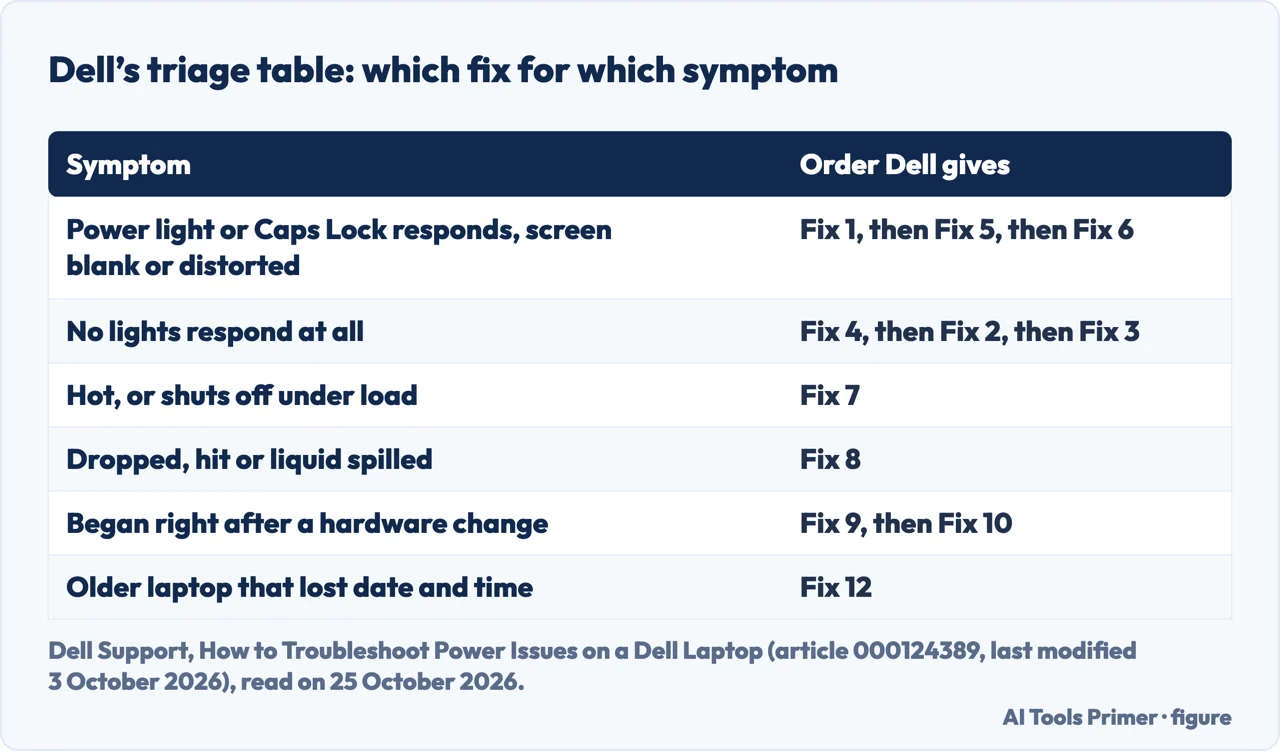
Past those, Article 000124389 sorts the remaining fixes by what happened to the laptop. Hot, or shuts off under load: Dell says laptops have safety circuits that cut power when parts such as the CPU overheat, and that blocked vents are a common cause; with the adapter disconnected, clear dust from the vents with a can of compressed air, and do not blow on them by mouth or use a vacuum cleaner or blower, which Dell says cause static. Dropped, hit or liquid spilled: look for broken plastics, cracks or a deformed case; Dell says repairs are your responsibility unless you have an active accidental damage policy. Right after a RAM or drive change: Dell says the new part may be faulty or incorrectly installed, and that if you fitted it yourself you may want to try reinstalling it. If the laptop was moved or jostled and you are comfortable opening it, Dell also lists reseating the RAM, and it warns you to guard against electrostatic discharge when replacing parts yourself.
Two last items are for a laptop that is older or has been opened. Dell sends a lifting keyboard or touchpad, a laptop that rocks on a flat surface or uneven case seams to its check for a swollen battery; to the question whether it is safe to use one, its answer is no, repair or replace the battery first. And a dead CMOS battery, the small round battery that keeps the date, time and boot sequence, can stop a laptop from powering on; Dell says to replace it only if you are comfortable opening the laptop. For the cleaning step see cleaning a laptop fan, and for the heat case, laptop overheating.
What the other answers add
The Asurion guide covers the adapter and cable, the battery, another outlet, visible damage and unplugging USB devices, then the 15 to 20 second hold. For a laptop that starts but fails, it points to the Dell diagnostic: press F12 as the laptop tries to start and look up the error code. It then suggests Safe Mode and a BIOS reset. In the text we read, it names neither M-BIST nor the real-time clock reset, and does not mention the Caps Lock light.
The Dell Community thread starts with a laptop whose power light comes on for a few seconds and goes off, with no fan, and its replies carry dates in 2013 and 2017. The answer we could not date reads it as a failure to POST and lists a hard reset, reseating the RAM, counting the LED blinks and their colours, starting with minimal hardware and running Dell’s built-in diagnostics from the F12 menu. We did not test any of these steps on a laptop.
Where to start
Four ways in.
- “Is it even on?”
- Lights and screen — lights
- “Dell’s tests.”
- LCD-BIST and M-BIST — tests
- “How long do I hold it?”
- The clock reset — clock
- “What else do the guides say?”
- Asurion and the community — others
Computers that will not start
The same problem on other makers and at other stages.
Heat and dust
The causes Dell lists under the vents.
Questions people also ask
How do I force my Dell laptop to start?
Dell’s pages describe holding the power button with the adapter connected for 30 to 35 seconds, a real-time clock reset on some models; under 25 or over 40 seconds aborts it.
Why won’t my laptop turn on even when plugged in?
Dell starts with another outlet, the adapter and cable, and a battery-out test if the battery is removable; then Caps Lock to see whether the laptop has power, and the M-BIST system-board test.
How to start Dell laptop when screen is black?
Press Caps Lock; if the light responds, run LCD-BIST, turn the brightness up with the key, or connect an external monitor, in the order Dell gives.
When I press the power button on my laptop, nothing happens.?
Dell calls no lights, fans or sounds a power issue: the outlet and adapter checks, the battery out if removable, then the clock reset and M-BIST. If nothing works, it says to contact Dell Technical Support.
Not covered here. We did not test any step on a Dell laptop. The statements come from Dell Support (the no-power library page, read on 25 October 2026, and article 000124389, last modified on 3 October 2026), the Asurion guide with no date, and one Dell Community thread, used for what it says. The article on LCD-BIST steps that Dell links was not read.
The Reddit thread and the Microsoft discussion in the results were not read. The search volume and difficulty behind this page were read in Semrush on 29 August 2026.
Sources
- Dell Support — Computer Won’t Turn On: Troubleshoot Power Issues — www.dell.com, read 25 October 2026.
- Dell Support — How to Troubleshoot Power Issues on a Dell Laptop (article 000124389, last modified 3 October 2026) — www.dell.com, read 25 October 2026.
- Dell Community — Laptop won’t turn on but the power light stays on for a few seconds (replies dated 2013 and 2017) — www.dell.com, read 25 October 2026.
- Asurion — How to fix a Dell laptop that won’t turn on (no date read) — www.asurion.com, read 25 October 2026.
Written by Alberto Gulotta
Founder and editor of AI Tools Primer, writing from Palermo, Italy. Thirty-five years of taking computers apart, starting with a Commodore 64 — the long version is on the about page.
Something wrong on this page? Write to aitoolsprimer@gmail.com and it gets fixed.
Written on 25 October 2026.
Independence and limits
No affiliate links and no paid placements anywhere on this site. Nobody pays to appear here, and no company has seen this page before you did.
This is general information, not professional advice. Where a page touches money, health, safety or the law, it names its source and the date it was read — and your situation may still differ. See the privacy page and the cookie policy.