
Software · guide
What is VSync, and should you turn it on or off?
By Alberto Gulotta · Updated · 12 min read
What is VSync? A setting that makes the graphics card wait for the monitor to finish a frame before sending the next. It stops screen tearing and holds the frame rate at the refresh rate. The cost is delay: NVIDIA says to turn it off if you can tolerate tearing, and a variable refresh rate monitor changes the answer.
Beyond the mechanism, this page gives the measured delay at each refresh rate, from Blur Busters, what NVIDIA, Intel, AMD and Microsoft say about the setting, and where each of them puts it.
| Your situation | What the sources say | Who says it |
|---|---|---|
| Tearing bothers you, ordinary monitor | Turn it on | Tom’s Guide |
| Delay matters more than tearing | Turn it off, in the control panel and in the game | NVIDIA |
| G-SYNC monitor | VSYNC on in the control panel with Reflex or Ultra Low Latency Mode, which caps the frame rate below the refresh rate | NVIDIA |
| FreeSync monitor | Leave it off; try it on if you still see tearing | Corsair |
| Windowed or borderless game | The NVIDIA and Intel control panels apply it only to full-screen games | NVIDIA, Intel |
What VSync does, and the one thing it fixes
A monitor shows a new image a fixed number of times a second, its refresh rate in hertz. When the graphics card sends frames faster than the monitor can show them, the screen can show the top of one frame and the bottom of the next, with a horizontal break between them. That is screen tearing, and Corsair describes it in just those terms. VSync makes the card wait until the monitor has finished its refresh cycle before the next frame goes out.
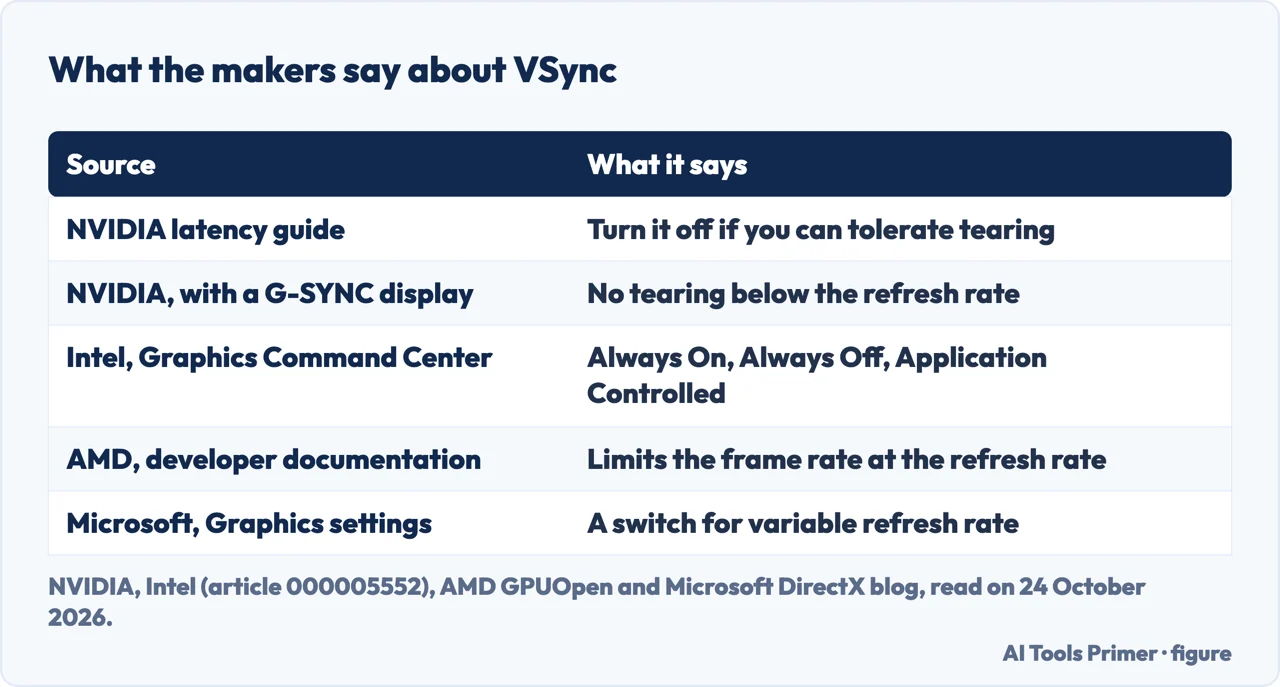
AMD’s developer documentation says it in one sentence: “VSync synchronizes the transition to a new frame of animation with the display update so no tearing is visible between frames.” The same page says the setting limits the frame rate at the display’s refresh rate. Intel gives the other side: “When VSync is off, you get virtually unlimited Frames Per Second (FPS)”, and with it tearing, jerkiness or stuttering become more likely.
Tom’s Guide points out that VSync fixes tearing and nothing else: it does not make a game look or run better.
What it costs, in milliseconds
NVIDIA’s latency guide is blunt: “VSYNC causes back pressure from the display that reverberates through the entire system.” Its advice follows: “we highly recommend turning VSYNC OFF if you are willing to tolerate tearing”. The guide gives no figure, and none of the explanations we read from Lenovo, HP, Corsair or Patsnap gives one either.
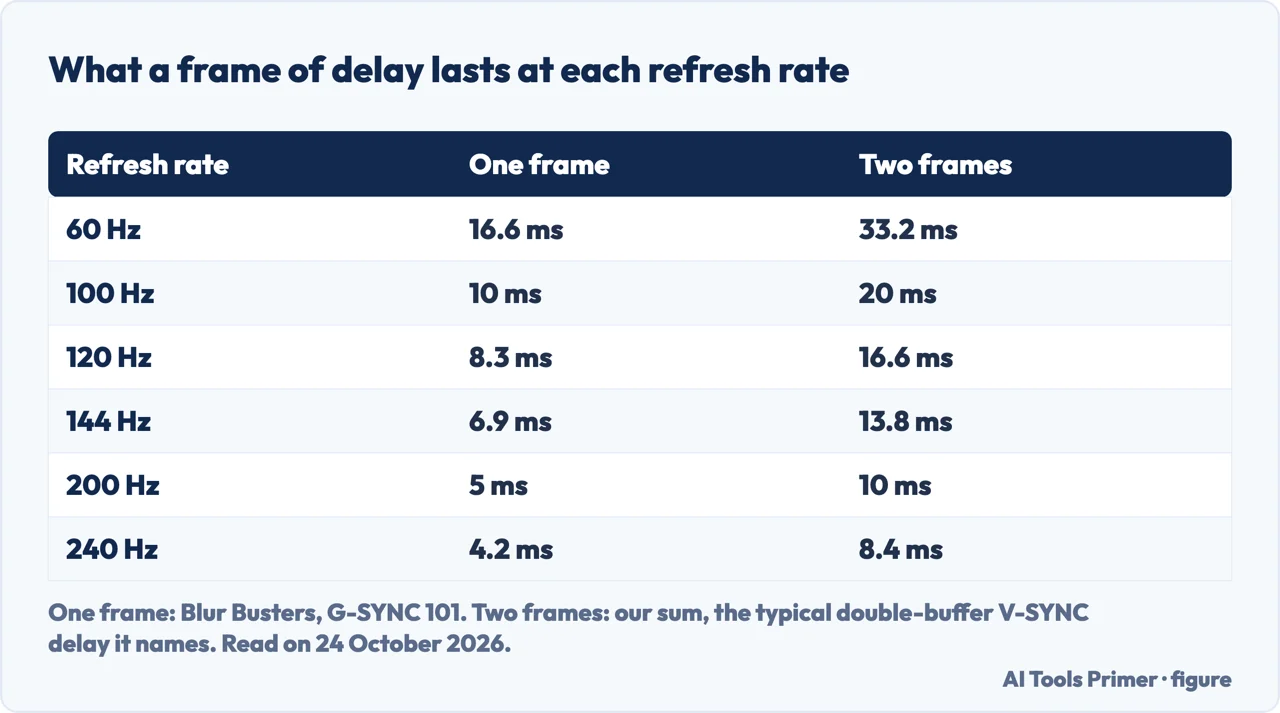
Blur Busters does. It measured input lag with a high-speed camera and a modified mouse, on a desktop with an NVIDIA card in exclusive full screen, and it counts delay in frames, because a frame is worth less time at a higher refresh rate: 16.6 ms at 60 Hz, 10 ms at 100 Hz, 8.3 ms at 120 Hz, 6.9 ms at 144 Hz, 5 ms at 200 Hz and 4.2 ms at 240 Hz. With double buffer V-SYNC, it writes, “there is typically a 2 frame delay when the framerate exceeds the refresh rate”, though not always: in Overwatch, even with Reduced Buffering on, it saw up to 4 frames. One of its charts shows 3 to 3½ frames of added delay, up to 58.1 ms at 60 Hz and up to 14.7 ms at 240 Hz.
The figure below turns the typical two frames into milliseconds. That multiplication is ours, not a measurement: it gives 33.2 ms at 60 Hz and 8.4 ms at 240 Hz, and the real delay depends on the game.
Lenovo’s glossary says VSYNC “also reduces input lag”, and further down lists input lag and stuttering among its downsides. NVIDIA’s guide and Blur Busters’ measurements agree with the second statement.
The other cost is stutter. HP says VSync may cause stuttering when the frame rate drops below the monitor’s refresh rate, and Tom’s Guide adds that in such moments the frame rate can fall further. Both mention triple buffering as a mitigation that does not always work.
With a G-SYNC or FreeSync monitor
A variable refresh rate display changes the question. NVIDIA writes that with one, such as a G-SYNC monitor, you can get the best of both worlds: no tearing while the frame rate is below the refresh rate, and no VSYNC latency. For G-SYNC owners who do not want to tear, NVIDIA says to keep VSYNC on while using Reflex or Ultra Low Latency Mode, which caps the frame rate below the refresh rate and avoids the back pressure; it adds that this gives slightly higher latency than letting Reflex run uncapped.
Corsair gives a recipe by brand. For G-SYNC, turn VSync on in the NVIDIA Control Panel and not in the game, and cap the frame rate 3 fps below the monitor’s maximum if the game allows it. For FreeSync, leave it off, and try it on only if you still see tearing, at the risk of input lag.
Windows has its own switch. Microsoft’s DirectX blog lists Variable refresh rate under the Advanced graphics settings of the Graphics page: it enables variable refresh rate for DirectX 11 full-screen games that do not support it natively, and appears only with the right drivers and a capable monitor. The setting called Optimizations for windowed games extends variable refresh rate to DirectX 10 and 11 games in windowed and borderless modes, according to Microsoft’s support page.
Where the setting is, and what limits it
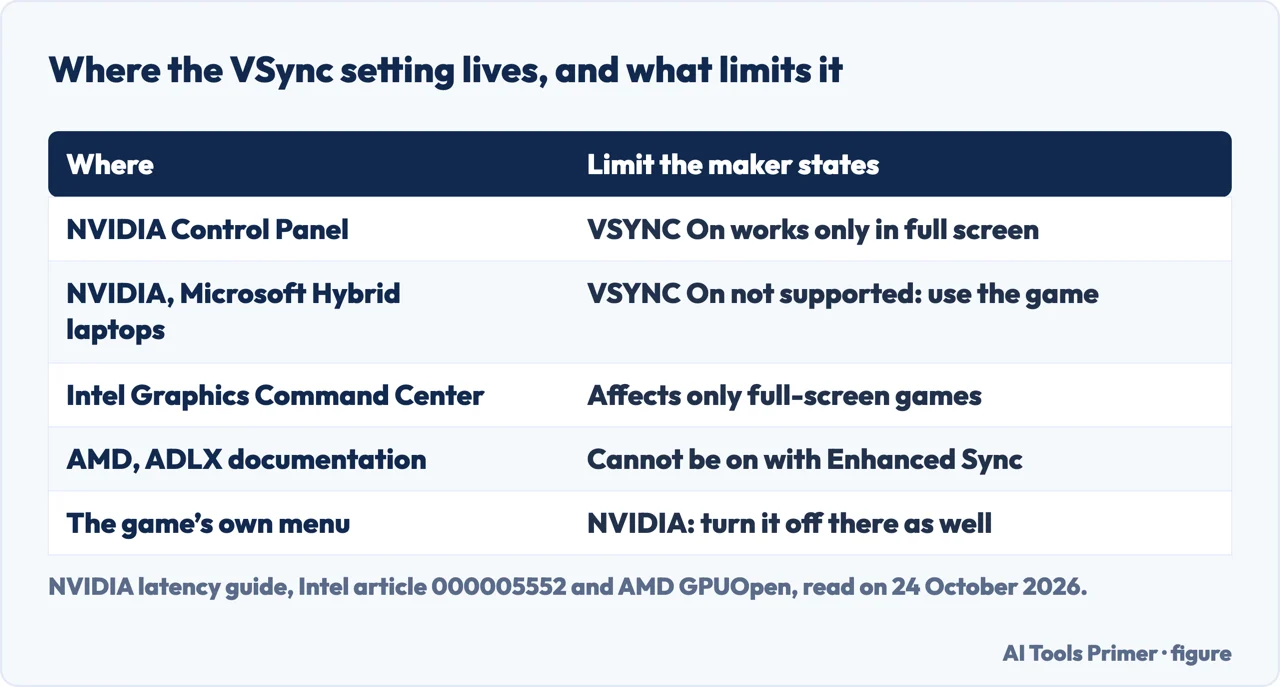
NVIDIA. The Vertical sync entry in the NVIDIA Control Panel; Blur Busters names its values On and Use the 3D application setting. NVIDIA says that VSYNC On in the control panel works only for full-screen applications and is not supported on Microsoft Hybrid laptops, where the in-game setting is the one to use, and to turn VSYNC off in the game as well when you turn it off in the panel.
Intel. In the Intel Graphics Command Center, VSync can be Always On, Always Off or Application Controlled. Open the game under My Games and find Vertical Sync. Intel says the VSync settings affect only full-screen games and applications, and that the Intel Graphics Control Panel has no option to turn it on or off for DirectX games.
AMD. AMD documents the setting for developers as WaitForVerticalRefresh, and says it cannot be enabled together with AMD Radeon Enhanced Sync: if VSync is enabled, Enhanced Sync is switched off. We did not read AMD’s user-facing Radeon Software page, so the menu names there are not given here.
The game. Corsair notes that VSync is an option often found in the graphics settings of PC games, and Tom’s Guide says you can also set it in the AMD and NVIDIA drivers.
The alternatives, as HP lists them
HP names four: Adaptive VSync, which switches VSync on and off with the frame rate; Fast Sync, which allows higher frame rates while still reducing tearing; Enhanced Sync, described as similar to Fast Sync for the other GPU brand; and variable refresh rate. HP also says that capping the frame rate by hand gives more control but may not remove tearing as well. We did not test any of them, and we did not read Blur Busters’ page comparing G-SYNC with Fast Sync in full, so no figure for them is given here.
So, on or off?
Tom’s Guide’s rule is the simplest: turn it on if tearing bothers you, and off if you see severe input lag or dropped frames. NVIDIA’s is the one to follow if latency is the point, which means off, unless the monitor has variable refresh rate. HP adds that on a monitor with a high refresh rate the need for VSync may be smaller, because tearing is less noticeable. The figures above give a reason: two frames cost 33.2 ms at 60 Hz and 8.4 ms at 240 Hz.
Where to start
Five ways in.
- “What does it actually do?”
- Tearing and the wait — what
- “Does it add lag?”
- The milliseconds — cost
- “I have a G-SYNC or FreeSync monitor.”
- What changes — vrr
- “Where do I switch it?”
- NVIDIA, Intel, AMD — where
- “On or off?”
- The short rule — decide
Games and the screen
The pages next to this one: the network side of a game, a monitor that flickers, one that shows the wrong thing, and one that is not found.
Questions people also ask
Is VSync better on or off?
Neither, in itself. Tom’s Guide says on if tearing bothers you and off if you see severe input lag or dropped frames. NVIDIA says off if you can tolerate tearing, and on with Reflex or Ultra Low Latency Mode if you have a G-SYNC monitor.
Will VSync improve fps?
No. AMD’s documentation says it limits the frame rate at the display’s refresh rate, and Tom’s Guide says it fixes tearing and does not improve a game’s performance.
Can VSync cause lag?
Yes. NVIDIA says VSYNC causes back pressure that runs through the whole system. Blur Busters writes that double buffer V-SYNC typically adds a 2 frame delay when the frame rate exceeds the refresh rate, which is 33.2 ms at 60 Hz by our sum.
Why do people not like VSync?
Mostly for input lag, and for stutter when the frame rate drops below the refresh rate, according to HP and Tom’s Guide. Tom’s Guide adds that competitive players turn it off on purpose.
Not covered here. We did not test VSync on a game or a monitor for this page. The settings and the advice come from NVIDIA’s latency guide (undated), Intel’s article 000005552 (last reviewed 15 September 2025), AMD’s developer documentation, Microsoft’s DirectX blog (19 January 2023) and support page, and the explanations of HP (27 August 2024), Corsair, Lenovo and Tom’s Guide, read on 24 October 2026. Blur Busters’ figures come from its tests on a desktop with an NVIDIA card in exclusive full screen; the two-frame milliseconds are our sum.
Often-repeated claims that we found in none of the sources read, such as VSync halving the frame rate of a 60 Hz game that drops below 60, are not made here. The Reddit answer and the videos in the results were not read or watched, and AMD’s Radeon Software page for users was not read. Consoles, TVs, phones and games with their own frame limiter are not covered; for the network side of a game see lowering ping.
The search volume and difficulty behind this page were read in Semrush on 29 August 2026.
Sources
- NVIDIA GeForce — How To Reduce Lag: A Guide To Better System Latency (undated) — www.nvidia.com, read 24 October 2026.
- Blur Busters — G-SYNC 101: Input Lag & Test Methodology — www.blurbusters.com, read 24 October 2026.
- Intel — Enabling and Disabling Vertical Synchronization (article 000005552, last reviewed 15 September 2025) — www.intel.com, read 24 October 2026.
- AMD GPUOpen — IADLX3DWaitForVerticalRefresh, ADLX SDK reference — gpuopen.com, read 24 October 2026.
- Microsoft DirectX Developer Blog — Navigating the Redesigned Graphics Settings page (19 January 2023) — devblogs.microsoft.com, read 24 October 2026.
- Microsoft Support — Optimizations for windowed games in Windows 11 — support.microsoft.com, read 24 October 2026.
- HP Tech Takes — VSync: What It Is and When to Use It for Better Gaming (27 August 2024) — www.hp.com, read 24 October 2026.
- Corsair — What is VSync? Should you turn it on for gaming or leave it off? (a hardware maker) — www.corsair.com, read 24 October 2026.
- Lenovo — Vsync: What is Vsync and How Does it Improve Your Gaming Experience? (glossary, undated) — www.lenovo.com, read 24 October 2026.
- Tom’s Guide — What is VSync, and should you turn it on or off? — www.tomsguide.com, read 24 October 2026.
Written by Alberto Gulotta
Founder and editor of AI Tools Primer, writing from Palermo, Italy. Thirty-five years of taking computers apart, starting with a Commodore 64 — the long version is on the about page.
Something wrong on this page? Write to aitoolsprimer@gmail.com and it gets fixed.
Written on 24 October 2026.
Independence and limits
No affiliate links and no paid placements anywhere on this site. Nobody pays to appear here, and no company has seen this page before you did.
This is general information, not professional advice. Where a page touches money, health, safety or the law, it names its source and the date it was read — and your situation may still differ. See the privacy page and the cookie policy.