
iPhone · guide
How to clean iPhone charging port lint without bending the pins
By Alberto Gulotta · Updated · 10 min read
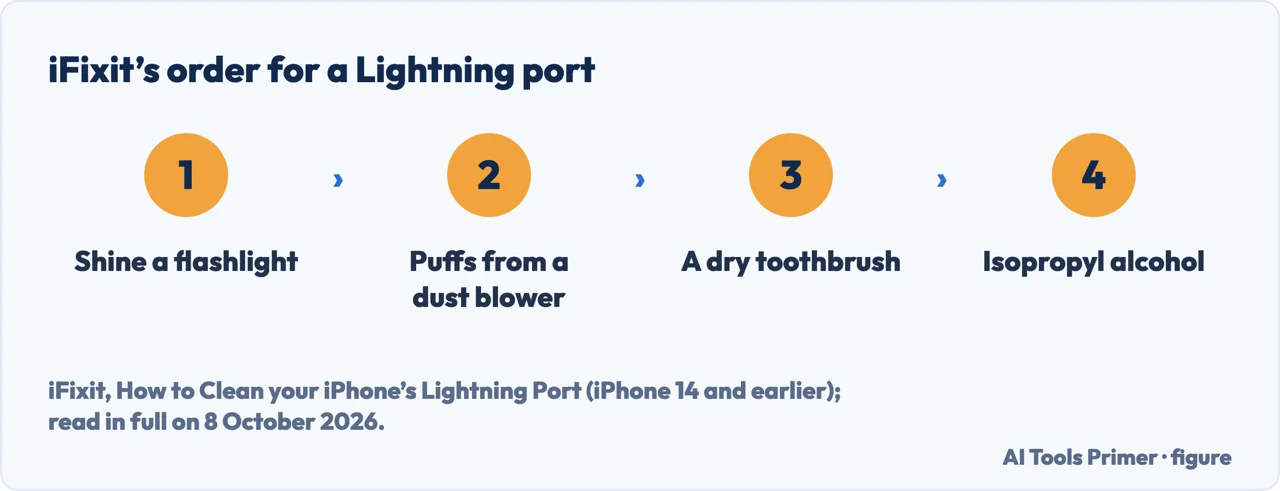
How to clean iPhone charging port debris: Apple says to remove it, then plug the cable in firmly, without saying with what. When cleaning or drying the phone, it rules out compressed air, cleaning products, and a cotton swab or paper towel in the connector. iFixit’s Lightning guide uses a dust blower, a dry toothbrush, then isopropyl alcohol.
| What | Apple | iFixit (Lightning guide) |
|---|---|---|
| Debris in the port | Remove it, then plug the cable in firmly | Shine a flashlight in first to look for blockages |
| Air | Don’t use compressed air to clean an iPhone, or to dry one | A few puffs from a dust blower; not your mouth |
| Objects | No cotton swab or paper towel in the connector of a wet phone | A dry toothbrush; no metal tools |
| Liquids | None, and no cleaning products, when cleaning a cable’s Lightning or USB-C connector | A few drops of isopropyl alcohol above 90%, left to evaporate |
| Which iPhones | iPhones with Lightning or USB-C | iPhone 14 and earlier |
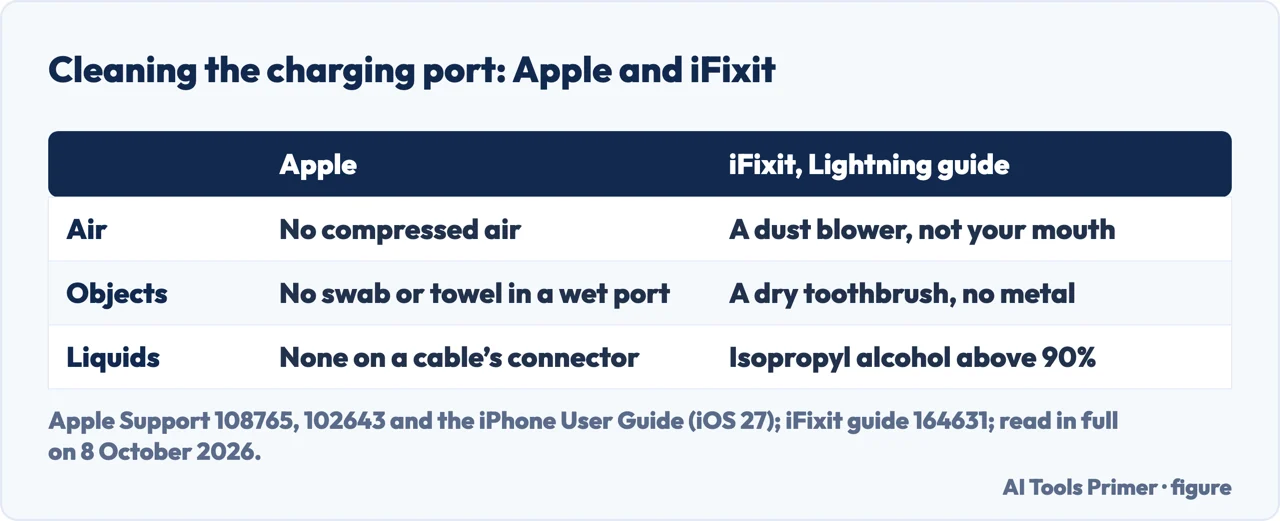
- Turn the iPhone off and unplug it. Apple’s page on cleaning an iPhone says to unplug all cables and turn it off before cleaning it; iFixit’s port guide starts with the flashlight.
- Look first. iFixit says to shine a flashlight into the port and check for large blockages of dust, grime or lint, which can stop the connector fitting properly.
- Puff air from a dust blower. iFixit points the tip at one corner of the port and blows a few puffs, then plugs in to test. It says not to blow with your mouth, because moisture from your breath can damage the contacts.
- Brush it, gently. iFixit uses the head of a dry toothbrush turned in small circles, then the blower again, and says not to use metal tools.
- Alcohol, if it still won’t charge. iFixit’s alcohol step uses a custom cotton swab, made with another of its guides, or a dental pick with a barbed tip with a few drops of isopropyl alcohol above 90%, slid along the port without forcing it, then a few minutes to let it evaporate. Apple’s handling guide says not to use liquids or cleaning products when cleaning a cable’s Lightning or USB-C connector.
Where Apple and iFixit differ
What Apple tells you. Its charging article says to remove any debris from the port and then plug the cable in firmly, without saying with what. Its cleaning page says not to use compressed air on an iPhone, and its handling guide says not to use liquids or cleaning products when cleaning a cable’s Lightning or USB-C connector.
What iFixit tells you. A dust blower, a dry toothbrush, then isopropyl alcohol. iFixit says you can use a normal cotton swab, but that most are too thick and have loose cotton that can snag on the pins, and its guide is written for Lightning ports, on the iPhone 14 and earlier.
The air. A comment under iFixit’s guide in January 2025 pointed to Apple’s line on compressed air, and the author replied that the text had been changed; the guide now says dust blower. Whether a hand blower counts as compressed air, neither Apple nor the guide says; a commenter in June 2025 guessed that Apple means the jet from a shop compressor.
The objects. Apple’s warning about a cotton swab or paper towel in the connector sits in its advice for drying a wet iPhone; its pages read here don’t name any tool for removing debris from a dry one.
Signs of a dirty port. iFixit says an iPhone that charges intermittently, or not at all, may have a dirty port that stops the charger sitting correctly. Apple says a connector and port that don’t join with reasonable ease probably don’t match, that you should check for obstructions, and never force a connector, because the damage may not be covered by the warranty. If iFixit’s steps fail and a flashlight shows no debris, iFixit says the port may need replacing. In Apple’s community forum in July 2022, one reply recommended asking an Apple Store to clean it, saying the port is delicate and that damaging the pins may stop it charging at all.
Apple’s steps when it won’t charge
In order, trying again after each. Restart the iPhone; check the cable and USB adapter for damage, like breakage or bent prongs; use a wall outlet and check the connections, or try another outlet; remove any debris from the port and plug the cable in firmly; let it charge for half an hour.
Then. If it still won’t turn on, force restart it and let it charge for another half hour. Apple says that if it still won’t power on or charge, you might need service.
An alert about the accessory. When the iPhone says a charging accessory isn’t supported or certified, Apple lists a dirty or damaged charging port among the possible reasons, with a defective accessory and a charger not designed to charge devices. Its steps: connect straight to the charger without adapters, remove debris from the port, restart, try another cable or charger, and update iOS. The 80 per cent stop and other causes are in phone not charging.
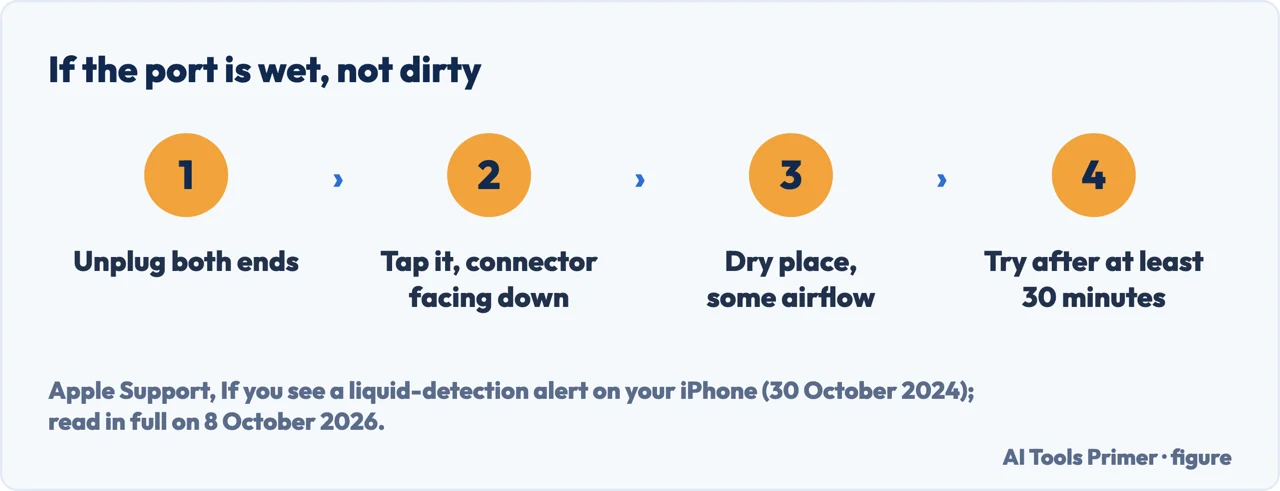
Wet, not dirty. If the iPhone shows a liquid-detection alert, Apple’s steps are to unplug both ends of the cable, tap the phone gently against your hand with the connector facing down, and leave it in a dry place with some airflow; try again after at least 30 minutes, and Apple says drying can take up to 24 hours. Its handling guide says to allow at least 5 hours before charging or connecting an accessory. Not a heat source, not compressed air, not a cotton swab or paper towel, and not a bag of rice. The rest is in liquid detected on iPhone.
The cable end. Apple says discolouration of the Lightning or USB-C connector after regular use is normal, and that dirt, debris and moisture can cause it. If the cable or connector gets warm, or the iPhone won’t charge or sync, Apple says to disconnect it and clean the connector with a soft, dry, lint-free cloth, without liquids or cleaning products. A phone that warms up while charging is in why an iPhone gets hot.
Which versions. Apple’s charging article was published on 9 December 2025, its iPhone cleaning page on 18 September 2026, its general cleaning page on 24 October 2025 and its liquid-detection article on 30 October 2024; the handling guide is from the iPhone User Guide for iOS 27, with no date. iFixit’s guide is for Lightning ports, on the iPhone 14 and earlier, and gives no date. A battery that holds less than it used to is a different matter, in iPhone battery health.
Where to start
Five ways in.
- “Show me the steps.”
- The cleaning steps — the cleaning steps
- “Who do I believe?”
- Where Apple and iFixit differ — where apple and ifixit differ
- “Is it the port?”
- Signs of a dirty port — signs of a dirty port
- “It still won’t charge.”
- When it still does not charge — when it still does not charge
- “It got wet.”
- Wet not dirty — wet not dirty
More on charging
When the iPhone won’t charge, gets wet or runs warm.
Questions people also ask
What are signs of a dirty charging port?
iFixit says an iPhone that charges intermittently or not at all may have a dirty port that stops the charger sitting correctly. Apple lists a dirty or damaged charging port among the reasons for an alert saying the accessory isn’t supported or certified.
How to fix iPhone port not charging?
Apple’s steps, trying again after each: restart, check the cable and adapter for damage, use a wall outlet, remove any debris from the port and plug in firmly, then charge for half an hour. Then a force restart and another half hour; after that, Apple says you might need service.
What happens when your iPhone charging port is dirty?
iFixit says a buildup of dust, grime and lint inside the port can stop the connector fitting properly, and that an iPhone that charges intermittently or not at all may have a dirty port. Apple says a dirty port can be behind an alert that the charging accessory isn’t supported.
Not covered here. It does not cover the headphone jack, replacing the charging port, or Android phones.
Sources
- Apple Support — If your iPhone or iPod touch won’t charge (published 9 December 2025): removing debris, the steps in order, accessory alerts — support.apple.com, read 8 October 2026.
- Apple Support — Cleaning your iPhone (published 18 September 2026): no compressed air — support.apple.com, read 8 October 2026.
- Apple, iPhone User Guide (iOS 27) — Important handling information for iPhone: connectors, ports, drying, discolouration — support.apple.com, read 8 October 2026.
- Apple Support — If you see a liquid-detection alert on your iPhone (published 30 October 2024) — support.apple.com, read 8 October 2026.
- Apple Support — How to clean your Apple products (published 24 October 2025) — support.apple.com, read 8 October 2026.
- iFixit — How to Clean your iPhone’s Lightning Port (iPhone 14 and earlier), with its comments — www.ifixit.com, read 8 October 2026.
- Apple Community — How to clean your iPhone charging port? (thread, 17 July 2022) — discussions.apple.com, read 8 October 2026.
Written by Alberto Gulotta
Founder and editor of AI Tools Primer, writing from Palermo, Italy. Thirty-five years of taking computers apart, starting with a Commodore 64 — the long version is on the about page.
Something wrong on this page? Write to aitoolsprimer@gmail.com and it gets fixed.
Written on 9 October 2026.
Independence and limits
No affiliate links and no paid placements anywhere on this site. Nobody pays to appear here, and no company has seen this page before you did.
This is general information, not professional advice. Where a page touches money, health, safety or the law, it names its source and the date it was read — and your situation may still differ. See the privacy page and the cookie policy.