
Software · guide
This site can’t be reached: is it the site, or is it you?
By Alberto Gulotta · Updated · 14 min read
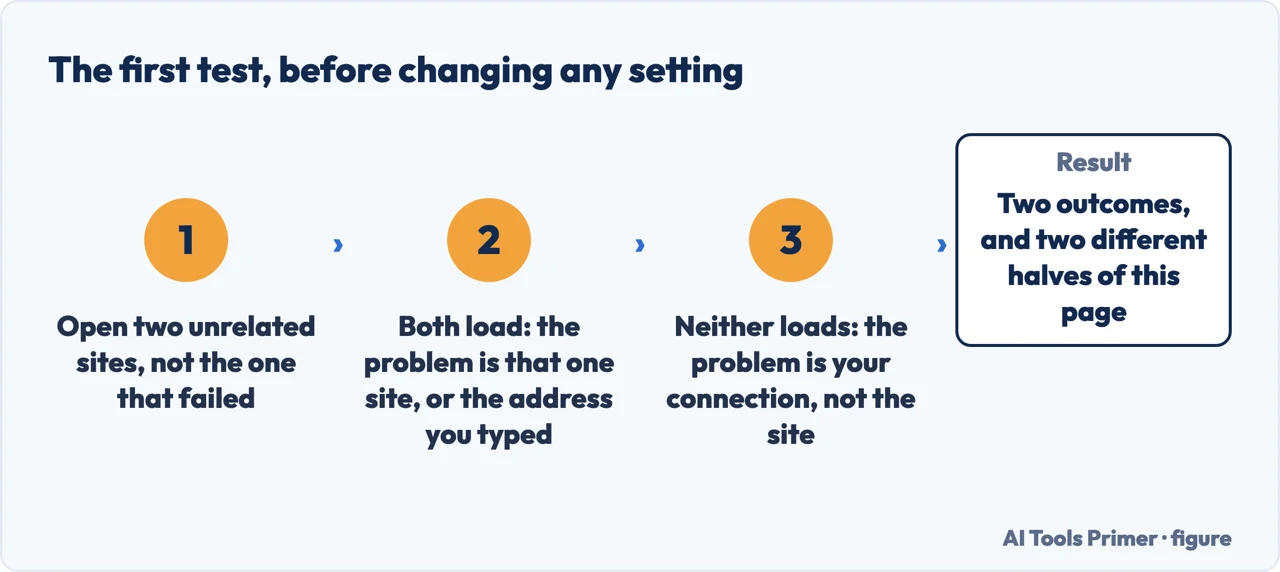
This site can’t be reached is the browser admitting it got nowhere, usually with a code underneath that looks like it should mean something. Before any of it matters, there is a ten-second test that decides which half of the problem you have.
“Check if the issue only affects one website or multiple websites. If the issue affects multiple websites, check your internet connection.”
Google’s first step, and the fastest thing you can do. Open two unrelated sites before touching any setting. Mozilla suggests the same test with named addresses — “Open a new tab and check to see if you can load another website like google.com or mozilla.org.” — and states the conclusion for the case where everything fails: “This is probably a problem with your Internet connection.”
The codes Chrome shows, in Google’s own words
From the list Google publishes under “Page loading errors”. Certificate errors are a different family and are not in this table. Read 23 August 2026.
| Code | What Google publishes |
|---|---|
| ERR_NAME_NOT_RESOLVED | “The hostname (web address) doesn’t exist or now has a different IP address.” |
| ERR_INTERNET_DISCONNECTED | “The device isn’t connected to the internet.” |
| ERR_CONNECTION_TIMED_OUT ERR_TIMED_OUT | “The page took too long to connect. Your internet connection might be too slow, or the page might be too busy.” |
| ERR_CONNECTION_RESET | “Something interrupted your connection to the page, like an unstable internet connection, an outdated browser, a VPN issue, or security software that blocks the page.” |
| ERR_CONNECTION_REFUSED | “The page didn’t let Chrome connect or the page is blocked.” |
| ERR_NETWORK_CHANGED | “Your device is disconnected from the network or connected to a new network while it loads the page.” |
| ERR_EMPTY_RESPONSE | “The page didn’t send any data and might be down.” |
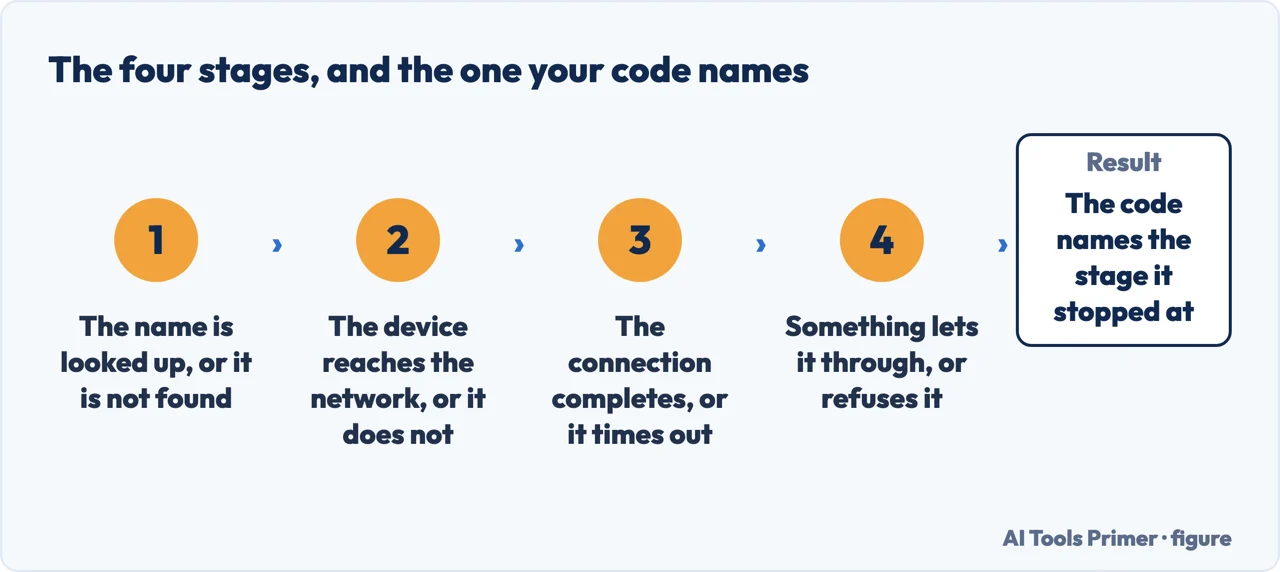
Two of those already answer the question on their own. ERR_EMPTY_RESPONSE is Google saying the site might be down; ERR_INTERNET_DISCONNECTED is Google saying the machine is not online. The middle cases are the ones that need the test above.
One code Chrome displays is missing from that list. DNS_PROBE_FINISHED_NXDOMAIN is shown on screen by the browser, yet Google publishes no definition of it anywhere in its help pages — nor of ERR_ADDRESS_UNREACHABLE. What Google publishes instead is where to look: “For a complete list of error codes, in the search bar, type chrome://network-errors/.”
So no guide can honestly tell you what Google means by it, because Google does not say. The second half of the name, however, is a standard term with a precise definition — and that definition is the answer to the whole question.
NXDOMAIN, SERVFAIL, REFUSED — three different verdicts
The response codes a name lookup can return, quoted from RFC 9499, the current DNS terminology standard (BCP 219, March 2024). Read 23 August 2026.
| Code | Definition | Meaning for you |
|---|---|---|
| NXDOMAIN | “this code signifies that the domain name referenced in the query does not exist” | The name itself is wrong or gone — a typo, an expired domain |
| SERVFAIL | “Server failure - The name server was unable to process this query due to a problem with the name server” | The lookup broke, not the name |
| REFUSED | “Refused - The name server refuses to perform the specified operation for policy reasons.” | Something is deliberately blocking it — a filter, parental controls, a work network |
| NODATA | “the name is valid, for the given class, but [there] are no records of the given type” | The name exists but has nothing of what was asked for |
This is the distinction the browser message hides. A name that does not exist and a lookup that failed are opposite situations, and only the second is worth retrying. RFC 9499 replaced RFC 8499 in March 2024, which is worth knowing because guides quoting the older number are quoting a document that has been superseded.
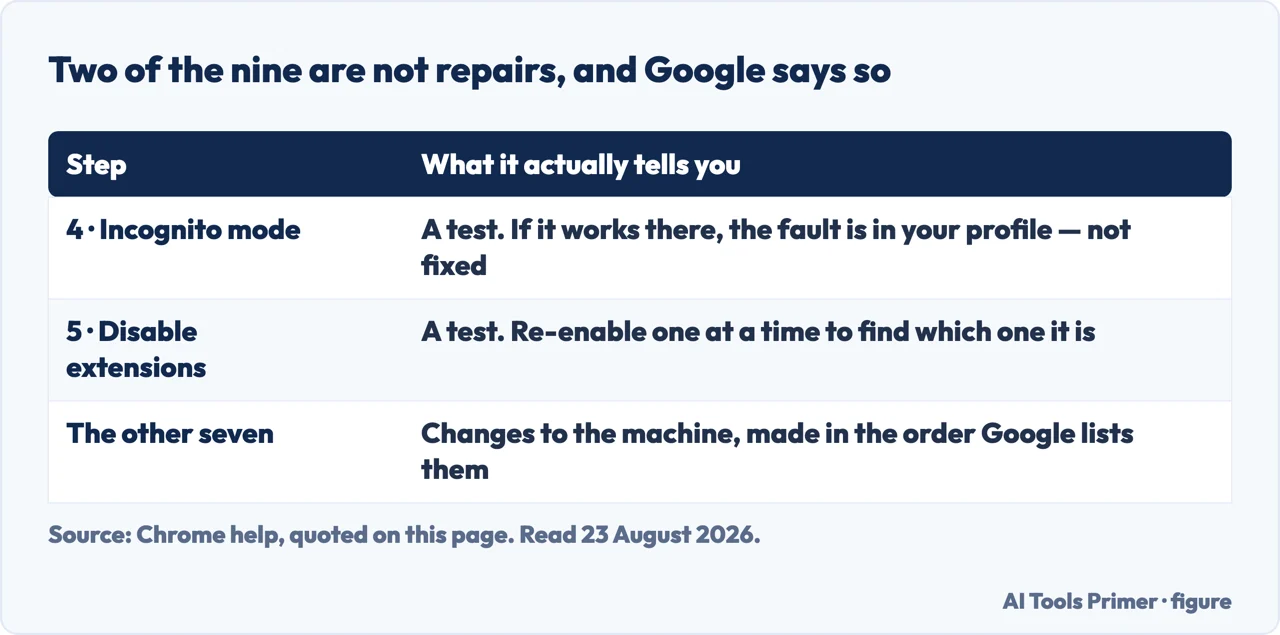
That leaves the question of what to change, and in what order. Anyone looking up how to fix this site can't be reached will find a hundred lists; Google publishes one, and two of the steps in it are not repairs at all.
Google’s nine steps, in Google’s order
The section headings of Chrome’s connection-and-loading page, on the Computer tab. Read 23 August 2026.
| Step | Heading |
|---|---|
| 1 | Check website URL and reload page |
| 2 | Check your internet connection |
| 3 | Update and restart Chrome |
| 4 | Browse in Incognito mode |
| 5 | Disable extensions |
| 6 | Delete browsing data |
| 7 | Check your firewall or antivirus software |
| 8 | Free up device memory |
| 9 | Reset Chrome settings |
Steps four and five are not repairs, they are experiments, and Google says so. On incognito: “If your connection or loading issue is fixed in Incognito mode, exit Incognito mode, then proceed to the next steps to disable extensions or delete your browsing data.” On extensions: “It’s recommended to disable all extensions. If this solves your connection error or loading issue, re-enable your extensions one at a time to identify which extension is causing the problem.”
Firefox publishes the cleanest version of the same test. Mozilla: “If neither Firefox nor your other browser can load websites, your problem is not in Firefox, so you should seek help elsewhere.” One sentence, and it saves hours of resetting a browser that was never at fault.
And one cause that almost nobody suspects, from the same page: “If you were able to load websites until you updated Firefox, your Internet security software (including firewalls, antivirus programs, anti-spyware programs, and more) is likely preventing Firefox from connecting to the Internet.” With a warning that makes the test harder than it looks: “Some Internet security programs can block Internet access even when they are in a "disabled" state.”
The Windows commands, and what Microsoft says they do
Descriptions quoted from Microsoft’s command documentation, so you know what you are running before you paste it. Read 23 August 2026.
| Command | Microsoft’s description |
|---|---|
| ipconfig /flushdns | “Flushes and resets the contents of the DNS client resolver cache. During DNS troubleshooting, you can use this procedure to discard negative cache entries from the cache, as well as any other entries that have been added dynamically.” |
| ipconfig /displaydns | “Displays the contents of the DNS client resolver cache, which includes both entries preloaded from the local Hosts file and any recently obtained resource records for name queries resolved by the computer.” |
| ipconfig /renew | “Renews DHCP configuration for all adapters (if an adapter is not specified) or for a specific adapter if the adapter parameter is included.” |
| netsh winsock reset | “Resets the Winsock catalog to a clean state, removing any custom LSPs to resolve network problems caused by corrupted Winsock settings. It doesn’t affect Winsock Name Space Provider entries.” |
The phrase to notice is negative cache entries. When a lookup comes back saying the name does not exist, the machine remembers that answer for a while — so a site that has just been fixed can keep failing on your computer and nowhere else. That is precisely what the first command clears, and it is why it belongs early rather than as a folk remedy.
One setting inside the browser can produce this site can't be reached Chrome shows by itself, and it behaves differently depending on how it was configured.
Secure DNS is usually not the culprit, except in one configuration. Google: “By default, secure DNS in Chrome is turned on in automatic mode. If Chrome has issues looking up a site in this mode, it’ll look up the site in the unencrypted mode.” It falls back, so it rarely blocks anything.
Choosing a provider by hand removes that safety net, and Google names the symptom: “When you select a custom provider, Chrome won’t default to unencrypted mode. If you have issues, like error messages, you can check your provider setting or turn secure DNS off. The error messages may say that the server’s IP address couldn’t be found.” Google also explains why the setting may be unavailable: “If your device is managed or parental controls are turned on, you can’t use Chrome’s secure DNS feature.”
If you decide to change the resolver itself, Cloudflare publishes the step everybody skips and later regrets: “Take note of any DNS addresses you might have set up, and save them in a safe place in case you need to use them later.”
And the side effect worth knowing before you do it on a laptop you travel with, also from Cloudflare’s own documentation: “Setting up a static IP address to configure a DNS server may prevent you from connecting to some public Wi-Fi networks that use captive portals - these are the web pages some wireless networks employ to let users log in and use their services.”
What is not on this page, and why. For Edge’s version of this error we could find no Microsoft documentation: searched on 11 September 2026, what comes back under Microsoft’s own domains is its question-and-answer forum, which is not the same thing. And the definition of DNS_PROBE_FINISHED_NXDOMAIN above comes from the DNS standard rather than from Google: Google’s page of Chrome error messages, read again on 11 September 2026, names eighteen ERR_ codes under five headings — nine of them under “Page loading errors”, the rest under certificates, redirects, secure connections and weak security — and this one is under none of the five.
Where only part of an answer is documented, this page gives that part and names the gap rather than filling it.
Where to start
Three ways in.
- “Is it down for everyone?”
- Start at telling them apart
- “Only one site fails.”
- Go to telling them apart
- “It says the connection is not private.”
- That is Your connection is not private
Telling them apart
The browser makers publish a test for whose problem it is, and the DNS standard publishes the difference between a name that does not exist and a lookup that failed.
What to change, and in what order
Google publishes nine steps, Mozilla a decision tree, and Microsoft the description of every command people paste from forums.
Not covered here. Every code, definition, step and command on this page is quoted from the organisation that publishes it — Google, Mozilla, Microsoft, Cloudflare and the IETF — and every source is listed below What holds instead is simple: the message says the browser did not get there and does not say why, which is why the next move depends on the kind of failure.
Step 6 of 6 in putting a site online
Six guides in one order, from transferring a domain to the browser errors a site can show.
- Before this
- Your connection is not private: the site, the network, or you
Sources
- Google Chrome Help — Get help with common error messages in Chrome (the published meanings of ERR_NAME_NOT_RESOLVED, ERR_INTERNET_DISCONNECTED, ERR_CONNECTION_TIMED_OUT and ERR_TIMED_OUT, ERR_CONNECTION_RESET, ERR_CONNECTION_REFUSED, ERR_NETWORK_CHANGED and ERR_EMPTY_RESPONSE; and the instruction that the complete list of error codes is found by typing chrome://network-errors/ in the search bar) — support.google.com, read 23 August 2026.
- Google Chrome Help — Fix connection and loading errors in Chrome (the tip to check whether the issue affects one website or several and to check the internet connection if several; the nine step headings in order; the explanation that a problem fixed in Incognito mode points to extensions or browsing data; and the instruction to disable all extensions and re-enable them one at a time) — support.google.com, read 23 August 2026.
- Google Chrome Help — Manage Chrome safety and security (that secure DNS is on in automatic mode by default and falls back to unencrypted lookup if there are issues; that selecting a custom provider removes that fallback and can produce error messages saying the server’s IP address could not be found; and that secure DNS is unavailable on a managed device or with parental controls turned on) — support.google.com, read 23 August 2026.
- Mozilla Support — Server Not Found, troubleshoot connection problems (that if neither Firefox nor another browser can load websites the problem is not in Firefox; that internet security software including firewalls and antivirus programs may be blocking connections; that security software is the likely cause when websites stopped loading after a Firefox update; and that some internet security programs can block internet access even when they are in a disabled state) — support.mozilla.org, read 23 August 2026.
- Mozilla Support — Websites don’t load, troubleshoot and fix error messages (the instruction to open a new tab and try another website such as google.com or mozilla.org, and the conclusion that a problem happening in all web browsers is probably a problem with the internet connection) — support.mozilla.org, read 23 August 2026.
- IETF — RFC 9499, DNS Terminology (BCP 219, March 2024, which obsoletes RFC 8499): the response code definitions quoted for NXDOMAIN, SERVFAIL, REFUSED and NODATA — www.rfc-editor.org, read 23 August 2026.
- Microsoft Learn — ipconfig (the descriptions of /flushdns, including that it discards negative cache entries; of /displaydns, including that the cache holds entries preloaded from the local Hosts file; and of /renew) — learn.microsoft.com, read 23 August 2026.
- Microsoft Learn — netsh winsock (the description of winsock reset, including that it removes custom LSPs and does not affect Winsock Name Space Provider entries) — learn.microsoft.com, read 23 August 2026.
- Cloudflare Docs — 1.1.1.1 setup (the instruction to note any existing DNS addresses and save them before changing them, and the warning that configuring a DNS server with a static IP address may prevent connection to public Wi-Fi networks that use captive portals) — developers.cloudflare.com, read 23 August 2026.
- Cloudflare, Set up 1.1.1.1 on macOS — Cloudflare 1.1.1.1 docs (the instruction to take note of any DNS addresses already set up and save them somewhere safe before changing them; the steps through System Settings, Network, Details and DNS; and the note that setting up a static IP address to configure a DNS server may prevent connection to public Wi-Fi networks that use captive portals, with the way round it) — developers.cloudflare.com, read 26 August 2026.
Written by Alberto Gulotta
Founder and editor of AI Tools Primer, writing from Palermo, Italy. Thirty-five years of taking computers apart, starting with a Commodore 64 — the long version is on the about page.
Something wrong on this page? Write to aitoolsprimer@gmail.com and it gets fixed.
Written on 23 August 2026 · last checked 23 September 2026.
Independence and limits
No affiliate links and no paid placements anywhere on this site. Nobody pays to appear here, and no company has seen this page before you did.
This is general information, not professional advice. Where a page touches money, health, safety or the law, it names its source and the date it was read — and your situation may still differ. See the privacy page and the cookie policy.