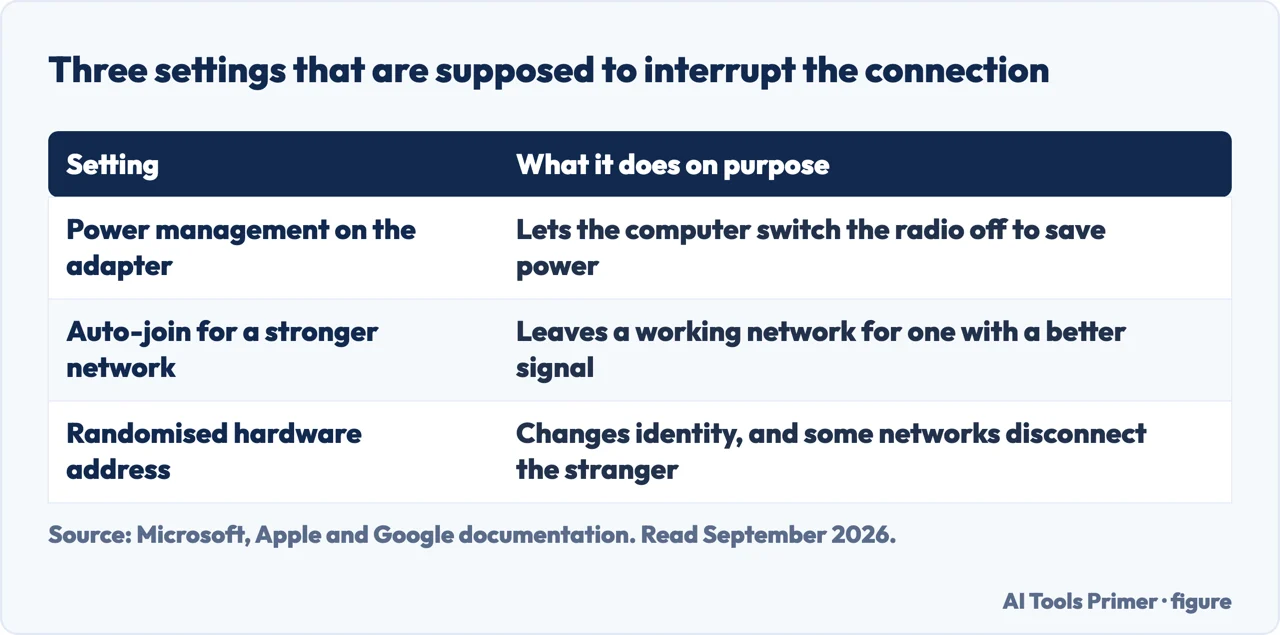
Why does my wifi keep disconnecting is a different question from why it will not connect at all, and it has a different first suspect. Before the router, there are three settings that ship on your devices whose declared job is to interrupt or move the connection. Two of them are on unless you turned them off.
Windows
a tick box
Device Manager → your Wi-Fi adapter → Properties → Power Management. Microsoft
says: “Uncheck Allow the computer to turn off this device to save power.”
The setting exists to switch the network card off. If it is ticked, something is authorised
to cut your connection.
iPhone
on if Assist was on
“Connectivity Assist uses cellular data to improve your connection when Wi-Fi
is slow or unusable”. Same switch, new name and new place: “this replaces and
supersedes Wi-Fi Assist, previously found in Cellular settings. If Wi-Fi Assist
was on when you updated your software, Connectivity Assist is on by default.”
On its troubleshooting page Apple tells you to look for it: “Tap Wi-Fi again and
make sure Connectivity Assist is off.”
Pixel
recommended on
“For a better data experience, turn on Auto switch to mobile network”
— which moves you off Wi-Fi when “The local Wi-Fi connection between your Pixel
and the Access Point (AP) is weak.”
Same mechanism as Apple’s, and Google asks you to switch it on.
Three switches that are working as intended. Figure drawn by AI Tools Primer.
None of those three is a fault. Each is a documented feature, doing what its own manufacturer says it does — and each produces the symptom in the title. A connection that drops and comes back is exactly what a device switching to cellular, or a card being powered down, looks like from the outside.
And on one of them the two phone makers do not agree.
Two manufacturers, one mechanism, opposite instructions
Apple, on its own Wi-Fi troubleshooting page: “make sure Connectivity
Assist is off.”
Google, on its own Wi-Fi troubleshooting page: “turn on Auto switch to mobile
network.”
The two features have the same declared trigger — a Wi-Fi connection that is weak or not
working — and the same visible effect: the device leaves Wi-Fi for cellular data. One
manufacturer tells you to disable it while troubleshooting; the other recommends enabling it.
Neither is wrong: they are answering different questions. Apple is helping you find out
why Wi-Fi appears to fail; Google is helping you stay online. But if your phone keeps
“dropping” Wi-Fi and you have followed one manufacturer’s advice, you may have
switched on the very thing the other one asks you to switch off.
On Windows the equivalent trap is not a disagreement between companies but a gap inside one page, and it is worth being precise about because the page in question is the first result for a great many Wi-Fi questions.
The section written for your problem is missing the setting
Microsoft’s Wi-Fi page has a numbered list with “Step 10. Disable power
saving for Wi-Fi adapter”, which ends with unchecking the Device Manager box above.
Further down, the section headed “Wi-Fi connection is dropping frequently”
contains exactly two items: a power-plan change (“expand Wireless Adapter Settings. Set
Power Saving Mode to Maximum Performance”) and “Adjust Router
Channel”.
Read as text, that section never mentions Device Manager, never mentions Power Management, and
never mentions saving power — checked by literal search on the page’s own
words. They are two different Windows settings, not two ways of describing one: a property
of the device against a setting in the power plan.
The consequence is exact. A reader who jumps to the heading that matches their symptom gets
one of the two, and it is not the one in the numbered list. Doing both takes a minute; doing
the wrong one and concluding it did not help takes an evening.
Then the part that turns all of this from guessing into reading, and which is not on the troubleshooting page at all.
Windows keeps a written record of why the connection dropped — Microsoft calls
it the wireless network report: “The report shows
all the Wi-Fi events from the last three days and groups them by Wi-Fi connection
sessions.” Inside it: “Disconnect Reasons: Lists the different reasons you were
disconnected from the Wi-Fi network.”, plus “Session Durations” and, per
session, “Disconnection Reason: Reason why you were disconnected.”
This is the only thing on this page that answers the question in the title with evidence rather
than with a list of possibilities — and it is on a different Microsoft page from the one
about dropping connections. On the troubleshooting page the report is mentioned only in the
section about adapters not being detected, to look up a driver problem number. If your
connection has been falling over for three days, the machine has been writing down why.
The command is short and Microsoft publishes it on that separate page; the report it writes is an HTML file you can open in a browser. Three days of sessions, with a stated reason for each disconnection, is a different class of answer from a list of things to try — and it is the only place in this whole question where the machine tells you rather than you guessing.
One more disagreement, this time inside Apple. Its router guidance says the network name should be
“Set to a single, unique name (case-sensitive) for all bands”, warning that with
different names per band “devices might not connect reliably to your network, to all
routers on your network, or to all available bands”. Yet Apple’s own troubleshooting
page suggests: “If your router supports separate frequencies, try joining another
frequency” — a step you can only take from the phone if the bands have separate
names. Microsoft, meanwhile, describes that arrangement as ordinary: the two bands
“will appear as separate networks in the list of available Wi-Fi networks”.
So the order that follows from the documentation rather than from habit. On a phone, look first at the automatic switch to cellular, because on an iPhone it is on unless you turned it off and on a Pixel Google asks you to turn it on. On a Windows PC, do both power settings — the Device Manager tick box and the power plan — not the one under the heading that matches your symptom. Then read the report, which has been recording the reason all along. The router comes after all of that, not before.
A note on other guides, with its limit stated. Google returned a page without readable results while this page was written, so this page makes no claim about what is on Google’s first page for this question.
What this page will not do is tell you your router is failing. That is a real cause and it is also the first thing every article reaches for; the settings above are free to check and sit on the device in your hand.
It will not recommend a mesh system, an extender or a new router. None has been tested here, and this is the most expensive advice available on this question.
And it will not tell you to turn Connectivity Assist off as a rule — Wi-Fi Assist, before Apple renamed it. Apple asks you to switch it off while diagnosing, which is not the same as saying it should stay off.
Where to start
Three ways in. If it drops and comes back by itself, take the first.
A Windows box that authorises turning the card off, and two phone features that move you to cellular when Wi-Fi is weak. All documented, two on by default or recommended.
Not covered here. It will not recommend a router, a mesh system or an extender. Nothing here has been tested, and this is the most expensive advice in the category.
It will not tell you to leave Connectivity Assist off permanently. Apple asks for it off while diagnosing, which is a different instruction.
It will not blame the router first. Three device settings, all free to check, are documented to produce exactly this symptom.
And it carries no affiliate links, including for networking hardware, the products a guide on this subject usually exists to sell. What holds instead is simple: the three switches and the two Windows power settings come from Microsoft, Apple and Google directly, with the gap in the Microsoft section checked by searching it.
Sources
Microsoft, Fix Wi-Fi connection issues in Windows — Microsoft Support (Step 10, Disable power saving for Wi-Fi adapter, which ends by unchecking Allow the computer to turn off this device to save power in the adapter’s Power Management tab in Device Manager; and, further down, the section headed Wi-Fi connection is dropping frequently, whose two items are Check Power Settings — Control Panel, Hardware and Sound, Power Options, Change plan settings, Change advanced power settings, expand Wireless Adapter Settings and set Power Saving Mode to Maximum Performance — and Adjust Router Channel. Checked on 24 August 2026: that section contains no occurrence of Device Manager, Power Management, or Allow the computer to turn off) — support.microsoft.com, read 24 August 2026.
Microsoft, Analyze the wireless network report — Microsoft Support (that the report shows all the Wi-Fi events from the last three days and groups them by Wi-Fi connection sessions; that Disconnect Reasons lists the different reasons you were disconnected from the Wi-Fi network; and the Session Durations chart and the per-session Events) — support.microsoft.com, read 24 August 2026.
Apple Support — If you can’t connect to Wi-Fi on your iPhone or iPad (the troubleshooting instruction to tap Wi-Fi again and make sure Connectivity Assist is off) — support.apple.com, read 16 September 2026.
Apple Support — About Connectivity Assist (that it uses cellular data when Wi-Fi is slow or unusable; that it appears in Wi-Fi settings and replaces and supersedes Wi-Fi Assist, previously found in Cellular settings; and that it is on by default for anyone who had Wi-Fi Assist on when they updated, and off for anyone who had it off) — support.apple.com, read 16 September 2026.
Google, How to fix Wi-Fi connection problems — Pixel Phone Help (the instruction to turn on Auto switch to mobile network under Settings, Network & internet, Adaptive connectivity, and that the device then switches from Wi-Fi to cellular when there is no internet over Wi-Fi or the connection to the access point is weak) — support.google.com, read 24 August 2026.
Apple Support — Recommended settings for Wi-Fi routers and access points (that the network name should be set to a single, unique, case-sensitive name for all bands, with the warning that using different names per band means devices might not connect reliably to your network, to all routers on your network, or to all available bands) — support.apple.com, read 24 August 2026.
AG
Written by Alberto Gulotta
Founder and editor of AI Tools Primer, writing from Palermo, Italy. Thirty-five years of
taking computers apart, starting with a Commodore 64 — the long version is on the
about page.
Written on 23 August 2026 · last checked 23 September 2026.
§
Independence and limits
No affiliate links and no paid placements anywhere on this site. Nobody pays to appear here,
and no company has seen this page before you did.
This is general information, not professional advice. Where a page touches money, health,
safety or the law, it names its source and the date it was read — and your situation may
still differ. See the privacy page and the
cookie policy.