
VPN · guide
How to turn off VPN, and what switches it back on
By Alberto Gulotta · Updated · 18 min read
How to turn off VPN depends on what switched it on. If an app did, use the app. If the system did, it is under Settings > Network & internet > VPN on Windows, System Settings > VPN on a Mac and Settings > Network & Internet > VPN on Android; on an iPhone, search Settings for VPN.
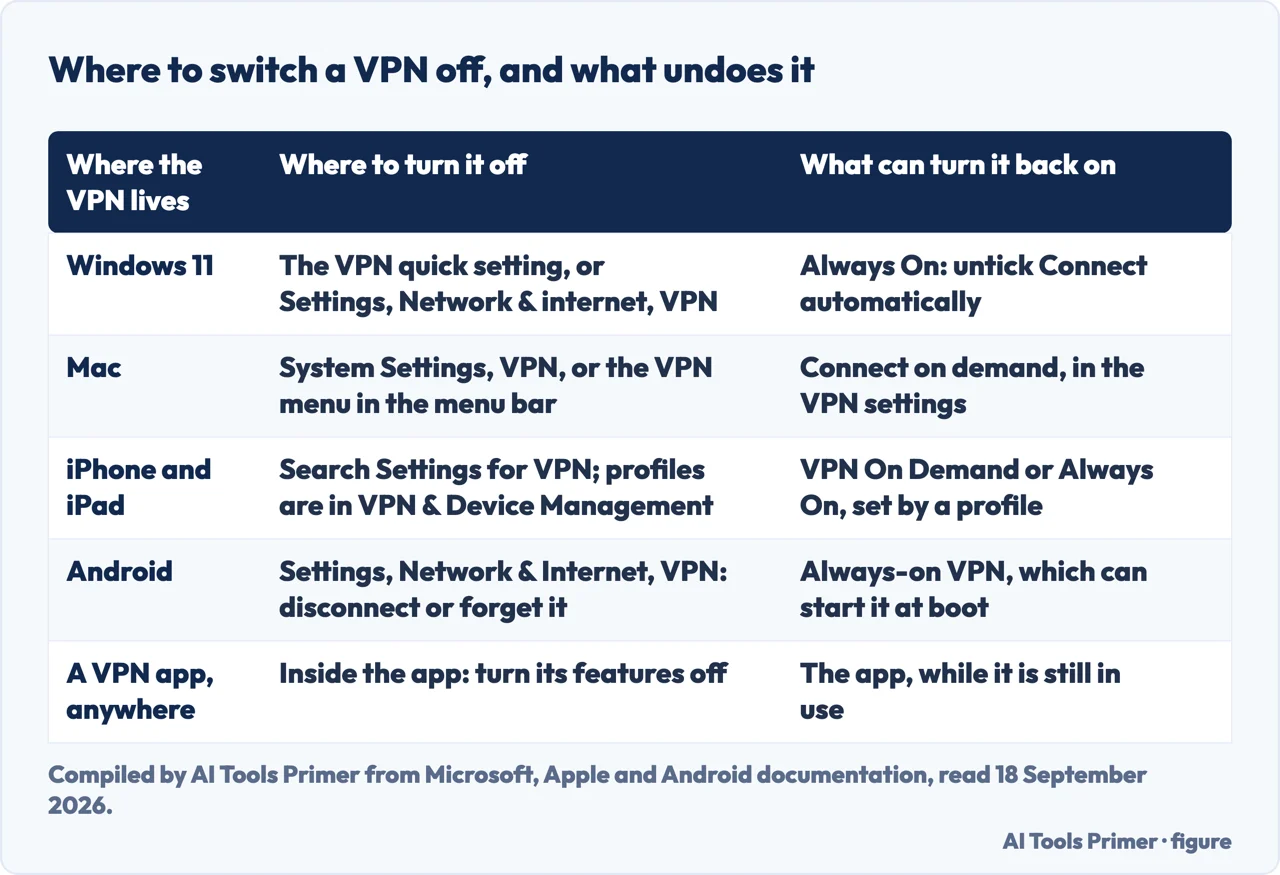
Turn it off where it was turned on
A device can carry two kinds of VPN, and they switch off in different places. One is an app — a service you installed, with its own switch. The other is a connection written into the system’s own network settings, by you, by an app on your behalf, or by whoever manages the device. The first is the one Apple’s support article on VPNs that break connections starts from: “Use the app to turn off its features, then see if the issue continues.” If you do not remember installing one, the same article suggests looking for app names with words such as Shield, Protection, Security or VPN in them, because these apps come from many vendors under many names.
The second kind is where the menus differ from one system to the next, and the steps below are the paths each maker documents. They are short, and on most devices the first step is the only one you need.
- Look for an app first. If a VPN app is installed, open it and use its own switch or Disconnect button. An app that is still running can put a connection back after you switch it off somewhere else, as the next section explains.
- On Windows 11, use the quick setting. Select the Network, Volume and Battery icons on the taskbar, then VPN; with one VPN configured, toggling the left side of the VPN tile turns it on and off. With more than one, the list is in Settings > Network & internet > VPN.
- On a Mac, use System Settings or the menu bar. Choose Apple menu > System Settings, click VPN in the sidebar and turn the service off. If the VPN status menu is showing in the menu bar, click it and choose the VPN to disconnect from.
- On Android, use the VPN screen in Settings. Open Settings > Network & Internet > VPN and disconnect or forget the VPN app. If Always-on VPN is switched on for it, switch that off too: with it on, the system starts and stops the connection, not you. Some VPN kill switches also keep the internet blocked after a deliberate disconnect; what each kind blocks is on its own page.
- On an iPhone or iPad, search Settings. Open Settings, swipe down to reveal the search field and search for VPN. A VPN that arrived with a configuration profile is listed under General > VPN & Device Management.
- Check that it is really off. On Windows the blue shield leaves the taskbar and the connection in Settings no longer says Connected; on Android the key icon leaves the status bar. If either comes back within minutes, something is switching it on, and the next section is about what.
Why a VPN you switched off comes back on
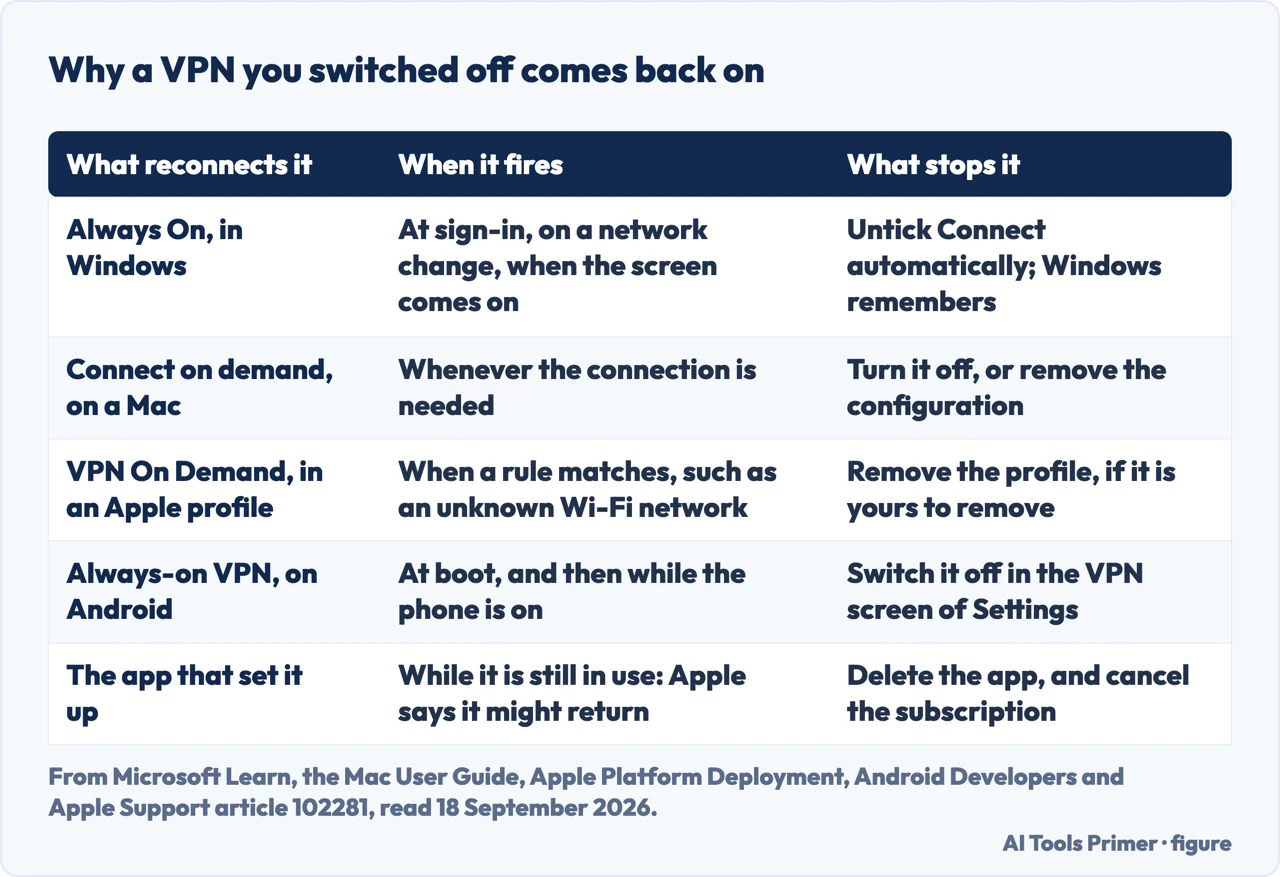
A VPN that reconnects by itself is rarely a fault. Every system has a setting whose whole purpose is to connect without being asked, and pressing Disconnect does not switch that setting off — it only ends the connection that is open now.
On Windows the setting is called Always On. Microsoft’s documentation describes it as a feature that connects the active VPN profile automatically at three moments: when you sign in, when the network changes, and when the screen comes back on. The box that controls it is the connection’s Connect automatically option, and Microsoft records one detail that makes unticking it worth doing: “If a user manually unchecks the Connect automatically checkbox, Windows remembers the user preference for the profile name”, so a management tool that later removes the profile and adds it back does not tick the box again.
On a Mac the equivalent is Connect on demand, one of the options behind the VPN’s Info button in System Settings > VPN, and Apple’s description of it is one line: “Automatically start the VPN connection when needed.” On an iPhone or iPad the automatic behaviour usually arrives inside a configuration profile. Apple’s deployment guide, which is written for the people who manage devices, describes VPN On Demand as a way for devices to “automatically establish a connection on an as-needed basis”, with rules such as noticing an unknown Wi-Fi network and requiring the VPN on it.
On Android it is Always-on VPN, and the developer documentation puts it plainly: “Android can start a VPN service when the device boots and keep it running while the device is on.” The switch sits in the same VPN screen of Settings, and switching it off is one of the actions that stops the connection.
And an app can simply put its setting back. Apple’s article ends its advice on removing a VPN setting with a warning that applies on every system: “However, if the software that created the setting is still in use, the setting might return later.” If that is what is happening, the fix is in the app’s own options — or in deleting the app, and cancelling its subscription, which Apple lists as a separate step.
The VPN you are not supposed to turn off
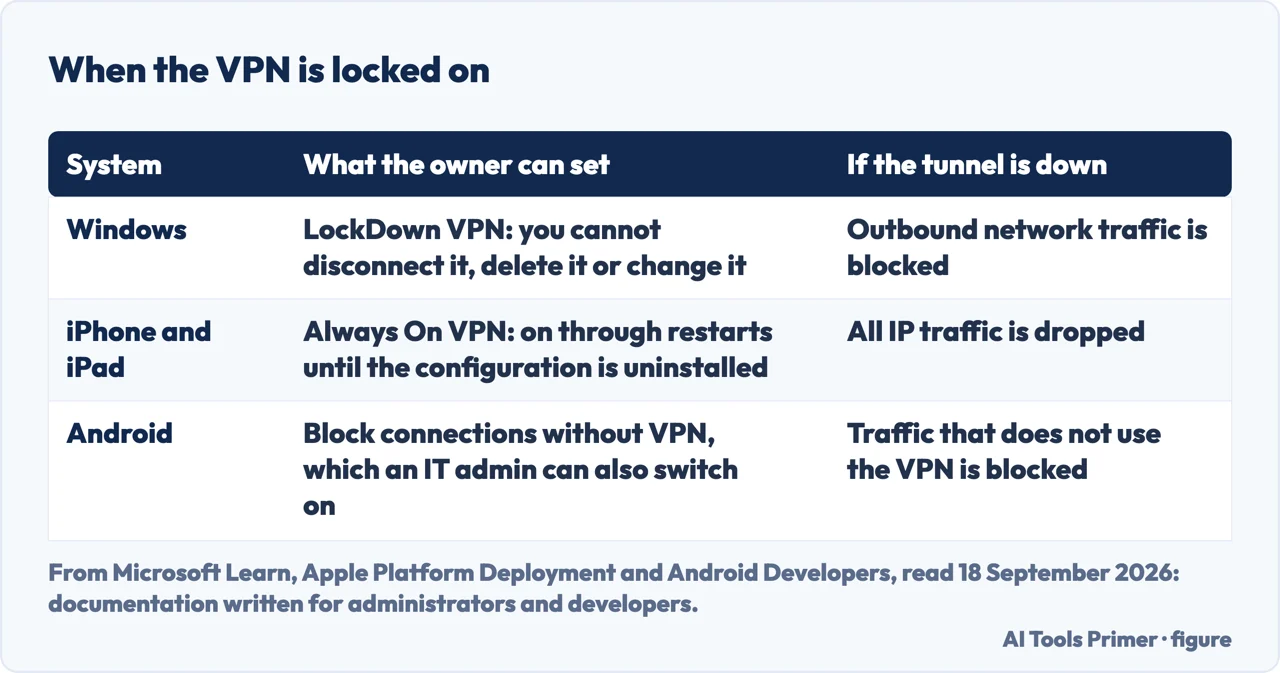
Some VPNs are built so that the person holding the device cannot turn them off. If you are looking at one of those, the setting is not broken: it belongs to someone else, usually an employer or a school, and the documentation that describes it is written for them.
Microsoft’s version is LockDown VPN. A profile configured that way allows network traffic only over the VPN, and the documentation lists what that means for the user in plain terms: “The user can’t disconnect the VPN connection”, the profile cannot be deleted or changed, and “If the VPN connection isn’t available, outbound network traffic is blocked”. That last part is worth knowing if a work laptop has no internet at all: under LockDown, a VPN that cannot connect means no traffic leaves the machine.
Apple’s version is Always On VPN, and its deployment guide is just as direct: “After the Always On VPN configuration is installed on a device, Always On VPN automatically activates with no user interaction, and it stays activated (including across restarts) until the Always On VPN configuration is uninstalled.” A separate page of the same guide adds the sentence that settles it for anyone trying the switch: “Users can’t modify the settings you specify in the configuration profile.” On Android the lock is the Block connections without VPN switch, and Google’s documentation says who can set it: “A person using the device (or an IT admin) can force all traffic to use the VPN.”
The honest advice for all three is Apple’s: “If your device is managed by your organization or configured for access to their apps and services, you might be unable to make changes and should consult them before proceeding.” On an iPhone there is a second reason to ask first. Removing a work profile to get rid of its VPN removes the rest of it too: “If you delete a profile, all of the settings, apps, and data associated with the profile are also deleted.” How to tell whether an iPhone is managed at all, and what the organisation can and cannot see, is in the guide to iPhone device management.
Turning it off, removing it, and resetting the network
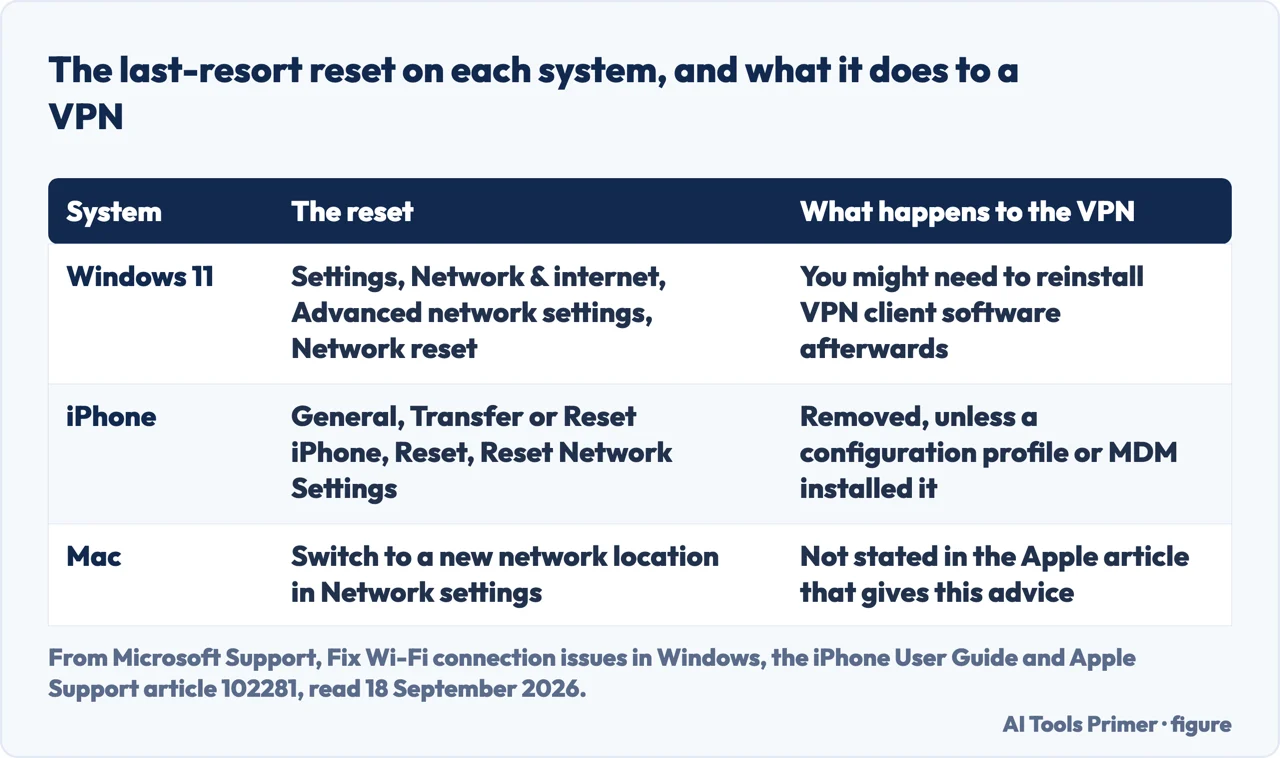
Turning a VPN off leaves the connection in place for next time; removing it deletes the configuration. The Mac’s VPN settings have a Remove configuration option for the selected service, Android’s VPN screen can forget the VPN app, and on an iPhone a VPN installed by a profile goes when the profile goes, under General > VPN & Device Management.
Past that there is the reset, and it is a last resort because it takes more than the VPN with it. On an iPhone, Reset Network Settings removes saved networks and VPN settings, with one exception that matters here: “When you reset network settings, previously used networks and VPN settings that weren’t installed by a configuration profile or mobile device management (MDM) are removed.” A VPN that a profile installed survives the reset, which is why the reset does not help with the VPN you are not supposed to turn off. What else it erases is covered in how to reset network settings on iPhone. On Windows 11 the equivalent is Network reset, under Settings > Network & internet > Advanced network settings, and Microsoft warns that afterwards “you might need to reinstall and set up other networking software you might be using, such as VPN client software”. On a Mac, Apple’s suggestion is to switch to a new network location in Network settings.
Why turn a VPN off at all
Most of the time the reason is to find out whether the VPN is the problem, and Apple’s list of what VPN and other security software can break is specific: a device that cannot connect to the internet or to Wi-Fi, cannot back up to iCloud or use Time Machine, cannot sign in to iMessage or FaceTime, or cannot reach other devices on the network for AirPlay. The test is the one in the first section — switch it off and see whether the problem stays. If it does, the VPN was not the cause, and working out which part of a wifi connection broke or whether a site that will not load is the site or you is the next step. If the connection is merely slow rather than broken, a VPN is one suspect among several, and what counts as slow is worth knowing first.
The other reason is that the VPN was never needed on that network, and that is a question about what a tunnel does rather than how to switch one off. What a VPN changes, and what it leaves exactly as it was, is the subject of the VPN guides on this site.
The short version. Turn a VPN off in the place that turned it on: the app, if there is one, and the system’s VPN settings if not. If it reconnects by itself, look for the setting whose job is to reconnect it — Always On on Windows, Connect on demand on a Mac, Always-on VPN on Android, a profile on an iPhone. And if the settings will not let you, the VPN is probably not yours to switch off: ask whoever manages the device before you remove anything, because on an iPhone the profile takes its apps and data with it.
Where to start
Three places to go next, depending on why the VPN had to come off.
- “The connection is still broken.”
- Then it was not the VPN — when the connection is the problem
- “This phone is not only mine.”
- Find out who else has a say — when the device is managed
- “Did I need it on in the first place?”
- What a tunnel was doing — what the tunnel was doing
When the connection is the problem
If the problem outlived the VPN, the VPN was not the problem. These four pages start from the symptom instead.
When the device is managed
A VPN that will not switch off is often the visible part of a device that someone else manages. These pages cover the rest of it.
What the tunnel was doing
Whether to leave a VPN off is a question about what it changed while it was on. These pages answer that, without a product attached.
Questions people also ask
How do I know if my VPN is on or off?
Look where the system shows it. Windows puts a blue shield on the taskbar when you are connected to a recognised VPN, and the connection says Connected in its VPN settings. Android shows a key icon in the status bar. On a Mac, the VPN status menu in the menu bar shows it, if that menu is switched on.
Why would you turn off VPN?
Usually to find out whether it is causing a problem. Apple lists what VPN and other security software can break — connecting to the internet or Wi-Fi, iCloud backups, iMessage and FaceTime, AirPlay — and its test is to turn the software’s features off and see whether the issue continues.
How do I turn off VPN on my iPhone?
If a VPN app is installed, turn it off in the app. Otherwise open Settings, swipe down to the search field and search for VPN. A VPN that came with a configuration profile is under General > VPN & Device Management, and removing that profile removes everything else it installed.
Where is VPN in my settings?
On Windows 11, Settings > Network & internet > VPN. On a Mac, Apple menu > System Settings, then VPN in the sidebar. On Android, Settings > Network & Internet > VPN. On an iPhone or iPad, search Settings for VPN; profiles are in General > VPN & Device Management.
Not covered here. It does not recommend a VPN, and there is no affiliate link anywhere on it: a guide to switching one off should not end by selling you another.
It does not cover VPNs built into a browser, a router or a television. Every path on this page comes from the operating system maker’s own documentation, and those are the switches it describes.
On Android it follows Google’s documentation. It did not read the manuals of individual phone makers, and it does not describe their menus. What holds instead is simple: every sentence in quotation marks here comes from Apple, Microsoft or Android documentation listed below, each read on 18 September 2026.
Sources
- Apple Support, If your device has network connectivity issues, check for VPN and other third-party security software, article 102281, published 8 December 2025 (the advice to turn off the app’s features first and see whether the issue continues; the words to look for in app names; the search of Settings for VPN and profile; the warning that a setting can return while the software that created it is still in use; the caution for managed devices; cancelling a subscription; the list of problems such software can cause; and the new network location on a Mac) — support.apple.com, read 18 September 2026.
- Apple, iPhone User Guide — Reset iPhone settings to their defaults (the path to Reset Network Settings, the statement that it removes VPN settings not installed by a configuration profile or MDM, and the path for removing a profile’s VPN settings) — support.apple.com, read 18 September 2026.
- Apple, iPhone User Guide — Install or remove configuration profiles on iPhone (where profiles are listed, and the warning that deleting a profile deletes the settings, apps and data associated with it) — support.apple.com, read 18 September 2026.
- Apple, Mac User Guide — Change VPN settings on Mac (the path to VPN in System Settings, turning the service on or off, Connect on demand, and Remove configuration) — support.apple.com, read 18 September 2026.
- Apple, Mac User Guide — Use the VPN status menu in the menu bar on Mac (showing the menu, and connecting or disconnecting from it) — support.apple.com, read 18 September 2026.
- Apple Platform Deployment — VPN overview for Apple device deployment, published 4 November 2025 (Always On VPN, what happens to traffic when its tunnels are down, and VPN On Demand with its rules) — support.apple.com, read 18 September 2026.
- Apple Platform Deployment — VPN device management settings overview for Apple devices (the statement that users cannot modify the settings a configuration profile specifies) — support.apple.com, read 18 September 2026.
- Microsoft Support — Connect to a VPN in Windows, Windows 11 and Windows 10 (the VPN quick setting and its toggle, the VPN page in Settings, and the Connected label and blue shield that show an active connection) — support.microsoft.com, read 18 September 2026.
- Microsoft Learn — VPN auto-triggered profile options, last updated 28 January 2025 (Always On and its three triggers, and Windows remembering an unticked Connect automatically box) — learn.microsoft.com, read 18 September 2026.
- Microsoft Learn — VPN security features, section LockDown VPN (what the user cannot do with a LockDown profile, and what happens to outbound traffic when the VPN is unavailable) — learn.microsoft.com, read 18 September 2026.
- Microsoft Support — Fix Wi-Fi connection issues in Windows (the path to Network reset in Windows 11, and the note that VPN client software may need reinstalling afterwards) — support.microsoft.com, read 18 September 2026.
- Android Developers — VPN (the VPN screen in Settings, the key icon in the status bar, the actions in Settings that stop a connection, Always-on VPN, and Block connections without VPN, which a person or an IT admin can switch on) — developer.android.com, read 18 September 2026.
Written by Alberto Gulotta
Founder and editor of AI Tools Primer, writing from Palermo, Italy. Thirty-five years of taking computers apart, starting with a Commodore 64 — the long version is on the about page.
Something wrong on this page? Write to aitoolsprimer@gmail.com and it gets fixed.
Written on 18 September 2026 · last checked 21 October 2026.
Independence and limits
No affiliate links and no paid placements anywhere on this site. Nobody pays to appear here, and no company has seen this page before you did.
This is general information, not professional advice. Where a page touches money, health, safety or the law, it names its source and the date it was read — and your situation may still differ. See the privacy page and the cookie policy.