
VPN · guide
How to turn on VPN on iPhone: Settings, apps and profiles
By Alberto Gulotta · Updated · 16 min read
How to turn on VPN on iPhone starts with a switch in Settings, say the pages we read: AppleInsider puts it under VPN, while Verizon, Private Internet Access and NordVPN go through General, then VPN & Device Management. A provider's app has its own button. A profile an organization installs follows different rules.
| Question | Answer | Where it comes from |
|---|---|---|
| Where is the switch? | Settings, then VPN; or Settings, General, VPN & Device Management, VPN | AppleInsider; Verizon, Private Internet Access, NordVPN |
| Which VPN is used if there are several? | The one chosen under Device VPN in Settings, VPN | AppleInsider |
| Does an app need a permission? | On the first connection iOS asks to add VPN configurations; the apps’ guides say to tap Allow | Private Internet Access, NordVPN |
| How do I see that it is on? | A VPN icon beside the carrier name and Wi-Fi strength indicators in Control Center, or a VPN label in the status bar | AppleInsider, NordVPN |
| Does it start by itself? | A manual profile can use Connect On Demand; Always On VPN is set up by an organization | Private Internet Access, Apple |
| What if my organization manages the phone? | Apple says to consult the organization before changing the settings | Apple Support |
The switch itself: two paths in Settings
AppleInsider’s guide, dated 20 August 2024, says a VPN connection is controlled from Settings and that VPN is the last item in the first group of rows, the group that holds the connection settings. Its steps are two: open Settings, tap VPN. The page says the VPN Status toggle is off when there is no VPN connection, and that sliding it activates the connection. The guide is written for the cases where a button is not at hand. It says VPNs provided by most employers do not come with an app, and that a provider’s app can freeze and leave no obvious way to turn the VPN on.
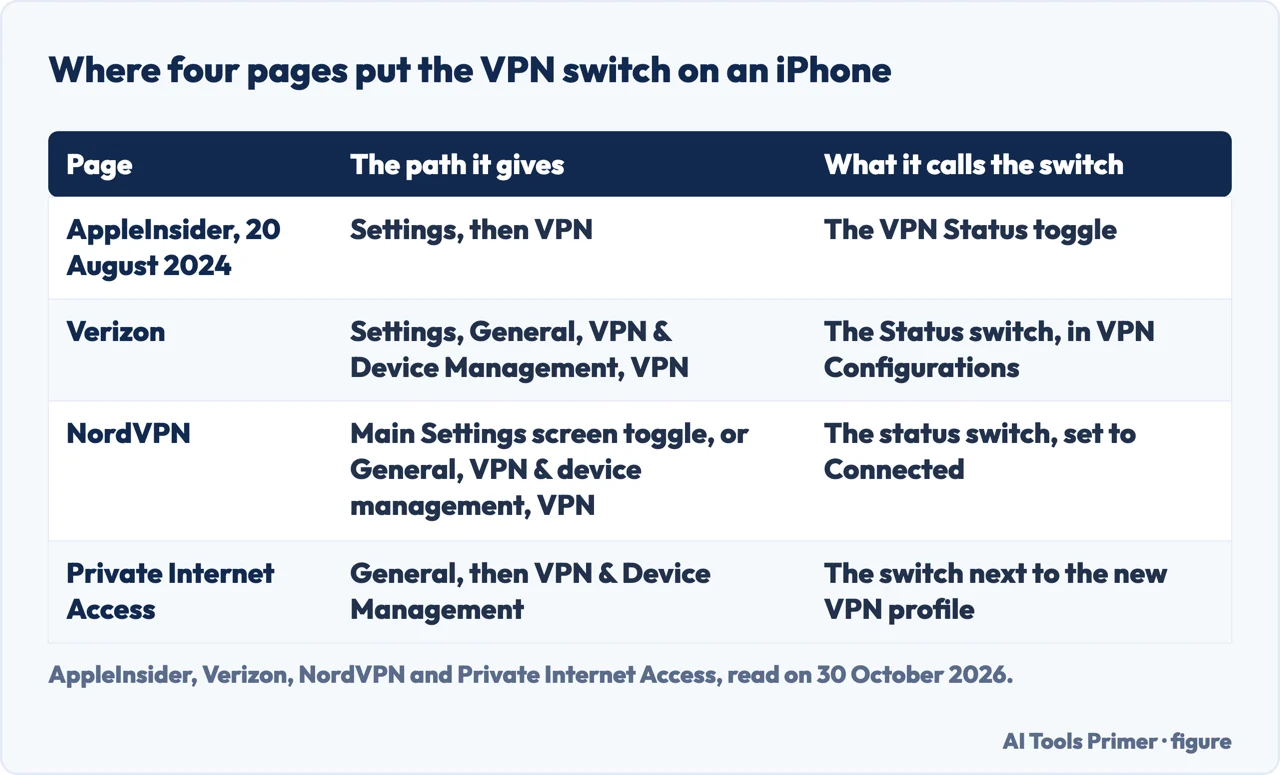
Verizon’s support article gives a longer route to the same kind of switch: open the Settings app, go to General, then VPN & Device Management, tap VPN, and in the VPN Configurations section tap the Status switch to turn it on or off. NordVPN’s guide lists both routes side by side. It says to check that the VPN toggle on the main Settings screen is switched on, shown in green, or to go to Settings, General, VPN & device management, VPN and set the status switch to Connected. Private Internet Access ends its manual steps in VPN & Device Management too, with a switch next to the VPN profile you added.
That is the one real difference between the pages: AppleInsider names Settings, VPN, while Verizon, Private Internet Access and NordVPN name General, VPN & Device Management. The pages we read do not say which of the two an iPhone shows, or whether it depends on the iOS version, and the pages do not give an iOS version for either path. NordVPN offers both. The figure below sets the four pages next to each other.
If you have installed more than one VPN, AppleInsider says you choose among the installed connections under Device VPN in Settings, VPN, and that the one you select is the one you turn on. NordVPN says something similar for profiles under General: tap the profile you want to activate and it becomes the active configuration. Apple Support, in a page last published on 8 December 2025, adds a way to find the settings when you do not know where they are: open Settings, swipe down to reveal the search field, and search for the words VPN, profile, firewall and filter.
From the provider’s app: the button and the permission prompt
AppleInsider says that VPN apps from a VPN service provider have a button to toggle the connection, which makes turning a VPN on a single tap. What the button is called depends on the app. NordVPN’s guide describes its own: open the app and tap “Secure my connection”, and if the button then reads “Pause connection”, the VPN is already on. Private Internet Access describes its app differently, as a list of locations where tapping any location connects you. Both pages are written by providers about their own apps, so they show what two apps do rather than what every app does.
Both guides also describe a prompt that comes up the first time. Private Internet Access says that on the first connection iOS asks for permission to add VPN configurations, and that tapping Allow enables the VPN profile. NordVPN gives the same step, tapping Allow when prompted to add a VPN configuration, and says the prompt can appear earlier in the setup. It explains the prompt as giving the app permission to set up an encrypted connection on the device.
Apple’s deployment guide describes the background to this in its own terms. It says the Network Extension framework lets developers create a custom VPN solution, and that several VPN providers have apps that help configure Apple devices for their solutions: you install the provider’s companion app and, optionally, give it a configuration with the settings it needs. That page is written for the people who deploy devices for an organization, not for someone with a personal phone, and the pages we read do not tie the prompt to this framework by name.
NordVPN adds that changing the server location is done from the VPN app, and that “most apps let you change your server location by selecting a country from a list”. AppleInsider covers the frozen-app case with the Settings route described above.
A profile added by hand
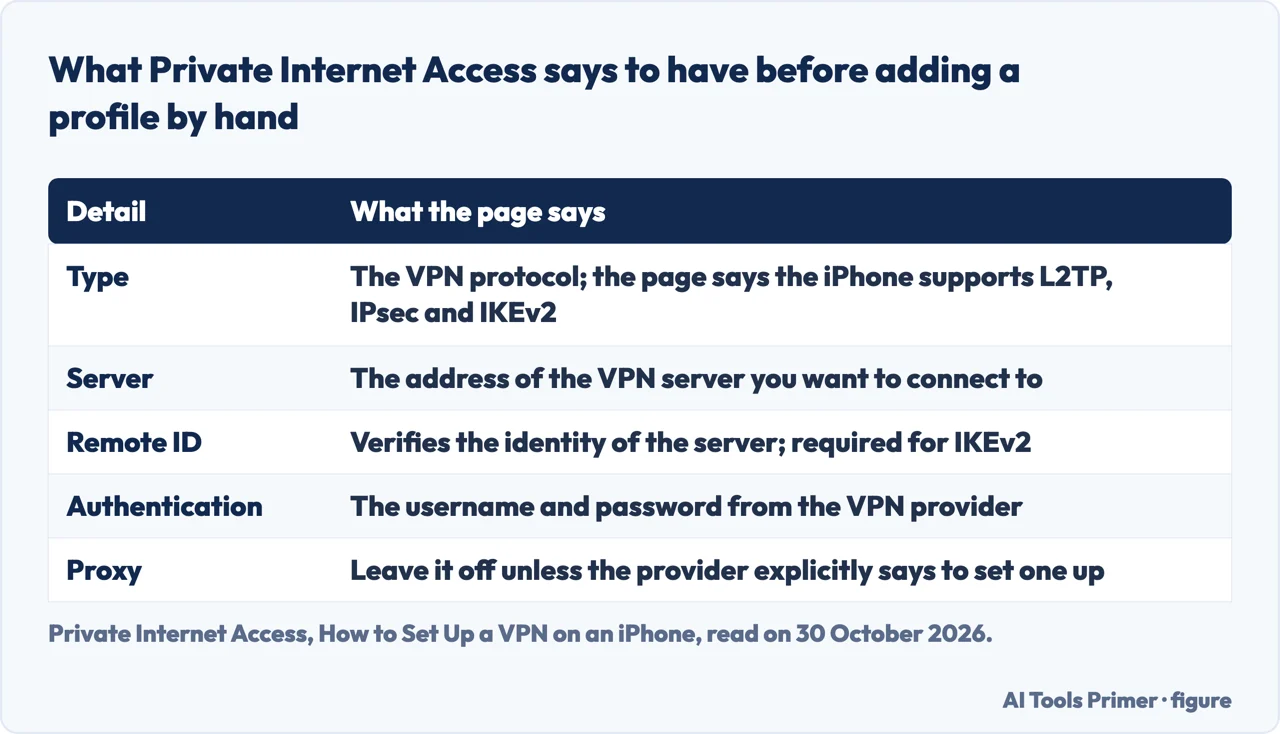
Private Internet Access calls this its second method, and says it needs details from the VPN provider first: the type of VPN, the server address, a Remote ID, the sign-in details and a decision about the proxy. The page says the iPhone supports L2TP, IPsec and IKEv2, that the Remote ID is required for IKEv2 and often matches the server address, and that the proxy should stay off unless the provider explicitly says otherwise. NordVPN lists a similar set, and adds a local ID to the server address, protocol, remote ID and login details. The figure below puts the Private Internet Access list in a table.
The steps are close on both pages. Open Settings, tap General, scroll down to VPN & Device Management, tap VPN, and tap Add VPN Configuration. Fill in the fields from the provider’s details. NordVPN says to tap the checkmark when done; Private Internet Access says to tap Done after choosing a proxy setting, Manual if you have credentials or Auto if you have a web link, and otherwise to leave it Off. Then go back to VPN & Device Management and toggle the switch next to the new profile. Private Internet Access also says the same screen offers a Sign In to Work or School Account option, for a VPN from an employer or a school.
Both providers say this route is the less usual one. NordVPN says most users will find the app method simpler and less prone to configuration errors, and that manual setup is mainly useful for enterprise or advanced personal setups. Private Internet Access says a manual setup can be difficult and still needs a subscription, and that it can be done from the built-in settings even if a network blocks the App Store. To change a profile later, NordVPN says to tap the information icon beside it to edit the server address or the login details; Private Internet Access says to tap the existing profile to change the server in the Server field or the protocol in the Type field.
How to tell it is on, and what Private Relay is
AppleInsider says to open Control Center: the VPN status is shown next to the carrier name and the Wi-Fi strength indicators, and if the VPN icon is not there, you are not connected to a VPN. NordVPN describes the same thing in a different place, a small “VPN” label in the iPhone’s status bar once a connection is made. Private Internet Access lists several: the icon in the status bar, Control Center, the VPN app itself, or the VPN profile showing as Connected in VPN & Device Management. The pages name different places for the indicator. Private Internet Access also mentions Control Center as a place to toggle the VPN off, but it does not describe the Control Center step for turning it on.
NordVPN adds a second kind of check. It suggests visiting an IP address checker, its own or a similar tool, and confirming that the address shown matches the VPN server and not your real address. It also points readers who do not know their real address to its own guide on finding it.
Two of the pages bring up iCloud Private Relay, the Apple feature that, in Private Internet Access’s words, hides your IP address like a VPN does. NordVPN says it is not the same thing: it only protects Safari traffic, does not let you choose a server location, is not available in every country and requires an iCloud+ subscription. Private Internet Access says it protects Safari and some unencrypted app requests, and does not let you choose a server location. Both providers sell VPN services, so these comparisons come from sellers, and the Apple pages we read do not mention Private Relay.
Starting by itself: On Demand, Always On and per-app
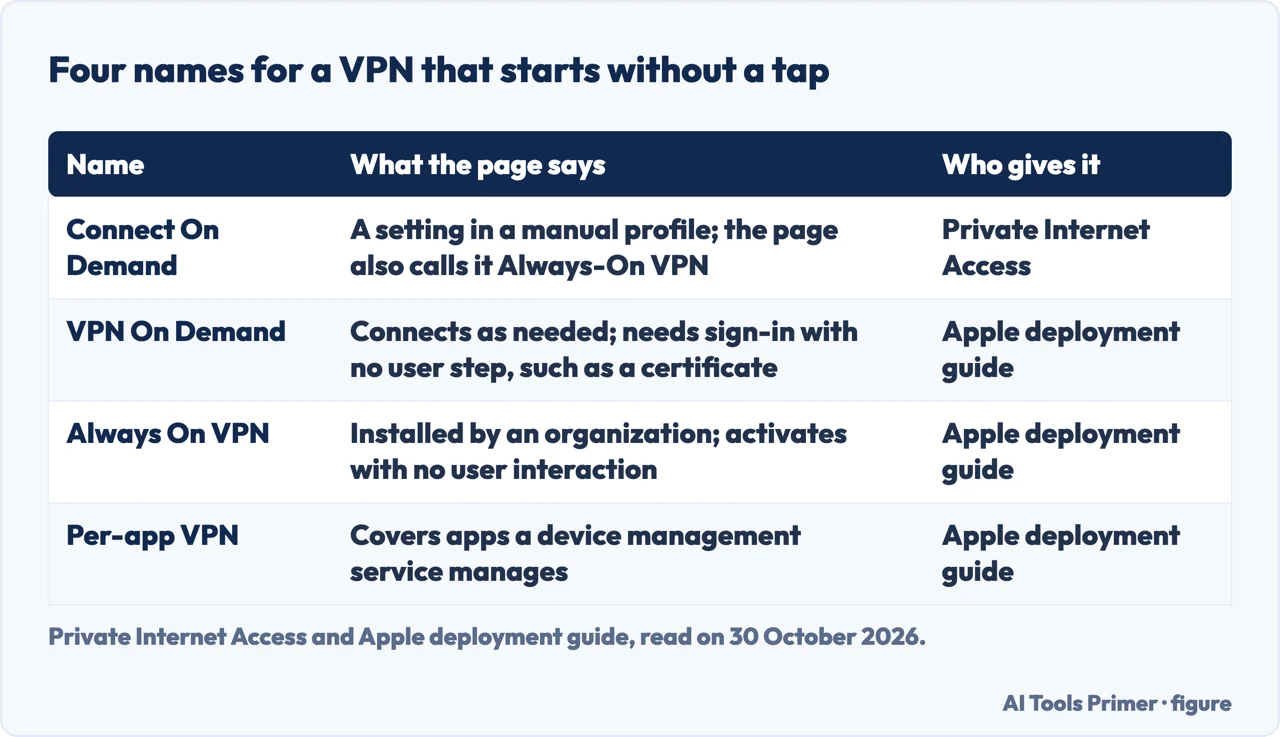
Private Internet Access answers the question of whether the iPhone’s VPN turns on automatically with a no, followed by two ways around it: an iOS VPN app can be set to launch automatically, and a manual profile can use Connect On Demand to keep the VPN active on any network, which the page says includes public Wi-Fi. It names the setting in the profile after you tap it: Connect On Demand, or Always-On VPN in the page’s words. NordVPN points at the app side of the same idea, an auto-connect feature that connects as soon as you join an unfamiliar Wi-Fi network.
Apple’s deployment guide uses similar names for different things. VPN On Demand, it says, lets a device establish a connection as needed, and it needs an authentication method that involves no user interaction, such as a certificate. Rules apply in two stages, when the primary network changes and when a request for a domain name comes in. The guide lists what rules can do: recognize an internal network where a VPN is not needed, recognize an unknown Wi-Fi network and require a VPN, and start the VPN when a DNS request for a named domain fails.
Always On VPN, in the same guide, is set up by the organization. It is available for IKEv2 and tunnels all IP traffic back to the organization. Once its configuration is installed, Apple says, it activates with no user interaction and stays active, including across restarts, until the configuration is uninstalled. While the tunnels are up all IP traffic is tunneled, and if they are not up all IP traffic is dropped. Per-app VPN is narrower: it covers the apps a device management service manages, and Apple says the app must be managed for it to be used.
So “Always-On VPN” in the Private Internet Access page and Always On VPN in Apple’s are named alike. The pages we read do not say whether the second is something a person with an ordinary phone can switch on, and Apple describes it only as a configuration an organization installs.
When an organization decides
Apple Support’s page on connectivity problems, published on 8 December 2025, says that if the device is managed by your organization or configured for access to its apps and services, you might be unable to make changes and should consult it before proceeding. The device management page in Apple’s deployment guide adds that users cannot modify the settings that a configuration profile specifies.
The same Apple Support page covers a VPN you are free to change. If the setting is not managed and required by an organization, you can turn it off, change it or delete it, for example by tapping a configuration profile and confirming the deletion. It warns that if the software that created the setting is still in use, the setting might return later. After changes, restart the device; if the problem continues, reset the network settings and restart again. Our page on resetting network settings covers what that reset removes, and the one on turning a VPN off covers the opposite switch.
The page is about connectivity problems rather than about turning a VPN on. It says that VPN software on a device can be related to problems such as not connecting to the internet or to Wi-Fi, and lists first steps that include checking the date, time and time zone, installing the latest software updates and restarting. The pages we read do not say why a VPN will not switch on, and they do not mention apps that refuse a tunnel, so this page does not cover either.
Where to start
Four ways in.
- “Where is the switch?”
- The switch itself: two paths in Settings — switch
- “What does the app ask for?”
- The button and the permission prompt — app
- “How do I know it is on?”
- How to tell it is on, and what Private Relay is — check
- “Can it start by itself?”
- On Demand, Always On and per-app — auto
The same switch, the other way
Turning it off, what it is for, and the kill switch.
Other settings on the same phone
Network resets, and the hotspot and Wi-Fi Calling settings that sit beside them on the same phone.
Questions people also ask
Why is my VPN not turning on on my iPhone?
The pages we read do not explain why a VPN will not switch on. AppleInsider says that if a provider’s app freezes, the toggle in Settings, VPN turns it on. Apple Support says a managed device may not allow changes, so ask the organization first. Its connectivity page, not about VPNs, suggests checking date and time, updating and restarting.
How do I know if my VPN is on on my iPhone?
AppleInsider says the VPN icon shows beside the carrier name and Wi-Fi strength in Control Center. NordVPN describes a VPN label in the status bar and suggests an IP address checker; Private Internet Access also points to the status Connected in VPN & Device Management.
Should I keep VPN on all the time on iPhone?
The pages we read do not answer it directly. Private Internet Access says a manual profile can use Connect On Demand to keep the VPN active on any network, and NordVPN suggests an auto-connect feature for unfamiliar Wi-Fi. Apple describes Always On VPN as an organization’s configuration.
Where is the VPN switch in iPhone Settings?
AppleInsider puts it in Settings under VPN, in the first group of rows. Verizon, Private Internet Access and NordVPN go through General, then VPN & Device Management; NordVPN also names the VPN toggle on the main Settings screen.
Not covered here. We have not tested these steps on an iPhone ourselves. The statements come from AppleInsider (20 August 2024), a Verizon support article, three Apple Support pages (one on connectivity, published 8 December 2025, and two from Apple’s deployment guide), and the guides of Private Internet Access and NordVPN, all read on 30 October 2026. We did not open Google for this question, so the four questions above were written from the pages we read, not copied from Google.
The search volume and difficulty behind this page come from a Semrush reading of 29 August 2026, past its validity: the reading expired on 28 October 2026 and was used with the site owner’s authorization, so the figures should be read again.
Sources
- AppleInsider — How to turn on a VPN connection on your iPhone — appleinsider.com, read 30 October 2026.
- Verizon — Turn Virtual Private Network On / Off — www.verizon.com, read 30 October 2026.
- Private Internet Access — How to Set Up a VPN on an iPhone and Change VPN Settings — www.privateinternetaccess.com, read 30 October 2026.
- NordVPN — What is a VPN on an iPhone? How to set it up and use it — nordvpn.com, read 30 October 2026.
- Apple Support — If your device has network connectivity issues, check for VPN and other third-party security software — support.apple.com, read 30 October 2026.
- Apple Support — VPN overview for Apple device deployment — support.apple.com, read 30 October 2026.
- Apple Support — VPN device management settings overview for Apple devices — support.apple.com, read 30 October 2026.
Written by Alberto Gulotta
Founder and editor of AI Tools Primer, writing from Palermo, Italy. Thirty-five years of taking computers apart, starting with a Commodore 64 — the long version is on the about page.
Something wrong on this page? Write to aitoolsprimer@gmail.com and it gets fixed.
Written on 30 October 2026.
Independence and limits
No affiliate links and no paid placements anywhere on this site. Nobody pays to appear here, and no company has seen this page before you did.
This is general information, not professional advice. Where a page touches money, health, safety or the law, it names its source and the date it was read — and your situation may still differ. See the privacy page and the cookie policy.