
iPhone · guide
How to turn on wifi calling on iPhone
By Alberto Gulotta · Updated · 12 min read
How to turn on wifi calling on iPhone: open Settings, tap Cellular, tap Wi-Fi Calling and switch on Wi-Fi Calling on This iPhone, then tap Enable. If the option is missing, the cause is usually your carrier, not the phone. Below are Apple’s steps, the address prompt, the carrier list, other devices, the cost and the fixes.
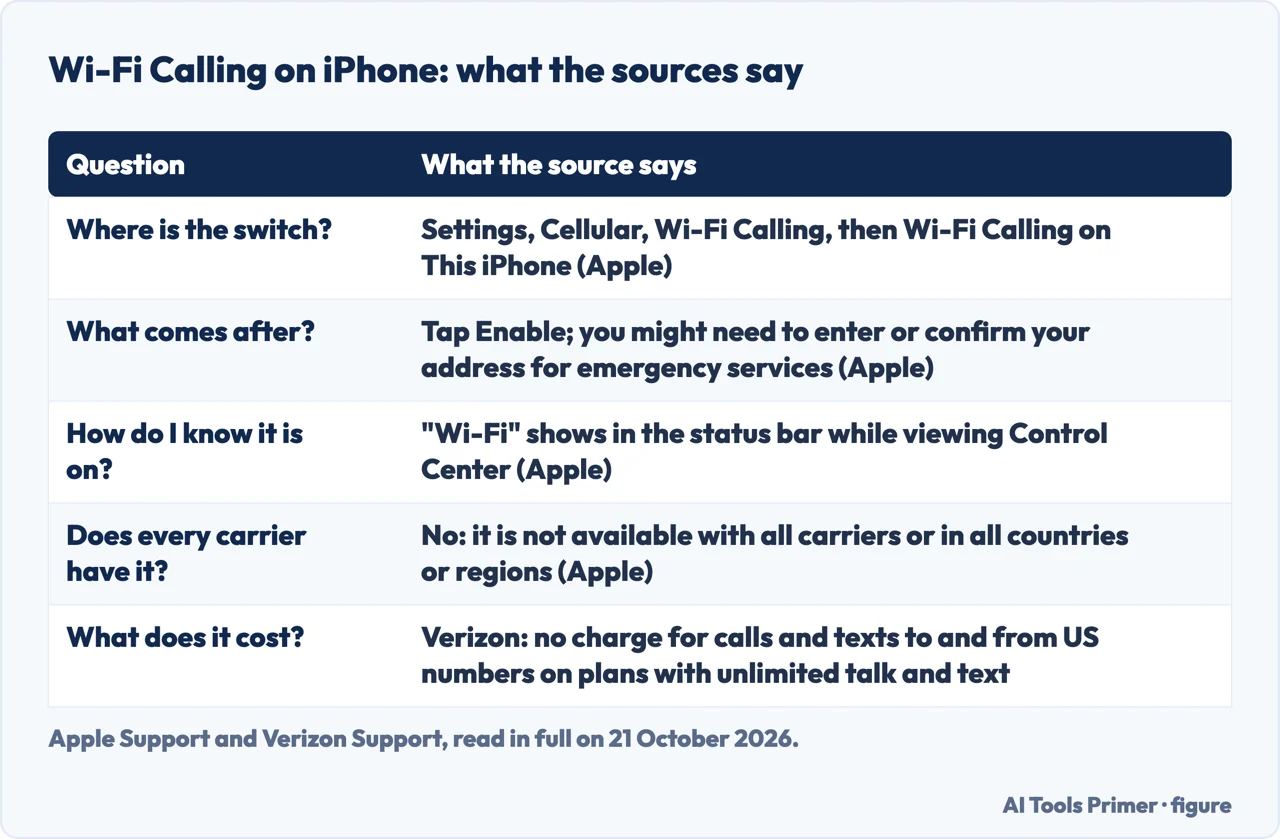
| Question | What the source says |
|---|---|
| Where is the switch? | Settings, Cellular, Wi-Fi Calling, then Wi-Fi Calling on This iPhone (Apple) |
| What comes after? | Tap Enable; you might need to enter or confirm your address for emergency services (Apple) |
| How do I know it is on? | “Wi-Fi” shows in the status bar while viewing Control Center (Apple) |
| Does every carrier have it? | No: it is not available with all carriers or in all countries or regions (Apple) |
| What does it cost? | Verizon: no charge for calls and texts to and from US numbers on plans with unlimited talk and text |
The steps, as Apple gives them
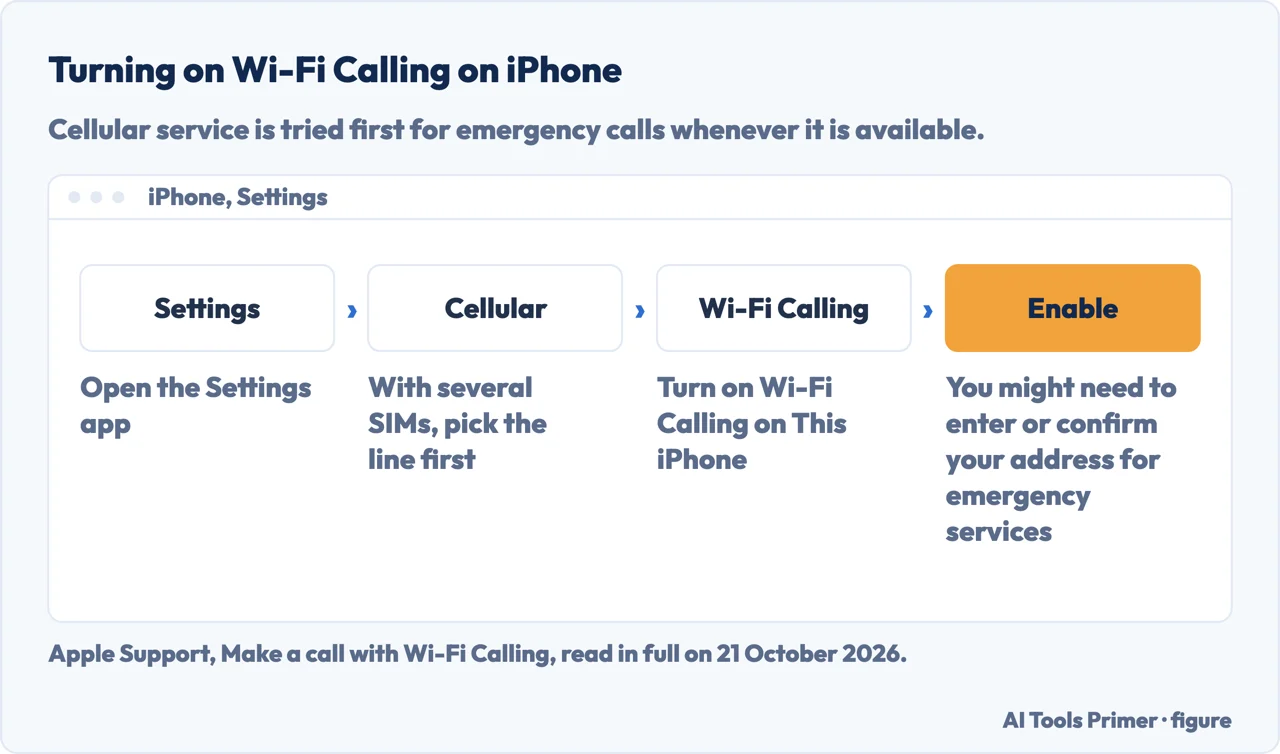
Apple’s support page “Make a call with Wi-Fi Calling” opens by saying that if you have a Wi-Fi connection in an area with little or no cellular coverage, you can use Wi-Fi Calling to make or receive a voice phone call. Its steps, in order:
- Open the Settings app.
- Tap Cellular.
- If your iPhone has multiple SIMs, scroll to the line you want to use with Wi-Fi Calling.
- Tap Wi-Fi Calling and turn on Wi-Fi Calling on This iPhone.
- Tap Enable. You might need to enter or confirm your address for emergency services.
Checking that it took. The page says that if Wi-Fi Calling is available you will see “Wi-Fi” in the status bar while viewing Control Center, and your calls will then use Wi-Fi Calling. Apple’s iPhone User Guide puts it as “Wi-Fi” displayed after your carrier name in the status bar, with all your calls going through Wi-Fi.
If the Wi-Fi drops mid-call. The User Guide says calls switch automatically to your carrier’s cellular network using VoLTE (Voice over LTE), “if available and turned on”. It adds that VoLTE calls also switch to Wi-Fi when a Wi-Fi connection becomes available. We tested none of this on a phone, and the exact menu wording can differ with your iOS version.
The address prompt, and what Wi-Fi Calling changes for emergency calls
Why it asks. Verizon, in its own help, says it is “required by the FCC to support 911 calls and collect a registered location” for Wi-Fi Calling, and that the address is used to route a 911 call and is “Isn’t used for billing or other purposes”. That is one carrier speaking for itself; Apple’s page says only that you might need to enter or confirm your address.
Cellular comes first. Apple’s page says that when cellular service is available, your iPhone uses it for emergency calls. If you turn on Wi-Fi Calling and cellular service is not available, emergency calls might use Wi-Fi Calling, and the device’s location may be used to aid the response whether or not Location Services is on. The User Guide adds that some carriers may use the address you registered when signing up as your location. Verizon says its 911 calls try cellular first even in Airplane Mode, and that if a caller is not at the registered address the call may not reach the closest emergency service provider.
One more catch. Apple’s User Guide says that when you are connected to Wi-Fi Calling, your iPhone may not receive emergency alerts. Verizon’s advice is to update your emergency address whenever you change locations.
When the Wi-Fi Calling option is not there
The first thing both Apple pages say is that the feature belongs to the carrier. The User Guide: “Wi-Fi calling isn’t available with all carriers or in all countries or regions. Contact your carrier for feature availability.” The support page says that if you cannot turn it on, you should verify that your carrier offers it and that your device software is up to date, and if both are true, contact your carrier.
Apple’s carrier list. Apple keeps a page, “Wireless carrier support and features for iPhone in the United States and Canada” (published 15 September 2026), with a features list for each carrier. In its United States section most carriers show a Wi-Fi Calling entry. Some do not: on the day we read it, Visible, Viaero, BetterRoaming and West Central Wireless had none. A few, among them AT&T, T-Mobile, Verizon, Mint Mobile and Xfinity Mobile, also carry a second line, “Wi-Fi Calling on supported iCloud-connected devices”, which matters for the section below. We read the list once: it is Apple’s snapshot, carriers change, and a missing entry is not proof that your own plan lacks the feature. Your carrier is the one to ask.
Verizon’s extra condition. Verizon says an iPhone must be connected to the Verizon network in the US to turn on Wi-Fi Calling, and that it cannot be activated after you leave the country. Verizon also says HD Voice must be active, which it is by default on its current smartphones. That is one carrier’s rule; we did not read the equivalent pages for T-Mobile or AT&T, which would not load for us.
Calls on an iPad, Mac or Apple Watch
Apple says that if your carrier supports Wi-Fi Calling on iCloud-connected devices, you can also make and receive Wi-Fi calls on other devices. The steps start on the iPhone: Settings, Cellular, Wi-Fi Calling, turn on Wi-Fi Calling on This iPhone, go back and tap Calls on Other Devices, turn on Allow Calls on Other Devices, and turn on each device in the list under Allow Calls On. The other device also has to accept the calls:
- iPad. Settings, then Apps, then FaceTime, then turn on Calls from iPhone. To call, open FaceTime, tap New FaceTime, enter a contact or number, and tap the Audio Call button.
- Mac. In FaceTime, choose Settings (or Preferences) from the FaceTime menu and turn on Calls from iPhone.
- Apple Watch. Wi-Fi Calling is enabled automatically when you turn on Allow Calls on Other Devices. To call, open the Phone app, choose a contact and tap the Call button.
If you cannot add a device, Apple says to check that Wi-Fi Calling and Allow Calls on Other Devices are on and the device appears under Allow Calls On, and that the same Apple Account is used for FaceTime and iCloud on both devices. To remove one, turn off Wi-Fi Calling for it in the list under Calls on Other Devices. This route depends on your carrier, so it is the one most likely to be missing for you.
Does it cost anything?
Apple’s pages do not give a price, because the charges are the carrier’s. The one carrier we could read is Verizon, and what follows is its statement, not a general rule. For plans with unlimited talk and text, Verizon lists no charge for calls and texts to and from US numbers. Calls and texts to other countries from the US are charged under your international long distance plan, or at pay-as-you-go rates if you have none. Verizon also says Wi-Fi calls to US numbers do not count against your plan’s data allowance, but that “the Wi-Fi network you’re connecting to may charge an access fee”.
On data, Verizon gives these figures for its own service: a voice call uses about 1 to 5 MB, and a one-minute video call from 6 to 30 MB depending on resolution. When you place an international call over Wi-Fi Calling, Verizon says a voice prompt interrupts the call to warn you that charges may apply, so you can finish the call or hang up. Your plan may differ, and no other carrier’s terms were read for this page.
If it will not turn on or will not work
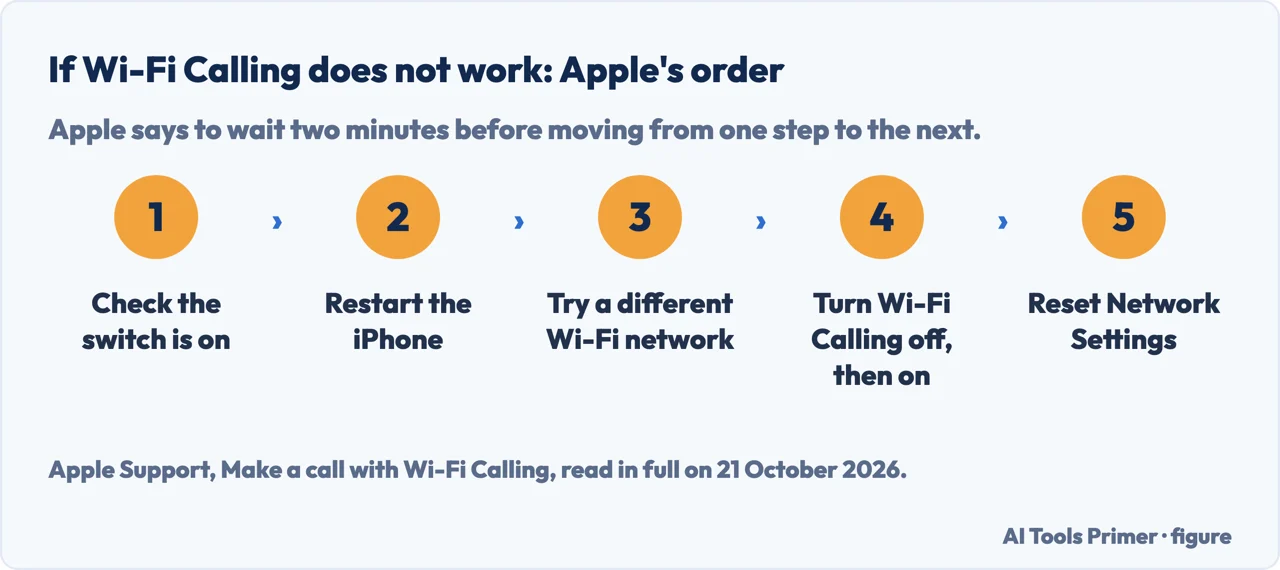
Apple’s support page has an order to follow once your carrier has confirmed it offers Wi-Fi Calling and your software is up to date. It says to wait two minutes before you go from one step to the next:
- Open Settings, tap Cellular (choose the line if you have multiple SIMs), tap Wi-Fi Calling and make sure it is on.
- Restart your iPhone.
- Connect to a different Wi-Fi network: Apple says “Not all Wi-Fi networks work with Wi-Fi Calling.”
- Turn Wi-Fi Calling off and then on again.
- Go to Settings, then General, then Transfer or Reset iPhone, then Reset, then Reset Network Settings.
The last step clears saved Wi-Fi networks and passwords, so have them to hand: our guide to resetting network settings on iPhone says what it removes. If the problem is the Wi-Fi itself rather than the calling, fixing Wi-Fi that will not work and improving the signal come first. Verizon, for its part, suggests asking your internet provider for a Wi-Fi extender if the signal is weak. We tried none of these steps on a phone.
Where to start
Six ways in.
- “Just tell me the taps.”
- The steps — steps
- “Why does it want an address?”
- Emergency calls — emergency
- “The option is not there.”
- Carrier support — carrier
- “I want it on my iPad or Mac.”
- Other devices — other devices
- “Will it cost me?”
- Cost — cost
- “It turned on but fails.”
- The fixes — not working
More on iPhone calls
Voicemail, blocking and screening each have a guide of their own.
Questions people also ask
Why does my iPhone not show the Wi-Fi Calling option?
Apple says Wi-Fi Calling is not available with all carriers or in all countries or regions, and tells you to contact your carrier. Its support page also says to check that your software is up to date. Apple keeps a carrier list; on 21 October 2026 a few United States carriers showed no Wi-Fi Calling entry on it.
Is Wi-Fi Calling on iPhone free?
Apple does not say; the charges are the carrier’s. Verizon says calls and texts to and from US numbers have no charge on plans with unlimited talk and text, and that calls to other countries are charged under your international plan. We read no other carrier’s terms.
How can I activate my Wi-Fi Calling?
Settings, Cellular, Wi-Fi Calling, switch on Wi-Fi Calling on This iPhone, then tap Enable and enter or confirm your address if asked. Apple says you will see “Wi-Fi” in the status bar while viewing Control Center when it is available.
Can I use Wi-Fi Calling for 911?
Apple says cellular service is used for emergency calls when it is available, and that with Wi-Fi Calling on and no cellular service, emergency calls might use Wi-Fi. Verizon says the call may not reach the closest provider if you are not at your registered address.
Not covered here. It was not tested on an iPhone: the steps are Apple’s own, read on 21 October 2026, and the menus can differ by iOS version and carrier.
It does not cover Android, or the Wi-Fi Calling pages of T-Mobile and AT&T, which would not load for us. The cost section is Verizon’s own statement.
It does not cover calling over Wi-Fi in apps such as WhatsApp or FaceTime, which are not Wi-Fi Calling.
Sources
- Apple Support — Make a call with Wi-Fi Calling: the steps, emergency calls, other devices and what to try if it is not working, published 7 October 2026 — support.apple.com, read 21 October 2026.
- Apple iPhone User Guide — Make calls using Wi-Fi on iPhone: the status bar, VoLTE hand-over and the emergency alerts note — support.apple.com, read 21 October 2026.
- Apple Support — Wireless carrier support and features for iPhone in the United States and Canada, published 15 September 2026 — support.apple.com, read 21 October 2026.
- Verizon Support — Apple iPhone: Turn Wi-Fi Calling On / Off (carrier help page) — www.verizon.com, read 21 October 2026.
- Verizon Support — Wi-Fi Calling at Verizon FAQs: cost, data use, activation and 911 (carrier help page) — www.verizon.com, read 21 October 2026.
Written by Alberto Gulotta
Founder and editor of AI Tools Primer, writing from Palermo, Italy. Thirty-five years of taking computers apart, starting with a Commodore 64 — the long version is on the about page.
Something wrong on this page? Write to aitoolsprimer@gmail.com and it gets fixed.
Written on 21 October 2026.
Independence and limits
No affiliate links and no paid placements anywhere on this site. Nobody pays to appear here, and no company has seen this page before you did.
This is general information, not professional advice. Where a page touches money, health, safety or the law, it names its source and the date it was read — and your situation may still differ. See the privacy page and the cookie policy.