
Software · guide
How to improve wifi signal at home: placement, bands and extenders
By Alberto Gulotta · Updated · 10 min read
How to improve wifi signal: put the router towards the middle of the home and higher if possible, with fewer walls between it and the device, away from microwaves and cordless phones. Microsoft says to run speed tests before and after changes; by our reading, an extender, mesh or a cable comes in when one room stays weak.
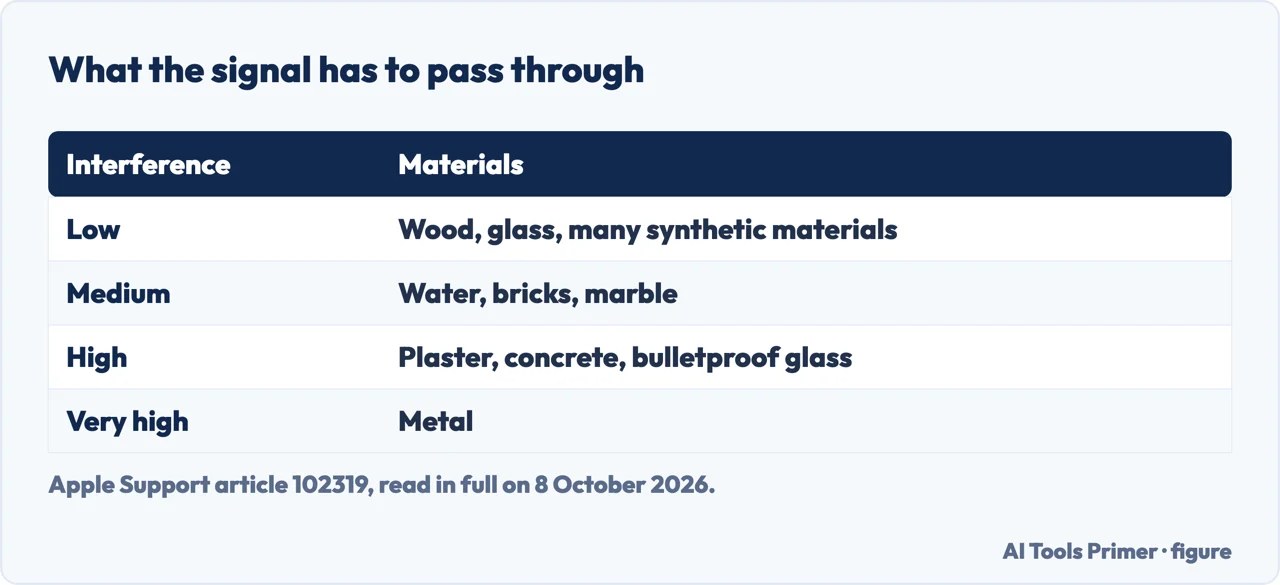
| Interference potential | Materials Apple lists |
|---|---|
| Low | Wood, glass and many synthetic materials |
| Medium | Water, bricks, marble |
| High | Plaster, concrete, bulletproof glass |
| Very high | Metal |
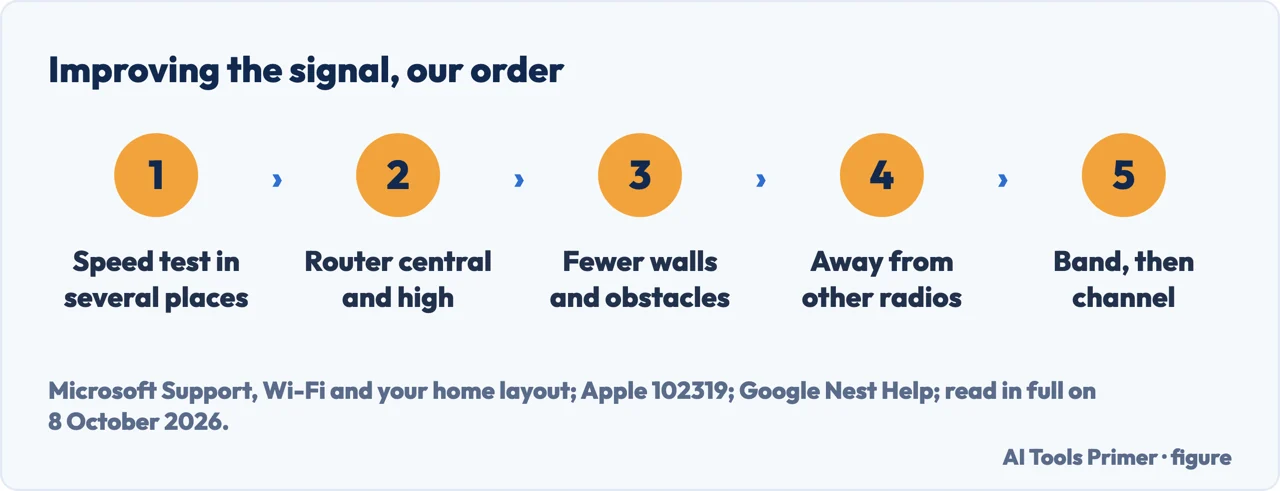
- Measure first. Microsoft’s page on Wi-Fi and the home layout, written for Windows 10 and 11, asks for a speed test before any change, run in several places in the home with the results written down, and the same tests again after changes.
- Move the router. Towards the middle of the home if you can, and higher if possible, says Microsoft; a corner or the space under a desk can reduce the signal. The FCC’s home network tips also say a central location gives the widest coverage.
- Clear the line between the two. Microsoft says the fewer walls and other obstacles between router and device, the better; Apple names a slab of metal-reinforced concrete between storeys as an example that could cause poor Wi-Fi performance.
- Keep other radios away. Apple lists power cables, microwave ovens, fluorescent lights, wireless video cameras and cordless phones; Google adds baby monitors and Bluetooth devices, and asks for its Nest devices to be kept at least 3 feet from a router, a cordless phone or another radio source.
- Pick the band and the channel. Microsoft gives 5 GHz less congestion than 2.4 GHz and the FCC says it may be less crowded; Apple says that, if the router supports both bands, moving more devices to 5 GHz might help; the channel itself is in how to change wifi channel.
- Then extend, if one room still has a weak signal. The order of these six steps is ours. An extender, a mesh system, a powerline adapter or an Ethernet cable, below.
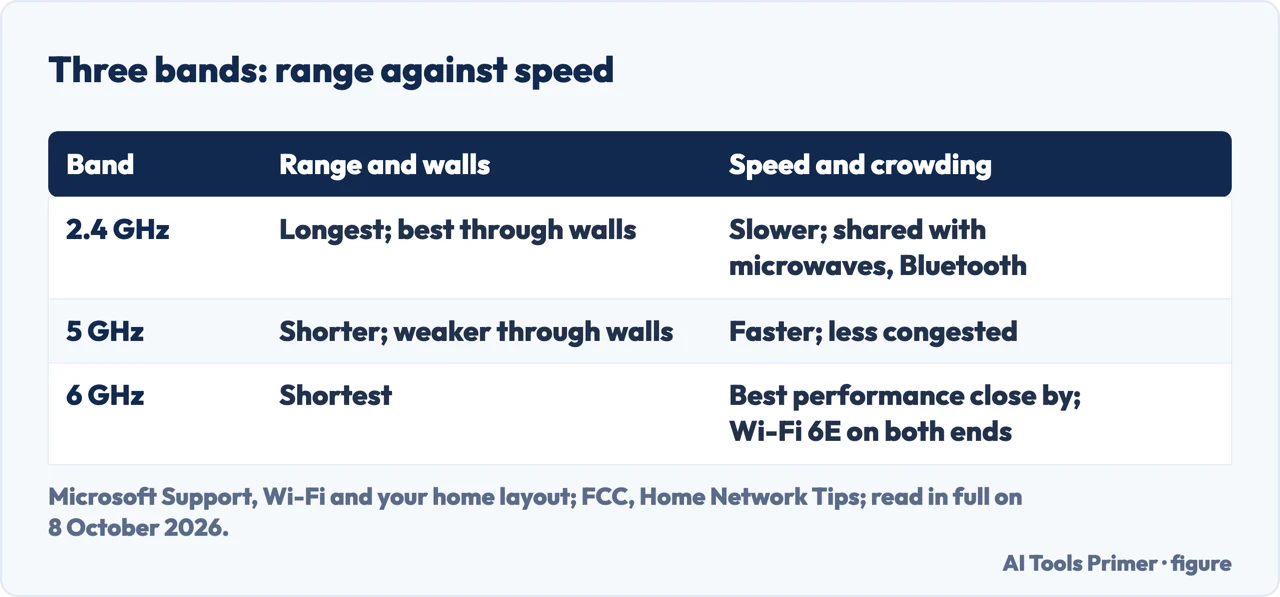
2.4, 5 or 6 GHz: range against speed
2.4 GHz reaches further. Microsoft’s table gives it a longer range and better passage through walls, with slower throughput and more congestion, because microwaves, cordless phones and Bluetooth devices share the band. The FCC says 2.4 GHz connections generally offer broader coverage but process data less quickly.
5 GHz is faster and shorter. Faster throughput and more channels that don’t overlap, says Microsoft, and less good at going through walls; the FCC suggests keeping it for the most important uses, such as work or school. Apple says many Wi-Fi devices can use 5 GHz and, if the router supports both bands, connecting more of them to it might help.
6 GHz needs Wi-Fi 6E on both ends. Microsoft: the best performance close to the router, the shortest range, and a router, a Windows device and drivers that all support Wi-Fi 6E.
One name or three. Here the makers disagree. Microsoft’s page says a router broadcasting several bands should give each its own network name, so you know which one a device joined. Apple’s page of recommended settings for routers used with Apple products asks for one name for every band. This page does not choose between them.
What gets in the way
Building materials and furniture. Google’s Nest help says wood and clear glass do little, while concrete, brick and metal can slow the network or block it from parts of the home; it adds filing cabinets, bookshelves, stoves and refrigerators, and mirrors, for the metallic coating on their backs. Apple’s four levels are in the table above.
Other networks. Google says nearby networks on the same channel compete for bandwidth, which is common in cities and apartment buildings. Lots of networks in a phone’s or computer’s Wi-Fi list, Google says, mean you may experience this kind of interference; the FCC says a list of networks in the router’s settings means performance could be affected.
Other electronics. Google: a microwave can slow or drop the network only while it runs, and some TVs can affect Wi-Fi even asleep or switched off, since their power supplies may cause interference. Its test is to unplug devices one at a time. Apple adds USB 3 and Thunderbolt 3 devices near a Mac: shielded cables, more distance, and no USB 3 or Thunderbolt 3 devices placed on top of the Mac.
Too many devices. The FCC says several devices on one network can create lag, and suggests changing the password or managing which devices connect, to keep non-essential devices off.
Channel and channel width. Microsoft picks 1, 6 or 11 on 2.4 GHz and, for an unreliable 2.4 GHz connection with a strong signal and a clear channel, a 20 MHz width instead of Auto or 20/40 MHz. On the channel set to Auto it differs from Apple: Microsoft says some routers’ Auto picks the best channel and others might not, while Apple recommends Auto for routers used with Apple products. The settings, router by router, are in the channel guide.
Extenders, mesh, powerline and cable
An extender. Microsoft suggests one when neither the router nor the device can move. TP-Link, which sells them, says an extender picks up the router’s signal and rebroadcasts it, should sit about halfway between the router and the weak area, and meets the same obstacles a router does. Google’s Nest help advises an extender from the same manufacturer, for best compatibility.
Mesh. TP-Link describes several units making one network with the same settings throughout; the FCC names mesh routers next to extenders as ways to improve the signal across a home.
Powerline. Adapters that carry the network over the home’s electrical wiring: Google suggests them for larger homes with thick or dense walls, and TP-Link says both adapters must be on the same electrical circuit.
A cable. The FCC says an Ethernet cable between router and device gives the highest speeds and relieves Wi-Fi congestion, and suggests an Ethernet adapter for a laptop without the port.
The router itself. The FCC says an outdated router might need to be updated to take advantage of higher speeds, and replaced if updates are not available; Google suggests the same for a router more than a few years old.
When the signal is not the problem. A network that will not connect at all is in why your wifi is not working, one that drops every few minutes is in why your wifi keeps disconnecting, and a full signal on a slow line is in how to fix slow internet.
Where to start
Five ways in.
- “Just give me the order.”
- The steps — the steps in order
- “Which band should I use?”
- Bands — bands
- “What is blocking it?”
- Interference — what gets in the way
- “Do I need an extender?”
- Extending — extend the signal
- “Which channel?”
- Channel and width — channel width
More on Wi-Fi at home
The fault, the speed and the channel each have a guide of their own.
Questions people also ask
Do WiFi signal boosters actually work?
The FCC says a range extender or mesh routers can improve Wi-Fi signal strength throughout a home, and Microsoft suggests an extender when neither router nor device can move. TP-Link, which sells them, says an extender rebroadcasts the router’s signal, should sit about halfway to the weak area, and meets the same obstacles a router does.
Why is my WiFi signal so weak?
Between them, Microsoft, Apple and Google name walls and other obstacles between router and device, other electronics on the same frequencies, and nearby networks on the same channel, and all three suggest moving closer. Microsoft adds a router placed in a corner or under a desk; the FCC adds many devices sharing one network.
What blocks the WiFi signal the most?
Metal, in Apple’s scale of interference: very high. Next come plaster, concrete and bulletproof glass, then water, bricks and marble; wood, glass and many synthetic materials interfere little. Google adds large furniture, refrigerators and mirrors, whose backs have a metallic coating.
Why isn’t my WiFi reaching the entire house?
Microsoft says a router in a corner or under a desk can reduce the signal; Microsoft and the FCC both advise a central position, and Microsoft a higher one. 5 GHz and 6 GHz reach less far than 2.4 GHz. For rooms still out of reach, the FCC names extenders and mesh routers, and Google powerline adapters.
Not covered here. It does not recommend a router, an extender or a mesh system by name, nor say how far a signal reaches in a given home: no page read for it measures that, and Google’s advice is to test what works in yours.
Nor does it give a signal-strength number to aim for: Microsoft’s page mentions one, and this page does not repeat it without a second source.
Sources
- Microsoft Support — Wi-Fi and your home layout (Windows 10 and Windows 11): speed tests before and after, the three bands, network names, channels, placement, extenders and channel width — support.microsoft.com, read 8 October 2026.
- Apple Support article 102319 — Resolve Wi-Fi and Bluetooth issues caused by wireless interference: sources of interference, the 5 GHz band, USB 3 and Thunderbolt 3, and materials by interference potential, published 23 April 2025 — support.apple.com, read 8 October 2026.
- Google Nest Help — Troubleshoot wireless interference: building materials, competing networks, other electronics, extenders and powerline adapters — support.google.com, read 8 October 2026.
- Federal Communications Commission — Home Network Tips: the two bands, central placement, extenders and mesh, Ethernet, and outdated routers — www.fcc.gov, read 8 October 2026.
- Apple Support article 102766 — Recommended settings for Wi-Fi routers and access points: one network name for every band, and Channel set to Auto, published 14 July 2026 — support.apple.com, read 8 October 2026.
- TP-Link FAQ 2927 — How to Boost Your Wi-Fi Signal: range extenders, powerline adapters and mesh, from a maker of all three, last updated 17 April 2026 — www.tp-link.com, read 8 October 2026.
Written by Alberto Gulotta
Founder and editor of AI Tools Primer, writing from Palermo, Italy. Thirty-five years of taking computers apart, starting with a Commodore 64 — the long version is on the about page.
Something wrong on this page? Write to aitoolsprimer@gmail.com and it gets fixed.
Written on 8 October 2026.
Independence and limits
No affiliate links and no paid placements anywhere on this site. Nobody pays to appear here, and no company has seen this page before you did.
This is general information, not professional advice. Where a page touches money, health, safety or the law, it names its source and the date it was read — and your situation may still differ. See the privacy page and the cookie policy.