
Software · guide
How to change wifi channel on a router, and which one to choose
By Alberto Gulotta · Updated · 11 min read
How to change wifi channel: open the router’s configuration page or app, go to the wireless settings for one band, choose a number from the Channel menu and apply. Apple recommends Auto for routers used with its products; by hand on 2.4 GHz in the United States, TP-Link names 1, 6 and 11 as the channels that do not interfere.
| Band | Channel | Channel width | Source, published |
|---|---|---|---|
| 2.4 GHz | Auto | 20 MHz | Apple article 102766, July 2026 |
| 5 GHz | Auto | Auto, or all widths | Apple article 102766, July 2026 |
| 6 GHz | Auto | Auto, or all widths | Apple article 102766, July 2026 |
| No Auto on the router | Whichever performs best where you are | As above | Apple article 102766, July 2026 |
| Several routers | A different channel on each | As above | Apple article 102766, July 2026 |
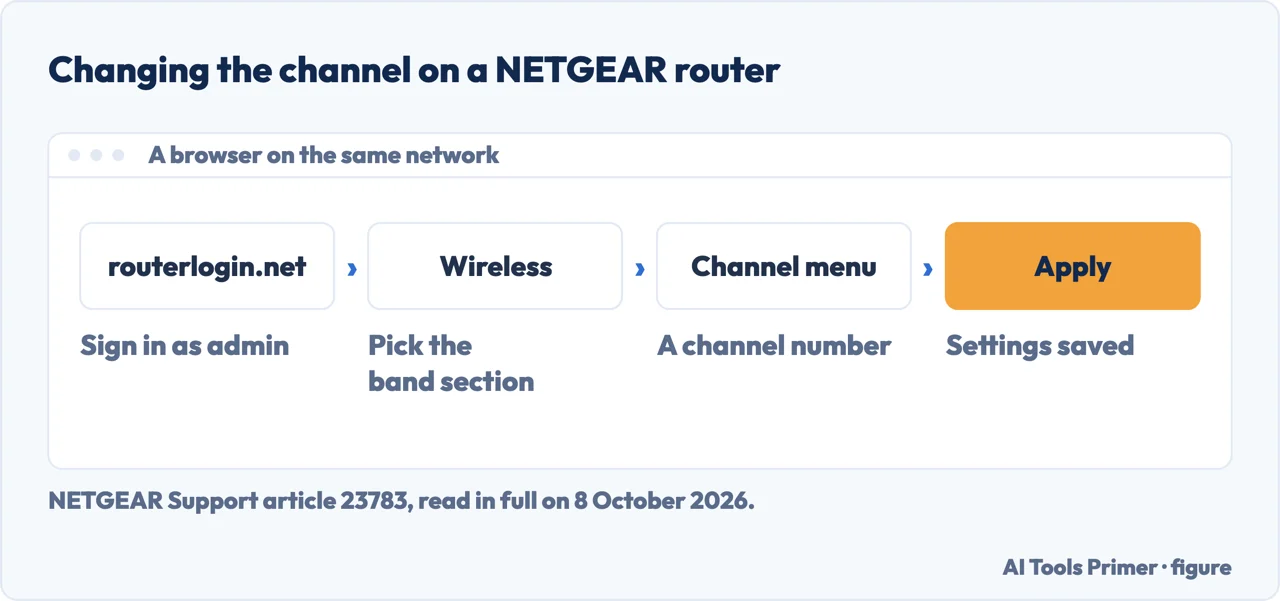
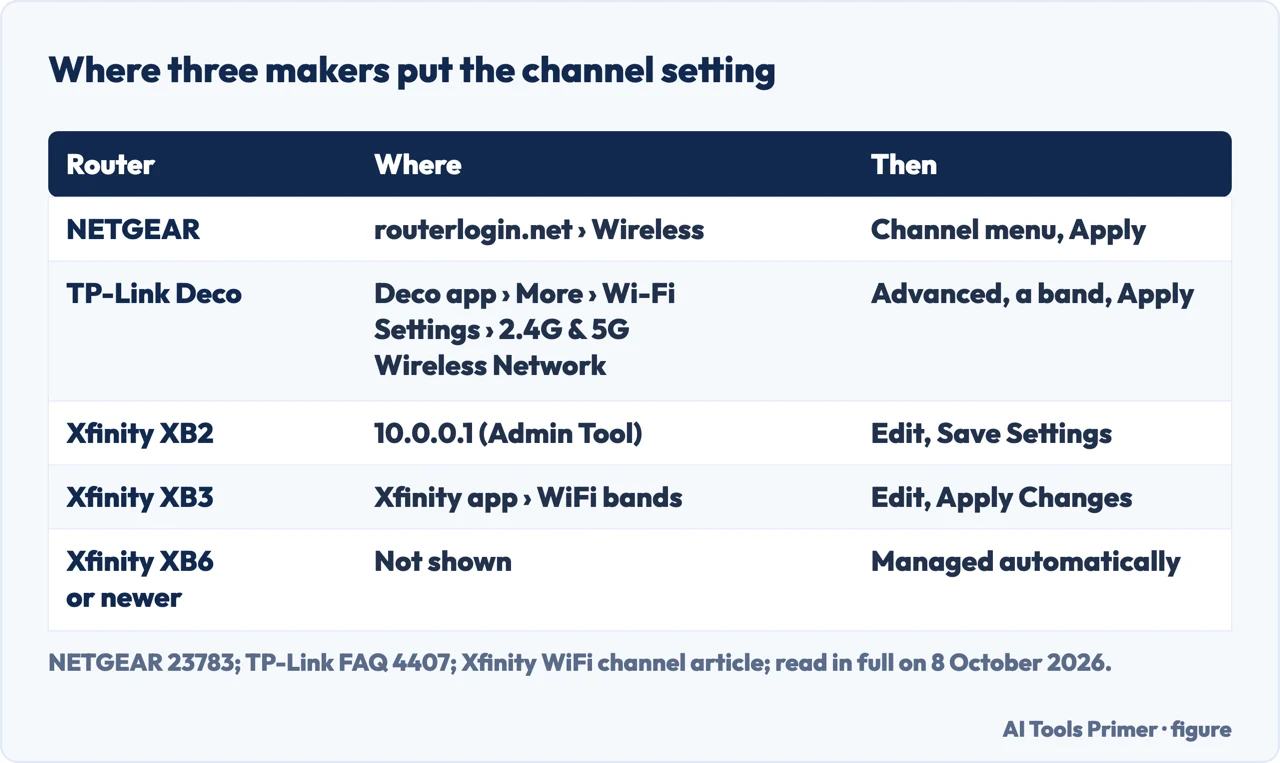
- Find the router’s configuration page or app. Apple’s page on router settings says the channel, like the password and the firmware, is changed there, and points to the router’s documentation or maker for the details. On a NETGEAR router it is http://www.routerlogin.net in a browser on the same network; on an Xfinity XB2 or XB3 gateway it is 10.0.0.1 or, on an XB3, the Xfinity app; on a TP-Link Deco it is the Deco app.
- Back up the current settings first. Apple asks for a backup before any change, so the old settings can be restored, and for the router’s firmware to be up to date.
- Open the wireless settings and pick one band. Each band has its own channel: NETGEAR has you scroll to the band you want, such as the 5GHz (a/n/ac/ax) section, and TP-Link’s Deco app has a 2.4GHz Network and a 5GHz Network entry under More › Wi-Fi Settings › 2.4G & 5G Wireless Network › Advanced.
- Choose a channel number and apply. On NETGEAR, from the Channel menu, then Apply; on Xfinity’s app for an XB3, Edit next to 2.4 or 5 GHz, then Apply Changes. NETGEAR notes that not every channel is offered in every region.
- Check every device that rejoins. Apple says that after a change you might need to forget the network on each device that had joined it, so the device picks up the new settings. If you use WiFi extenders, NETGEAR says they must be set to the same channels as the router.
Which channel to pick
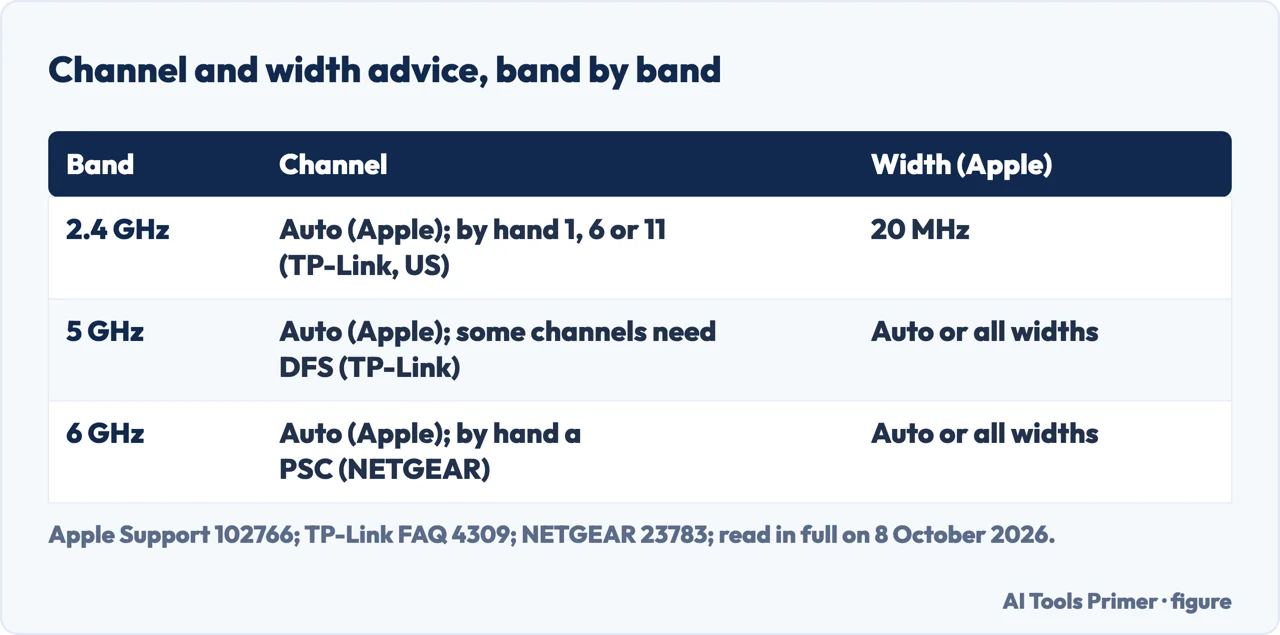
Auto first. Apple’s recommendation for every band, for routers used with its products, is Auto: the router selects the channel. NETGEAR says its routers choose the 2.4 GHz channel from the surroundings and use default 5 GHz and 6 GHz channels for the region, and recommends the defaults unless you have interference. Only then, it says, try different channels and keep the one that works best.
2.4 GHz: 1, 6 or 11 in the United States. TP-Link’s explanation of channels says the band is split into 14 channels; channels 1 to 13 are five MHz apart but 22 MHz wide, so neighbours overlap. The United States usually allows channels 1 to 11 and most other countries 1 to 13. With a 20 MHz width, TP-Link gives 1, 6 and 11 as the three US channels that do not interfere with each other; elsewhere, sets such as 3, 8 and 13.
5 GHz: more room, and some radar channels. In the same TP-Link page, 5 GHz channels are 20 MHz apart and 20 MHz wide, so there are more channels that do not overlap. Some of them use Dynamic Frequency Selection, a rule for sharing the band with radar; and channel 165 only works with a 20 MHz width.
6 GHz: the preferred scanning channels. NETGEAR’s advice for 6 GHz routers, used by Wi-Fi 6E and Wi-Fi 7, is to pick a Preferred Scanning Channel if you change the 6 GHz channel by hand, or devices might have difficulty connecting to that band.
More than one router. Apple asks for a different channel on each router, especially when they are close to each other.
Channel width, the setting next to the channel
TP-Link describes channel width as the slice of spectrum one channel occupies: wider carries more data at once and is more open to interference. Two 20 MHz channels joined make 40 MHz, two of those make 80, two 80 MHz channels make 160, and Wi-Fi 7 (802.11be) goes to 320 MHz.
Apple’s settings for routers used with its products: 20 MHz on 2.4 GHz, which it says helps avoid performance and reliability problems near other Wi-Fi networks and 2.4 GHz devices such as Bluetooth ones; Auto or all widths on 5 GHz and 6 GHz, where interference is less of a concern. TP-Link’s Deco app has the width in the same place as the channel, band by band.
Seeing the band from a computer
Windows 11. Microsoft’s Wi-Fi page gives Settings › Network & internet › Wi-Fi
› your network’s properties, where a line reads Network band (channel). The same page uses the
command netsh wlan show drivers to see which Wi-Fi versions the adapter supports.
An Intel adapter. Intel’s article on advanced adapter settings, written for its older adapters and for Windows 10 and earlier, opens them from Device Manager › Network adapters › the wireless adapter › Properties › Advanced. There, Channel width on Auto uses 20, 40, 80 or 160 MHz on 5 GHz depending on the router, and Preferred band can be set to prefer 2.4 GHz or 5 GHz.
An iPhone, iPad or Mac on Wi-Fi 6E. Apple’s page on 6 GHz networks has a Wi-Fi 6E mode setting under the network’s details; turned off, the device stops using that network’s 6 GHz band. Apple adds that the router should use a single network name for all its bands.
When there is no channel setting
Xfinity says its XB6 and newer gateways manage advanced Wi-Fi settings automatically, and that the 2.4 and 5 GHz channel settings are not visible in the Admin Tool or the app on those models; the same holds when Xfinity WiFi Extenders are on the network. On an XB3 without extenders, the Xfinity app shows them under Advanced settings › WiFi bands.
Where Auto is on, Xfinity lists some of what its gateway weighs: how many devices use a channel, the distance from the device to the gateway, and whether the device can use 5 GHz.
When the channel is not the problem. A connection that keeps dropping is in why your wifi keeps disconnecting, and a line that is simply slow is in how to fix slow internet.
Where to start
Five ways in.
- “Just give me the steps.”
- Any router — the steps on any router
- “Which number do I pick?”
- Which channel — which channel
- “What is 20, 40 or 80 MHz?”
- Channel width — channel width
- “Which band is my laptop on?”
- From a computer — which channel a computer is on
- “My router has no such setting.”
- Managed gateways — when the setting is not there
More on Wi-Fi at home
The fault, the speed and the password each have a guide of their own.
Questions people also ask
Is 80MHz or 160MHz better?
Neither Apple nor TP-Link picks one. TP-Link explains that a 160 MHz channel joins two 80 MHz channels, so it carries more data at once, while a wider channel uses more spectrum and is more open to interference. Apple’s setting for the 5 GHz and 6 GHz bands is Auto or all widths, not a fixed one.
How do I switch from 5GHz to 2.4 GHz WiFi?
Apple recommends one network name for every band. On Windows 10 or earlier with an older Intel adapter, Device Manager › the adapter › Properties › Advanced has Preferred band, with Prefer 2.4 GHz band. On an iPhone or Mac on a Wi-Fi 6E or 7 network, Wi-Fi 6E mode set to Off stops its 6 GHz band only.
What channel should I use for 2.4 GHz?
Apple’s first answer is Auto. Chosen by hand in the United States, TP-Link names 1, 6 or 11: at a 20 MHz width those three do not interfere with each other, and the US usually allows only channels 1 to 11. In countries that allow 1 to 13, it gives sets such as 3, 8 and 13.
Which is better for WiFi, 20mhz or 40mhz?
On 2.4 GHz Apple recommends 20 MHz, to avoid performance and reliability problems near other networks and Bluetooth devices. TP-Link describes 40 MHz as two 20 MHz channels joined, doubling throughput, with more exposure to interference. On 5 GHz and 6 GHz, Apple’s setting is Auto.
Not covered here. It does not cover business access points or mesh systems beyond the Deco app; each maker’s own manual has the model-by-model menus.
Nor does it say which channel is crowded where you live: no page read for it measures that, and the makers’ advice is to try channels and keep the one that works.
Sources
- Apple Support article 102766 — Recommended settings for Wi-Fi routers and access points: Channel set to Auto, channel width by band, one network name for every band, and a backup before changes — support.apple.com, read 8 October 2026.
- NETGEAR Support article 23783 — How do I change the wireless channel on my NETGEAR router?: routerlogin.net, Wireless, the Channel menu, regional limits, extenders, and Preferred Scanning Channels — kb.netgear.com, read 8 October 2026.
- TP-Link FAQ 4309 — Brief introduction of Wireless Channel, Channel Width and DFS: 14 channels on 2.4 GHz, 1, 6 and 11, widths from 20 to 320 MHz, DFS and channel 165 — www.tp-link.com, read 8 October 2026.
- TP-Link FAQ 4407 — How to Change the Wi-Fi Channel and Channel Width on Your TP-Link Deco: the path in the Deco app — www.tp-link.com, read 8 October 2026.
- Xfinity — How to change your home network’s WiFi channel selection or mode: the Xfinity app, the Admin Tool at 10.0.0.1, and gateways that manage the setting themselves — www.xfinity.com, read 8 October 2026.
- Microsoft Support — Faster and more secure Wi-Fi in Windows: Network band (channel) in the network’s properties, and netsh wlan show drivers, Windows 11 — support.microsoft.com, read 8 October 2026.
- Intel Support article 000005585 — Advanced Intel Wireless Adapter Settings: Channel width and Preferred band, for older Intel adapters on Windows 10 and earlier — www.intel.com, read 8 October 2026.
- Apple Support article 102285 — Use Wi-Fi 6E or Wi-Fi 7 networks with Apple devices: Wi-Fi 6E mode on Mac, iPhone and iPad — support.apple.com, read 8 October 2026.
Written by Alberto Gulotta
Founder and editor of AI Tools Primer, writing from Palermo, Italy. Thirty-five years of taking computers apart, starting with a Commodore 64 — the long version is on the about page.
Something wrong on this page? Write to aitoolsprimer@gmail.com and it gets fixed.
Written on 8 October 2026.
Independence and limits
No affiliate links and no paid placements anywhere on this site. Nobody pays to appear here, and no company has seen this page before you did.
This is general information, not professional advice. Where a page touches money, health, safety or the law, it names its source and the date it was read — and your situation may still differ. See the privacy page and the cookie policy.