
iPhone · guide
iPhone hotspot not working
By Alberto Gulotta · Updated · 10 min read
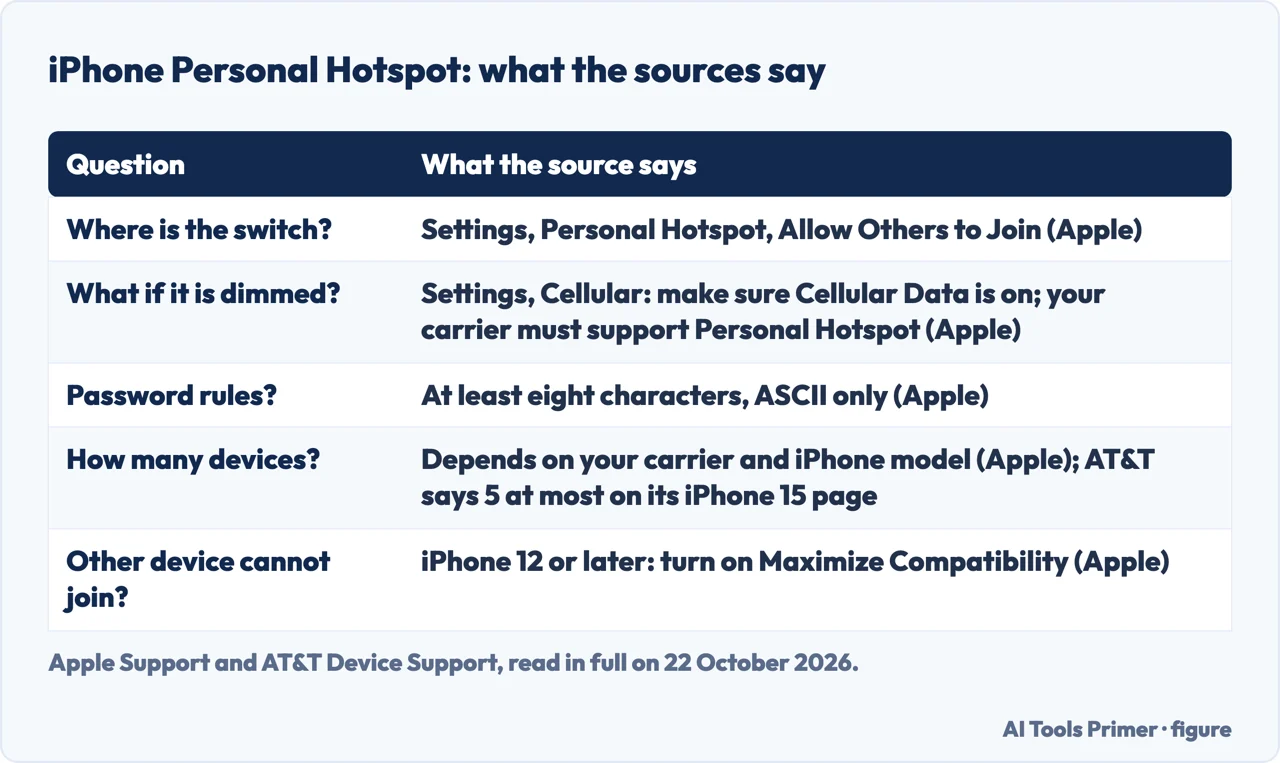
iPhone hotspot not working: check that Allow Others to Join is on under Settings, Personal Hotspot, restart both devices, update iOS, and only then reset network settings. If the switch is dimmed, check Cellular Data and your carrier plan. Apple gives that order; this page adds the Wi-Fi, USB and Bluetooth fixes.
| Question | What the source says |
|---|---|
| Where is the switch? | Settings, Personal Hotspot, Allow Others to Join (Apple) |
| What if it is dimmed? | Settings, Cellular: make sure Cellular Data is on; your carrier must support Personal Hotspot (Apple) |
| Password rules? | At least eight characters, ASCII only (Apple) |
| How many devices? | Depends on your carrier and iPhone model (Apple); AT&T says 5 at most on its iPhone 15 page |
| Other device cannot join? | iPhone 12 or later: turn on Maximize Compatibility (Apple) |
Apple’s order of fixes
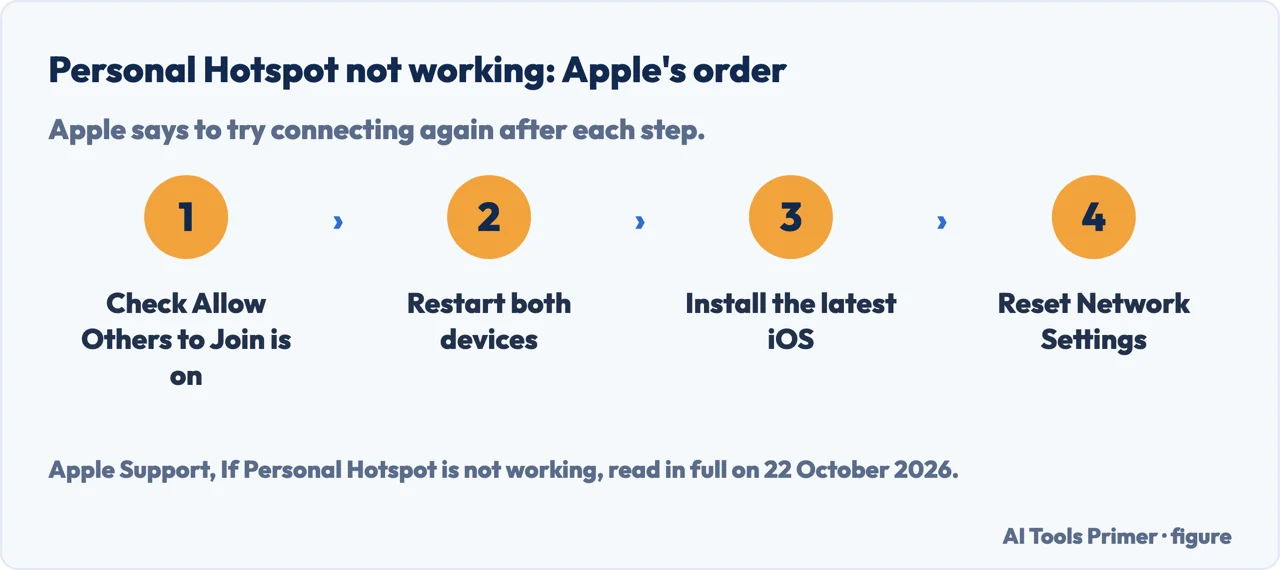
Apple’s support page for a hotspot that is not working opens with a section headed “Use these steps first” and tells you to try connecting again after each step. In its order:
- Make sure Personal Hotspot is on. Open Settings, tap Personal Hotspot, tap Allow Others to Join. If you cannot find or turn on Personal Hotspot, Apple says to check that your wireless carrier enabled it and that your plan supports it.
- Restart both devices: the iPhone that provides the hotspot and the device that needs to connect.
- Update. Make sure the iPhone has the latest version of iOS.
- Reset Network Settings. Settings, General, Transfer or Reset iPhone, Reset, then Reset Network Settings. Apple says this also resets Wi-Fi networks and passwords, cellular settings, and VPN and APN settings you have used before.
The last step is the costly one. Our guide to resetting network settings on iPhone says what it removes, so do it last. AT&T’s own iPhone page lists nine steps in a slightly different order (it puts the password check, the connected-device limit and USB or Bluetooth before the restart and the update, and Maximize Compatibility after them), but it ends on the same reset. We tried none of these on a phone.
When the switch is dimmed or not there
Apple’s connection page says that if Personal Hotspot is dimmed or unavailable, you should open Settings, tap Cellular, and make sure that Cellular Data is turned on. AT&T’s iPhone page has the same check, and says to toggle cellular data off and then back on.
Then it is the carrier’s. Apple says Personal Hotspot requires a wireless carrier that supports it, and that additional fees may apply. Its other page says that if you cannot find or turn on the option, you should check that your carrier enabled it and that your plan supports it. Neither Apple page says which plans do; that is for your carrier to answer, and we read only AT&T’s help, not the plan terms.
How many devices? Apple says “The number of devices that can join your Personal Hotspot at one time depends on your carrier and iPhone model.” The one number we found is AT&T’s, and it is for its own iPhone 15 page: “iPhone supports 5 devices at max.” Do not read that as a rule for every carrier.
If the other device will not join over Wi-Fi
On the iPhone, Apple’s steps are: open Settings, tap Personal Hotspot, and make sure Allow Others to Join is on. Note the Wi-Fi network name and password shown there, and stay on that screen until the other device has connected.
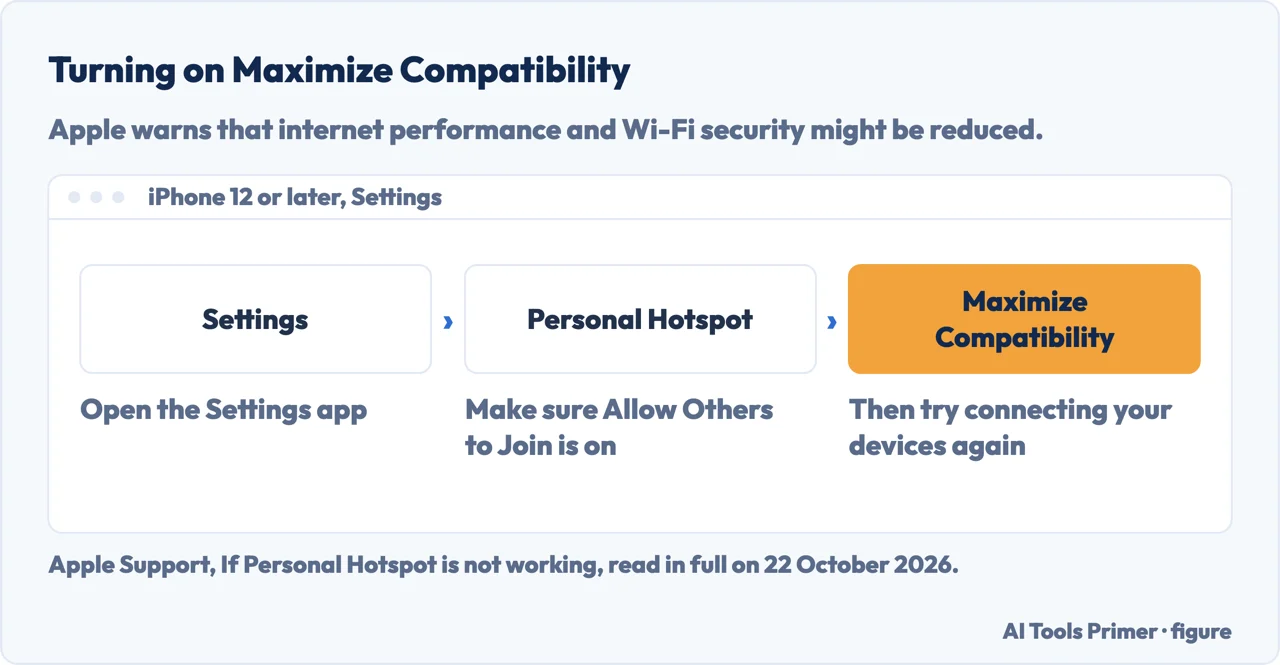
Maximize Compatibility. If you have an iPhone 12 model or later, Apple says to tap Personal Hotspot, turn on Maximize Compatibility, and try again. Apple adds a warning: when you turn it on, “internet performance and Wi-Fi security might be reduced for devices connected to the hotspot.” AT&T describes the same switch as lowering the iPhone’s frequency band to help compatibility with connected devices. Apple’s page does not use that wording, so take it as AT&T’s explanation.
On the device that is joining: turn Wi-Fi off and back on, and make sure you picked the right network. Apple says the network name is the same as the name of the iPhone providing the hotspot, and a Personal Hotspot icon may appear next to it. If you get a password error, read the password again in Settings, Personal Hotspot on the iPhone. AT&T’s tip is to forget the network on the connecting device and rejoin with the current password.
Password rules. If you set your own, Apple says it must be at least eight characters long and use only ASCII characters: the uppercase and lowercase letters of the English alphabet, the numbers 0 through 9, and some punctuation marks. By that description, an accented letter is not in the set. If the device is slow to join or the signal is weak, fixing Wi-Fi that will not work covers the joining side. If it joins but nothing loads, see connected without internet.
USB and Bluetooth, and when to use them
AT&T’s page suggests that if Wi-Fi will not connect, a USB or Bluetooth connection may be a workaround. Apple documents both.
- USB to a Windows PC. Apple says to make sure the latest version of Apple Devices or iTunes for Windows is installed, connect the iPhone with a USB cable, click Allow if asked to allow the accessory, and tap Trust on the iPhone if asked to trust the computer. Allow Others to Join must be on.
- USB to a Mac. Apple’s fix page says to update macOS, connect the cable, trust the device if asked, and make sure you can see the iPhone in iTunes or the Finder. Then open System Settings, Network. If iPhone USB is in the list of network services, on macOS Ventura click it, click Make Inactive, then Make Active. Older versions use the More button and Make Service Inactive, then Active, each followed by Apply. If it is not in the list, Apple says to add it with its steps for setting up a network service.
- Bluetooth. On the iPhone, turn on Allow Others to Join, go back to the main Settings screen and tap Bluetooth, and stay there. On the computer, open Bluetooth settings and choose the iPhone. When a pairing code shows, check it matches on both devices and tap Pair on the iPhone.
If Bluetooth itself misbehaves, fixing Bluetooth that will not work comes first. Nothing here was tried on a phone, and the menu wording can differ with your iOS or macOS version.
Do not leave it on
Apple says that to avoid unnecessary data charges you should turn off Personal Hotspot when you do not need it. The reason it gives: if you leave it on, every time you plug the iPhone into a computer to charge, the computer might connect to the hotspot. To stop sharing, turn off Allow Others to Join in Personal Hotspot settings.
Apple also says certain apps and features that need a Wi-Fi connection might not work while you use a Personal Hotspot, and gives two examples: you might not be able to make an iCloud backup or upload photos to iCloud Photo Library. Charges depend on your plan, which neither Apple page describes.
Where to start
Five ways in.
- “What do I try first?”
- Apple’s order — order
- “The switch is dimmed or missing.”
- Dimmed or missing — missing
- “It will not join over Wi-Fi.”
- Wi-Fi fixes — wifi
- “Can I use a cable instead?”
- USB and Bluetooth — usb bluetooth
- “Will it eat my data?”
- Charges — charges
More on iPhone connections
The reset that ends Apple’s list, and the connection problems next to it.
Questions people also ask
Why can't my iPad connect to the hotspot?
Apple’s Wi-Fi steps are written for any device joining an iPhone or iPad hotspot: turn Wi-Fi off and on, pick the network with the same name as the iPhone, and check the password in Settings, Personal Hotspot. On an iPhone 12 or later, Apple also says to try Maximize Compatibility.
My iPhone hotspot isn't working after updating to iOS 26. How can I fix this?
We found no Apple page about a hotspot fault tied to one iOS version. Apple’s general order applies: check Allow Others to Join, restart both devices, make sure both have the latest software, then reset network settings.
How do I fix my hotspot problem?
Follow Apple’s order: Allow Others to Join on, restart both devices, update iOS, then Reset Network Settings, trying again after each step. If the switch is dimmed, check Cellular Data and your carrier plan first.
How do I activate my hotspot on my iPhone?
Open Settings, tap Personal Hotspot (or Cellular, then Personal Hotspot) and turn on Allow Others to Join. Apple says your carrier must support Personal Hotspot and that additional fees may apply.
Not covered here. It was not tested on an iPhone: the steps are Apple’s own, read on 22 October 2026, and the menus can differ by iOS version and carrier.
It does not cover Android phones, or the hotspot pages of Verizon and T-Mobile, which we did not read. The device count is AT&T’s statement for one page.
The search volume and difficulty behind this page come from Ubersuggest, not Semrush, and Google’s result pages were not opened.
Sources
- Apple Support — Connect to the Personal Hotspot of an iPhone or iPad: Wi-Fi, USB and Bluetooth, published 7 May 2026 — support.apple.com, read 22 October 2026.
- Apple Support — If Personal Hotspot is not working on your iPhone or iPad: the order of fixes, Maximize Compatibility and USB, published 15 December 2025 — support.apple.com, read 22 October 2026.
- AT&T Device Support — Apple iPhone 15: Troubleshooting why my personal hotspot isn’t working (carrier help page) — www.att.com, read 22 October 2026.
Written by Alberto Gulotta
Founder and editor of AI Tools Primer, writing from Palermo, Italy. Thirty-five years of taking computers apart, starting with a Commodore 64 — the long version is on the about page.
Something wrong on this page? Write to aitoolsprimer@gmail.com and it gets fixed.
Written on 22 October 2026.
Independence and limits
No affiliate links and no paid placements anywhere on this site. Nobody pays to appear here, and no company has seen this page before you did.
This is general information, not professional advice. Where a page touches money, health, safety or the law, it names its source and the date it was read — and your situation may still differ. See the privacy page and the cookie policy.