
VPN · guide
How to set up a VPN on Android, from first tap to Always-on
By Alberto Gulotta · Updated · 16 min read
How to set up a VPN on Android has two starts, say the pages we read: install a provider's app from the Play Store, or add a saved VPN under Settings, Network & internet, VPN. After that, Android's own switches decide what happens when the tunnel drops, which apps use it, and how much battery it costs.
| Question | Answer | Where it comes from |
|---|---|---|
| How do I start? | Install the provider’s app from the Play Store, or add a VPN under Settings, Network & internet, VPN | CNET, Android Help |
| What does Android ask the first time? | A dialog asks you to confirm that you trust the VPN | Android developers, Mullvad |
| How do I see that it is on? | A key icon in the status bar and a panel in Quick Settings | Android developers |
| Can it stay on all the time? | Always-on VPN, in the settings of the VPN, on Android 7.0 or higher | Android developers, Android Help |
| What does Block connections without VPN do? | It stops any traffic that does not use the VPN; Mullvad says Android 8 or later | Android developers, Mullvad |
| Does a VPN cost battery? | NordVPN calls its figures small; Mullvad names options that use more | NordVPN, Mullvad |
Two ways to start
The pages we read describe two starts. CNET gives the app route for Android phones, tablets and Android TV boxes in four steps: open the Play Store, search for your VPN provider, tap install, then open the app, sign in and select a server. The other start is a saved VPN in Settings. Android Help says to get the VPN information from your administrator, adds that you might need to install a VPN app and start set-up in that app, and says the app could come from the Google Play Store or from your administrator. Then you open Settings, tap Network & internet, then VPN, tap Add at the top right, enter the information and tap Save. If you cannot find the entry, Android Help says to search Settings for “VPN”, and after that to ask the device manufacturer.
Forbes gives a manual route in six steps for what it calls any Android device: Network and Internet, the VPN option and the plus symbol at the top right, the connection type (IKEv2, IPsec), the server name and identifier from the provider, then username and password and Save. To connect, Android Help says to open Settings, Network & internet, VPN, tap the VPN you want, enter your username and password and tap Connect; if you use a VPN app, the app opens. The menu names differ by page. Android Help and Forbes name Network & internet and VPN; Mullvad puts the same list under Network & internet, Advanced, VPN; ExpressVPN points to Connections, More connection settings, VPN and adds that menu names and steps may vary with the device and the version.
Android Help opens with a note for one family of phones. It says Pixel 7 and later phones and the Pixel Tablet have access to a built-in VPN by Google at no extra cost in countries where VPN is available, and that some of its steps only work on Android 14 and up. The pages we read do not say which other phones have or lack a VPN entry in Settings.
What Android asks and what it shows
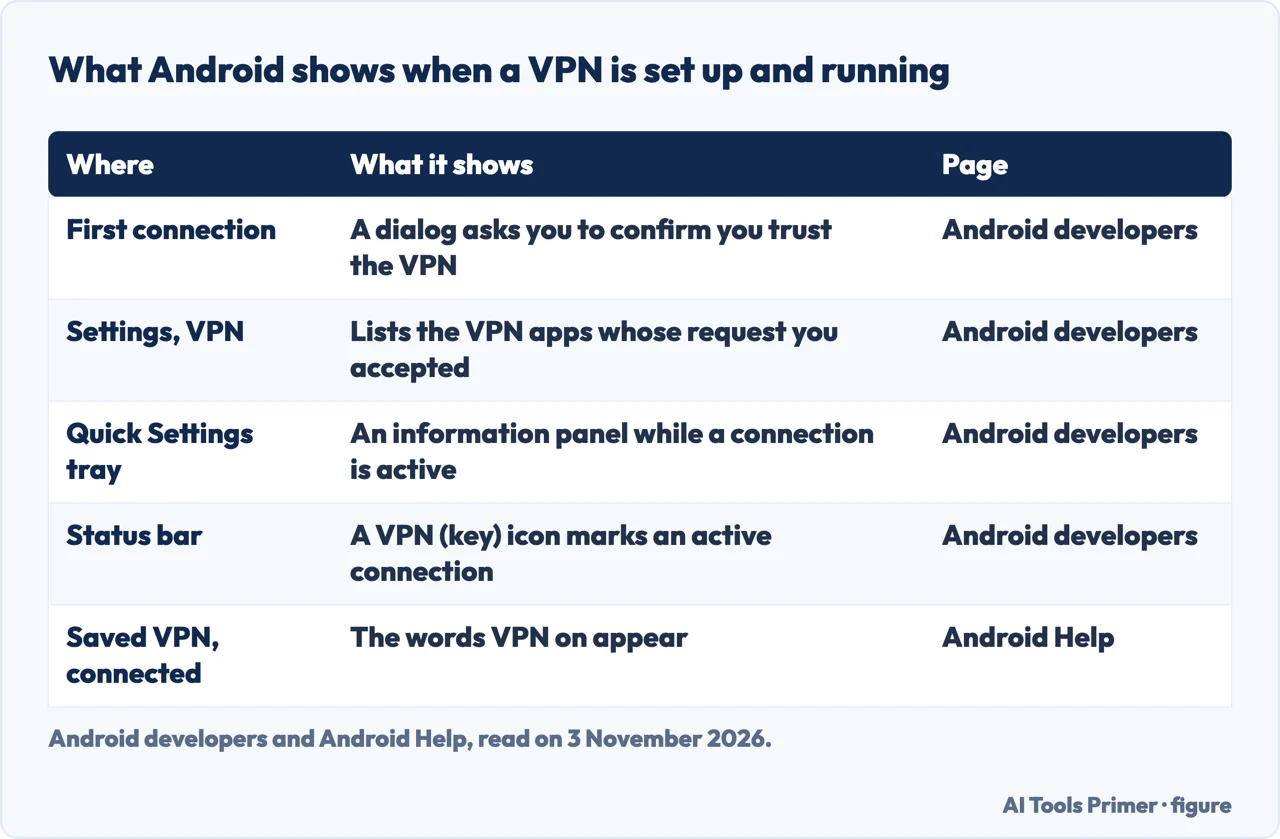
Android’s developer documentation, last updated on 23 October 2026, is written for people who build VPN apps, so we used only the parts that describe what the person holding the phone sees. It says that before a VPN app can become active for the first time, the system shows a connection request dialog that asks the person to confirm that they trust the VPN and accept the request. Mullvad describes the same moment from the app’s side: the first time after you install the app, it asks for permission to set up a VPN connection on your device, and you tap OK.
Once a VPN is running, the developer documentation lists what Android shows. The VPN settings screen, under Settings, Network & Internet, VPN, shows the VPN apps where a person accepted connection requests, with a button to configure system options or forget the VPN. The Quick Settings tray shows an information panel while a connection is active, and tapping its label opens a dialog with more information and a link to Settings. The status bar includes a VPN icon in the shape of a key. Android Help gives a shorter sign for a saved VPN: when you are connected, you see VPN on. Mullvad’s app adds its own signs: the top bar turns green, a VPN icon shows in the notification bar of the device and Connected appears on the connection screen.
Always-on VPN
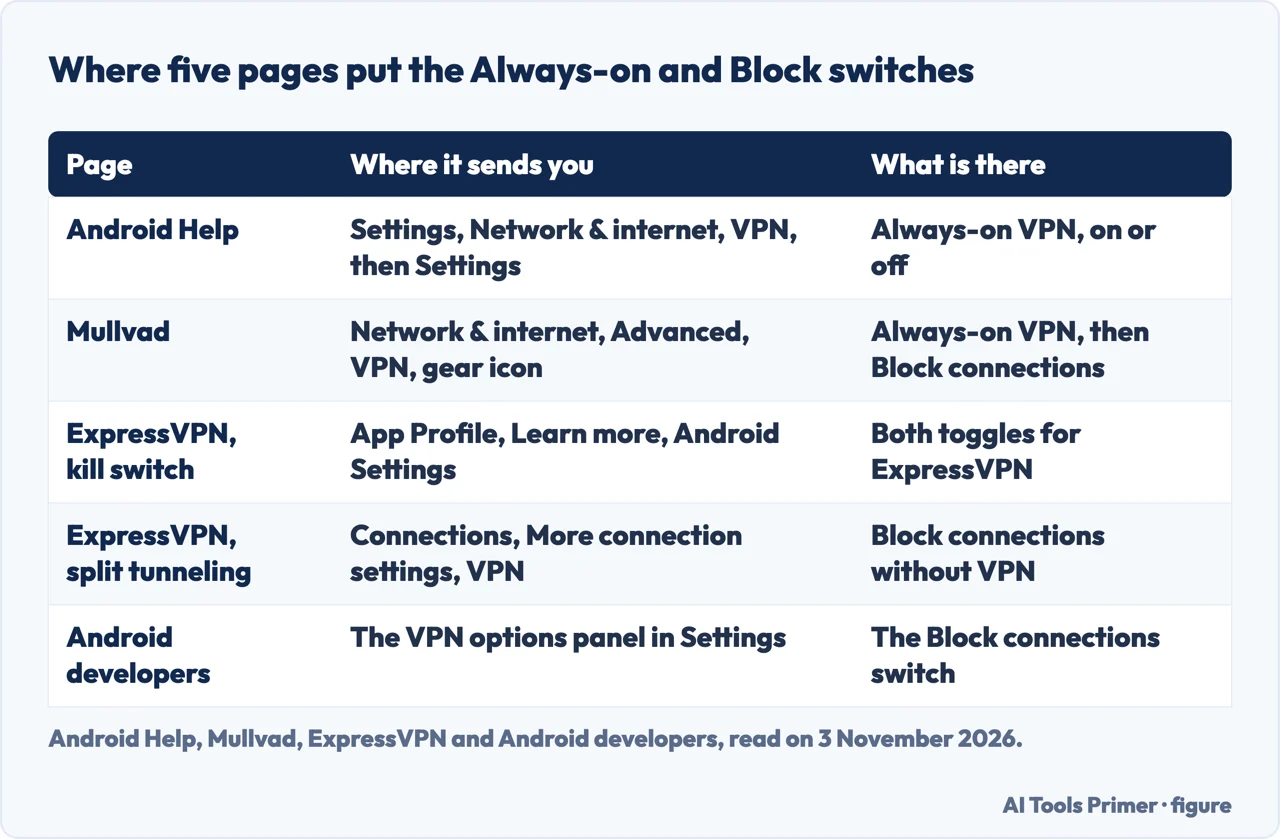
The developer documentation says Android can start a VPN service when the device boots and keep it running while the device is on, a feature it calls always-on VPN, available in Android 7.0 or higher. Android Help gives the steps for a saved VPN: open Settings, tap Network & internet, VPN, tap Settings next to the VPN you want to change and turn Always-on VPN on or off. Mullvad gives a longer path for its app: Network & internet, Advanced, VPN, then the gear icon next to Mullvad VPN, then Always-on VPN. Mullvad says to use it to connect when the device starts, and also to get a notification if the VPN disconnects. ExpressVPN says the same Android switch automatically reconnects its app if the connection drops or the device restarts.
Here the pages disagree, and we cannot settle it. Android Help says that if you have set up a VPN through an app, you will not have the always-on option. Mullvad and ExpressVPN, whose VPNs are apps, both send you to the always-on switch in Android’s settings for their own app. Android Help’s sentence appears on a page whose set-up steps are for a saved network, and it does not say more. If your VPN is an app and you do not see the switch, the pages we read do not say which description applies to your phone.
When an always-on connection drops, the developer documentation says that from Android 8.0 people see a notification they cannot dismiss, and tapping it shows a dialog that explains more. The notification disappears when the VPN reconnects or when somebody turns off the always-on option. Android Help says the same in plainer words: the notification stays until you reconnect, and to clear it you turn off always-on for that VPN.
Block connections without VPN
The developer documentation says a person using the device, or an IT admin, can force all traffic to use the VPN, and that the system then blocks any network traffic that does not. People find the Block connections without VPN switch in the VPN options panel in Settings. When you turn it on, the Settings app warns that there is no internet connection before the VPN connects and asks you to continue or cancel. Mullvad says the switch is available in Android 8 or later and is not included in Android TV, and gives the path: after Always-on VPN, enable Block connections without VPN. ExpressVPN adds that some phones label it Only allow connections through VPN, and that it may not be available on some manufacturer versions of Android.
Mullvad and ExpressVPN both separate this switch from the kill switch inside their apps. Mullvad says its app has a built-in kill switch that blocks the internet if the connection to the server is lost, and that enabling the Android switch is for a device that should only use the internet while connected to Mullvad. ExpressVPN says its Internet Kill Switch is enabled by default on mobile and tablet versions of its app and blocks traffic as soon as the VPN drops, but does not block internet access if the VPN is disconnected by hand. The Android switch, it says, blocks all internet traffic whenever the VPN is not active, even if it was disconnected by hand. Our page on the kill switch covers the idea and a test.
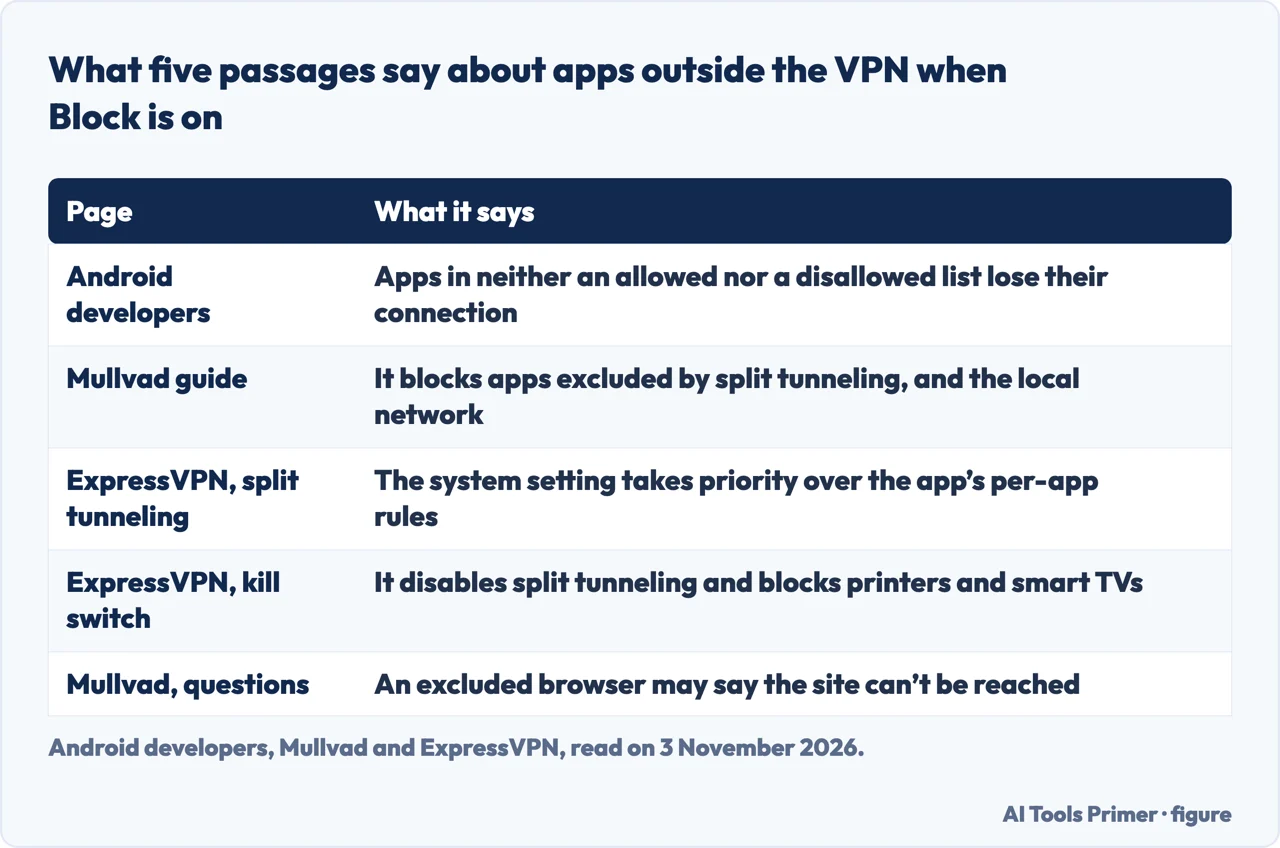
Both vendors list costs. ExpressVPN says the Android switch disables split tunneling and blocks access to local devices such as printers and smart TVs, and Mullvad says its Local network sharing setting does not work while Block connections without VPN is on. Mullvad also admits two limits: a known Android issue where DNS traffic can leak outside the tunnel, and connectivity checks that Android exempts, which it says can leave the tunnel even with the switch on. The developer documentation adds an exception: apps that bind to a specific network have no connection when traffic outside the VPN is blocked.
Choosing which apps use the VPN
The developer documentation says a VPN app can filter which installed apps send traffic through the VPN. It can create an allowed list or a disallowed list, but not both; with neither, the system sends all network traffic through the VPN. With an allowed list, only the apps in the list use the VPN and the others use the system networks as if the VPN were not running. With a disallowed list, those apps use normal networking and all the others use the VPN. The app must set the lists before the connection is established, and to change them it must make a new connection. ExpressVPN shows what this looks like in an app: under Profile, Split Tunneling, three options, which are all apps, do not allow selected apps, and only allow selected apps. The default is all apps, and changes made while connected apply the next time the VPN connects.
Mullvad’s split tunneling lets you exclude selected apps from the VPN. Our page on split tunneling covers the idea; here the question is how it meets the switch from the section above. Mullvad and ExpressVPN both say the two do not work together; the developer documentation never mentions split tunneling and describes a related effect for apps outside its lists. The developer documentation cautions that when non-VPN traffic is blocked, apps that are in neither an allowed list nor a disallowed list lose their network connection. Mullvad says Block connections without VPN blocks the apps you exclude, as well as local network connections, and its questions page gives the symptom: an excluded browser says the site can’t be reached. ExpressVPN says that because the system setting takes priority, it overrides the app’s per-app rules.
ExpressVPN gives a way to check, adding that menu names may vary: Settings, Connections, More connection settings, VPN, the settings icon next to ExpressVPN, and see whether Block connections without VPN is on. If you want split tunneling to work as expected, it says to turn the switch off and reconnect. It also states the price: with the switch off, if the VPN drops unexpectedly, some traffic may leave the device unencrypted until the app reconnects, and if preventing any unencrypted traffic matters, it suggests keeping the switch on and not using split tunneling.
What it costs the battery
The figures on battery come from a seller, so read them that way. NordVPN’s page says that in a May 2026 test by West Coast Labs, which it calls independent, running NordVPN all day added 1.4 per cent to daily battery use on Android and 1.8 per cent on iOS, and that its NordLynx protocol used 31 per cent less battery than OpenVPN UDP on Android. In NordVPN’s own tests on two Android phones, a Pixel 6 and a Galaxy S22, left idle for five hours, the VPN added about a quarter of a percentage point on Wi-Fi in two protocols and between 1.67 and 3.08 percentage points on 4G. NordVPN says those tests used three devices (the two phones and a Windows laptop) and one server location, and that they represent a limited testing scenario.
Mullvad addresses the question from the other side. Its section on battery optimization says it is not about battery usage, and adds that its app may use more battery if DAITA, the quantum-resistant tunnel or anti-censorship obfuscation is on. Elsewhere it warns that DAITA will increase network traffic and battery usage. The section is about disconnections: it says the battery optimization settings on some Android devices can cause the app to be killed or disconnected when the phone is locked and sleeping or running in the background, especially on phones by Samsung, Motorola, OnePlus and Xiaomi, and that third-party battery apps can do the same. Its fix is to disable battery optimization for the app, with a note that this may raise the app’s battery use. NordVPN gives the same advice in its words for Android: set the app’s battery usage to Unrestricted, because each restart forces the app to rebuild its encrypted connection, which in West Coast Labs’ testing was the point where battery use peaked.
NordVPN also lists split tunneling among ways to reduce the drain, without a figure. The pages we read do not say how much battery split tunneling saves, and they give no battery measurement we could read first-hand from anyone who does not sell a VPN; the West Coast Labs result reaches us only through NordVPN’s page. They do not measure the VPN built into Pixel phones, or Android’s Always-on setting, either. We took no measurement on a phone.
What we did not use
We set up no VPN on a phone. We opened Android’s longer reference for the VPN service class but did not read it through, so nothing here comes from it. We did not open the two Mullvad blog posts on DNS leaks and connectivity checks that its guide links to. The four questions below are answered only from the pages we read; where those pages are silent, the answer says so.
Where to start
Four ways in.
- “Where do I start?”
- Two ways to start — start
- “What is Always-on?”
- Always-on VPN — always
- “What does Block do?”
- Block connections without VPN — block
- “Does it drain the battery?”
- What it costs the battery — battery
The same job, in other places
Turning a VPN on, turning it off, and what free costs.
What the settings guard
The kill switch, the app lists and what a VPN is for.
Questions people also ask
Can I set up a VPN for free?
Android Help says Pixel 7 and later phones and the Pixel Tablet have a built-in VPN by Google at no extra cost in countries where VPN is available. CNET names Proton as the only free VPN it enthusiastically recommends. The Android pages we read give no other free option; our page on free VPNs covers the trade-offs.
Can you set up a VPN yourself?
Android Help describes a saved VPN: you enter the information from your administrator under Settings, Network & internet, VPN, Add, then Save. Forbes lists six manual steps with a type such as IKEv2 or IPsec and a server name from the provider.
Are VPNs legal or illegal?
CNET says VPNs are legal in most countries, although you should check local laws where you live. The Android pages we read do not address it.
How to use a VPN for the first time?
CNET says to install the provider’s app, log in and select a server. On Android the first connection brings a dialog asking you to confirm you trust the VPN; Mullvad says to tap OK. A key icon in the status bar then shows an active connection.
Not covered here. We tested nothing on a phone. The statements come from Android’s developer documentation (last updated 23 October 2026), Android Help, which shows no date, Mullvad (12 August 2026), two ExpressVPN pages (3 September and 10 July 2026), NordVPN, Forbes and CNET, all read on 3 November 2026.
The search volume and difficulty behind this page come from a Semrush reading of 29 August 2026, older than the 60 days the site normally allows.
Sources
- Android Developers — Virtual private networks (VPN) — developer.android.com, read 3 November 2026.
- Android Help — Connect to a virtual private network (VPN) on Android — support.google.com, read 3 November 2026.
- Mullvad — Using Mullvad VPN on Android — mullvad.net, read 3 November 2026.
- ExpressVPN — Internet Kill Switch for Android — www.expressvpn.com, read 3 November 2026.
- ExpressVPN — How to use split tunneling on Android — www.expressvpn.com, read 3 November 2026.
- NordVPN — Does a VPN drain battery? What testing shows — nordvpn.com, read 3 November 2026.
- Forbes Advisor — How To Set Up A VPN On Any Device — www.forbes.com, read 3 November 2026.
- CNET — A VPN Expert’s Guide to Setting Up Your VPN — www.cnet.com, read 3 November 2026.
Written by Alberto Gulotta
Founder and editor of AI Tools Primer, writing from Palermo, Italy. Thirty-five years of taking computers apart, starting with a Commodore 64 — the long version is on the about page.
Something wrong on this page? Write to aitoolsprimer@gmail.com and it gets fixed.
Written on 4 November 2026.
Independence and limits
No affiliate links and no paid placements anywhere on this site. Nobody pays to appear here, and no company has seen this page before you did.
This is general information, not professional advice. Where a page touches money, health, safety or the law, it names its source and the date it was read — and your situation may still differ. See the privacy page and the cookie policy.