
VPN · guide
DNS leaks on a VPN: what they show and where they come from
By Alberto Gulotta · Updated · 18 min read
DNS leaks let the requests that name each site you visit reach your internet provider’s servers even while a VPN is on. Wikipedia, Mullvad, Fortinet and four more pages name the causes, from Windows features to browser settings, and Mullvad shows how to test. The pages disagree on encrypted DNS.
| Question | Answer | Where it comes from |
|---|---|---|
| What is a DNS leak? | DNS requests reach the internet provider’s DNS servers although a VPN is meant to hide them | Wikipedia, Fortinet |
| Who can see the requests? | The provider, and anyone listening on the path | Wikipedia, Fortinet |
| Is the VPN app always the cause? | Not in Mullvad’s guide: browser secure DNS, extensions and antivirus can send lookups elsewhere | Mullvad |
| Can an operating system leak? | Mullvad reported two Android scenarios in 2024; Wikipedia and Fortinet describe a Windows 8 feature | Mullvad, Wikipedia, Fortinet |
| How do I check? | Mullvad’s Connection check shows green, yellow or red; Fortinet and GeeksforGeeks list third-party test sites | Mullvad, Fortinet, GeeksforGeeks |
| Is encrypted DNS the fix? | Wikipedia and DriveLock list it as prevention; Mullvad says to turn a browser’s secure DNS off | Wikipedia, DriveLock, Mullvad |
What a DNS leak is, and what it shows
Wikipedia defines a DNS leak as a security flaw that lets DNS requests be revealed to the DNS servers of an internet service provider, even though a VPN is being used to conceal them. It adds that the flaw lets the provider, and any eavesdropper on the path, see which websites a person visits. Mozilla’s page for its VPN product explains the vocabulary: the Domain Name System is “like the directory of the internet”, turning domain names into IP addresses, and when it leaks the requests go to an “untrusted phone operator” instead of the one you meant to use.
The pages list what a leak can expose. DriveLock names the websites visited, search queries, approximate location, the apps in use, and details of the device and operating system. It says location can show because DNS servers are typically chosen by geographic proximity. Fortinet lists browsing activity, IP address and location, and says they can reach the provider, third-party organisations and malicious actors who monitor network activity. Mullvad’s 2024 post on Android says a leak can be used to derive approximate location or to find out which websites and services a user uses.
Wikipedia puts a limit on the flaw: it says the leak only occurs with certain types of VPN, and gives split-tunnel VPNs as the example, where traffic can still go out over the local network interface. Our pages on what a VPN is used for and on private DNS cover the questions next door.
Where the leaks come from
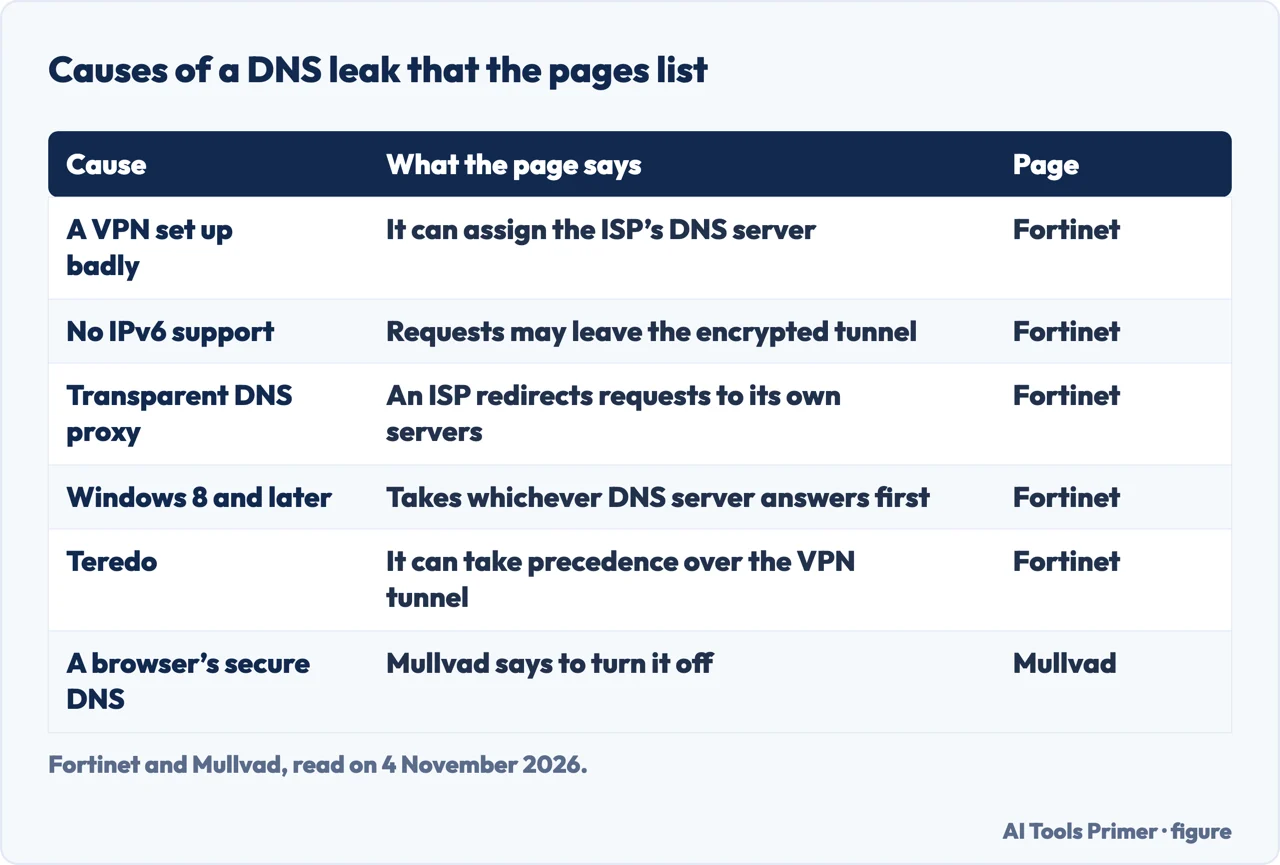
Fortinet lists six situations. A VPN configured improperly can assign a DNS server that belongs to the user’s internet provider; Fortinet calls this the most likely cause and says it is likelier for people who regularly use several networks. A VPN service can lack DNS servers of its own. A VPN may not support IPv6. Some providers use transparent DNS proxies. Windows has a feature called Smart Multi-Homed Name Resolution. And Windows has Teredo. GeeksforGeeks gives four reasons: a misconfigured VPN, which it ties to people who frequently switch networks, a lack of IPv6, Teredo, and transparent DNS proxies; it adds that some VPNs have no DNS servers of their own. DriveLock lists configuration errors in clients or operating systems, software errors, IPv6, browser settings and providers with weak protection.
Mozilla’s product page says leaks usually happen when a VPN is programmed incorrectly or is unreliable, and that a free VPN may not have its own DNS servers and may use ones the user does not know about. Our page on free VPNs looks at how such a service pays for its servers. On IPv6, Fortinet says some VPNs may not support it, which may push a DNS request outside the encrypted tunnel; GeeksforGeeks says most VPNs support only IPv4, so IPv6 requests bypass the VPN. On proxies, Fortinet says some providers force customers onto their own DNS servers and, if they detect a change of settings, redirect the traffic to those servers; GeeksforGeeks says the proxies ignore custom DNS settings.
The Windows feature is described by three pages. Wikipedia says that from Windows 8 a DNS request can travel across all available network interfaces, which, in that article’s words, there is general consensus sped up lookups, but meant the computer no longer used only the DNS servers the VPN assigned, so the request could leave the tunnel and expose the user’s default servers. Wikipedia backs this with a SparkLabs article and a 2013 Microsoft TechNet blog post, which we did not read. Fortinet says the feature submits requests to the available servers and accepts whichever answers first, and that this can cause a leak and open users to spoofing. For Teredo, a tunnelling protocol meant to ease the move from IPv4 to IPv6, Fortinet says it can take precedence over the VPN tunnel, and GeeksforGeeks says it may bypass the VPN’s encryption.
Microsoft Learn documents the matching setting. Its page, updated on 14 October 2026, describes the policy that turns off smart multi-homed name resolution, found under Computer Configuration, Network, DNS Client, with the registry value DisableSmartNameResolution. The page says the setting improves performance by issuing parallel DNS, LLMNR and NetBT queries across all networks, and that the network binding order decides which positive response is accepted. If the policy is enabled, the client performs no optimisations, but DNS queries are still issued across all networks first, with LLMNR and then NetBT queries only if the earlier ones fail. It lists Windows 10 from version 2004 with update KB5005101, and Windows 11 from 21H2. The page we read does not mention VPNs or leaks, so it cannot tell us whether the policy closes a leak. Fortinet calls the Windows case trickier because it is built into the system: some VPN providers offer a free plugin for Windows 8 and 10, and other users need to contact their VPN provider.
Leaks the VPN app does not cause
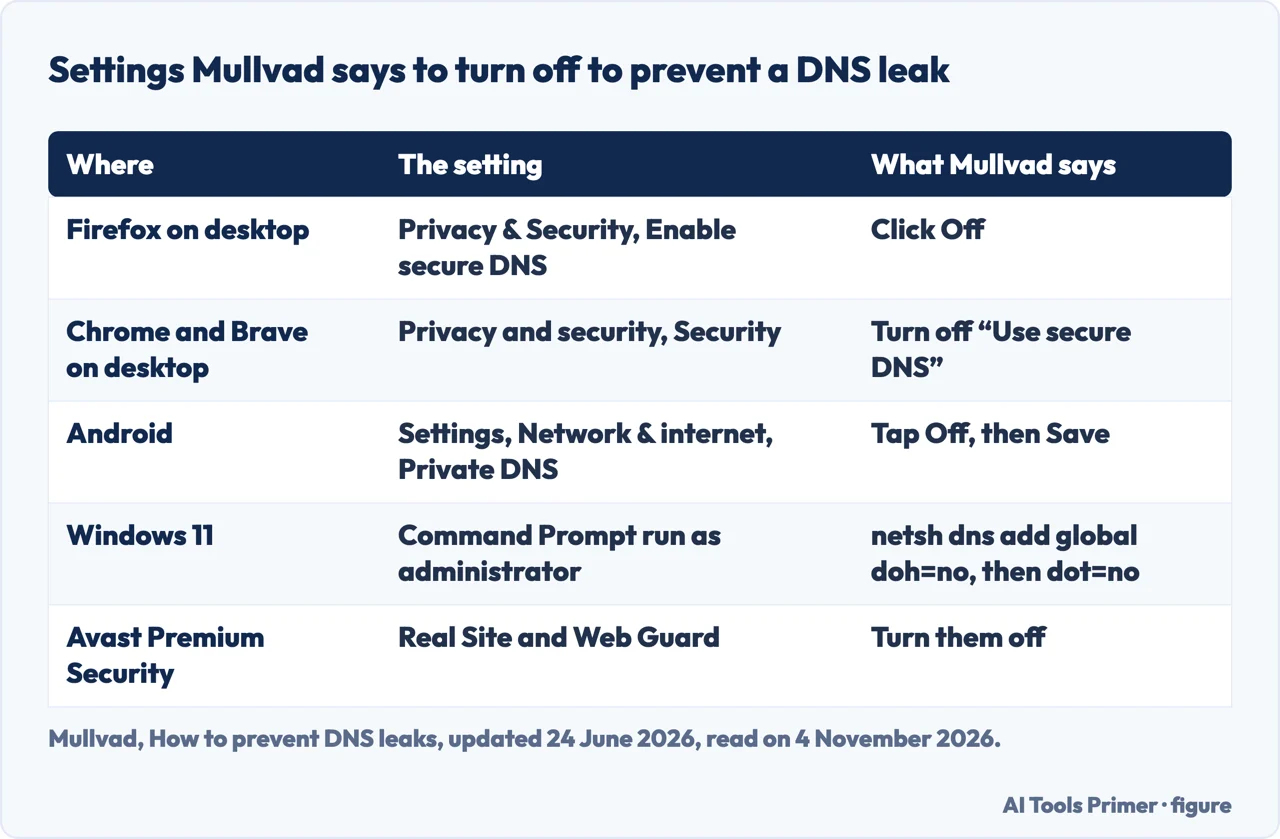
Mullvad’s guide, updated on 24 June 2026, defines a leak in its own terms: using a DNS server that does not belong to Mullvad. It says its app protects from DNS leaks unless the setting “Use custom DNS server” is switched on. Everything else the guide lists sits around the app. Many browsers have a setting for DNS over HTTPS, called Secure DNS in Chrome-based browsers, and the guide says to disable it. A browser extension that changes the DNS, such as CIRA Canadian Shield, should be turned off. Some third-party apps have built-in DNS hijacking, in the guide’s words: Avast Premium Security with Real Site and Web Guard, AVG Internet Security with Fake Website Shield, F-Secure Internet Security, where DNS leaks to Amazon servers may be its doing, and Portmaster, which the guide says hijacks DNS queries. For the last two it suggests trying an uninstall.
On desktop, the guide gives these routes. In Firefox, open Settings, then Privacy & Security, scroll to the bottom and click Off under Enable secure DNS. The guide says Mozilla has currently enabled DNS over HTTPS with Cloudflare DNS by default in the United States, Canada, Russia and Ukraine. In Chrome and Brave, open Settings, then Privacy and security, then Security, and turn off “Use secure DNS”. In Edge, open Privacy, search, and services and scroll to Security. On Windows 11, if a DNS over HTTPS server was enabled in the settings, disable it, or run two commands in a Command Prompt opened as administrator, netsh dns add global doh=no and netsh dns add global dot=no, and check with netsh dns show global. On macOS, turn off DNS Encryption if Little Snitch is installed.
On Android, the guide covers Chrome and Brave, where Use secure DNS is switched off in the privacy settings, and the system feature called Private DNS, which it says exists from Android 9 and uses DNS over TLS. On stock Android it is under Settings, Network & internet, Private DNS, where you tap Off and Save. On Samsung Galaxy devices the route is Settings, Connections, More connection settings, Private DNS. For Linux, the guide says that if you see an IPv6 DNS address, you can try to enable IPv6 in the Mullvad app settings or disable IPv6 in Linux. The guide is written for Mullvad’s own check, and it does not say that these steps apply to another VPN. Our page on encrypted DNS explains the setting these steps switch off.
When the app itself leaks
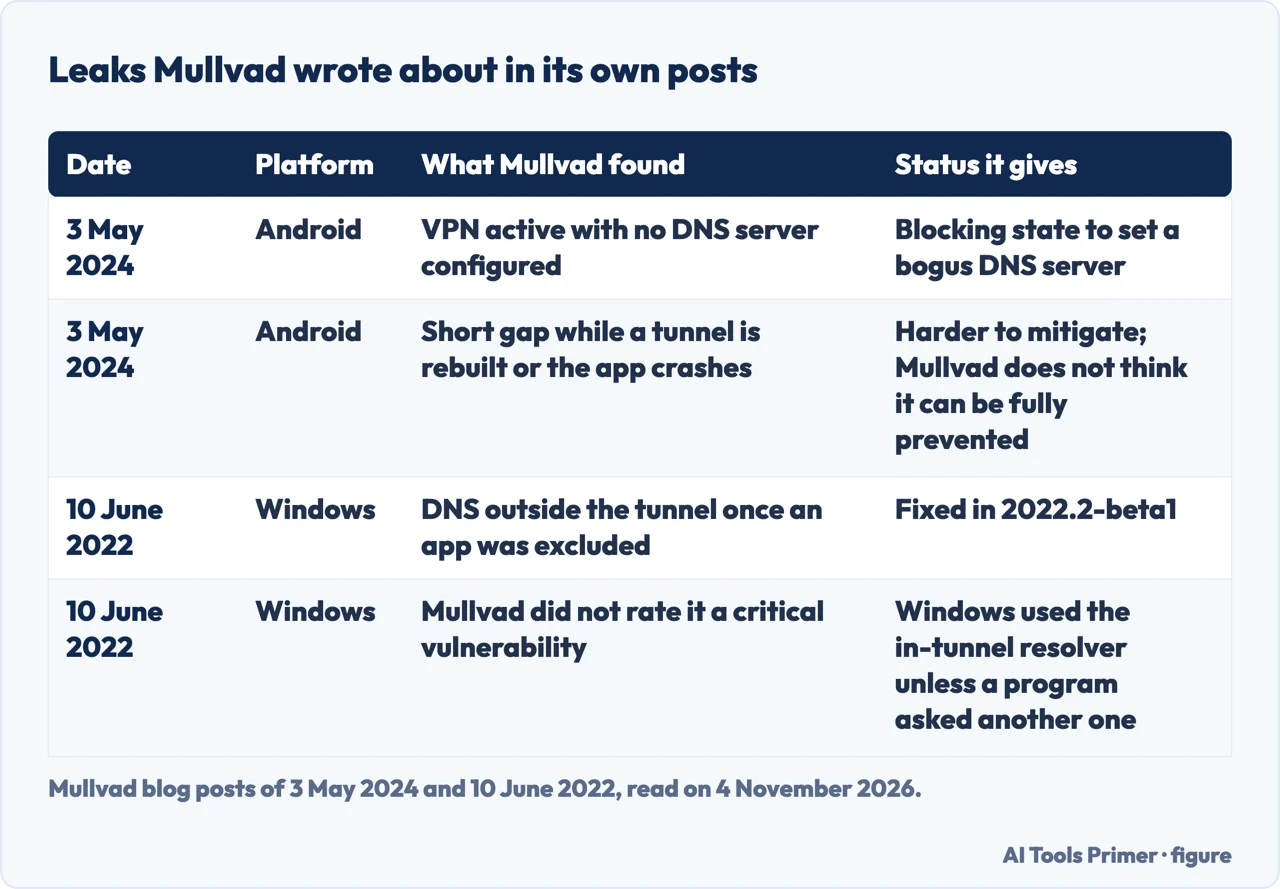
Mullvad has written about two cases: DNS leaks it traces to bugs in Android itself, and one in its own Windows app. The first is dated 3 May 2024 and concerns Android. Mullvad says the leaks stem from bugs in Android itself and affect only certain apps. They began with a user report on Reddit about DNS leaking when the VPN was switched off and on while “Block connections without VPN” was enabled, and Mullvad says an internal investigation confirmed the problem. It names two scenarios: a VPN that is active with no DNS server configured, and a short period while a VPN app is reconfiguring the tunnel or is force-stopped or crashes. The leaks seem limited to direct calls to the C function getaddrinfo, and Mullvad says it has not found leaks from apps that only use Android’s own interfaces such as DnsResolver. Chrome is its example of an app that can call getaddrinfo directly. Mullvad says the leaks happen whether or not Always-on VPN and Block connections without VPN are enabled, that this is not expected behaviour for the system, and that they were confirmed on several Android versions, up to Android 14.
On what could be done, Mullvad says its app set no DNS server in its blocking state and that it would work around the Android bug by setting a bogus one. It says the leak while a tunnel is rebuilt is harder to mitigate, that it could reduce how often the tunnel is reconfigured, and that it does not think this leak can be fully prevented. It says the workarounds should not be needed in any VPN app and that the fix belongs in the operating system; it reports having told Google. Its conclusion is that the block setting “does not live up to its name”, and that depending on your threat model you might avoid Android for anything sensitive or use other mitigations. To reproduce the second scenario it used the WireGuard app and Chrome while capturing traffic on a router, and it says the leaks can probably be reproduced with any other Android VPN app. Our pages on setting up a VPN on Android and on kill switches cover the two settings involved.
The second case is dated 10 June 2022, and the page itself carries a notice that it is four years old and may be out of date. Mullvad found that its Windows app’s firewall rules did not properly block DNS outside the tunnel when split tunnelling was used: excluding any app activated the split tunnelling driver, and any DNS server outside the tunnel could then be reached. Only version 2022.1 and the betas before it were affected, and it was fixed in 2022.2-beta1. Mullvad did not classify it as a critical vulnerability, because its app sets its in-tunnel resolver as the system default, so Windows uses the right resolver anyway; a leak would need a program to try another resolver on purpose. To reproduce it, with a router resolver at 192.168.1.1 and the app connected, nslookup mullvad.net 192.168.1.1 times out, and after excluding any program in the split tunnelling settings the lookup works. Our page on split tunnelling looks at that feature.
How to test, and what the colours mean
Mullvad’s guide points to its Connection check and says the result is one of three. Green reads “No DNS leaks”, and the guide says it means the web browser has no DNS leaks and no further action is needed. Yellow reads “Failed to check for DNS leaks”: the test could not look because of a technical problem, and the guide suggests opening the check again in a new private window or another browser. Red reads “Leaking DNS servers”: the guide says you have a leak, that clicking the red box expands the details, and that you can send a screenshot of the IP addresses to Mullvad support or look the addresses up at MaxMind to find out who they belong to. The check is a reading from the browser you open it in.
Fortinet and GeeksforGeeks describe the same idea with different tools. Fortinet says such tools check which servers are used to resolve domain names when you enter an address, and that if a server appears that is not the one you expect, you have a leak. It lists whoer.net, ipleak.net, dnsleak.com and dnsleaktest.com, and says reputable VPN providers offer safe tests while tests from untrusted providers should be avoided. GeeksforGeeks lists vpninsights.com, ipleak.net and dnsleaktest.com. It says a test sends a series of DNS requests and watches which servers answer: if the provider’s DNS servers show up while connected to a VPN, that indicates a leak, and servers in various locations suggest a potential one.
DriveLock sorts the methods into four kinds. A standard test is the simplest and checks whether requests go through the tunnel. An extended test uses specialised tools or online platforms and can also look for IPv6 leaks. Some browser extensions offer built-in tests. The fourth is a manual check of the DNS configuration, which for DriveLock includes confirming that the VPN provider’s DNS server is set and that IPv6 is disabled. For companies it adds network monitoring, logging, DNS auditing tools, penetration tests and security audits. GeeksforGeeks also lists signs of a leak: a slow connection, unexpected pop-ups and ads, and inconsistent geolocations. We did not test whether any of those signs points to a leak. We did not run any of these checks ourselves.
Where the pages disagree, and what they leave out
Encrypted DNS. Wikipedia lists DNS over HTTPS and DNS over TLS as a way to stop on-path eavesdroppers from seeing the requests, and DriveLock tells companies to configure devices to use them. Mullvad’s guide goes the other way for its check: it tells readers to switch a browser’s secure DNS off; its guide defines a leak as using a DNS server that does not belong to Mullvad. The pages we read do not say which of the two is more private.
The cause. Mozilla and Fortinet put the weight on a VPN that is badly programmed or configured. Mullvad, whose guide covers its own app, traces leaks to a browser setting, an extension, antivirus software, and in 2024 to bugs in Android. Wikipedia names split-tunnel VPNs and a Windows feature.
IPv6. GeeksforGeeks gives turning IPv6 off as a fix. Mullvad’s Linux note says that if an IPv6 DNS address shows, you can try to enable IPv6 in its app or disable it in Linux. DriveLock lists IPv6 disabled among the things a manual check confirms, and Fortinet lists missing IPv6 support in the VPN as a cause.
Windows. Fortinet says the remedy is a plugin or a call to the VPN provider. Microsoft Learn describes a policy for the same feature without linking it to VPNs.
Who wrote the page. Fortinet and DriveLock are security vendors, and DriveLock’s page carries a prompt for a demo of its training. Mozilla’s page sits on its VPN product site and says all DNS queries go over servers provided by Mullvad. Mullvad’s guide and blog posts come from a VPN provider writing about its own app. Wikipedia calls itself a free encyclopedia, and GeeksforGeeks offers courses and tutorials.
What the pages do not say. Wikipedia says more than eight in ten of 283 VPN apps on Google Play leaked DNS requests, citing a study of Android apps with VPN permission; we did not open that study and the text we read gives no year for it. The pages we read do not say how often leaks happen today on current systems, or whether the Windows feature still causes them on current Windows 11. They say the provider can see the requests, and DriveLock says it can log them, without saying for how long.
Where to start
Four ways in.
- “What does a leak show?”
- What a DNS leak is, and what it shows — shows
- “Why is mine leaking?”
- Where the leaks come from — causes
- “Is it my browser?”
- Leaks the VPN app does not cause — browser
- “How do I test it?”
- How to test, and what the colours mean — test
Switches and paths
The settings that decide where traffic and lookups go.
DNS on its own
The lookup, encrypted or not, and one provider that writes about its leaks.
Questions people also ask
How do I fix a DNS leak?
Fortinet says to set the VPN to use only its own DNS servers, with a plugin for the Windows case. Mullvad says to turn off a browser’s secure DNS, a DNS-changing extension and DNS-hijacking antivirus. GeeksforGeeks lists turning IPv6 off; Wikipedia, encrypted DNS and Tor Browser; DriveLock, a DNS firewall and a kill switch.
What are the risks of a DNS leak?
Wikipedia says the provider and any eavesdropper on the path can see which websites a user visits. DriveLock adds search queries, approximate location, app use and device details; Fortinet adds IP address, and names third-party organisations and malicious actors as possible watchers.
What causes a DNS leak?
Fortinet lists a badly configured VPN, a VPN without its own DNS servers, no IPv6 support, transparent DNS proxies, Windows Smart Multi-Homed Name Resolution and Teredo. Mullvad adds browser secure DNS, extensions and some antivirus software, and in 2024 two Android scenarios.
How to check for a DNS leak?
Mullvad’s Connection check shows green for no leaks, yellow if the test failed and red for a leak. Fortinet and GeeksforGeeks list test sites such as ipleak.net and dnsleaktest.com, and DriveLock describes standard, extended, browser-extension and manual checks.
Not covered here. We tested nothing: no VPN was installed and no leak test was run. The statements come from Wikipedia, three Mullvad pages, Microsoft Learn, Fortinet, Mozilla, DriveLock and GeeksforGeeks, all read on 4 November 2026. Mullvad’s 2022 post is marked by its own page as four years old.
The search volume and difficulty behind this page come from a Semrush reading of 29 August 2026, older than the 60 days the site normally allows.
Sources
- Wikipedia — DNS leak (last edited 21 May 2026) — en.wikipedia.org, read 4 November 2026.
- Mullvad — How to prevent DNS leaks (updated 24 June 2026) — mullvad.net, read 4 November 2026.
- Mullvad — DNS traffic can leak outside the VPN tunnel on Android (3 May 2024) — mullvad.net, read 4 November 2026.
- Mullvad — Possible DNS leak fixed in our Windows app (10 June 2022) — mullvad.net, read 4 November 2026.
- Microsoft Learn — Policy CSP, ADMX_DnsClient (updated 14 October 2026) — learn.microsoft.com, read 4 November 2026.
- Fortinet — What Is a DNS Leak? — www.fortinet.com, read 4 November 2026.
- Mozilla VPN — What is a DNS Leak? — www.mozilla.org, read 4 November 2026.
- DriveLock — The invisible threat: understanding DNS leaks and their impact — www.drivelock.com, read 4 November 2026.
- GeeksforGeeks — What is DNS Leak? — www.geeksforgeeks.org, read 4 November 2026.
Written by Alberto Gulotta
Founder and editor of AI Tools Primer, writing from Palermo, Italy. Thirty-five years of taking computers apart, starting with a Commodore 64 — the long version is on the about page.
Something wrong on this page? Write to aitoolsprimer@gmail.com and it gets fixed.
Written on 4 November 2026.
Independence and limits
No affiliate links and no paid placements anywhere on this site. Nobody pays to appear here, and no company has seen this page before you did.
This is general information, not professional advice. Where a page touches money, health, safety or the law, it names its source and the date it was read — and your situation may still differ. See the privacy page and the cookie policy.